In the system Numiron invoicing is quick and easy.
Just follow a few steps below.
1. Where you can find the issued invoices
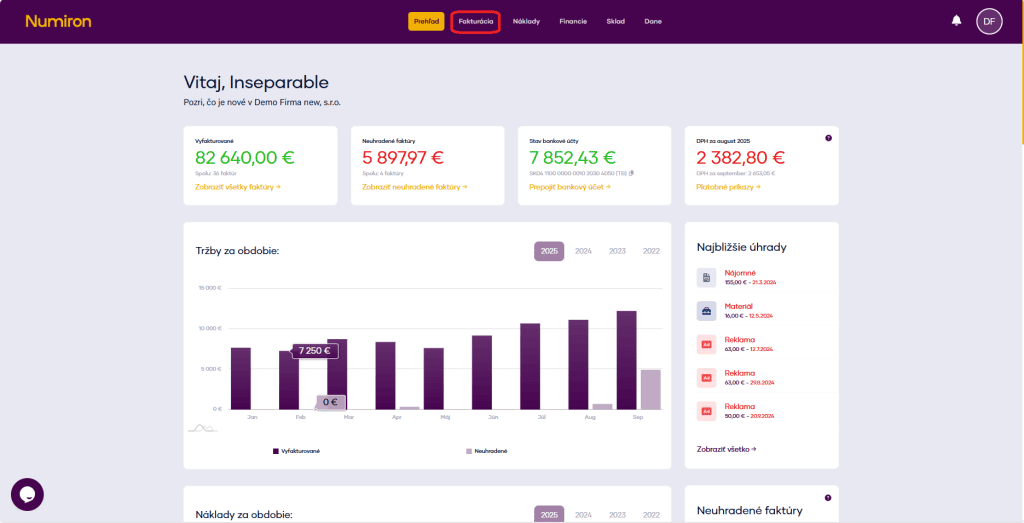
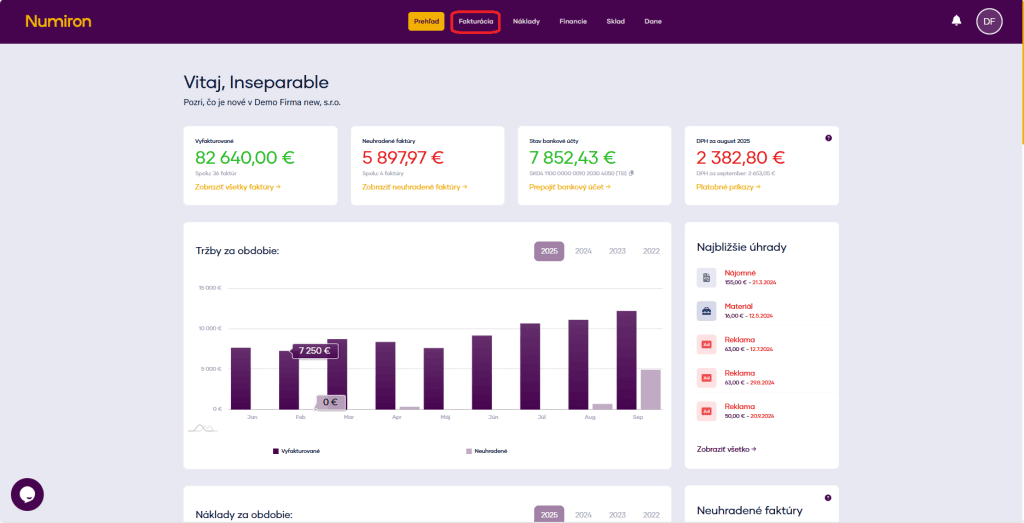
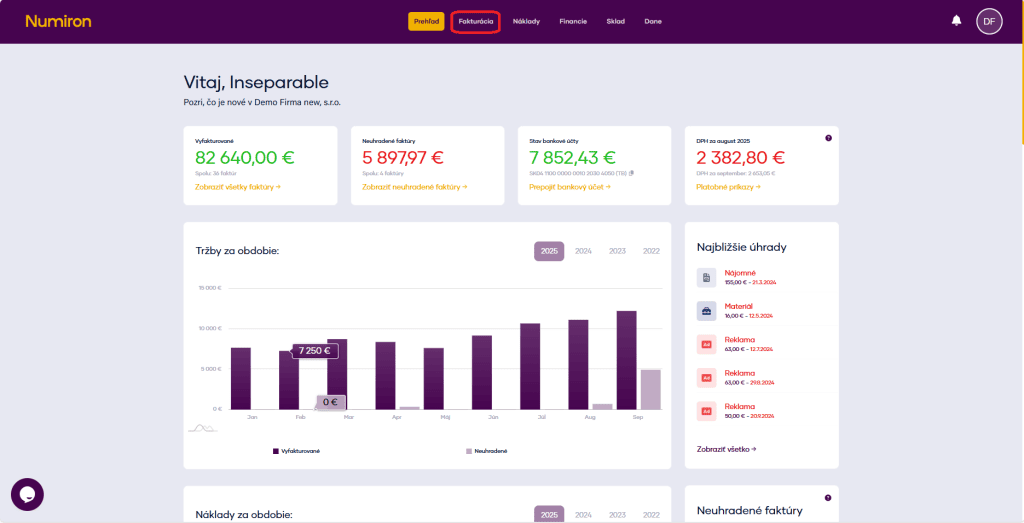
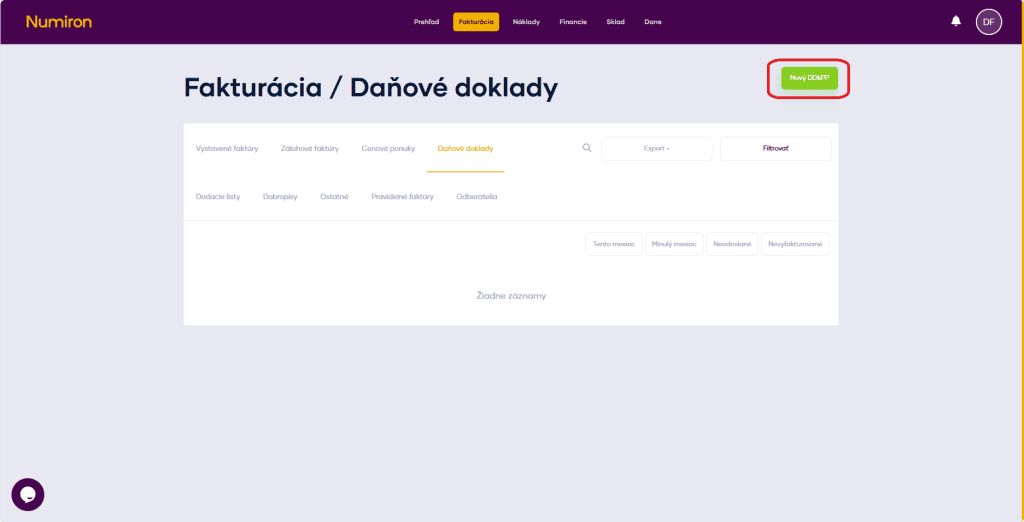
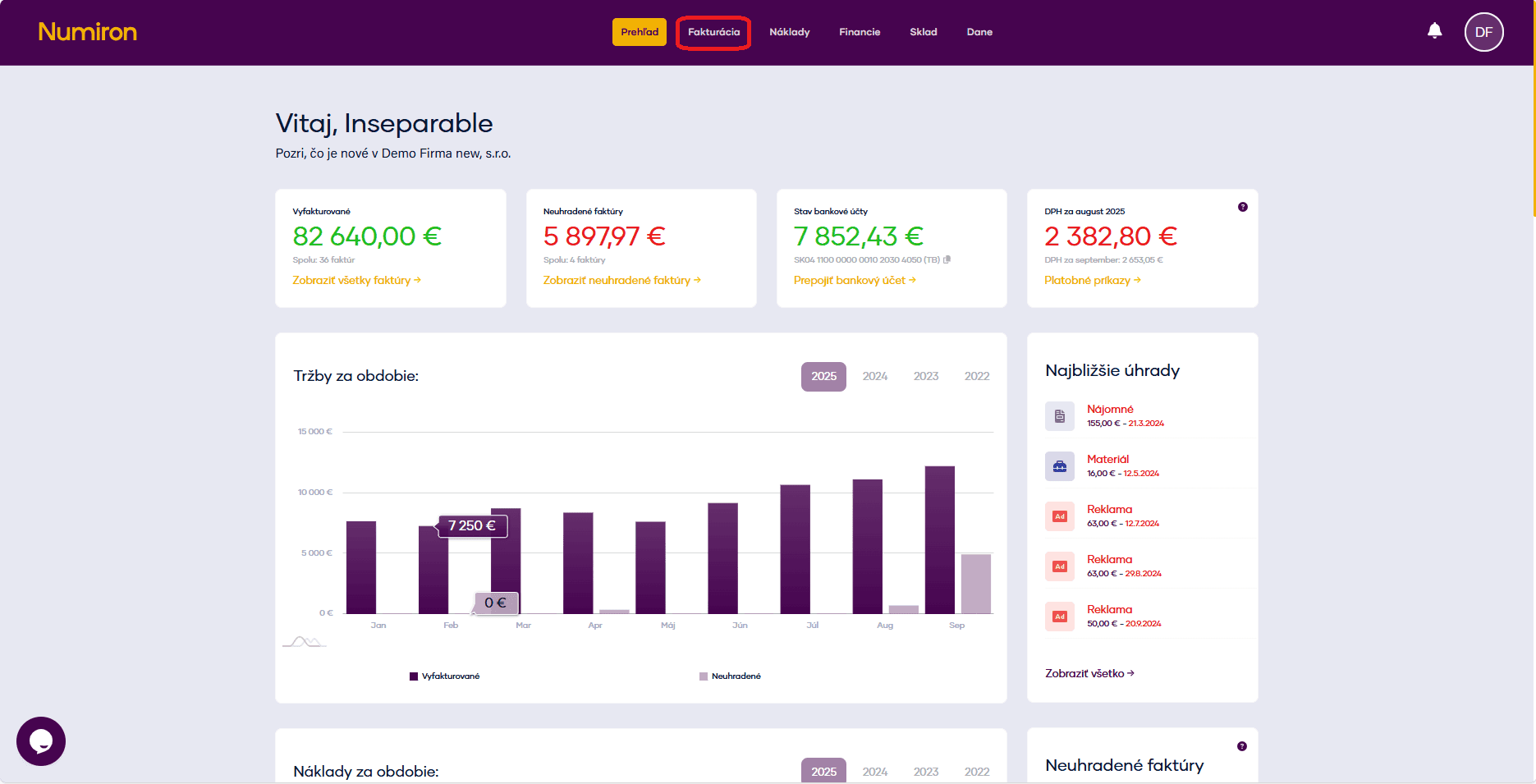
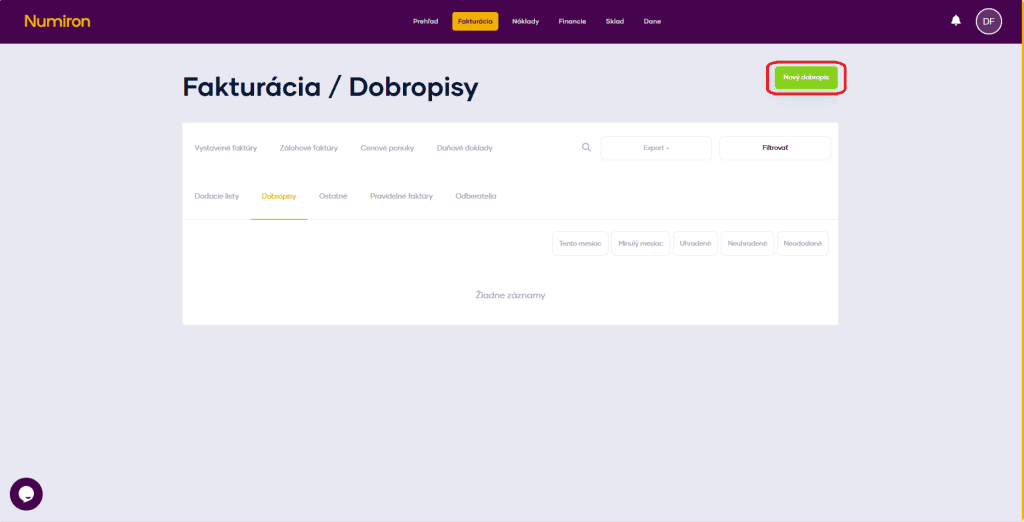
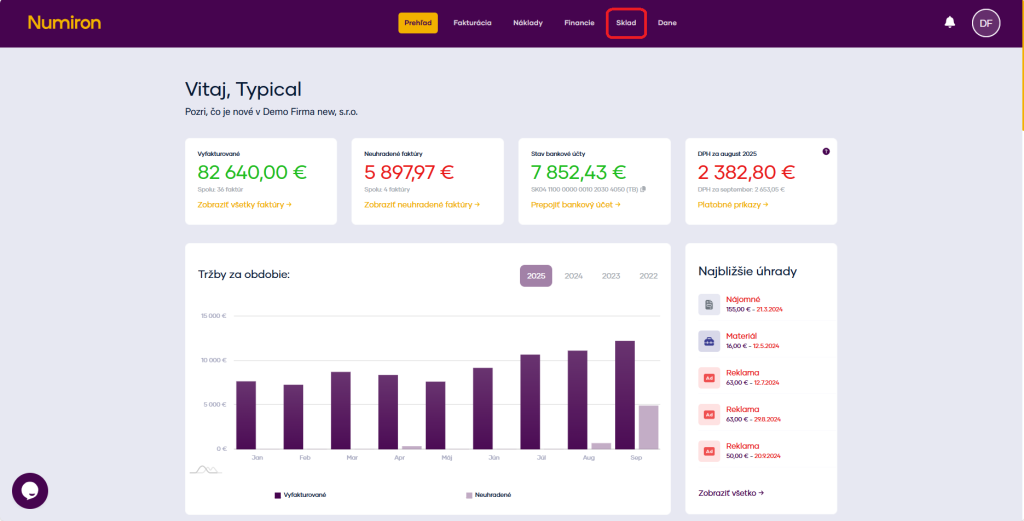
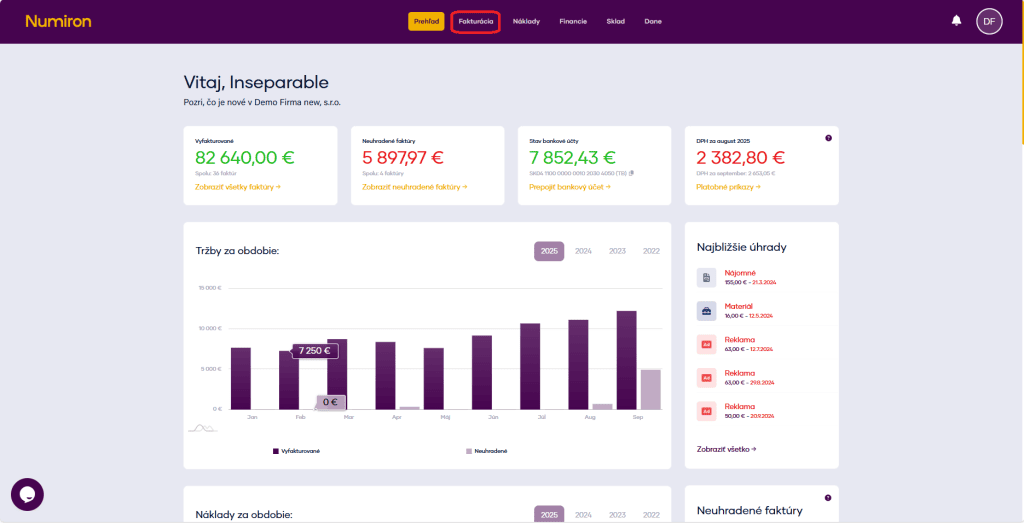
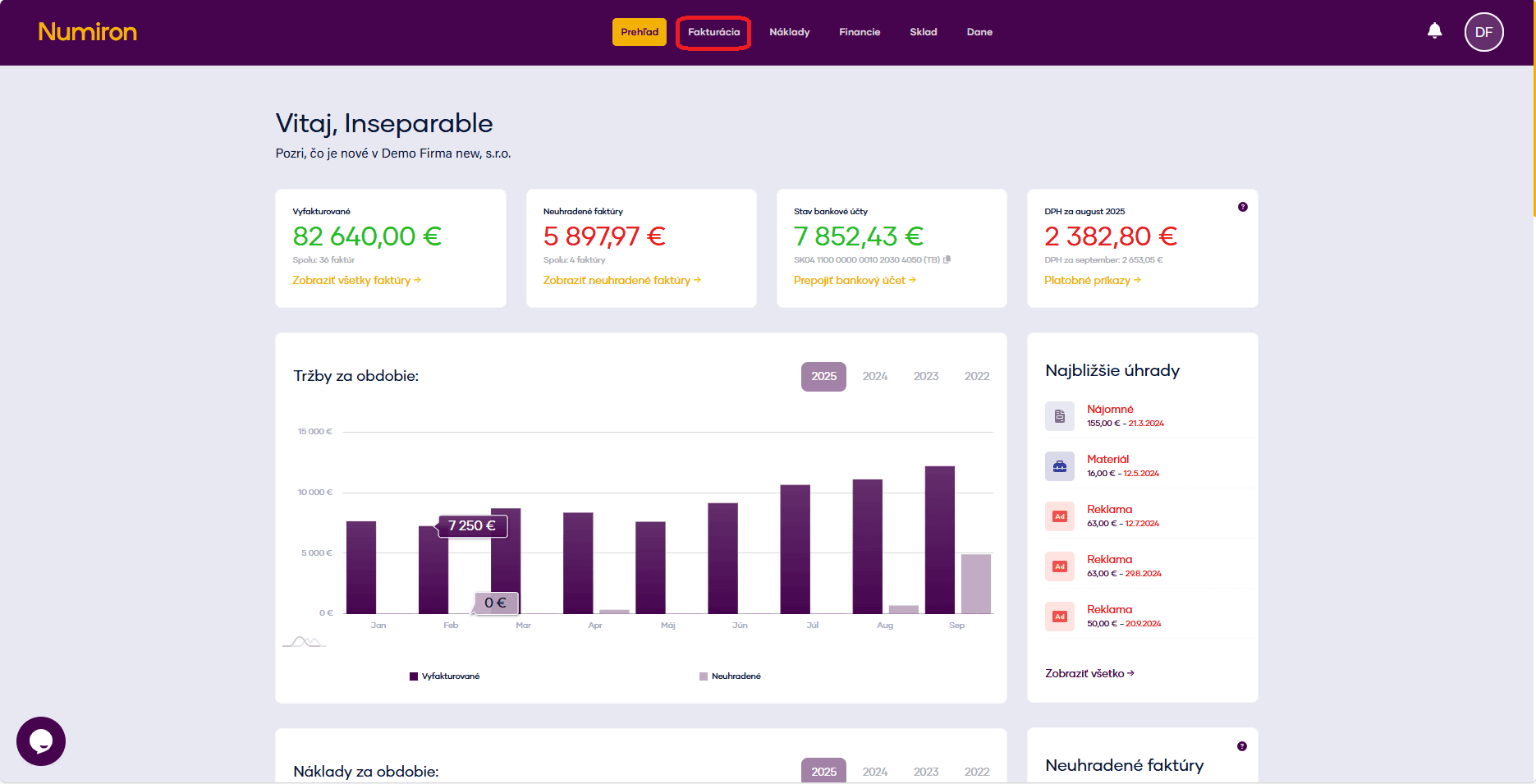
In the main menu, click on Invoicing and select the section Invoices issued.
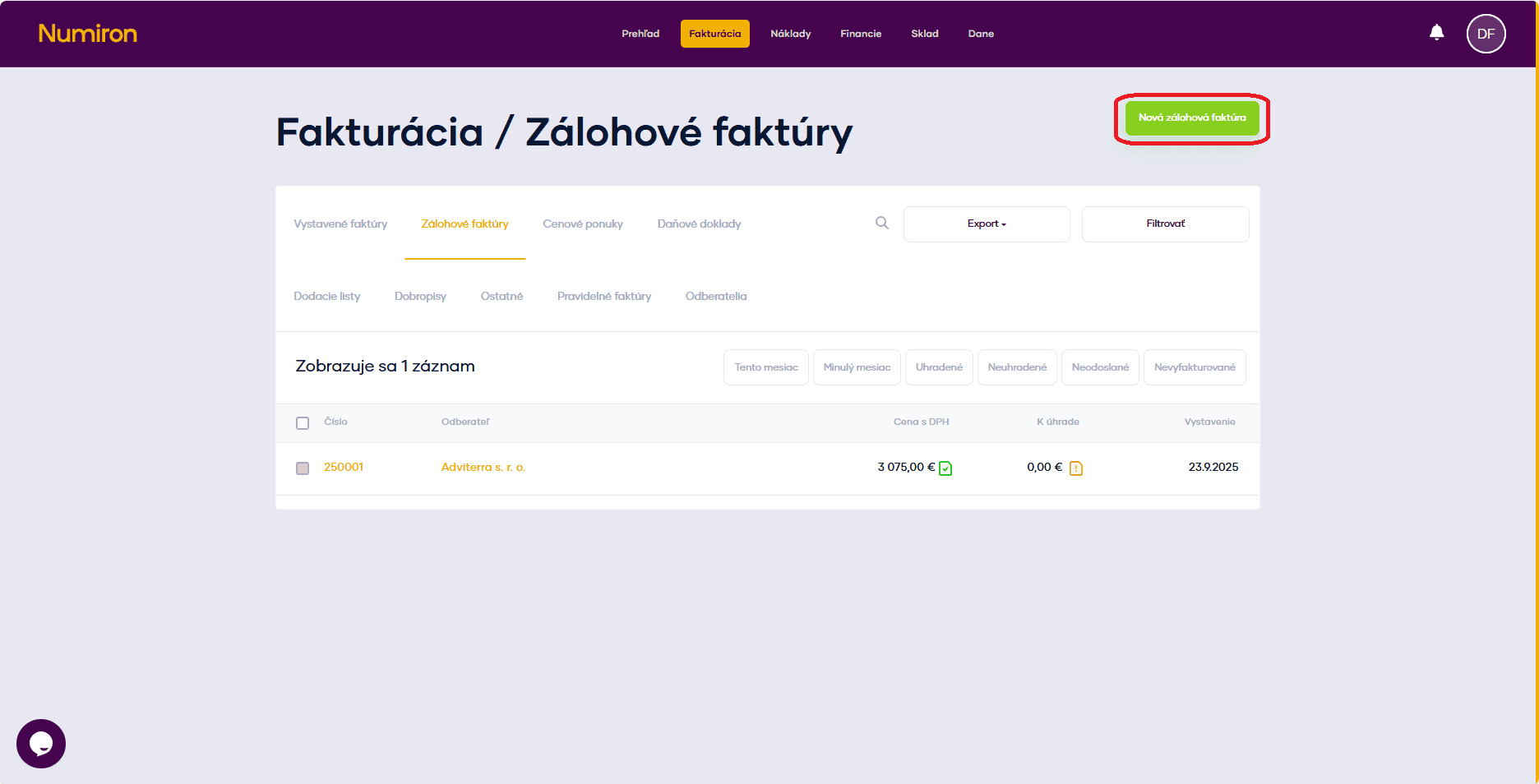
2. Create a new invoice
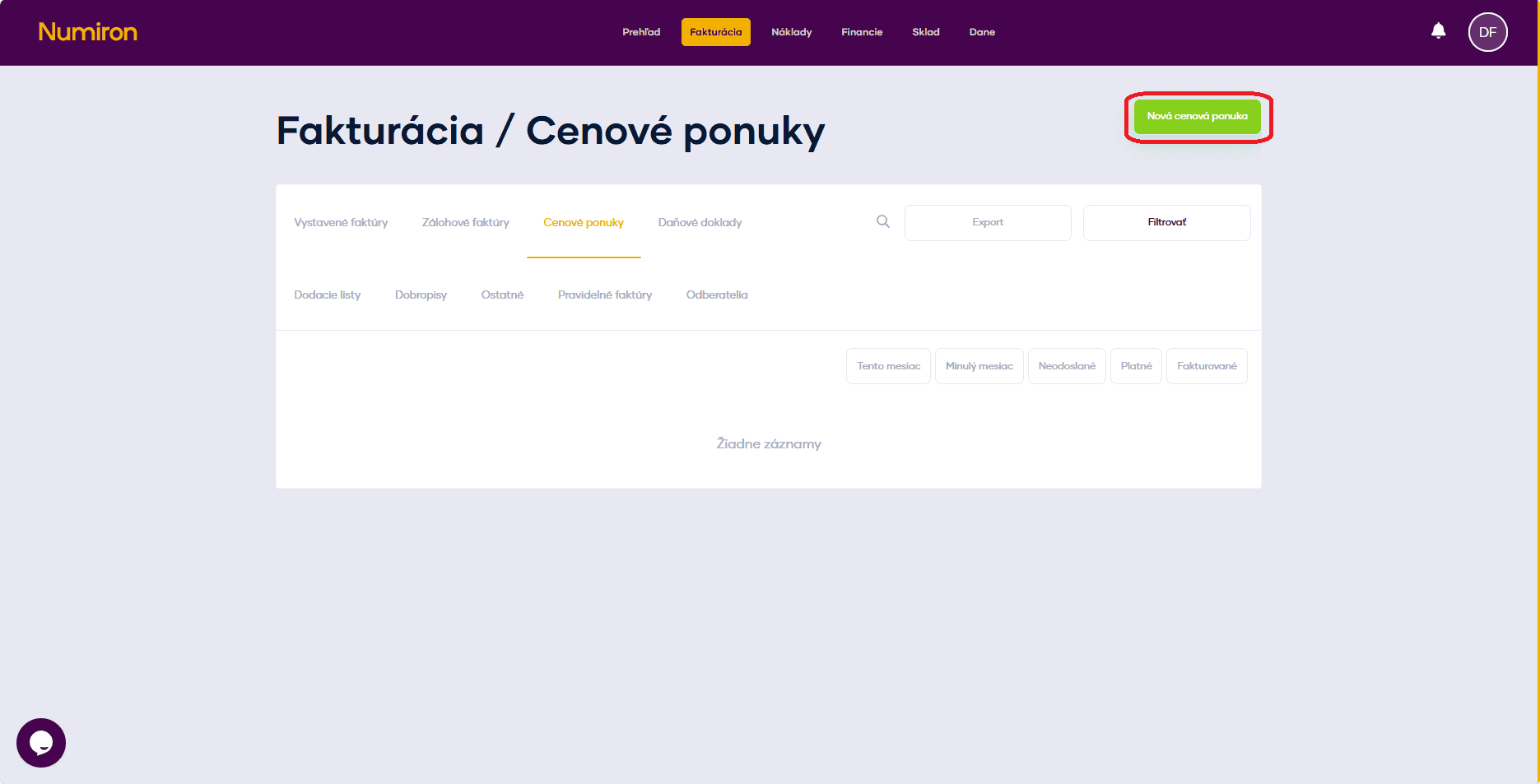
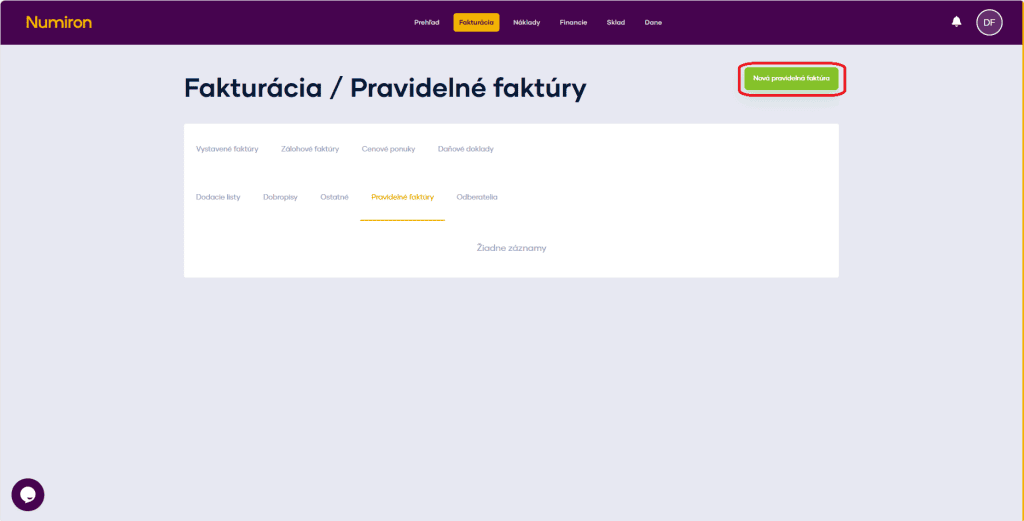
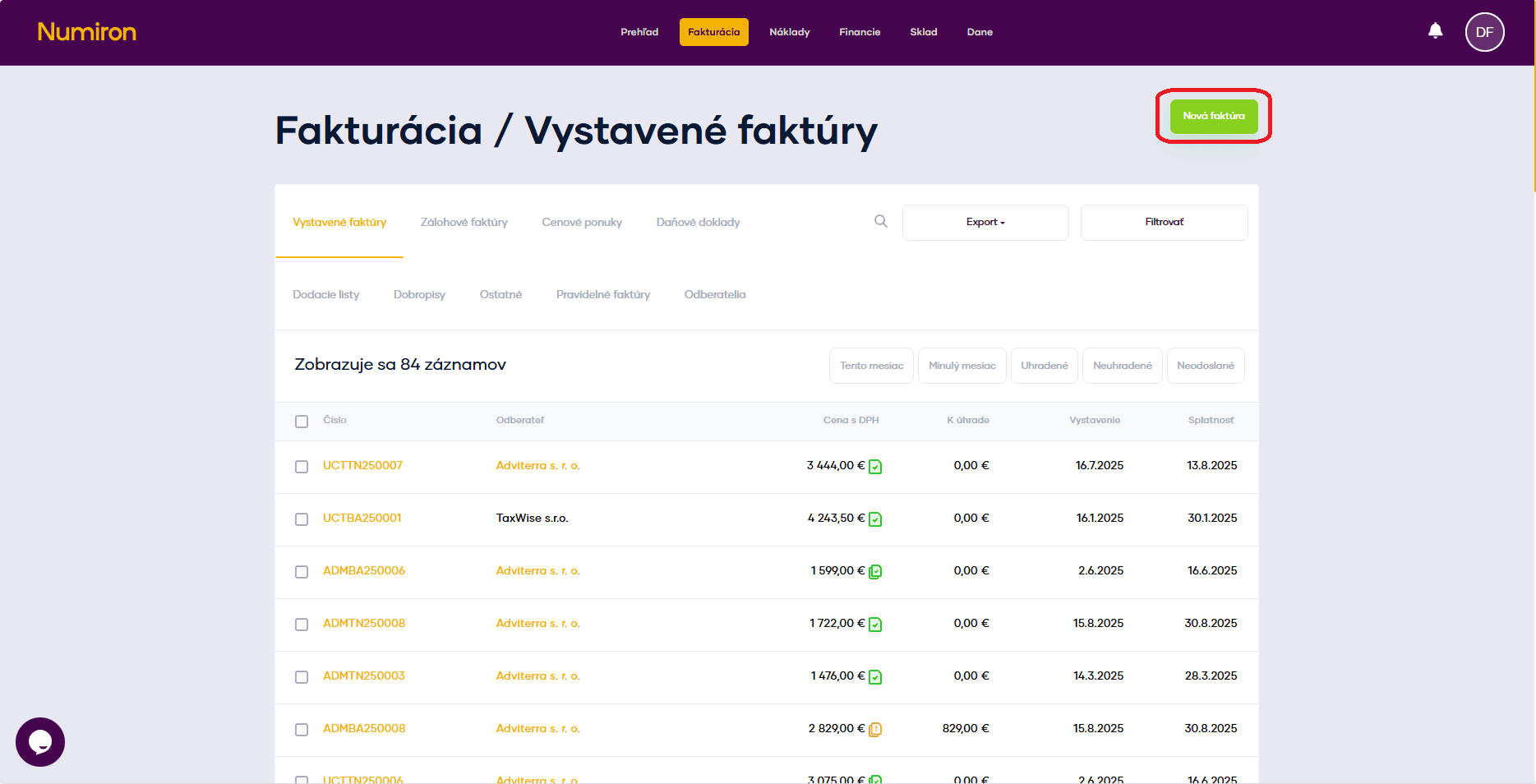
Click the button on the top right New invoice. This will open a form where you fill in all the necessary details.
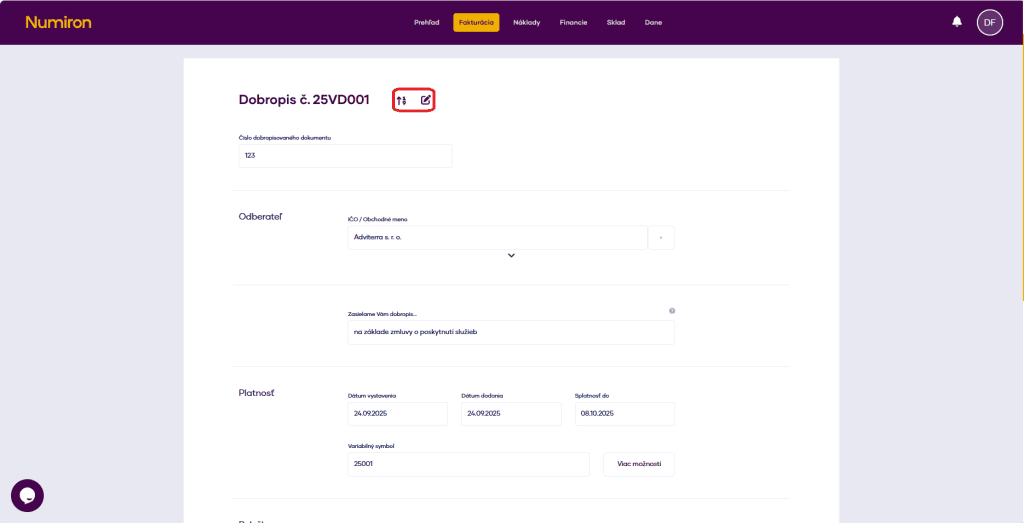
3. Basic invoice details
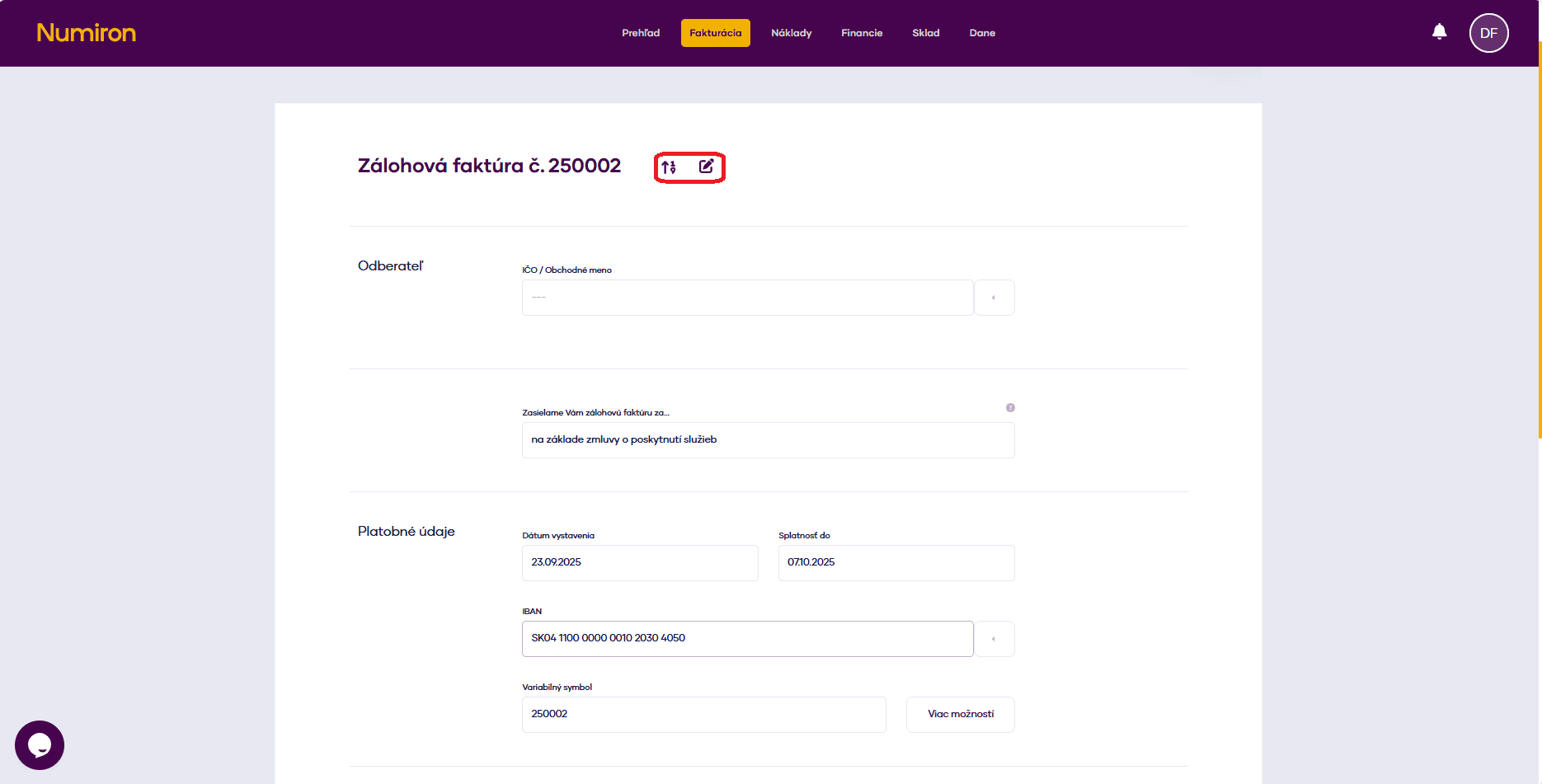
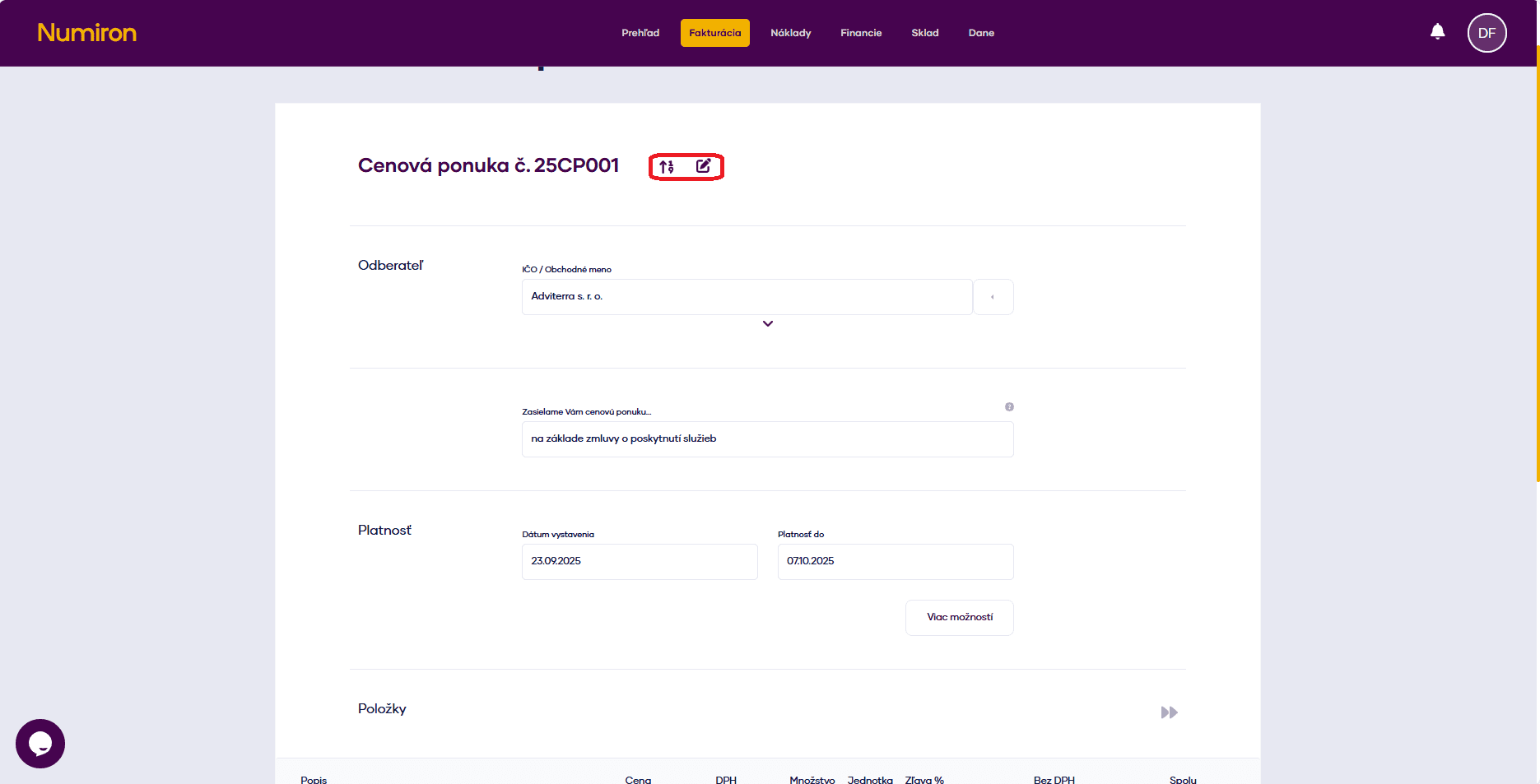
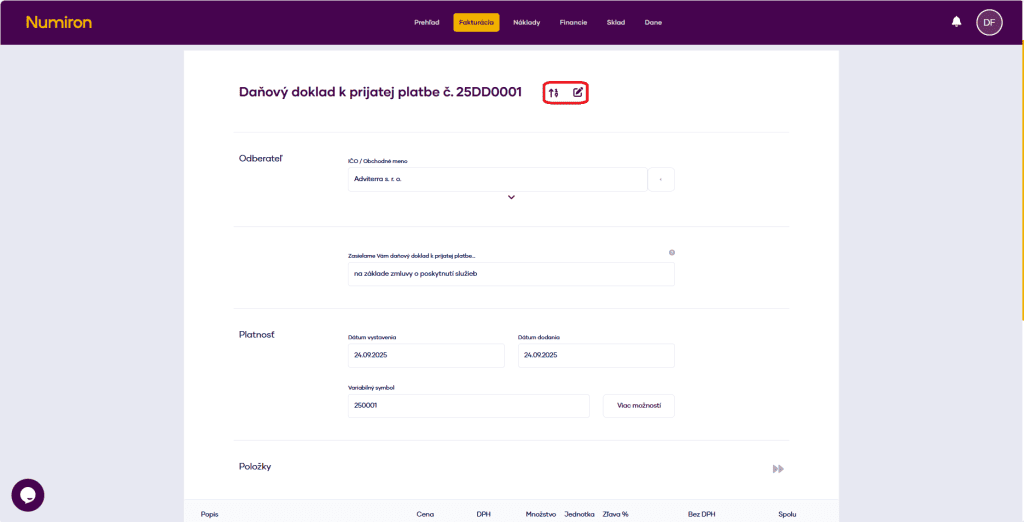
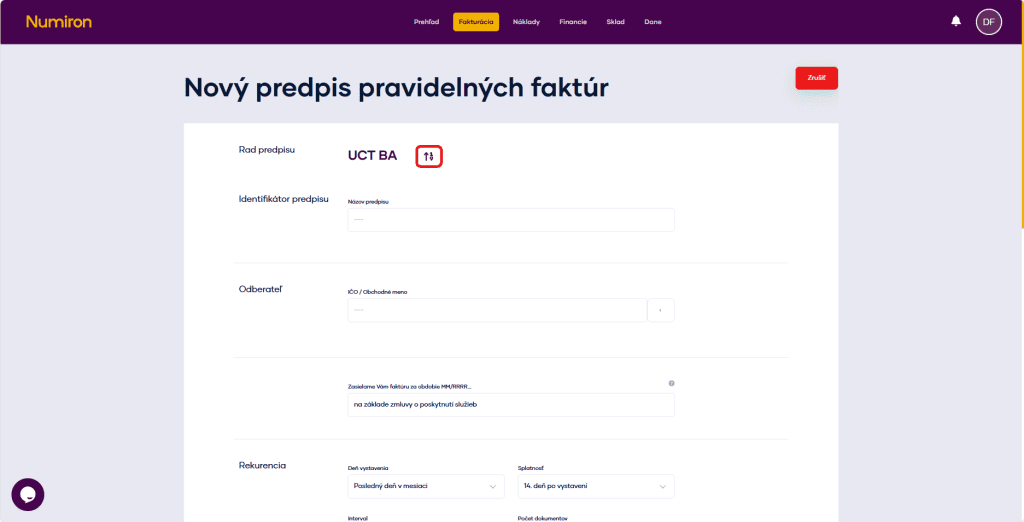
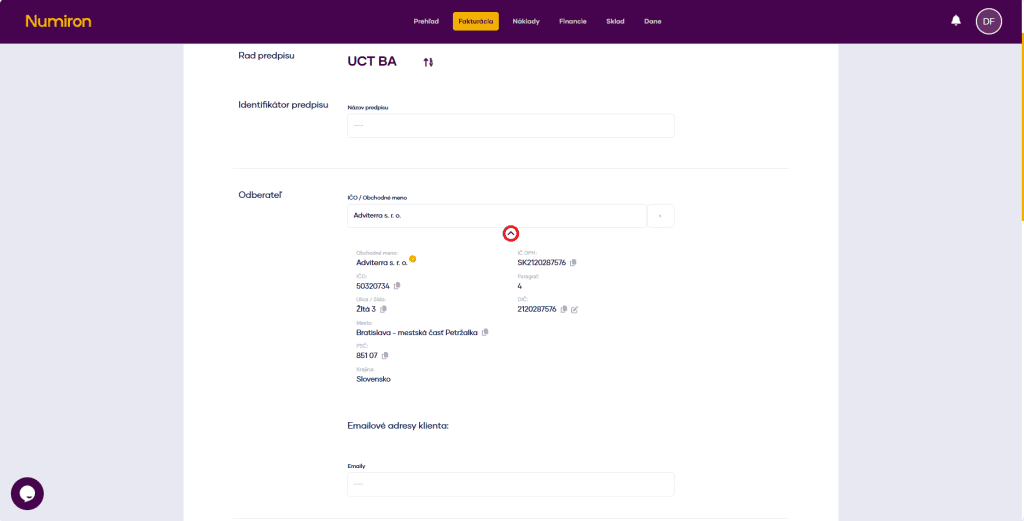
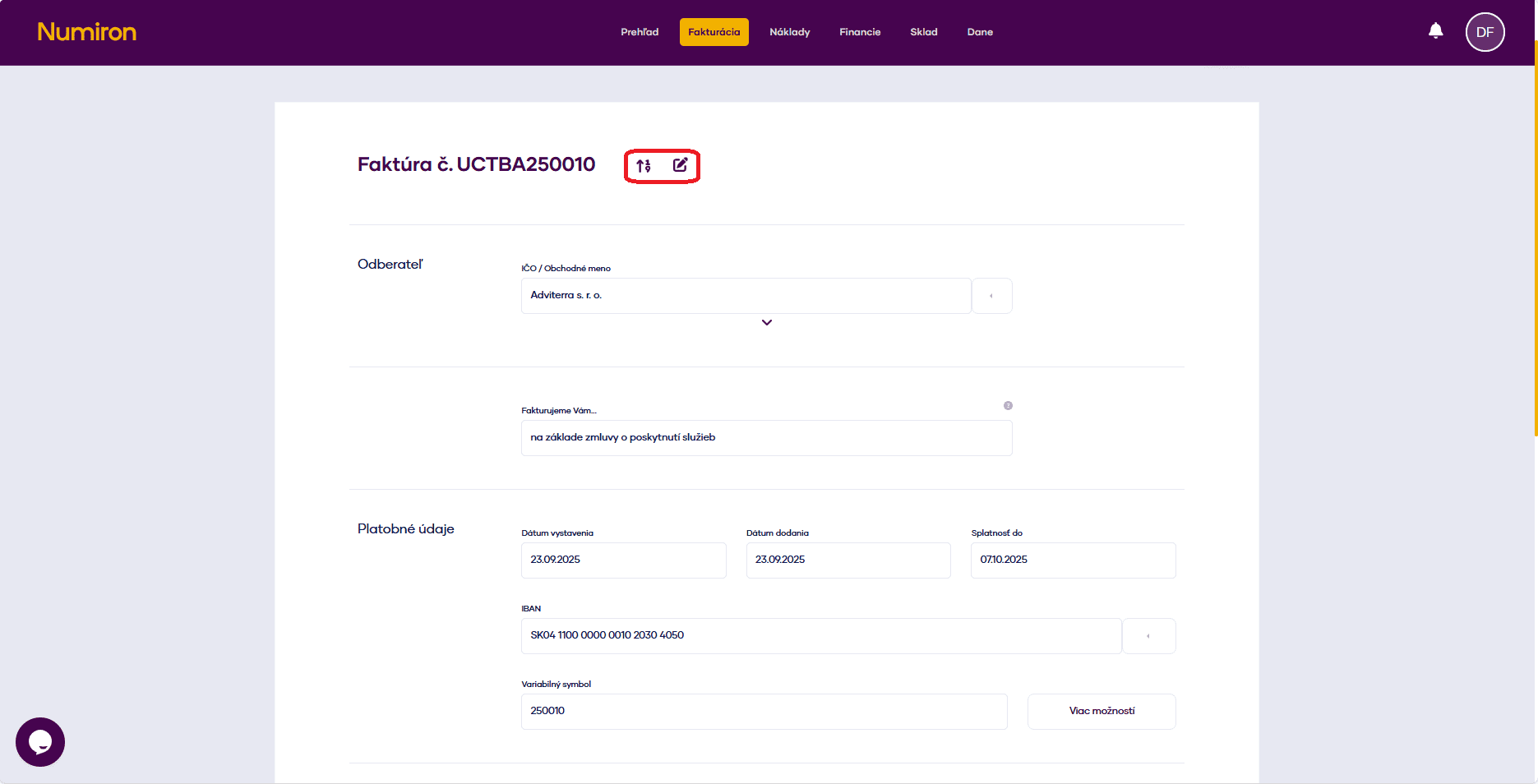
Numerical series: Choose from the default rows via the arrow or click on the pen icon and enter the number manually.
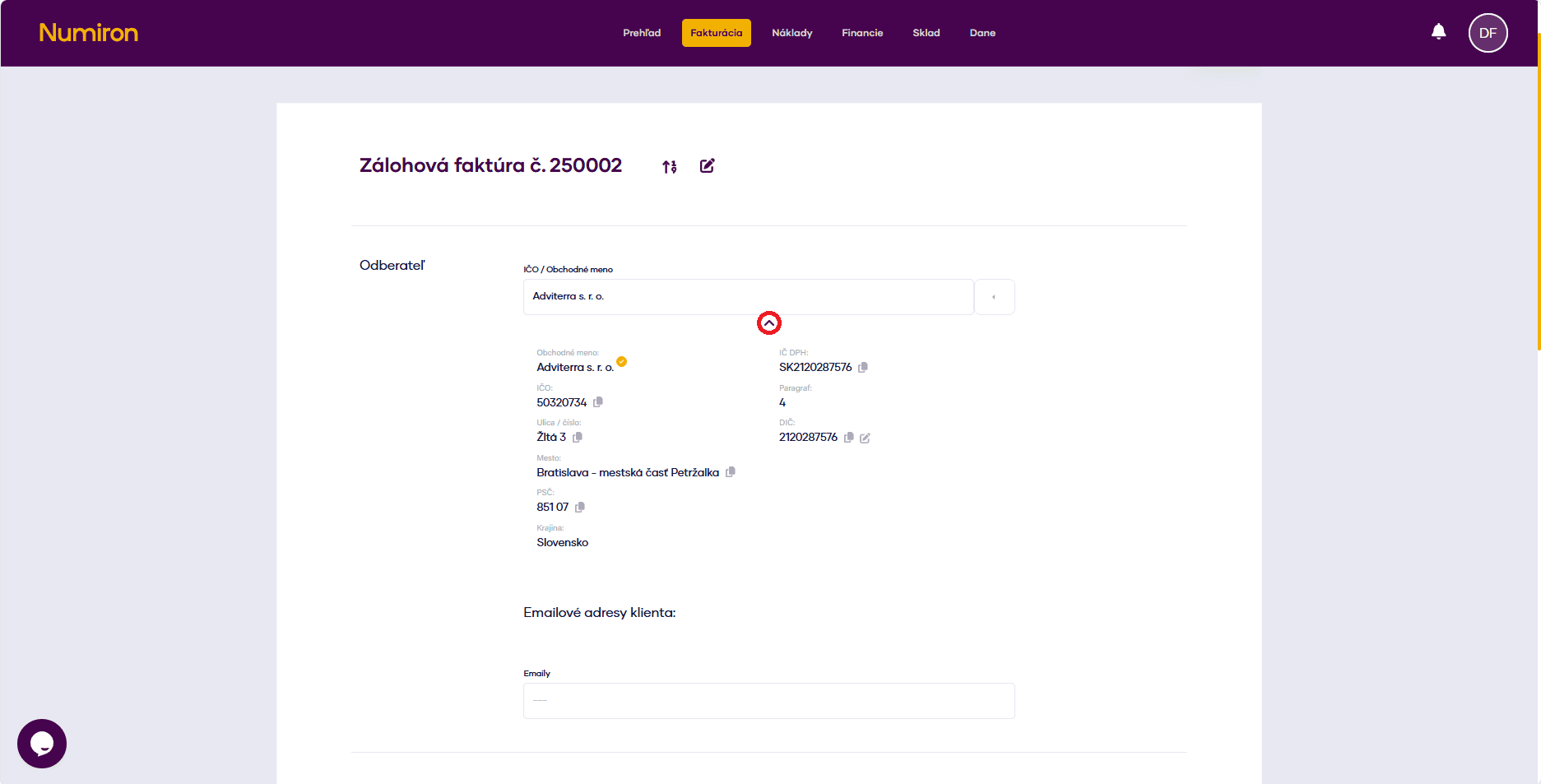
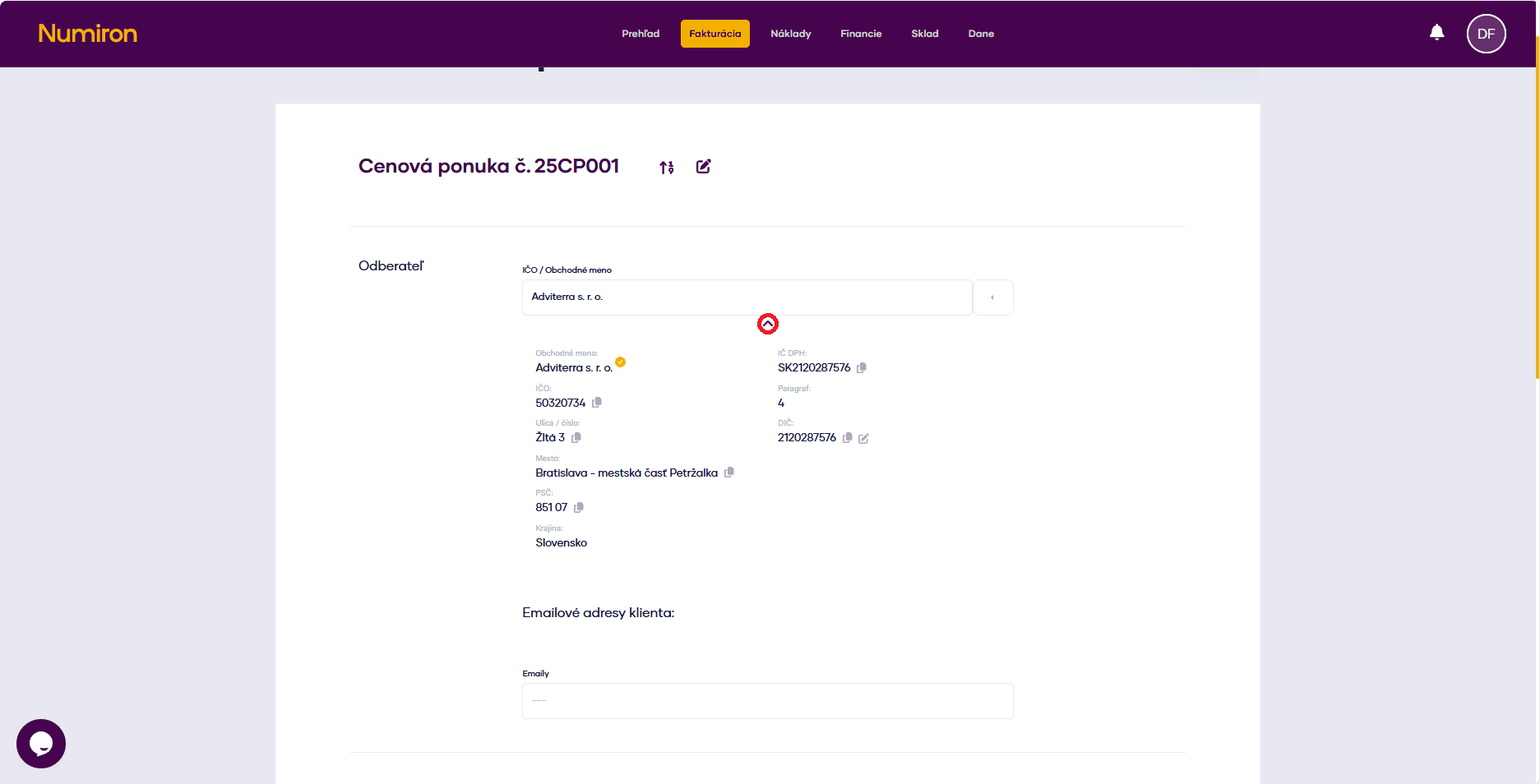
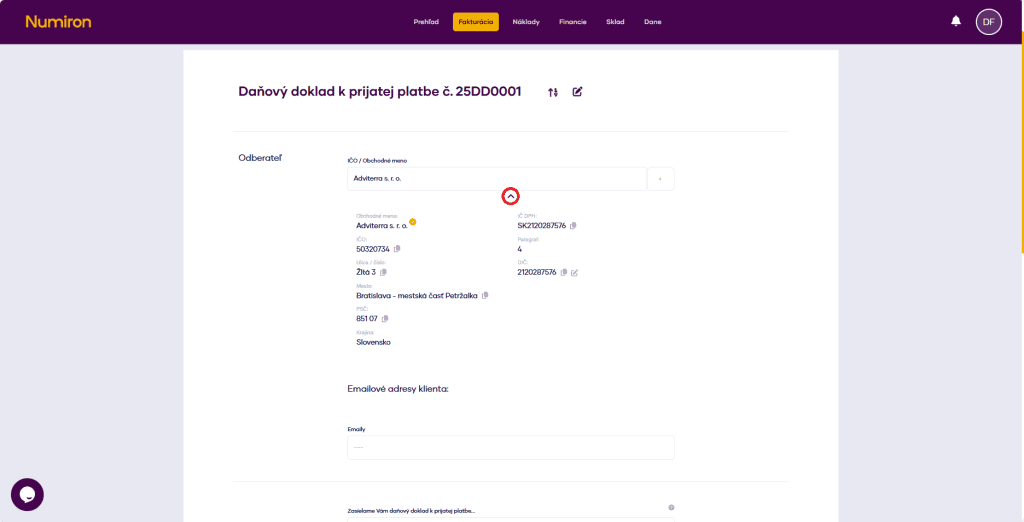
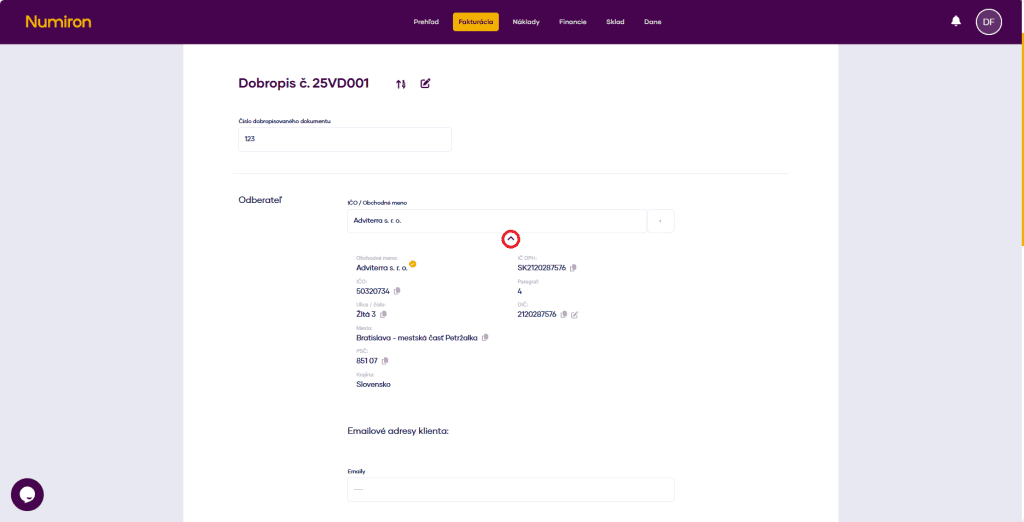
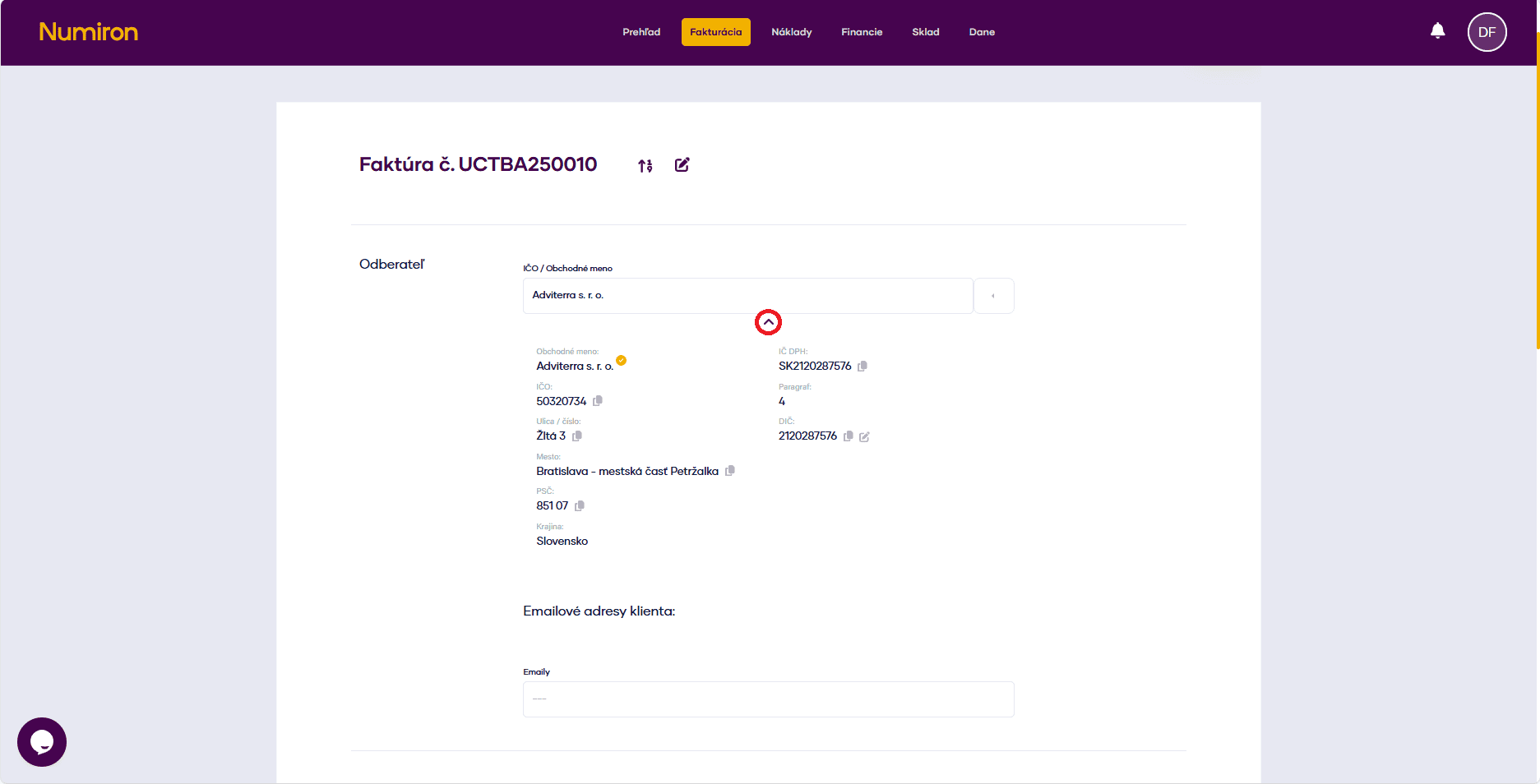
Subscriber: Enter company ID, company name or select the customer from the list. Click on the arrow below the name to verify their details and add an email.
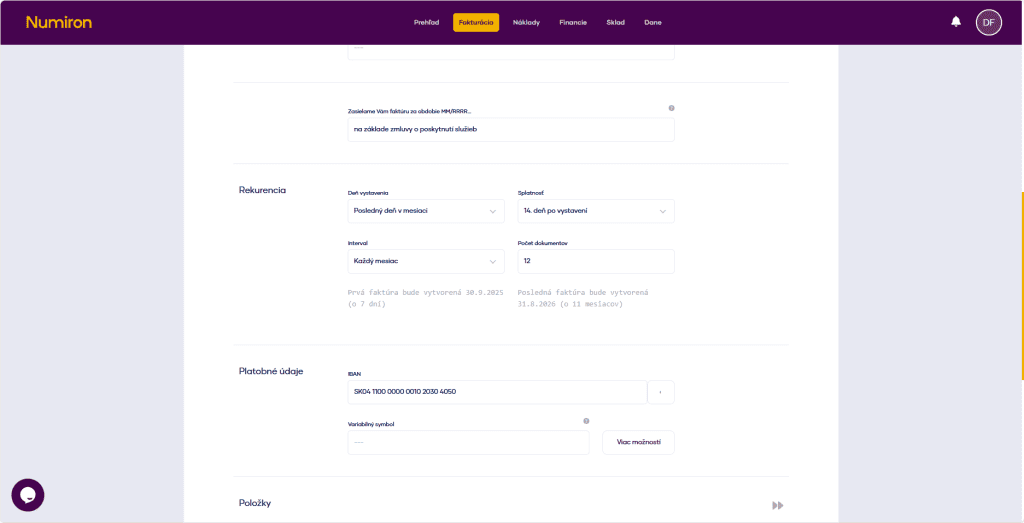
We invoice you... : Add your own introductory text to be displayed in the PDF invoice. The default text is "We invoice you...".
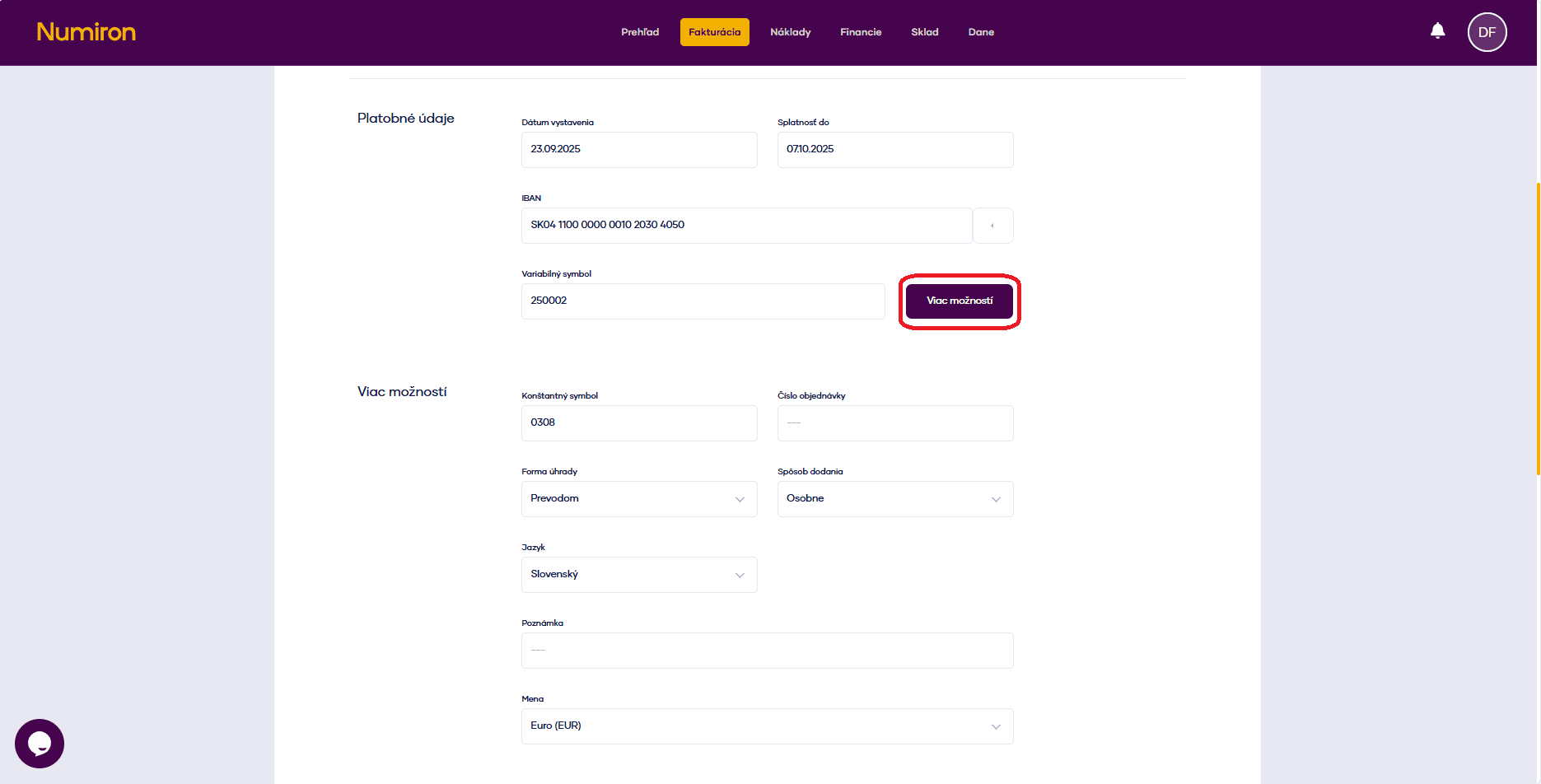
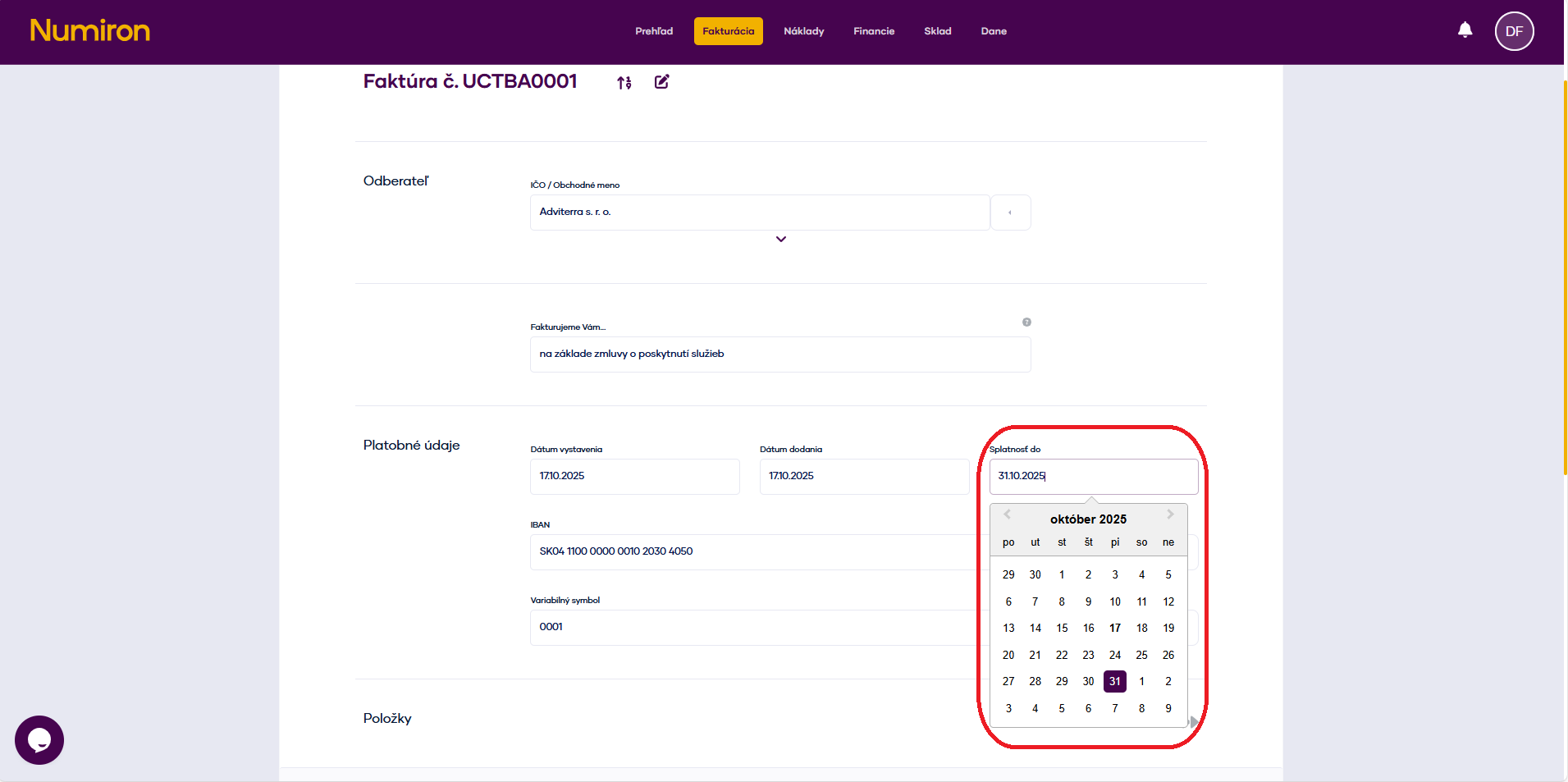
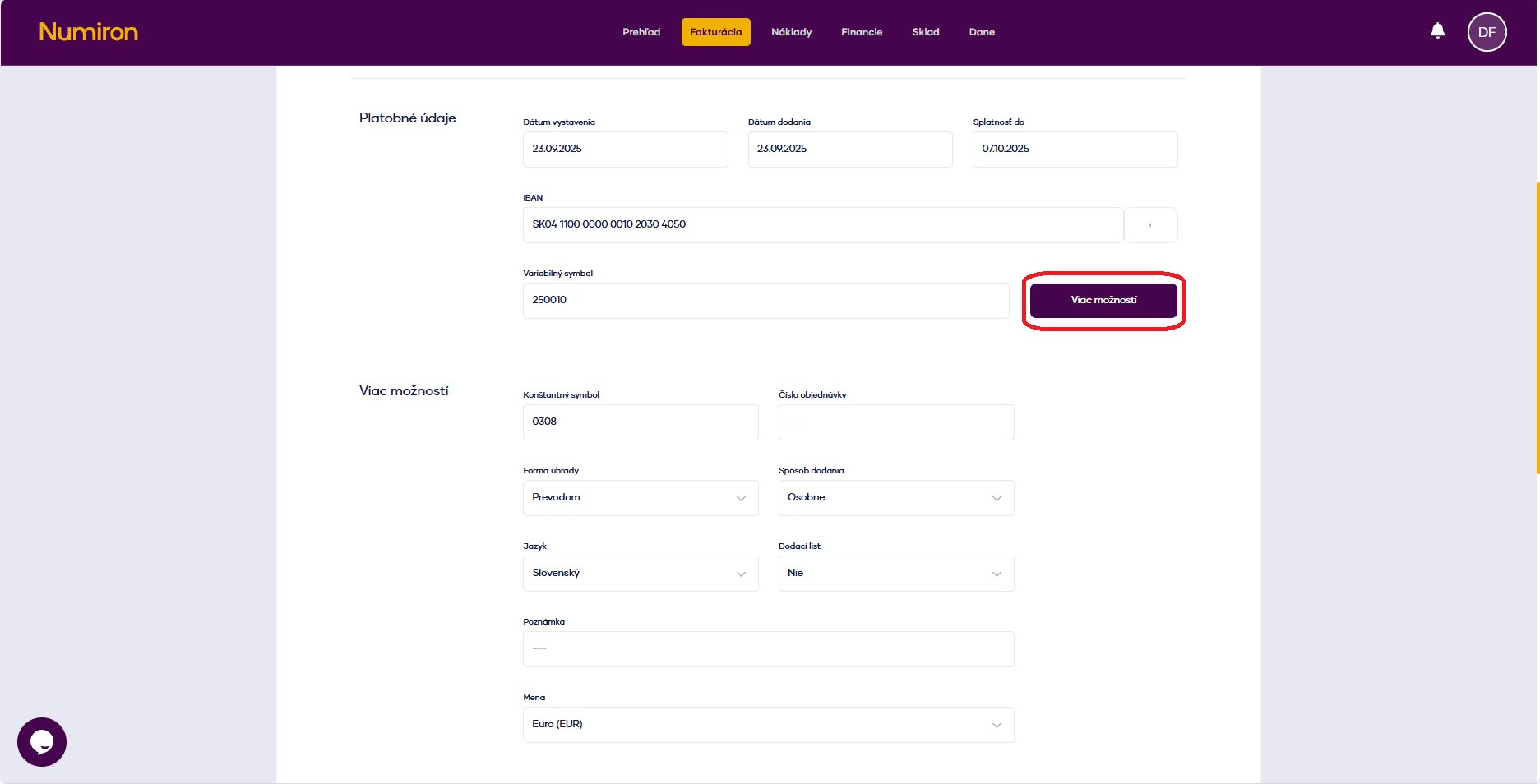
Date of issue, delivery and due date: Select the desired dates.
IBAN: The system will automatically add the bank account you have saved. You can change it or add a new one.
Variable symbol: To be pre-filled by invoice number. You can modify it if necessary.
4. Other optional data
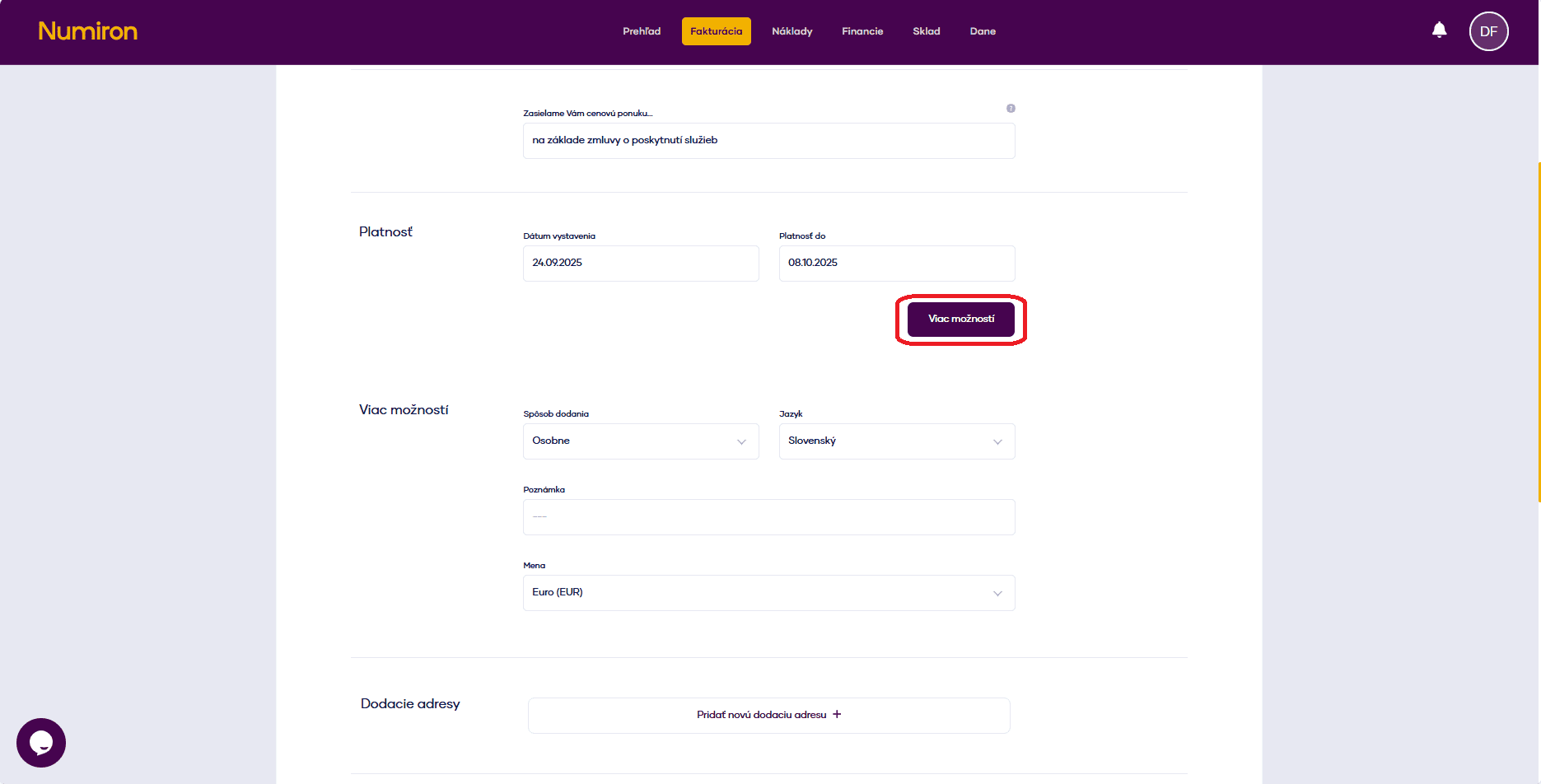
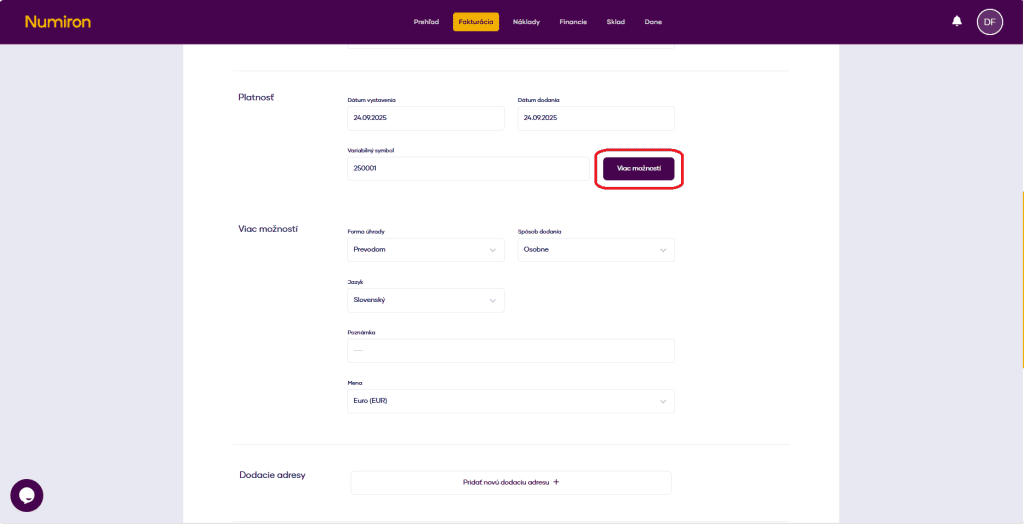
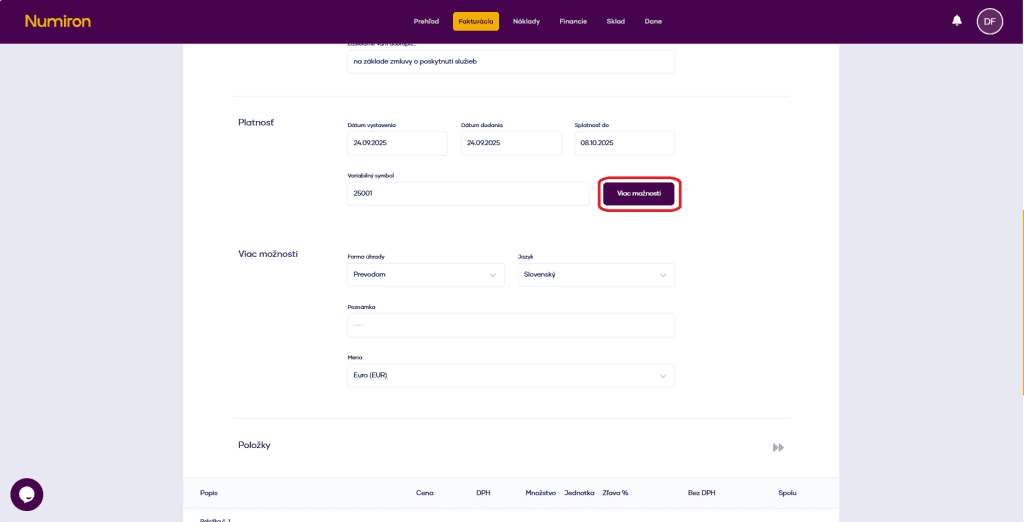
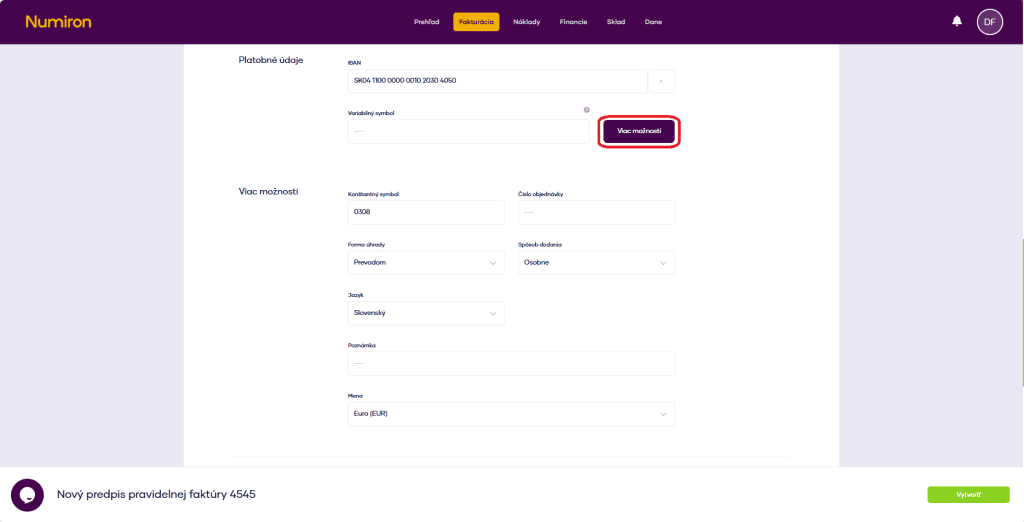
Click on More options and fill in:
- constant symbol,
- order number,
- form of payment,
- method of delivery,
- the language of the invoice,
- a note on the invoice,
- menu,
- adding the address,
- an attachment (e.g. a delivery note).
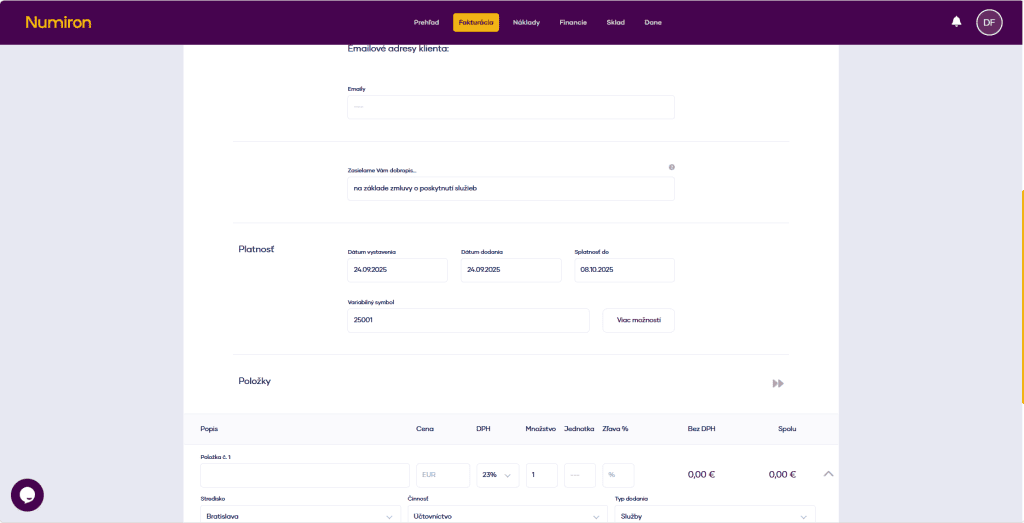
5. Invoice items
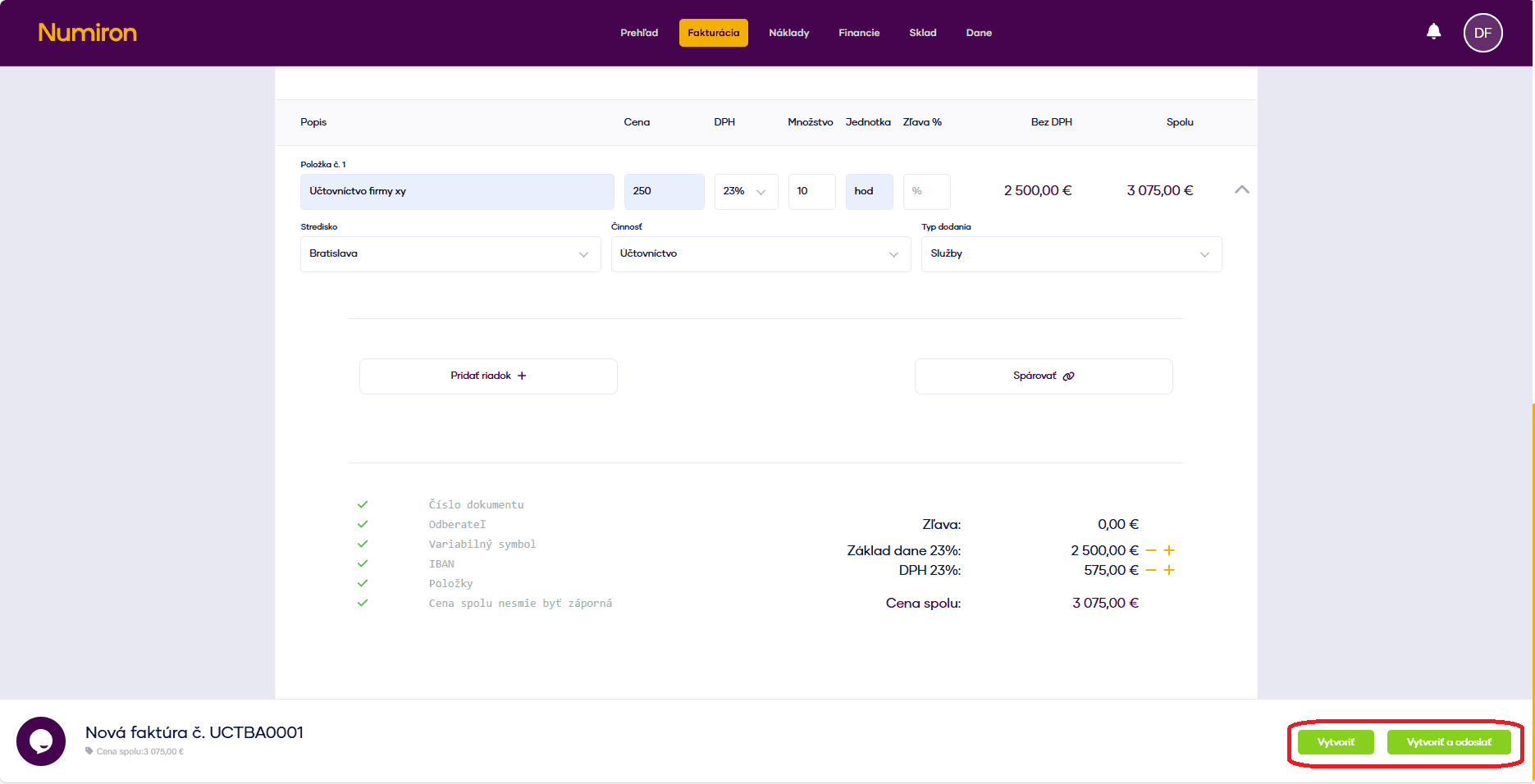
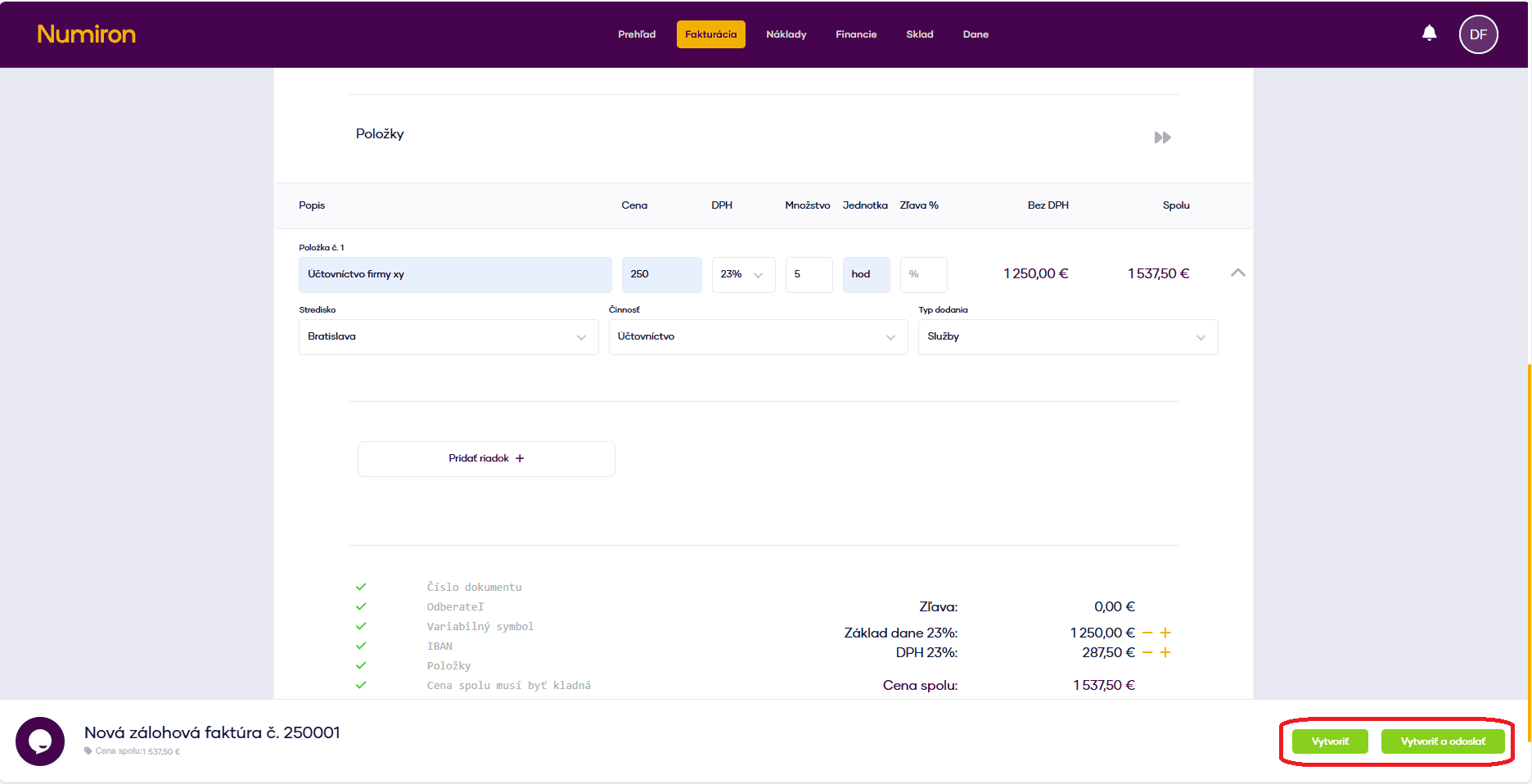
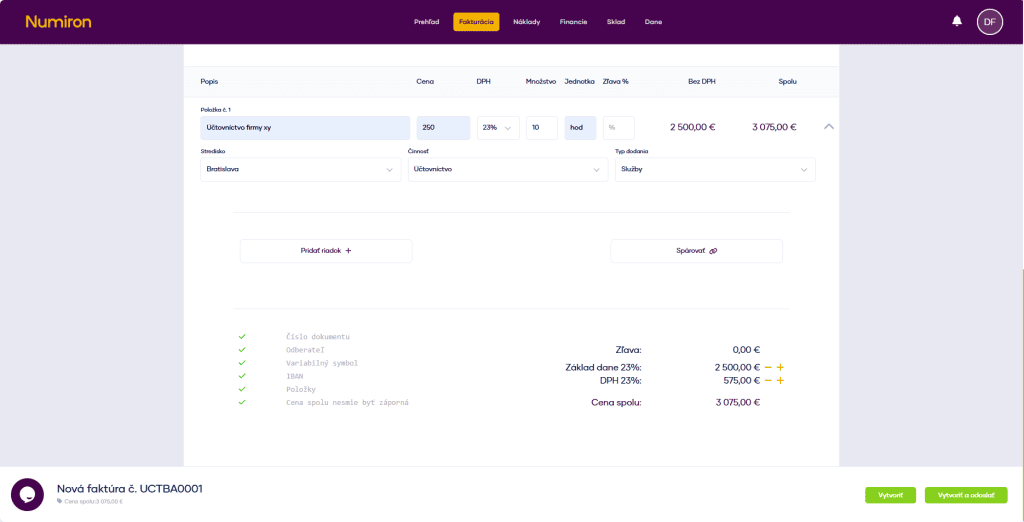
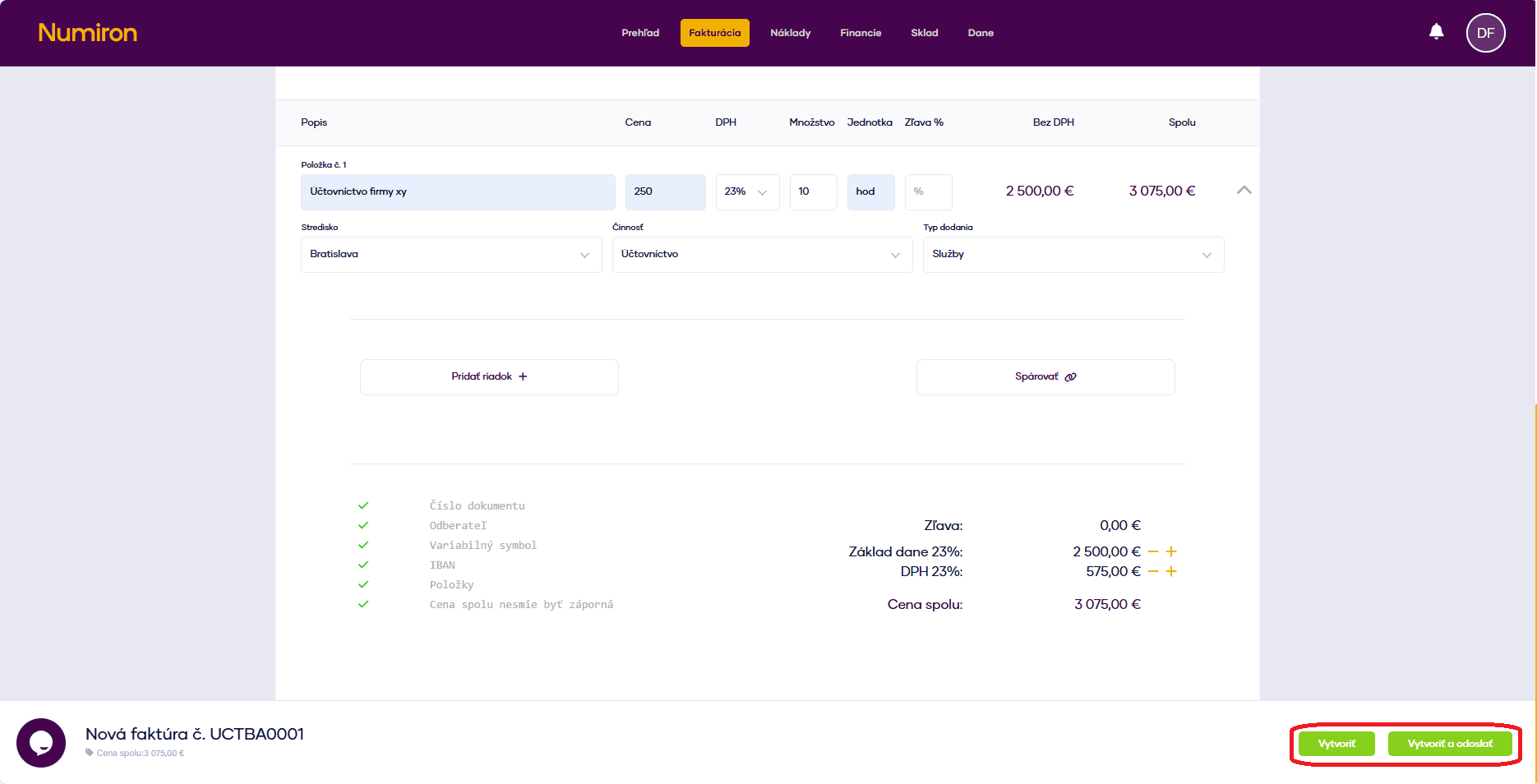
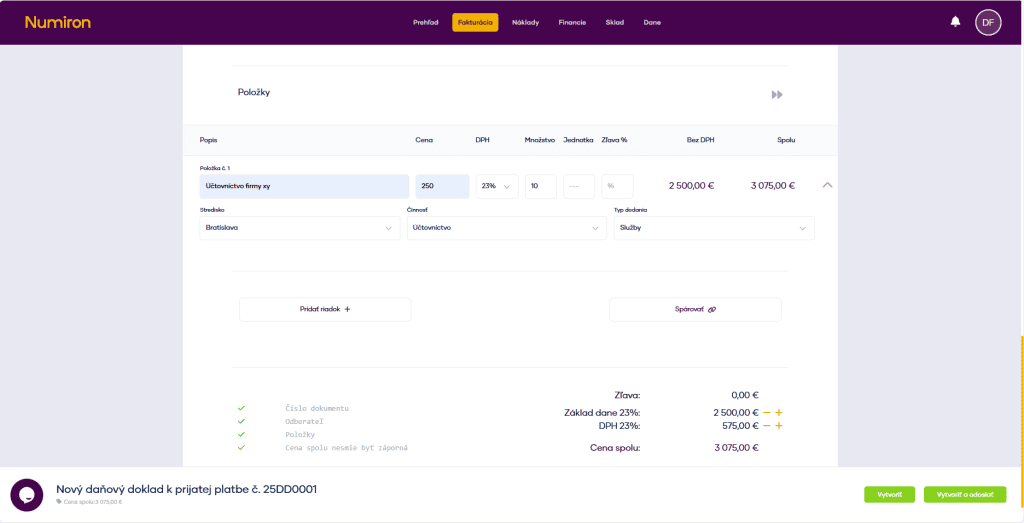
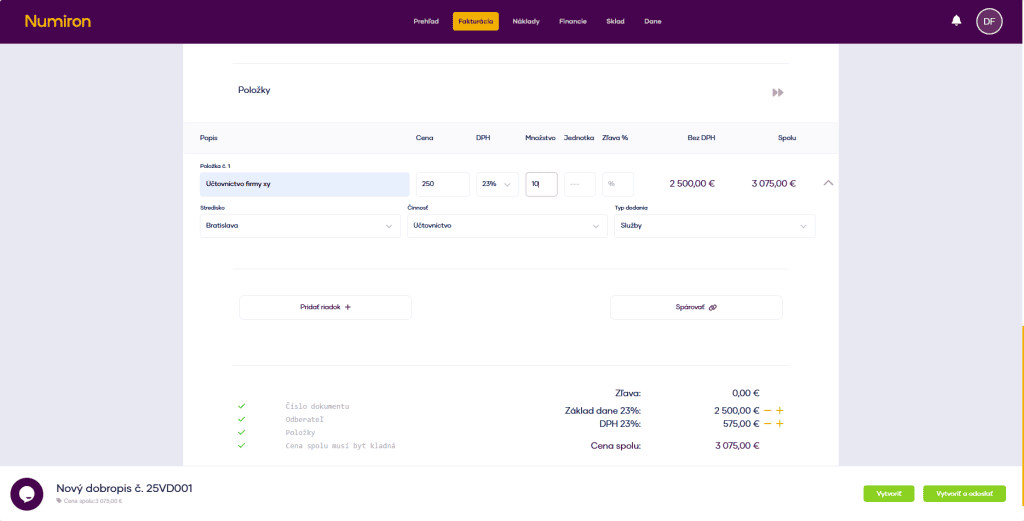
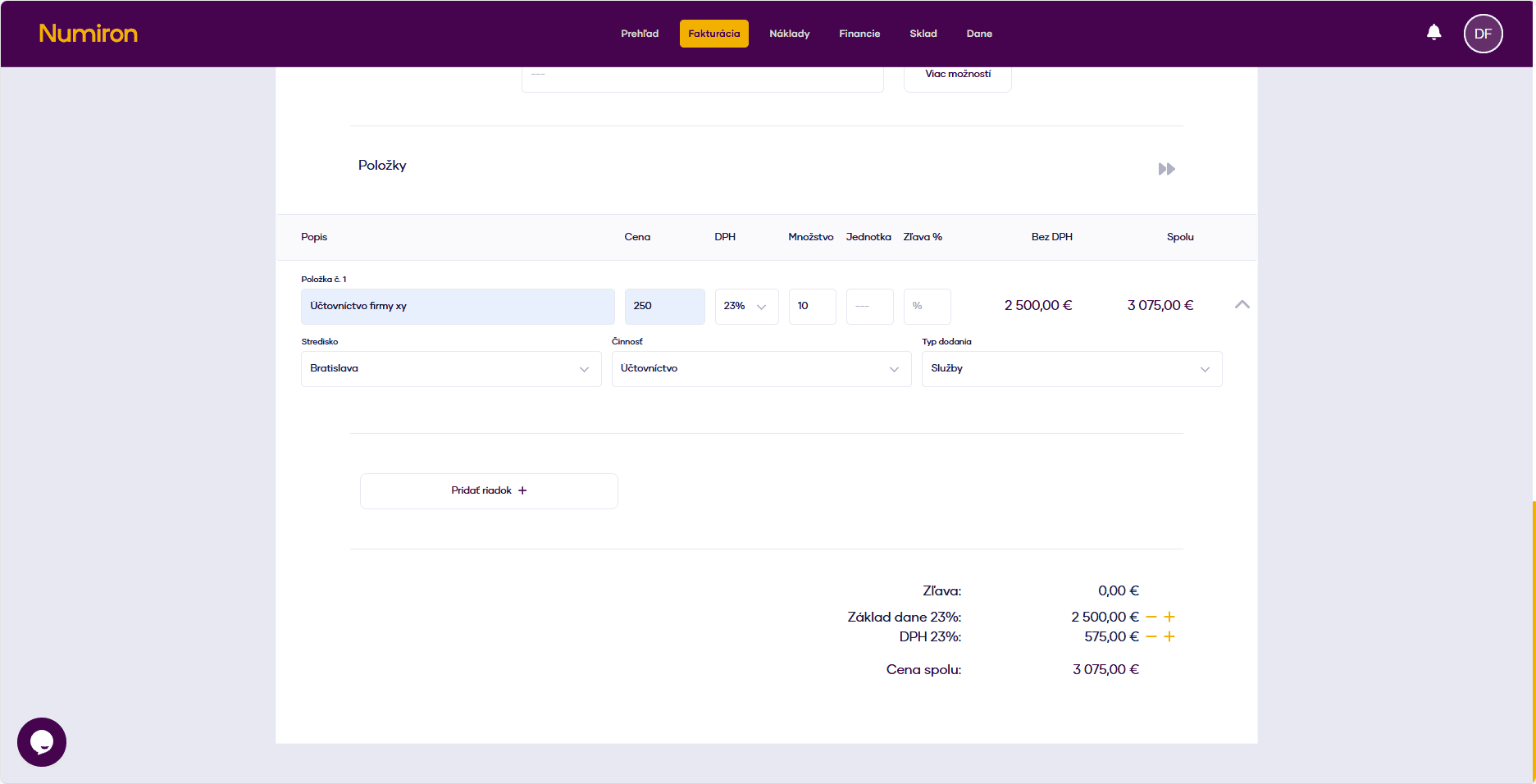
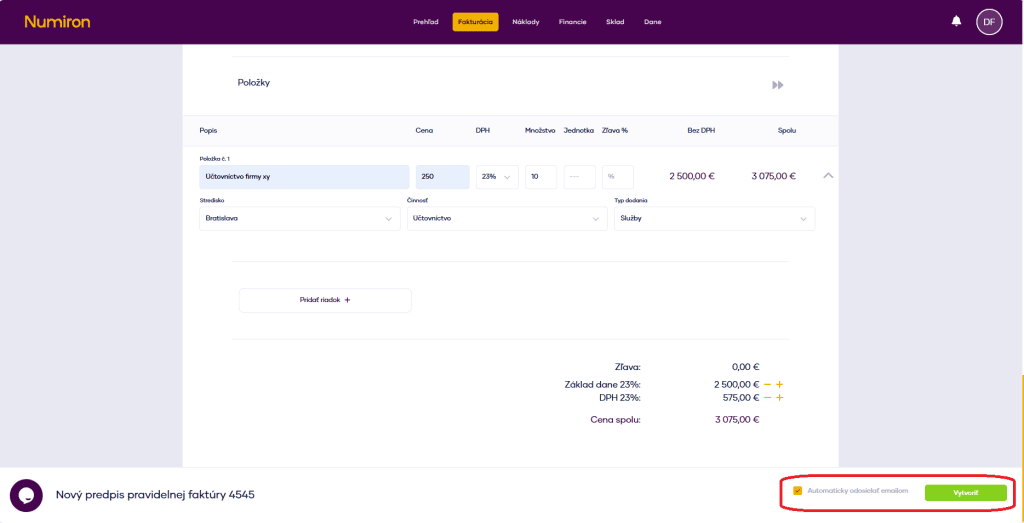
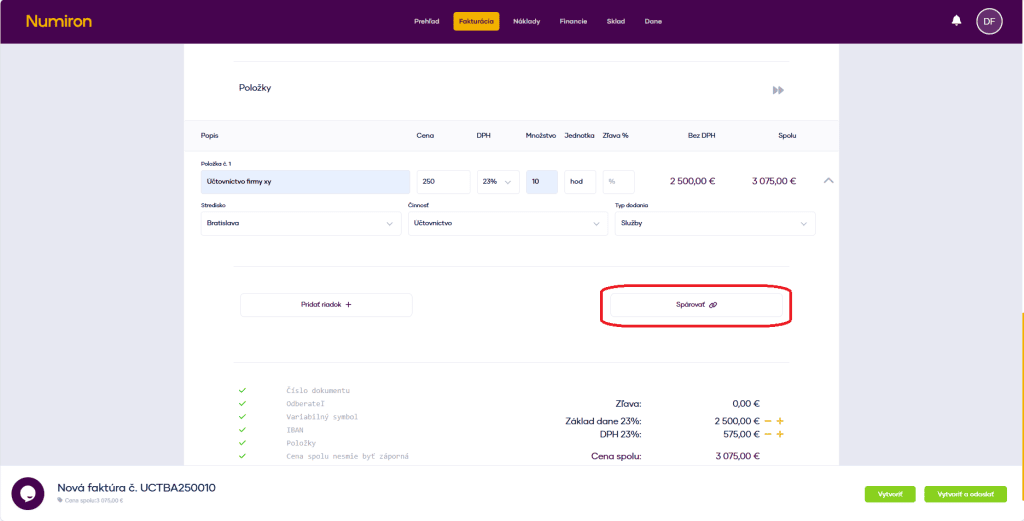
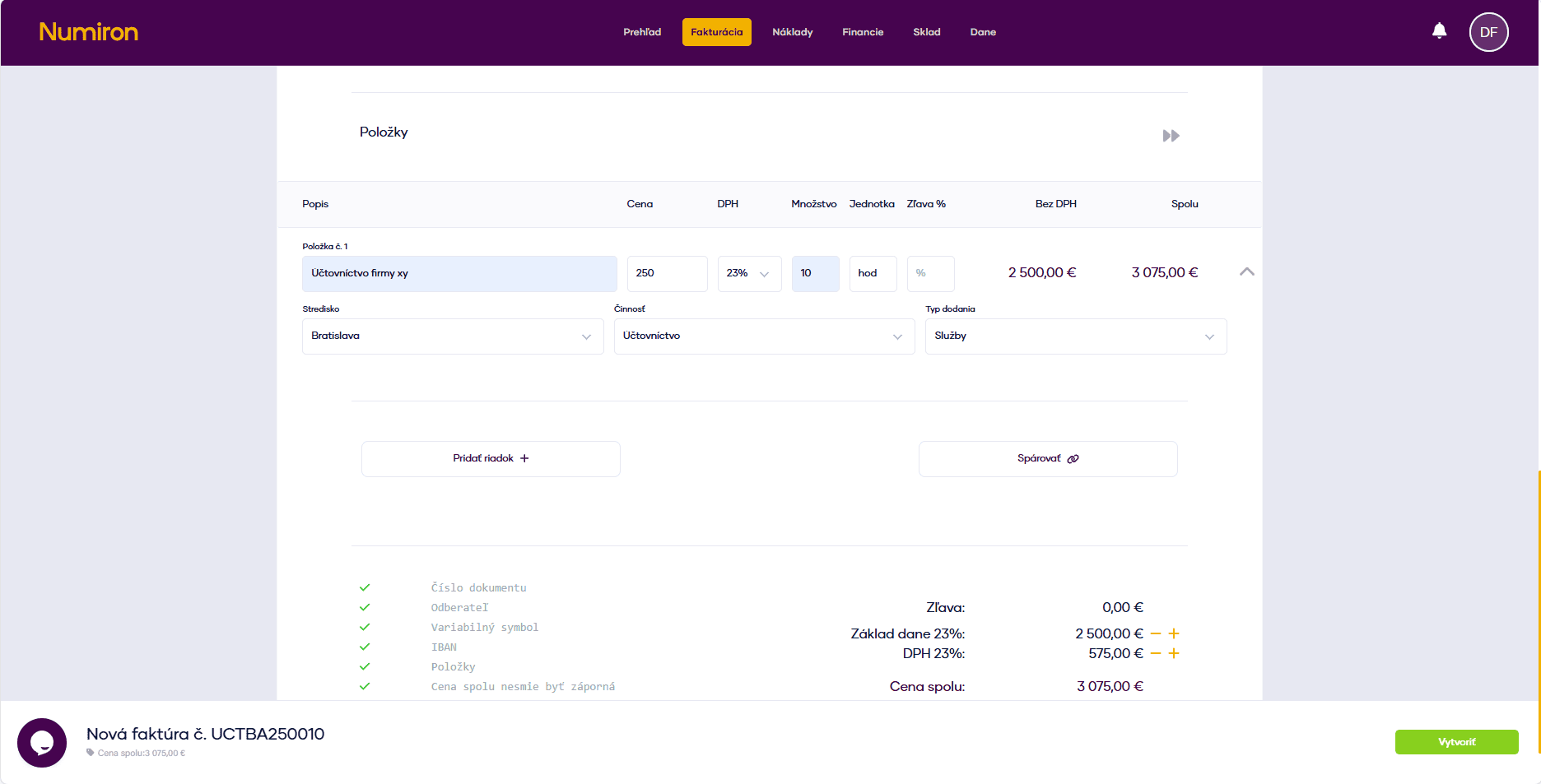
For each item, click on Add row and fill in:
- Description,
- Price,
- VAT rate,
- quantity and unit,
- discount (%).
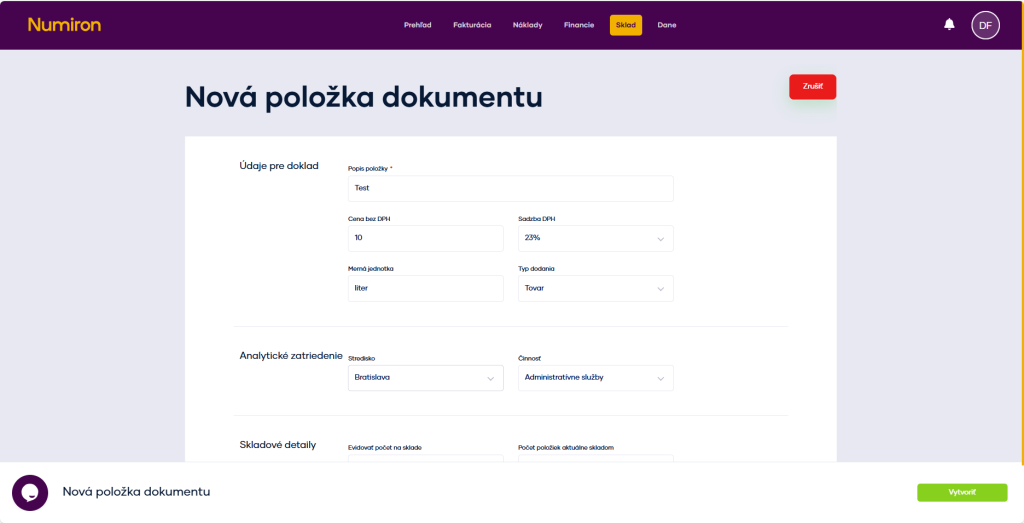
- optionally you can add: centre, activity, contract, type of delivery - this data is used in reports and charts.
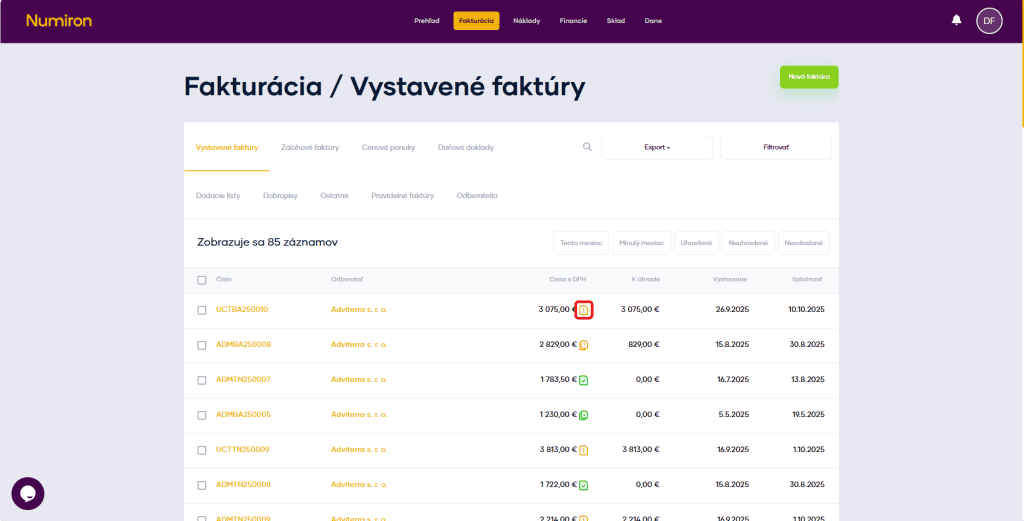
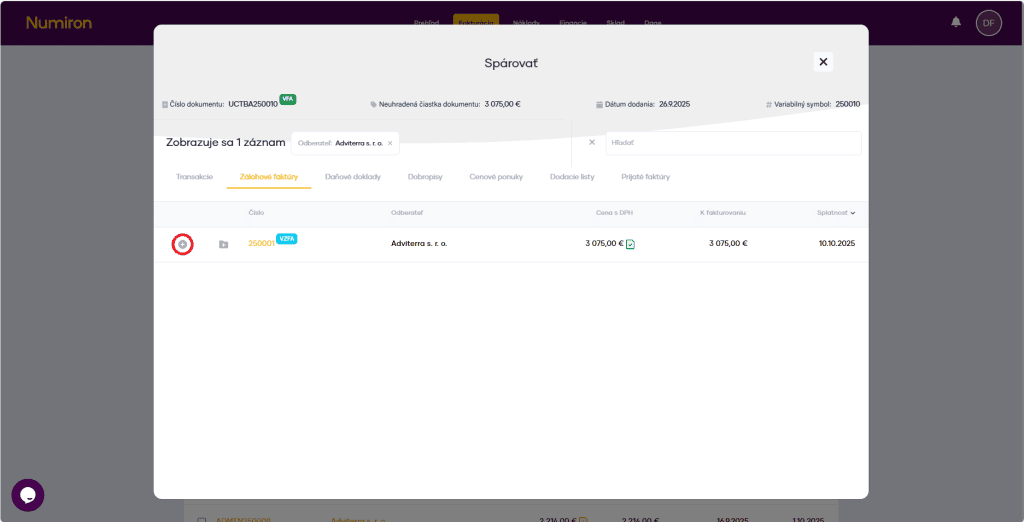
6. Pairing with another document (optional)
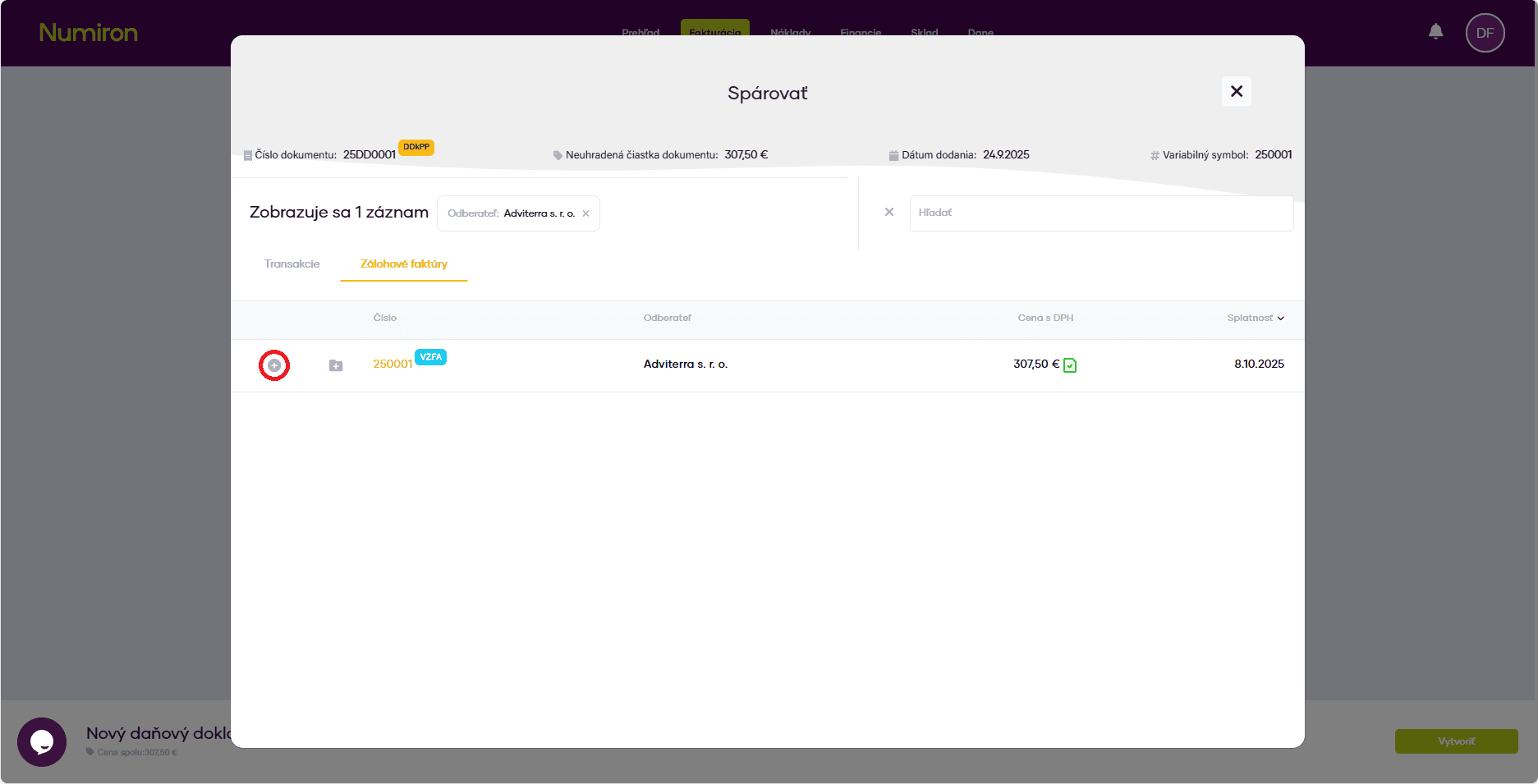
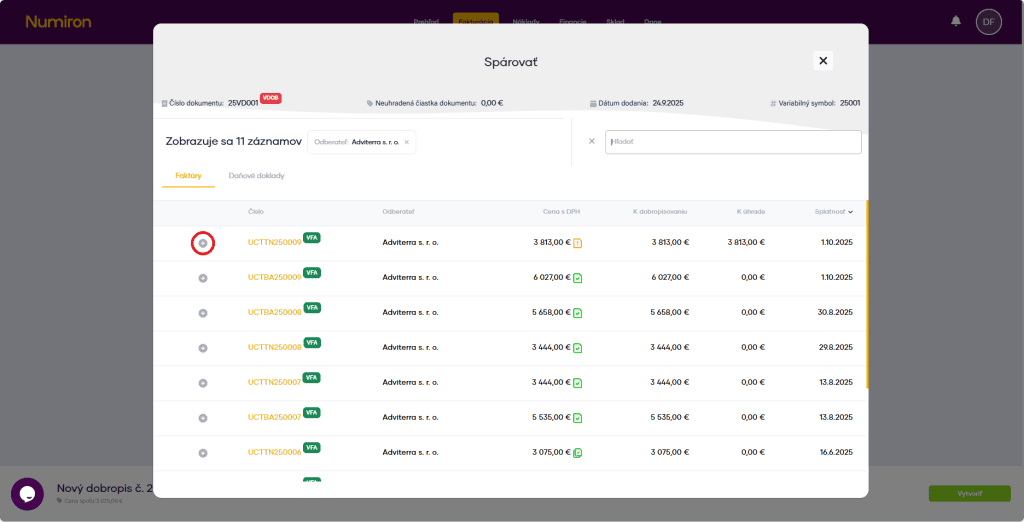
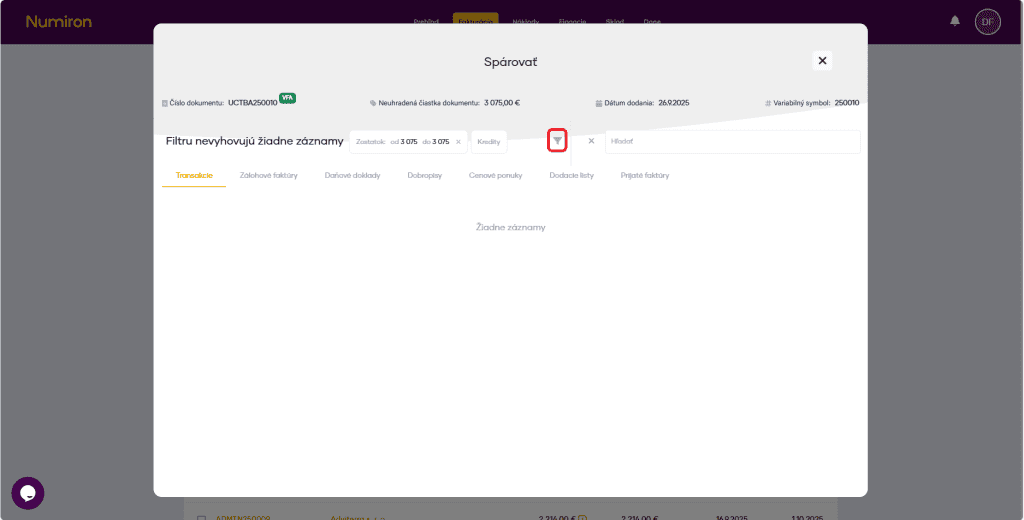
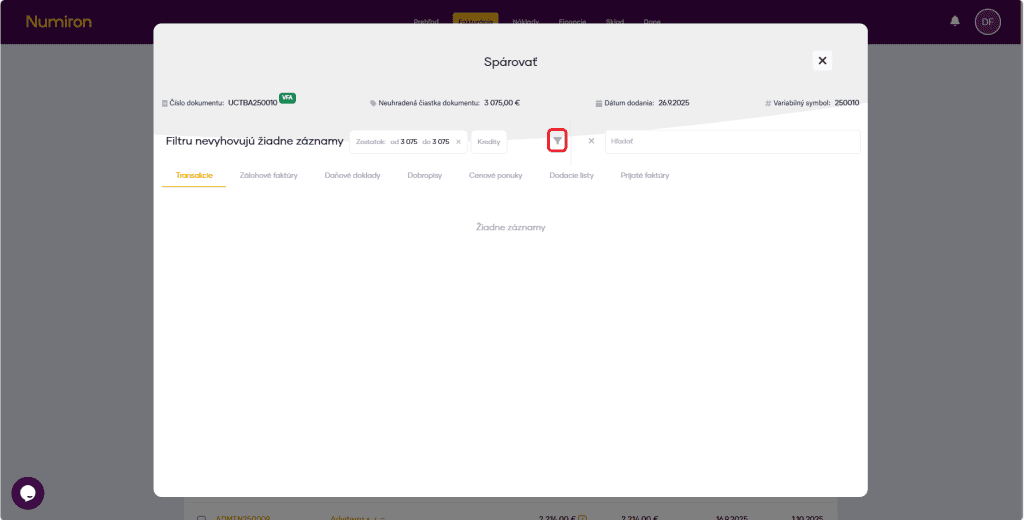
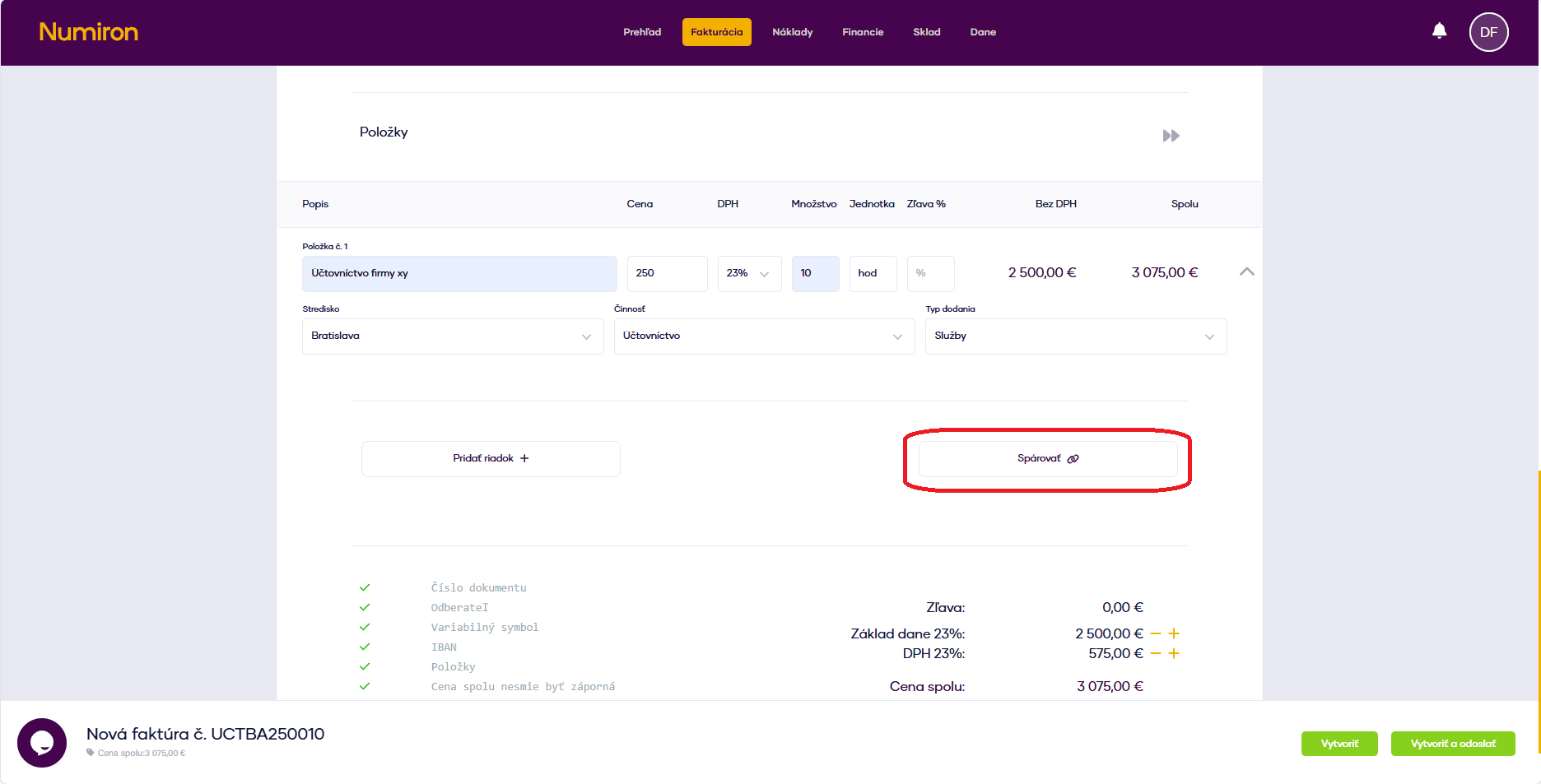
If the invoice is linked to another document (e.g. an advance invoice), click on Pair.
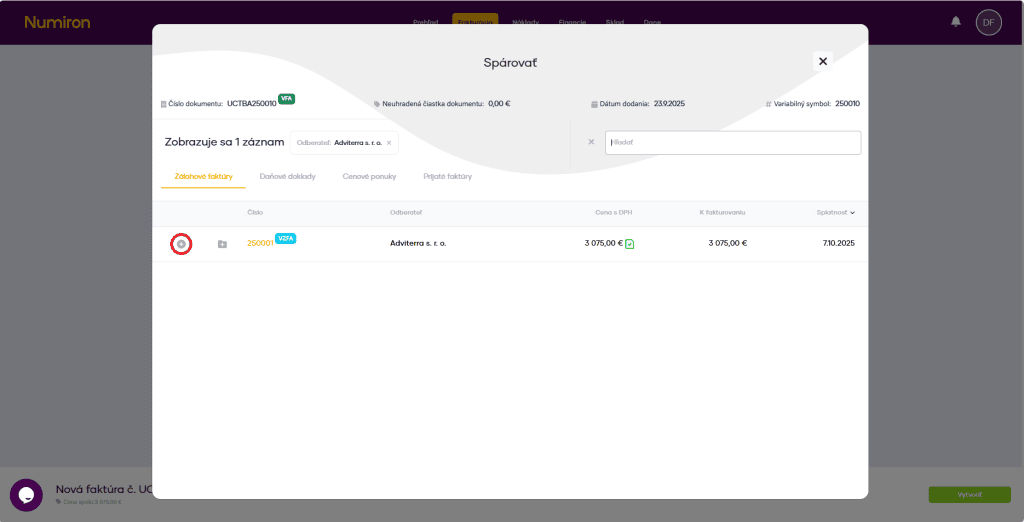
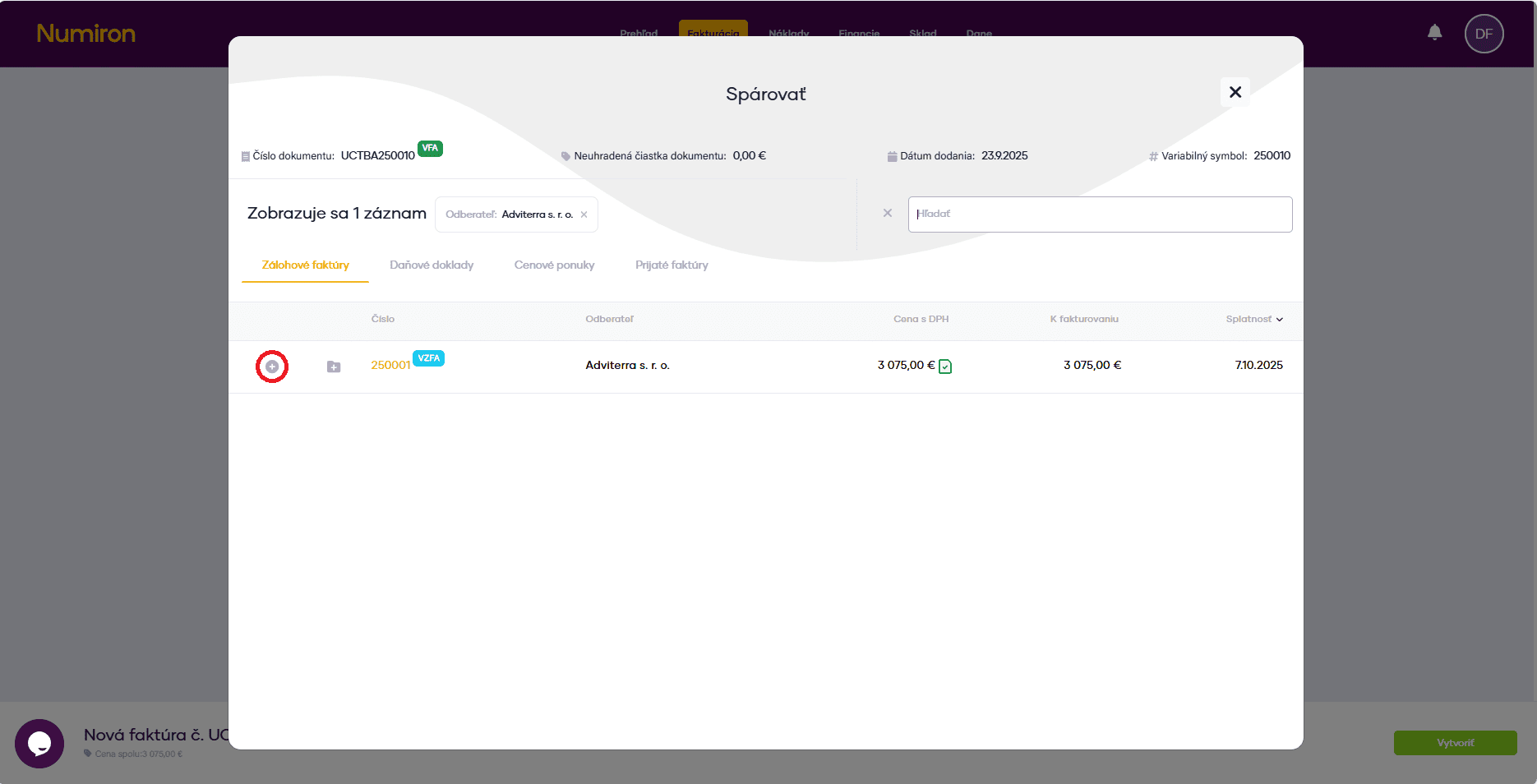
Pairing mode appears - select the document and click plus for pairing.
7. Completion and dispatch
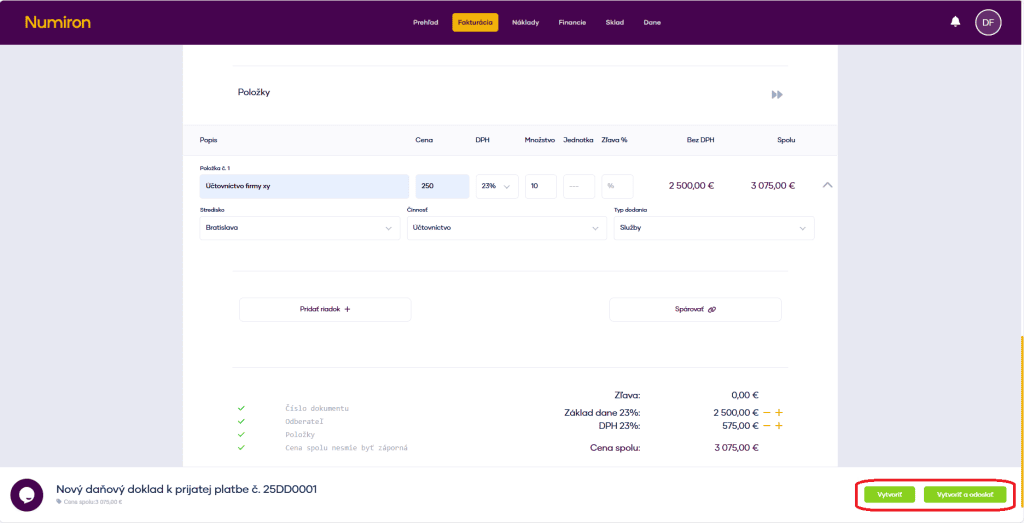
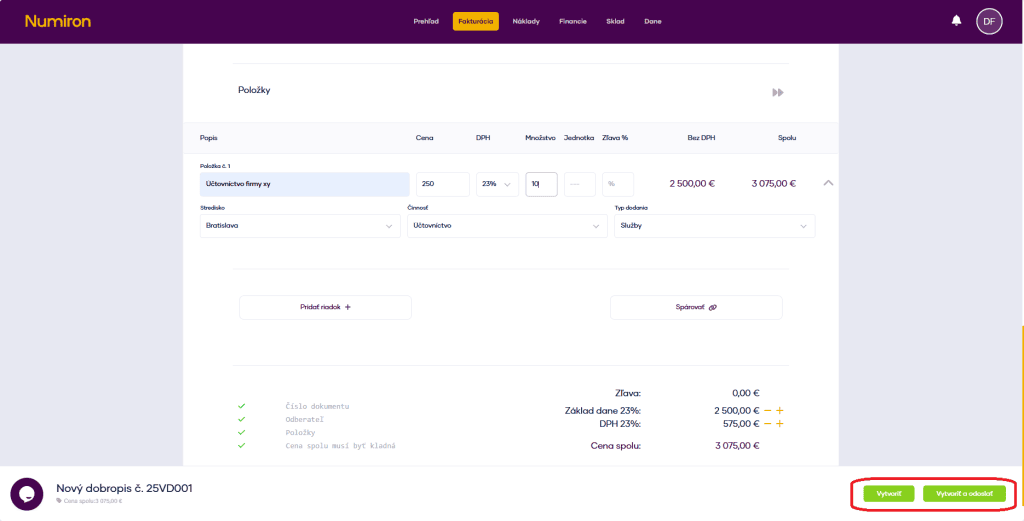
When you have everything filled in, click on:
Create - saves the invoice in the system.
Create and send - saves the invoice and also sends it by e-mail (if the customer's e-mail is specified).