Numiron support
Numiron Support & FAQ


Numiron Support & FAQ
Contact us if you haven't found the answer
Mon - Fri from 08:00 - 16:00
A tax receipt for payment received (DDkPP) records the payment received before the goods or services are delivered. In Numiron, you can issue it quickly and accurately by following the steps below.
1. Where to find tax documents
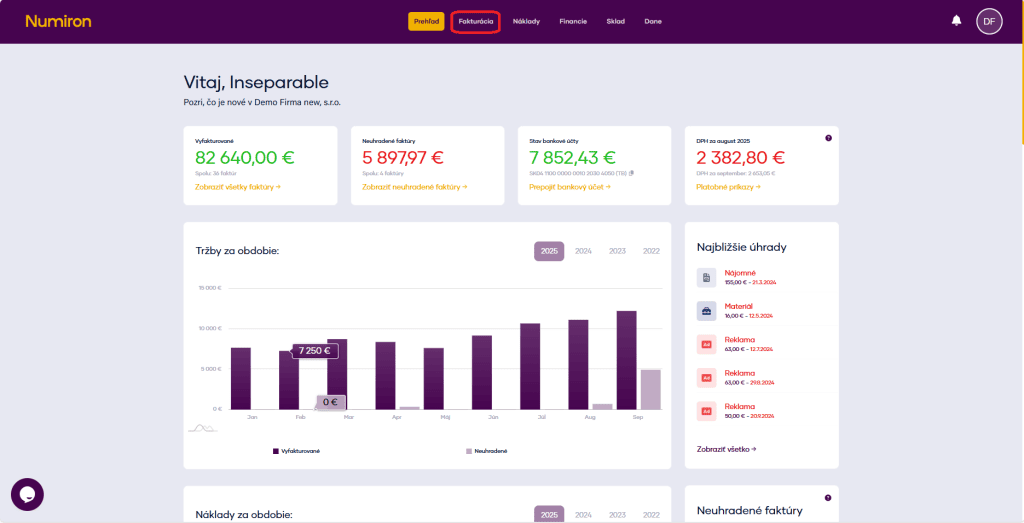
In the main menu, click on Invoicing and select Tax documents.
2. Create a new tax document
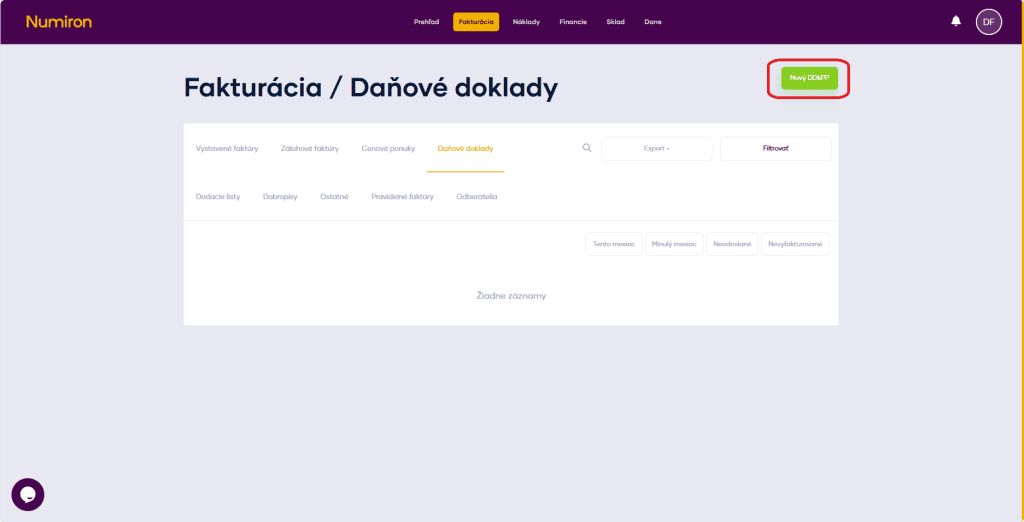
Press New DDkPP at the top right of the screen.
3. Fill in the basic data
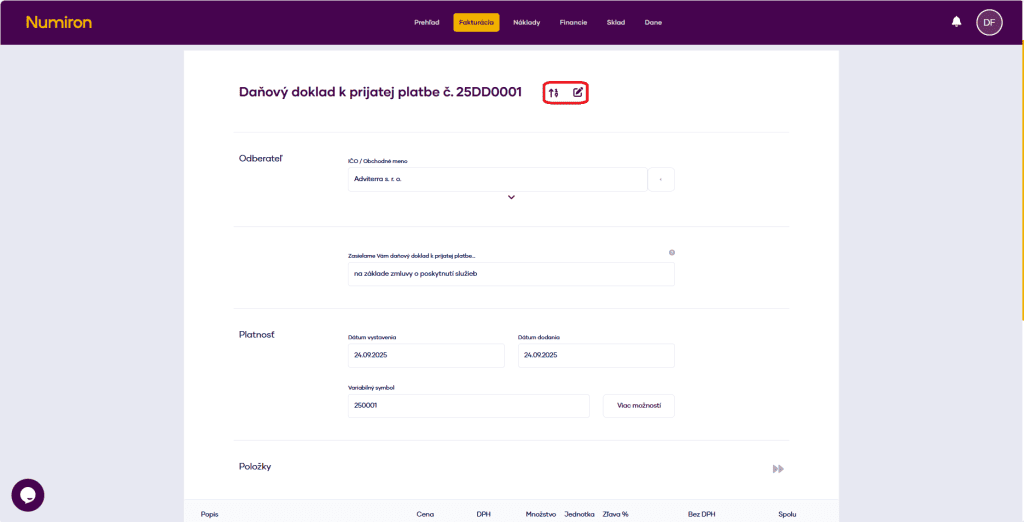
Numerical series- select a preset or enter the document number manually by clicking onPen.
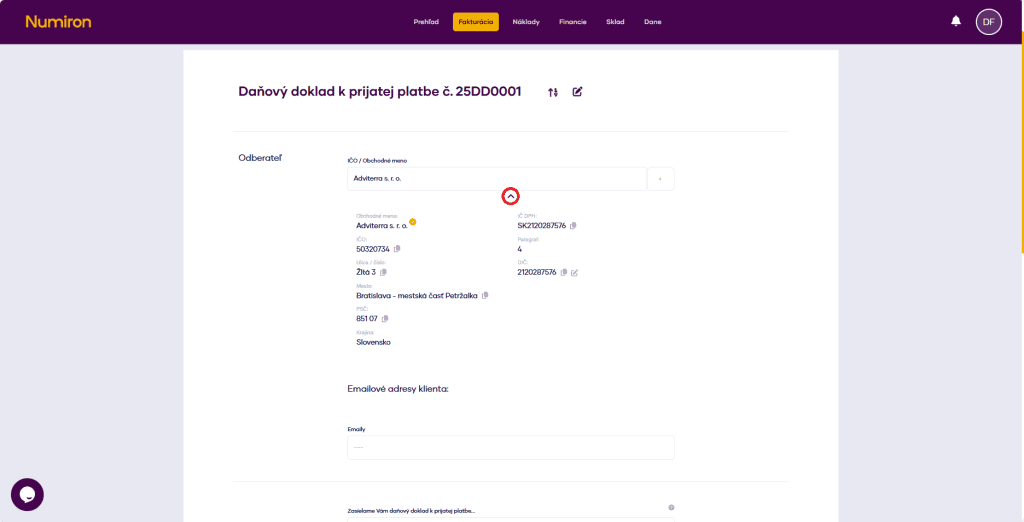
Subscriber- enter the registration number or business name, or select from the saved clients; you can check the details via the arrow below the name.
We send you a tax receipt for the payment received...- edit the text that appears in the PDF header.
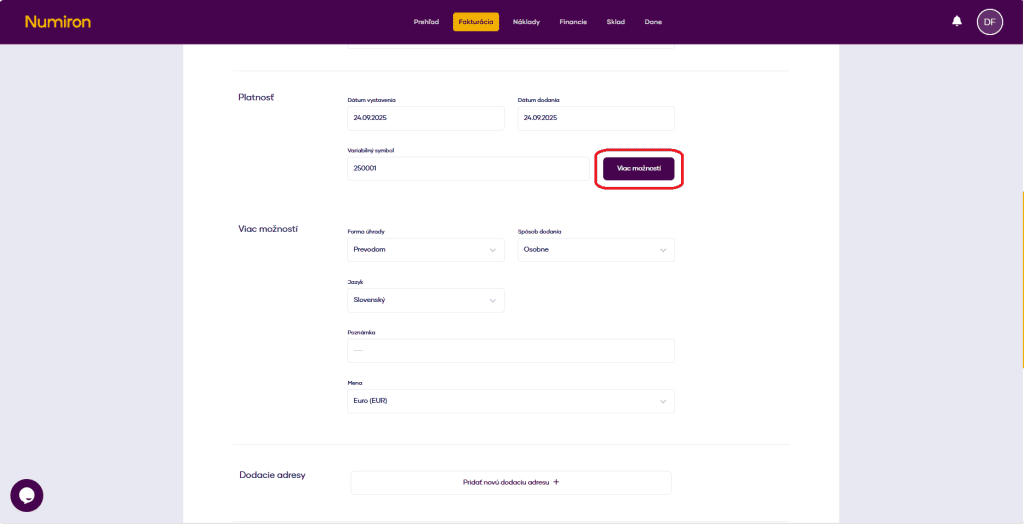
4. Set dates and payment details:
5. Multiple options (optional)
Click on More options and fill in:
6. Add document items
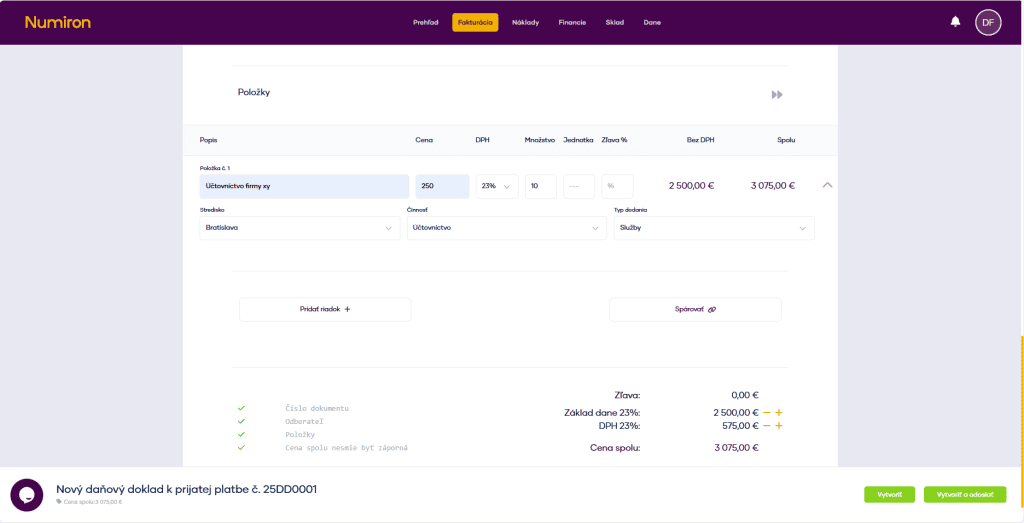
For each item, click on Add row and enter:
7. Pairing with another document (optional)
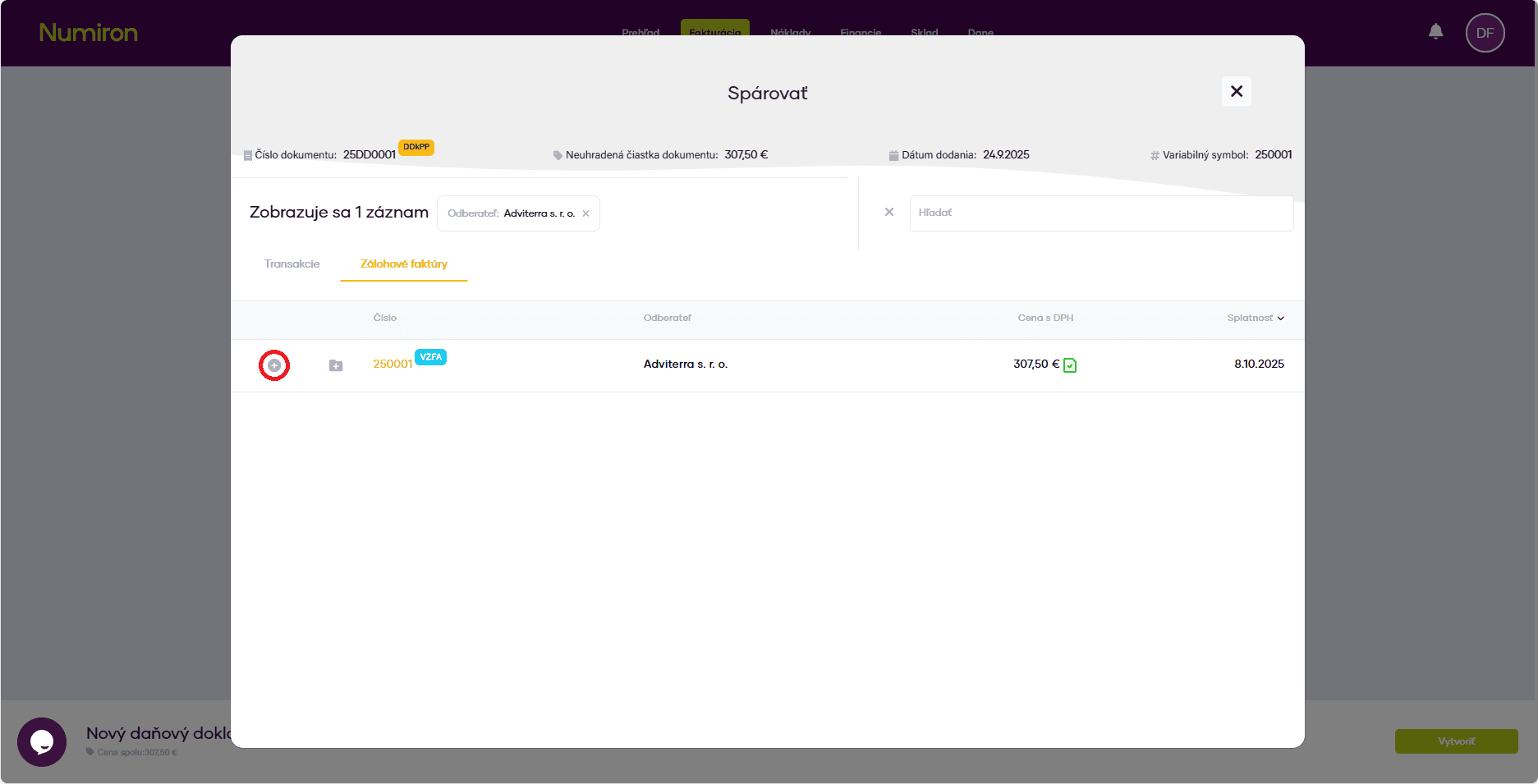
When issuing an invoice, click onPairand select an existing advance invoice or other transaction. This will open the matching mode, you can match the tax document by clicking on the Plus.
8. Complete and submit the document
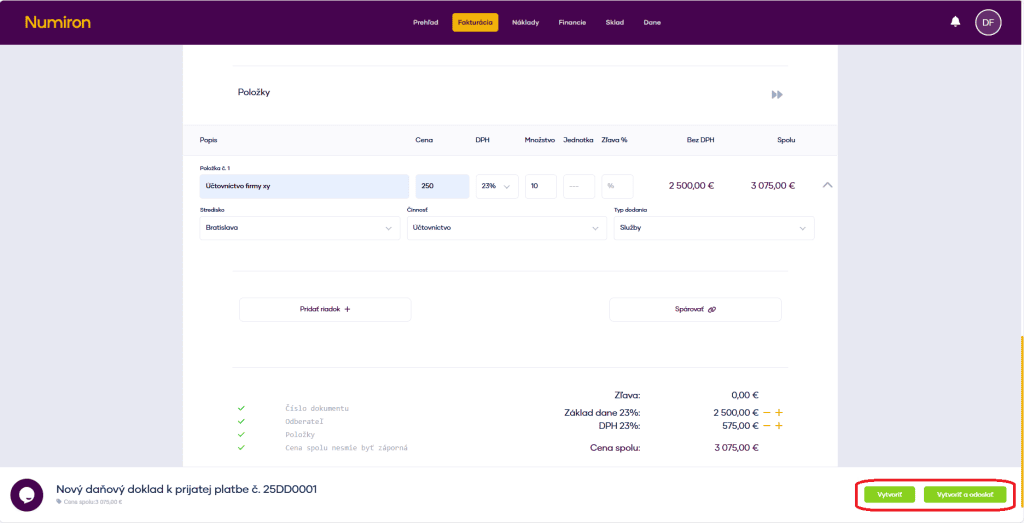
When you have everything filled in, pressCreate orCreate and sendto send the document by email.
Contact us if you haven't found the answer
Mon - Fri from 08:00 - 16:00


Features
About us
Information

Copyright © 2026 Numiron s.r.o.
Website by


