Numiron support
Numiron Support & FAQ


Numiron Support & FAQ
Contact us if you haven't found the answer
Mon - Fri from 08:00 - 16:00
If you invoice the same clients repeatedly (e.g. monthly for services or rent), the Regular invoices Numiron automates the entire process. 
1. Where to find regular invoices
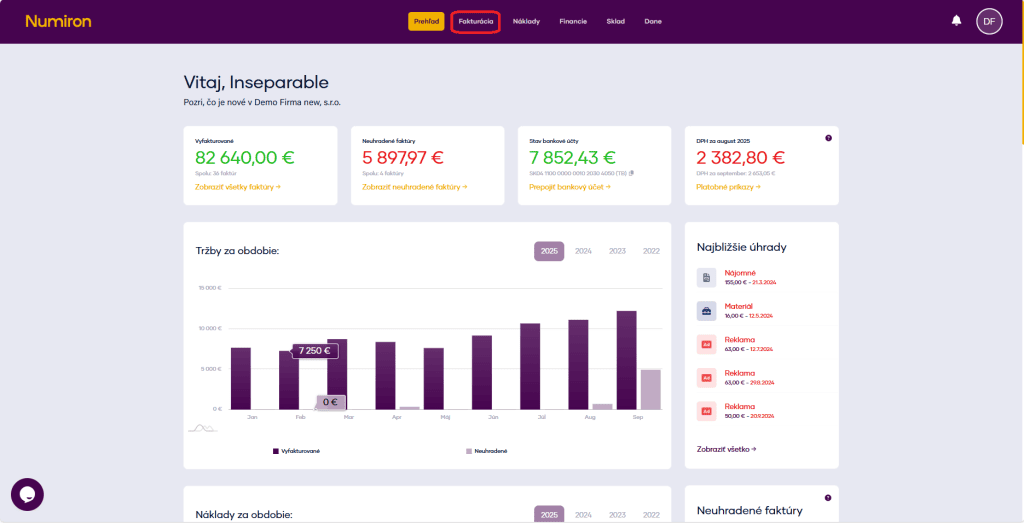
In the main menu, click on Invoicing and select the section Regular invoices.
💡 Tip:
You can also set up a regular invoice from an invoice already issued - select a specific invoice in the list and click Regular VFA.
The system automatically loads the data and you just fill in the details.
2. Create a new regular invoice
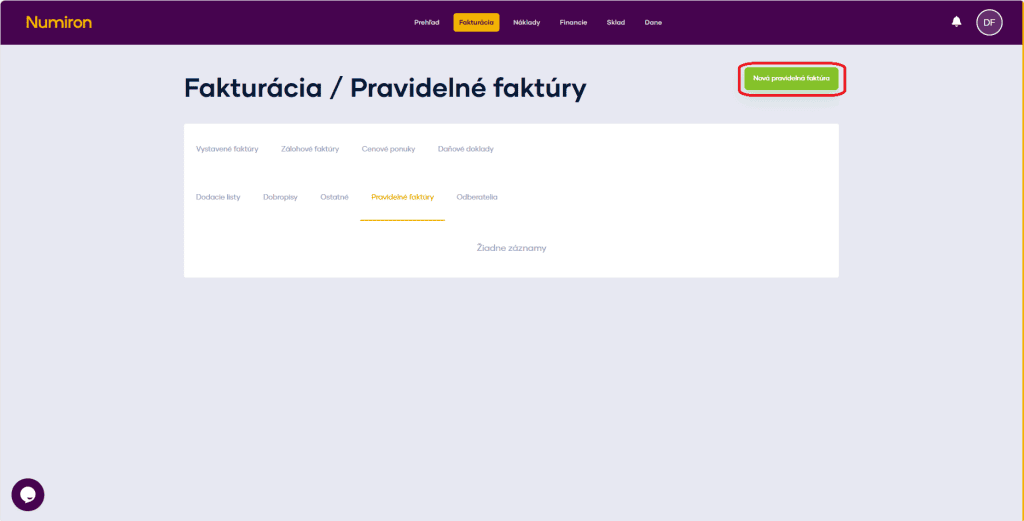
Click the button on the top right New regular invoice.
The prescription editor opens.
3. Basic data of the regulation
Numerical series: Select a preset queue.
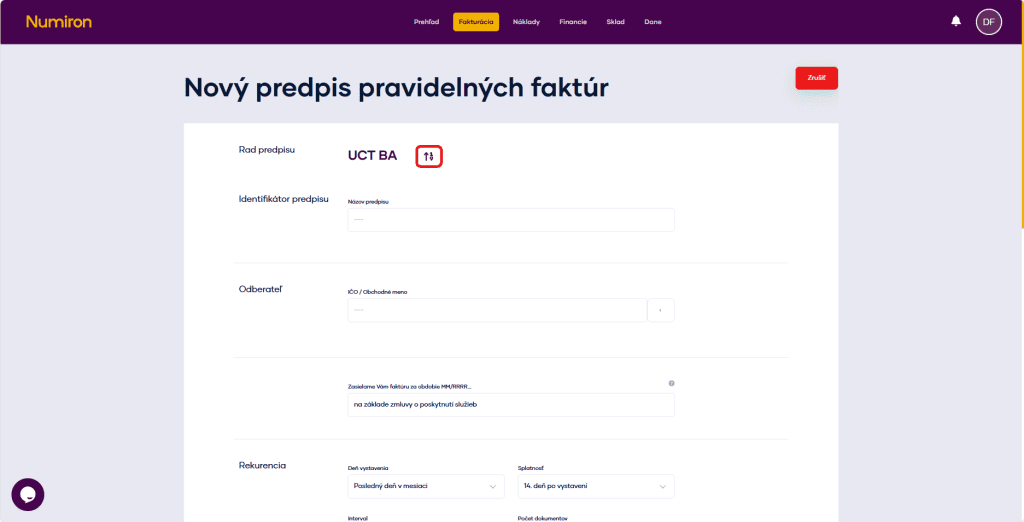
Prescription identifier: Internal name for ease of reference (e.g. „Office rental“).
Subscriber: Enter your company ID, company name, or select from contacts by clicking on the arrow on the right.
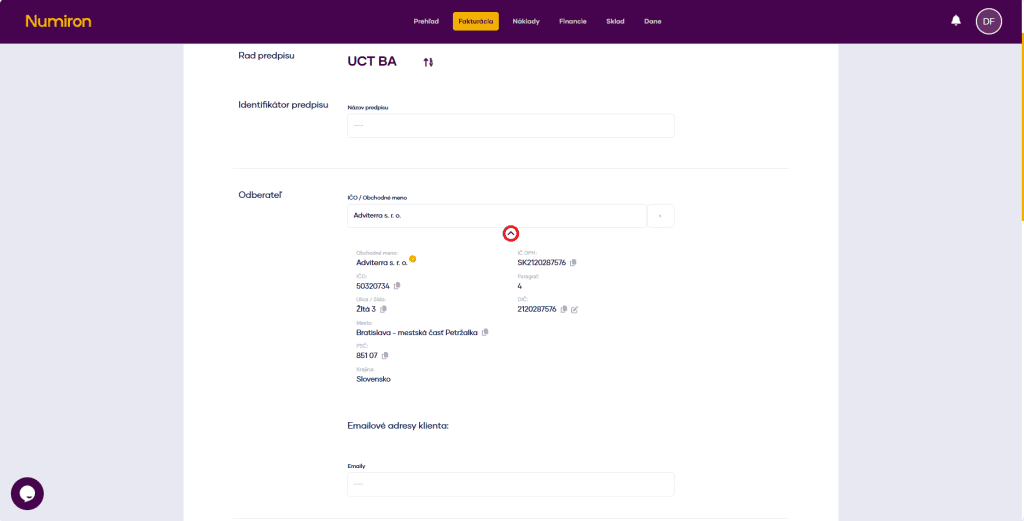
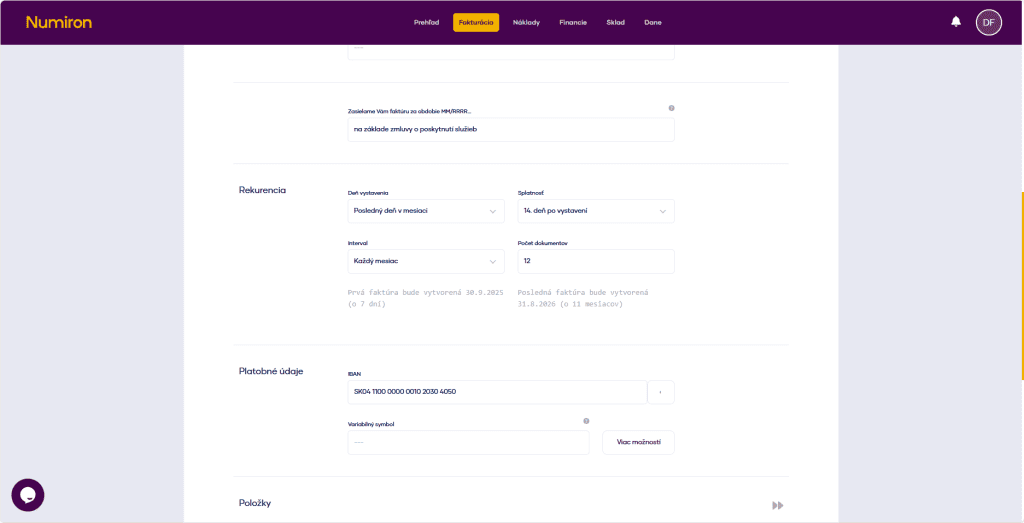
We are sending you an invoice for the period MM/YYYY... : fill in the text that appears in the PDF header.
4. Repetition (recurrence) setting
Here you set how often the invoice should be automatically generated:
5. Payment details
IBAN: It is automatically loaded from your accounts - you can edit or add manually.
Variable symbol: Pre-populates according to invoice numbering but is editable.
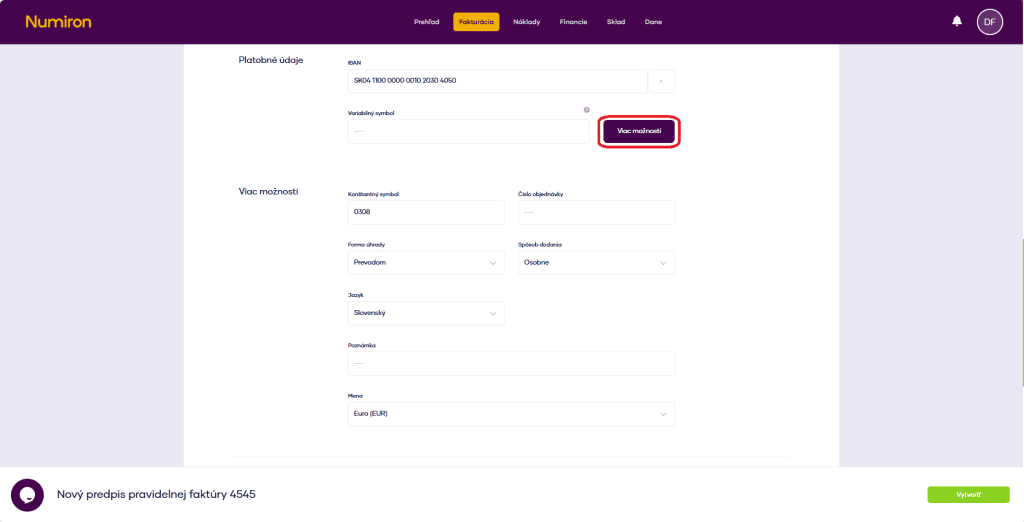
6. Multiple options (optional)
Click on More options and fill in the other data:
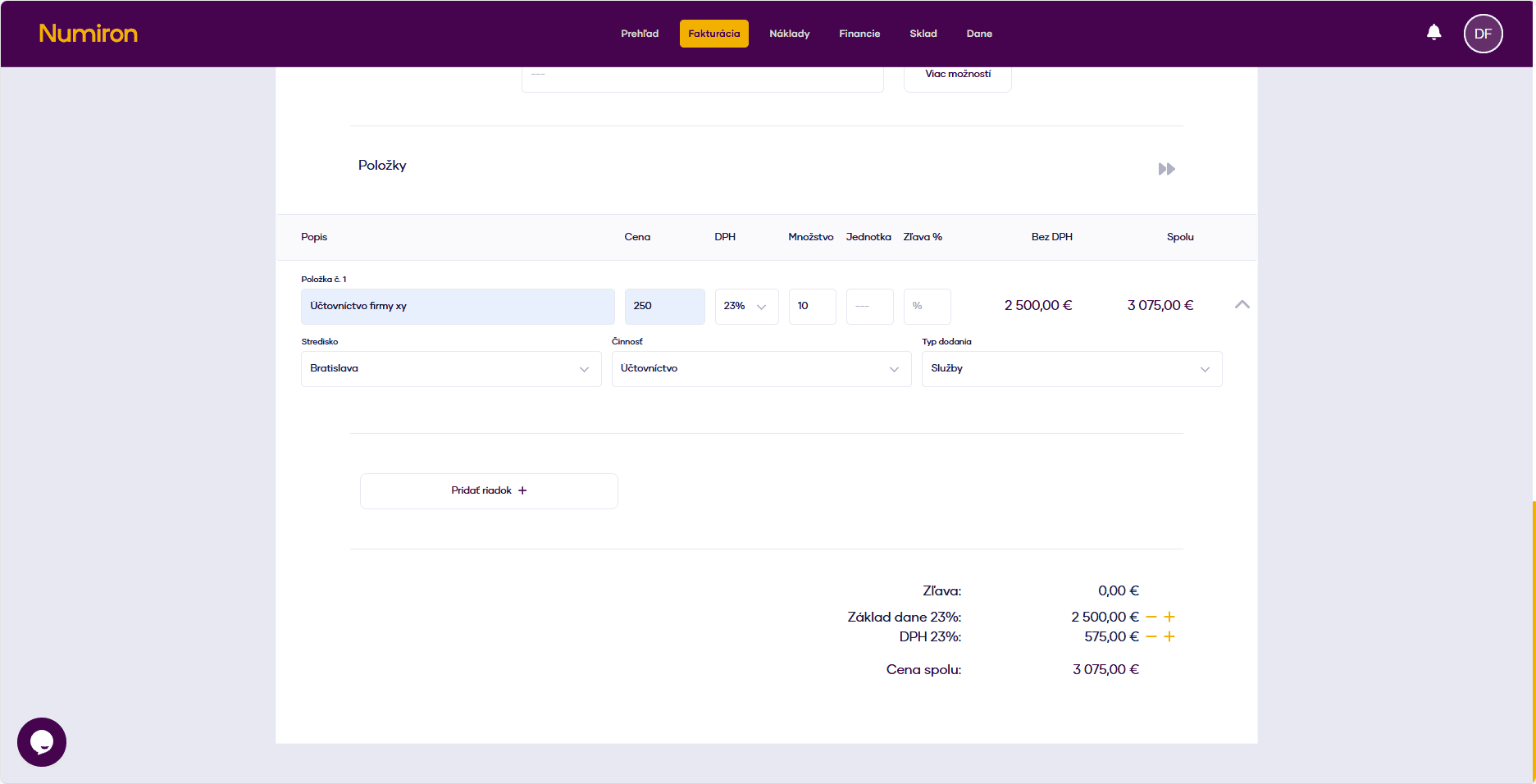
7. Invoice items
For each item, click on Add row and fill in:
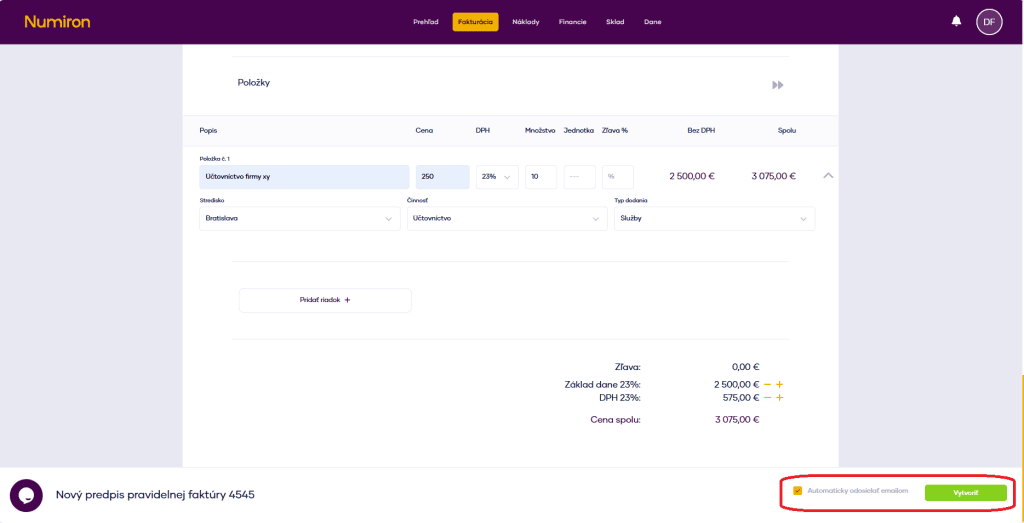
8. Prescription activation
Once you have filled in all the details, click on Create. The system will automatically start issuing and sending invoices based on the set schedule. If you have also entered an email address, a wedgeable option will also appear Automatically send by email.
Contact us if you haven't found the answer
Mon - Fri from 08:00 - 16:00


Features
About us
Information

Copyright © 2026 Numiron s.r.o.
Website by


