Do you have any questions? Write to info@numiron.sk

Numiron support

Numiron Support & FAQ

Group 957 (1)
Data
home

Getting Started

Personal tax return

pie-chart-analysis

Views

Frame 7718

Invoicing

bar-chart-analysis

Cost

Frame 7715

Finance

user

Settings

percent-badge

Data

user

Subscription

Frame 7718

Integrations

Contact us if you haven't found the answer

Mon - Fri from 08:00 - 16:00

Numiron

/

Support

/

Data

Data

In this section you will learn how to manage tax payments directly through Numiron. Tutorials show you how to make entering orders and making payments easier taxes without unnecessary search for information.

In this section you will find all information about:

How to create a new tax payment order

Tax payment orders allow you to quickly and in bulk pay all your tax obligations directly from Numiron. 

1. Where can I find tax payment orders 

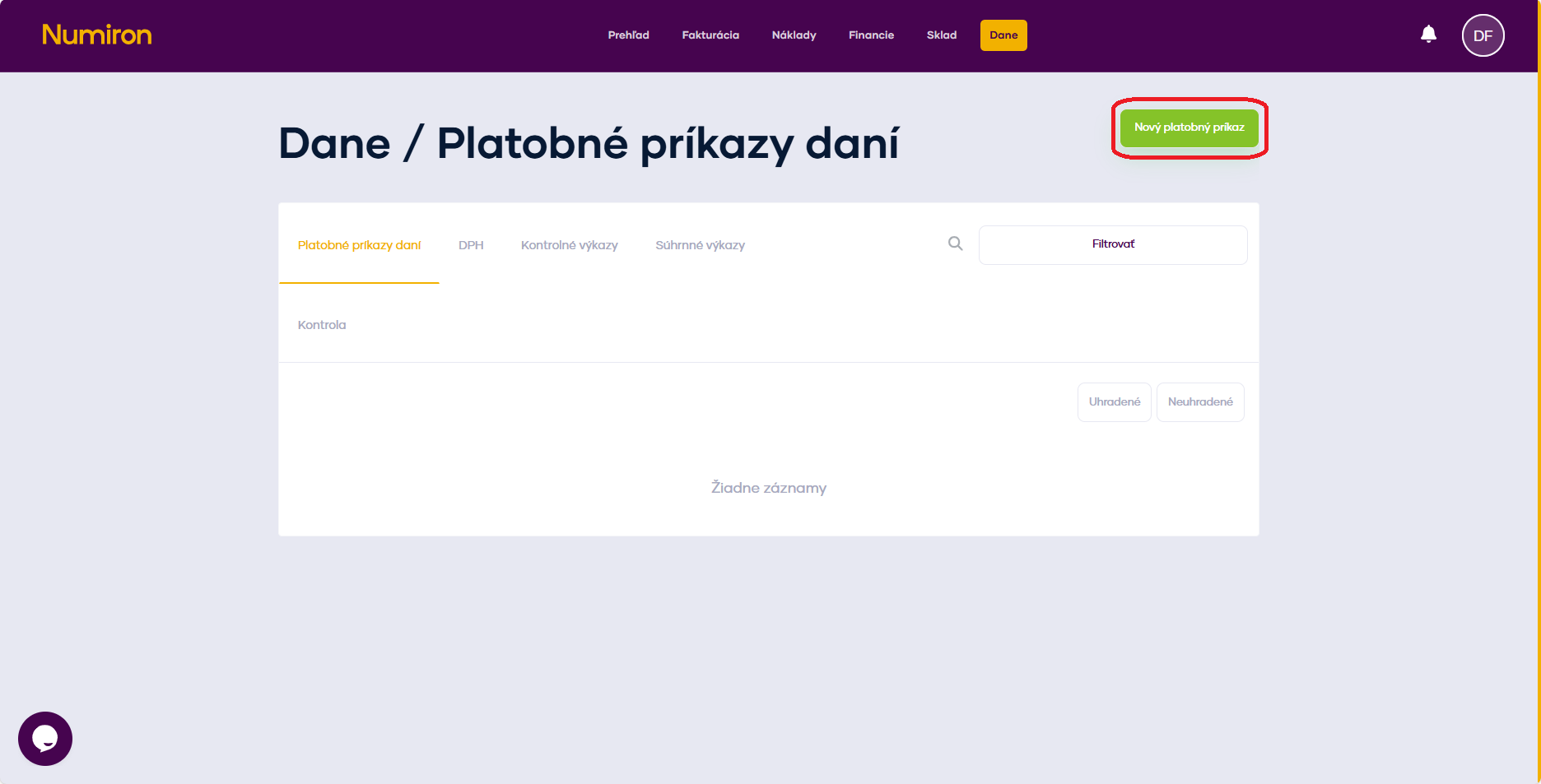
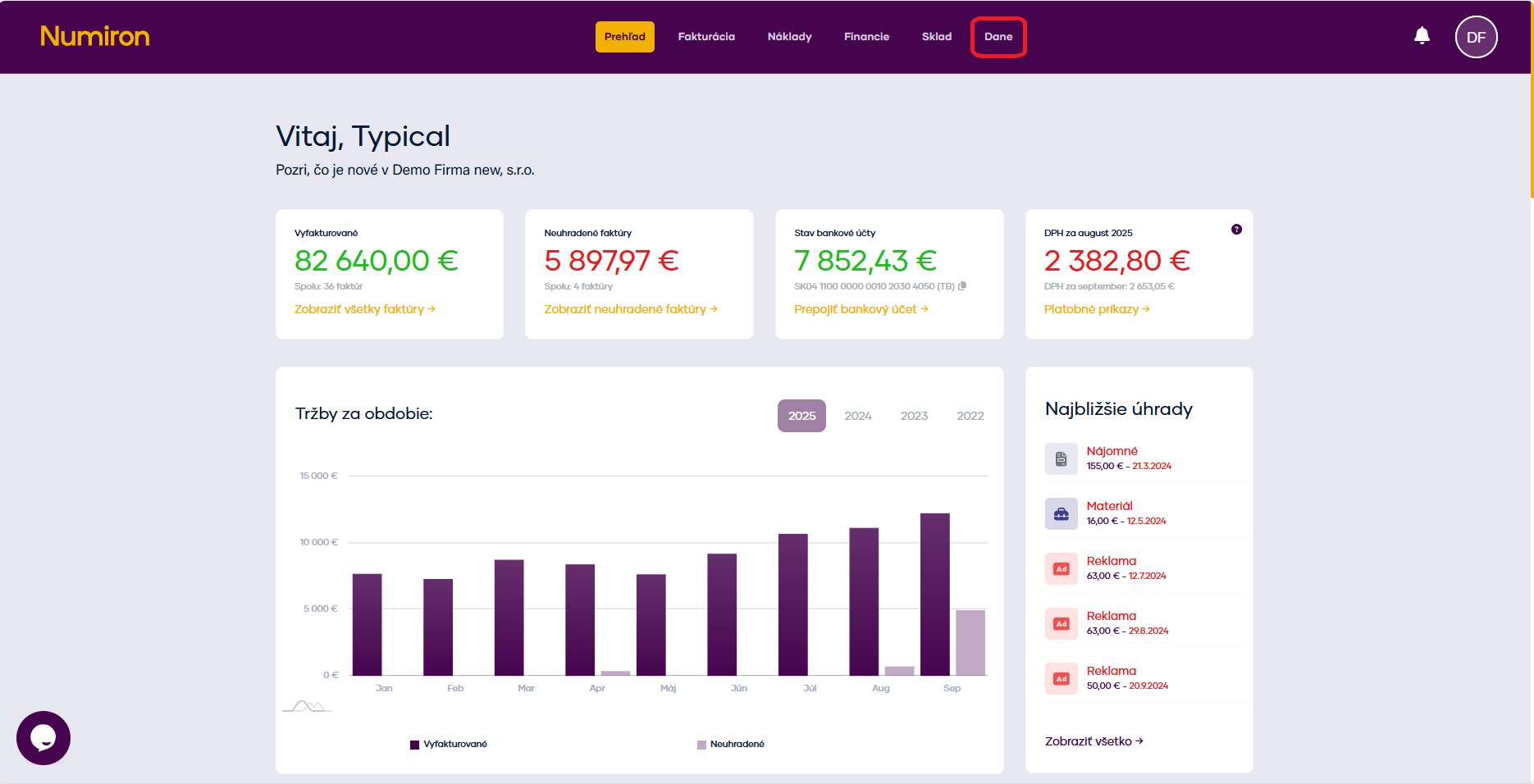
In the main menu, click on the agenda Data, then select the section Tax payment orders - opens a list of already created commands. 
 

prehlad dane

2. How do I create a new tax payment order 

Click on the green button New payment order

dane platobny prikaz vytvorit

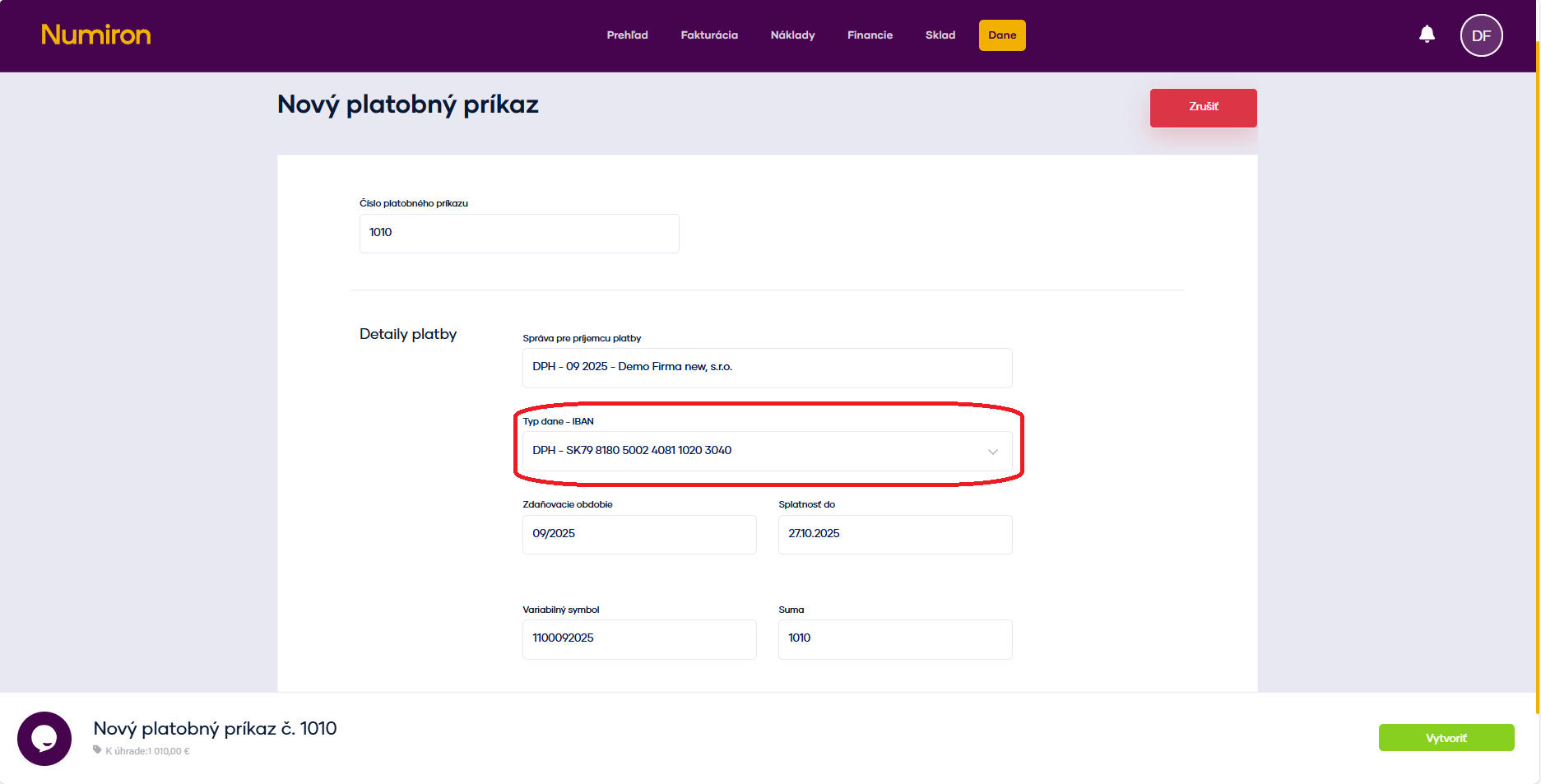
In the form fill in: 

  • order number (internal designation, e.g. PP-2025-001), 
  • data type (VAT, income tax, social or health taxes), 
  • period (month, quarter, year), 
  • due date
  • variable symbol (preset, editable), 
  • the amount of the tax
platobny prikaz dani vytvorit

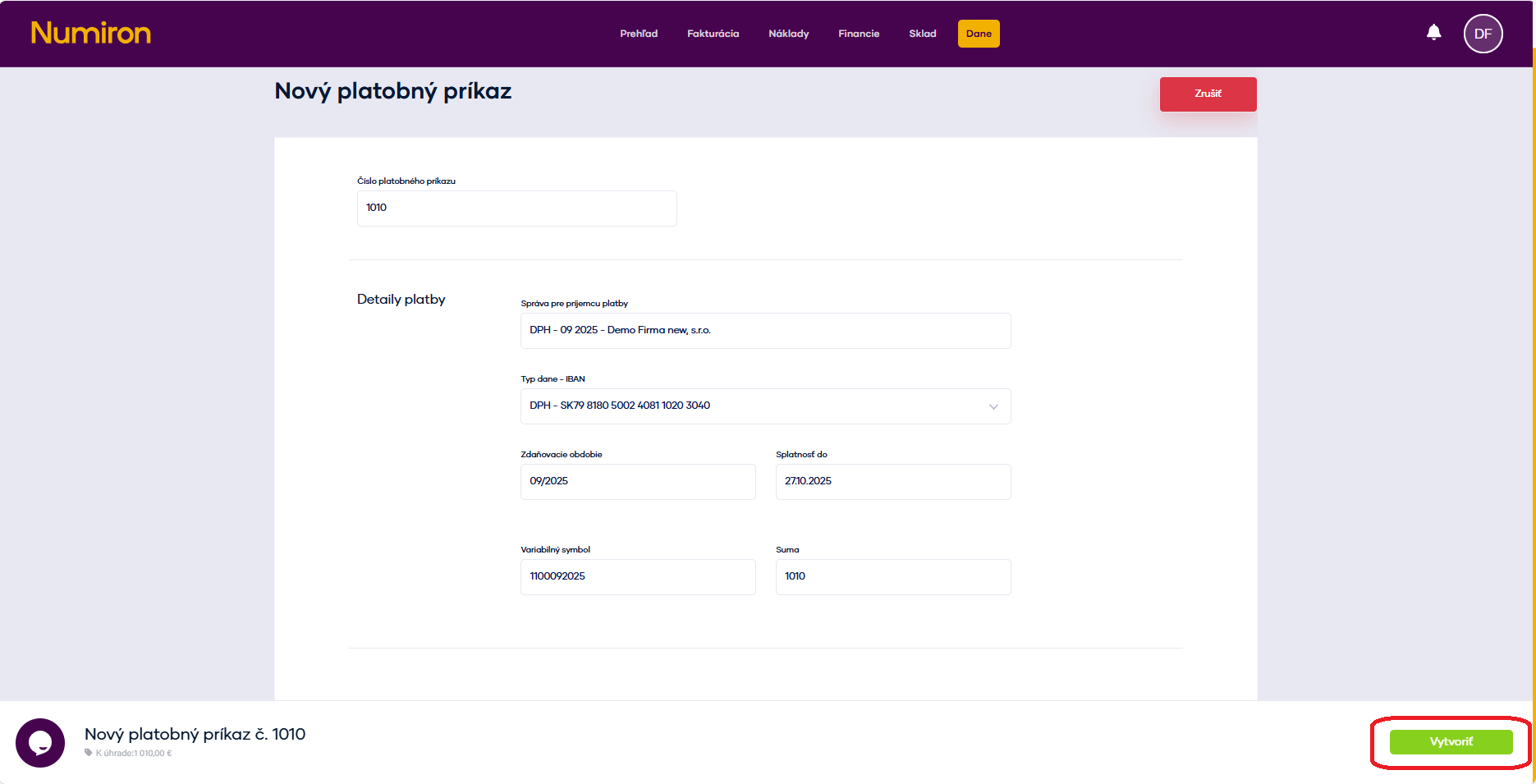
Click Create

platobny prikaz dani final

3. Payment of the order 

Method 1: QR code (Pay by Square) 

In the list, highlight the command and click the button in the bottom bar Payment details.  
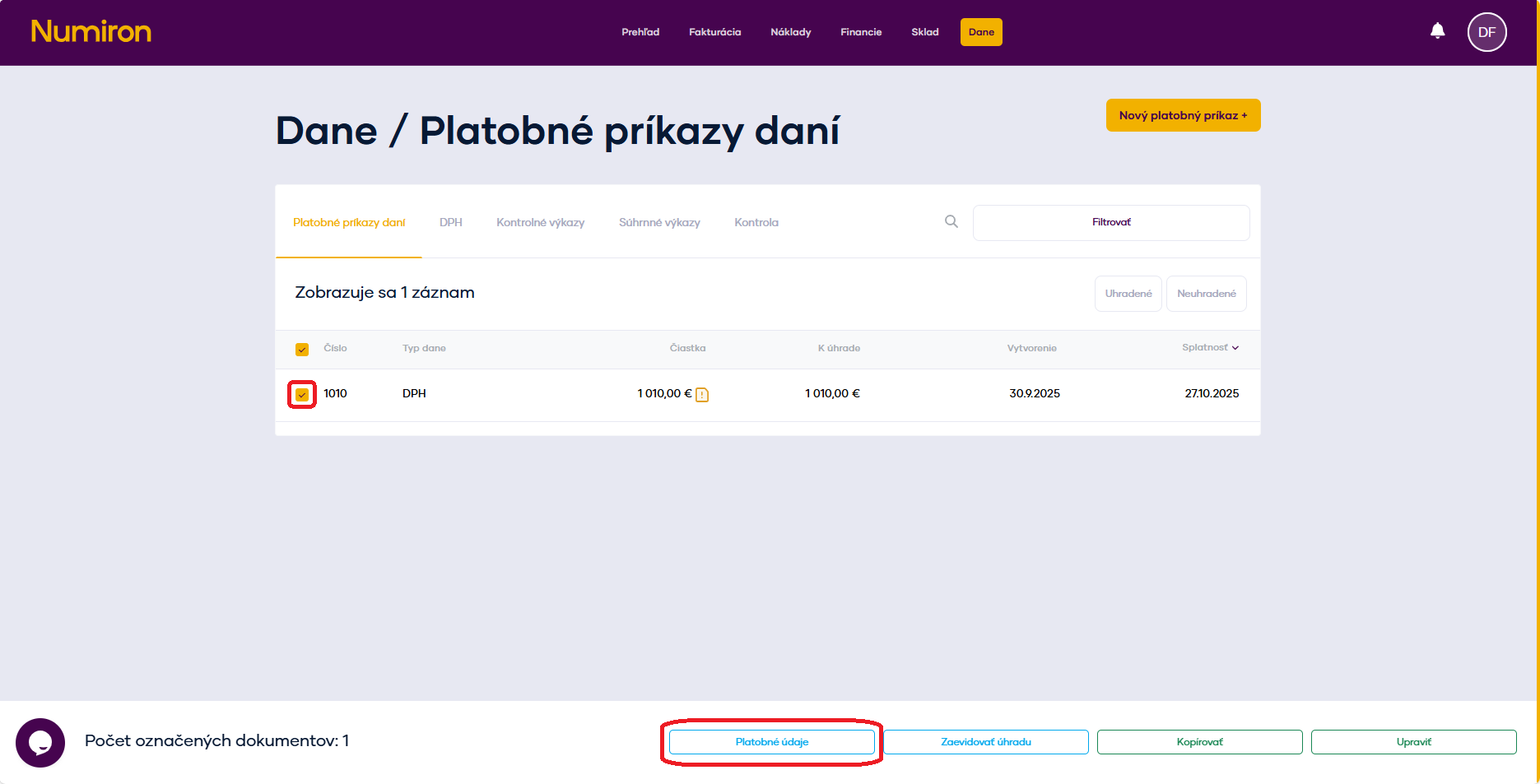
platobny prikaz dani platobne udaje

Numiron will generate a QR code that you scan in your mobile banking app. All you have to do is confirm the payment. 
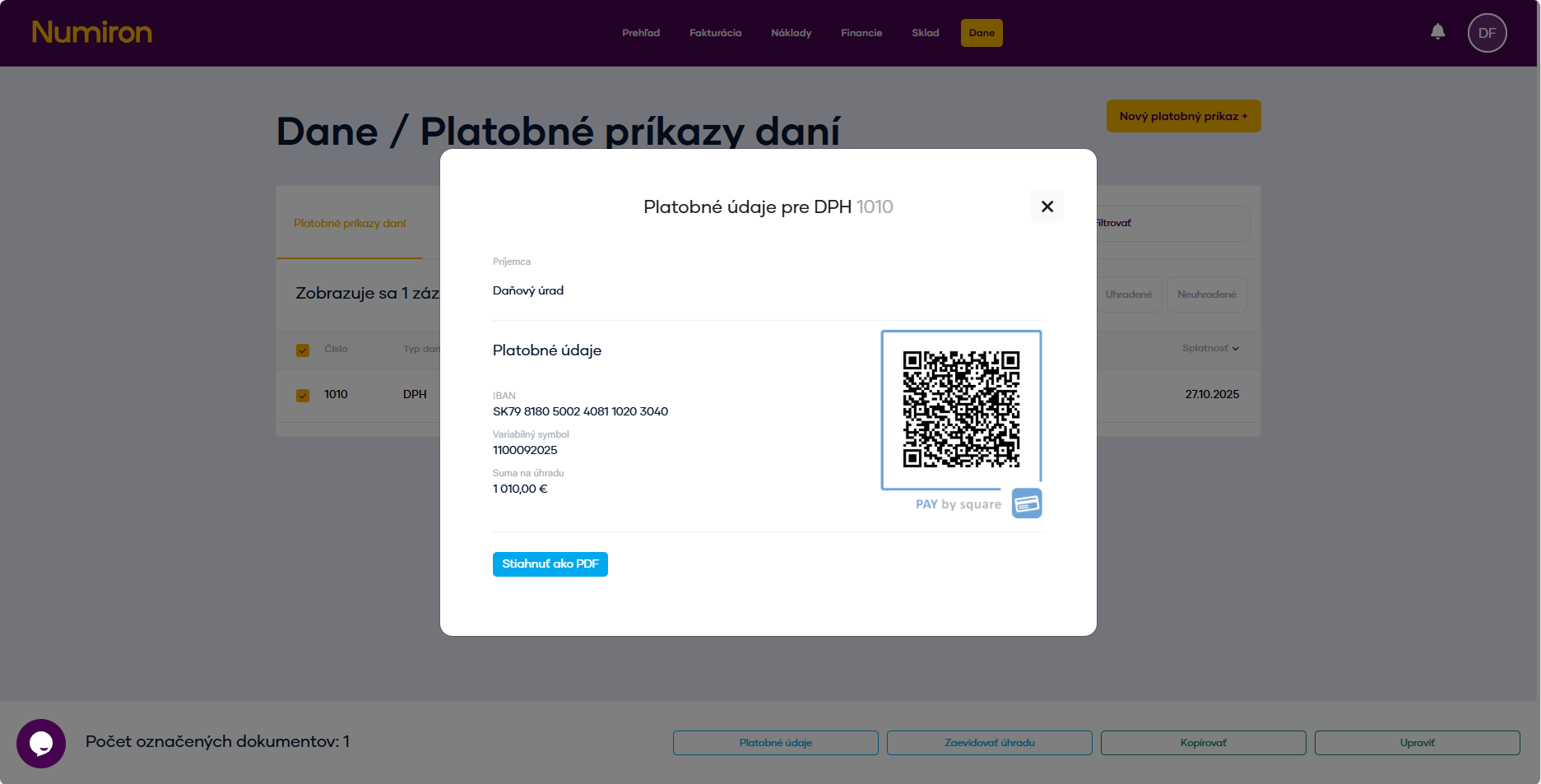
platobny prikaz dani qr kod

Method 2: Payment via internet banking (SEPA XML) 

Highlight the command and click the button in the bottom bar Pay via IB

 The system will generate a SEPA file and redirect you to internet banking to complete the transaction. 

4. Advantages of payment orders 

  • Bulk payments - pay multiple taxes at once. 
  • Accuracy - QR and XML ensure that the data (IBAN, variable symbol) is filled in correctly. 
  • Automatic matching - if you have a linked bank, orders are automatically marked as paid when they are paid. 
  • History and reporting - in the order details you will find the date of payment, status and any notes. 
How to generate IBANs to pay your taxes

If you are a self-employed person, an individual or an entrepreneur, you will need a so-called "tax remittance" to pay your taxes. OUD (Personal Taxpayer Account). Based on this, Numiron will automatically generate specific IBANs for each type of tax so that you always use the correct account when making payments. 

1. Open tax settings 

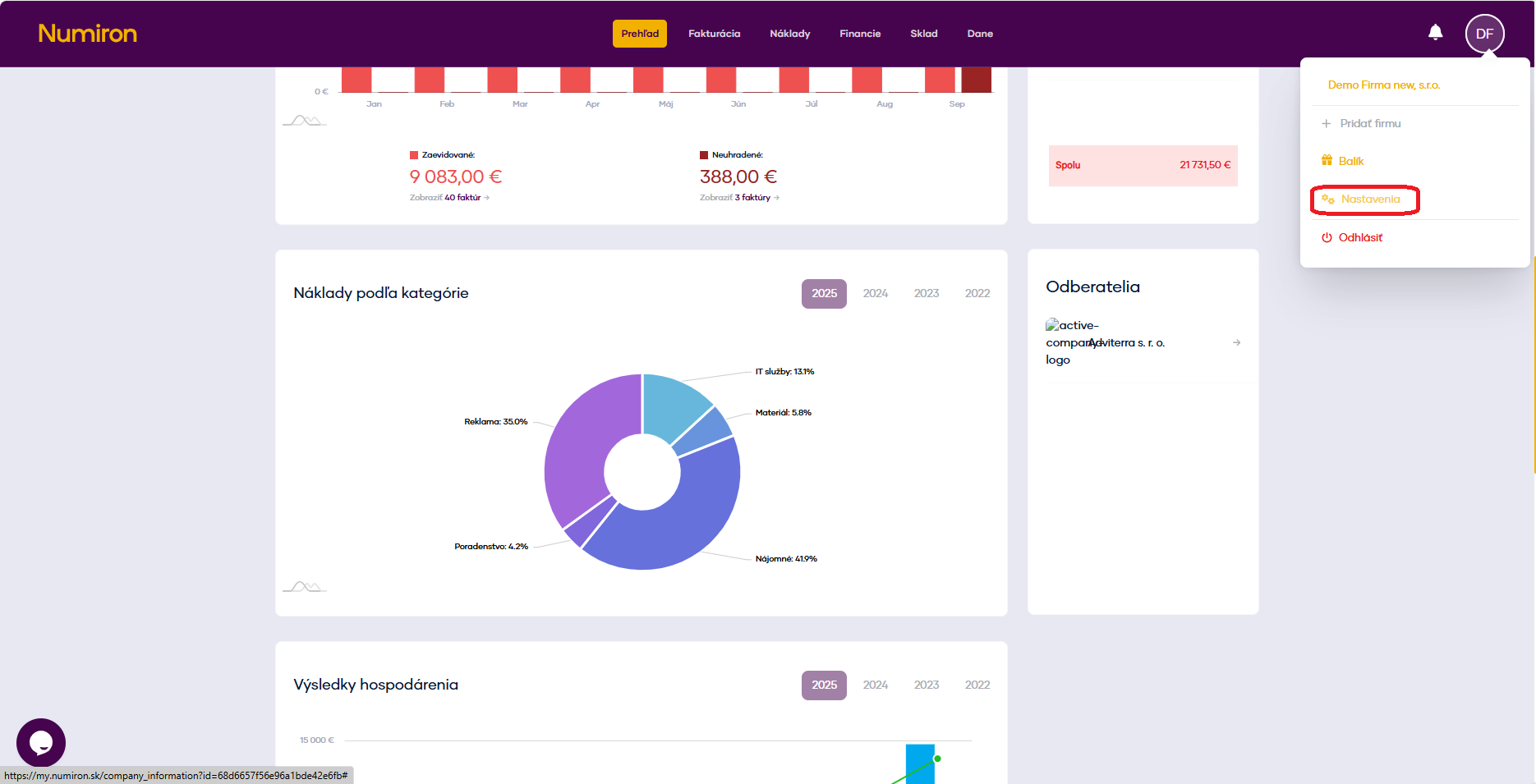
In the top right corner, click on the icon of your Profile, Select Settings and switch to the section Data 

prehlad nastavenia

2. Inserting the OUD 

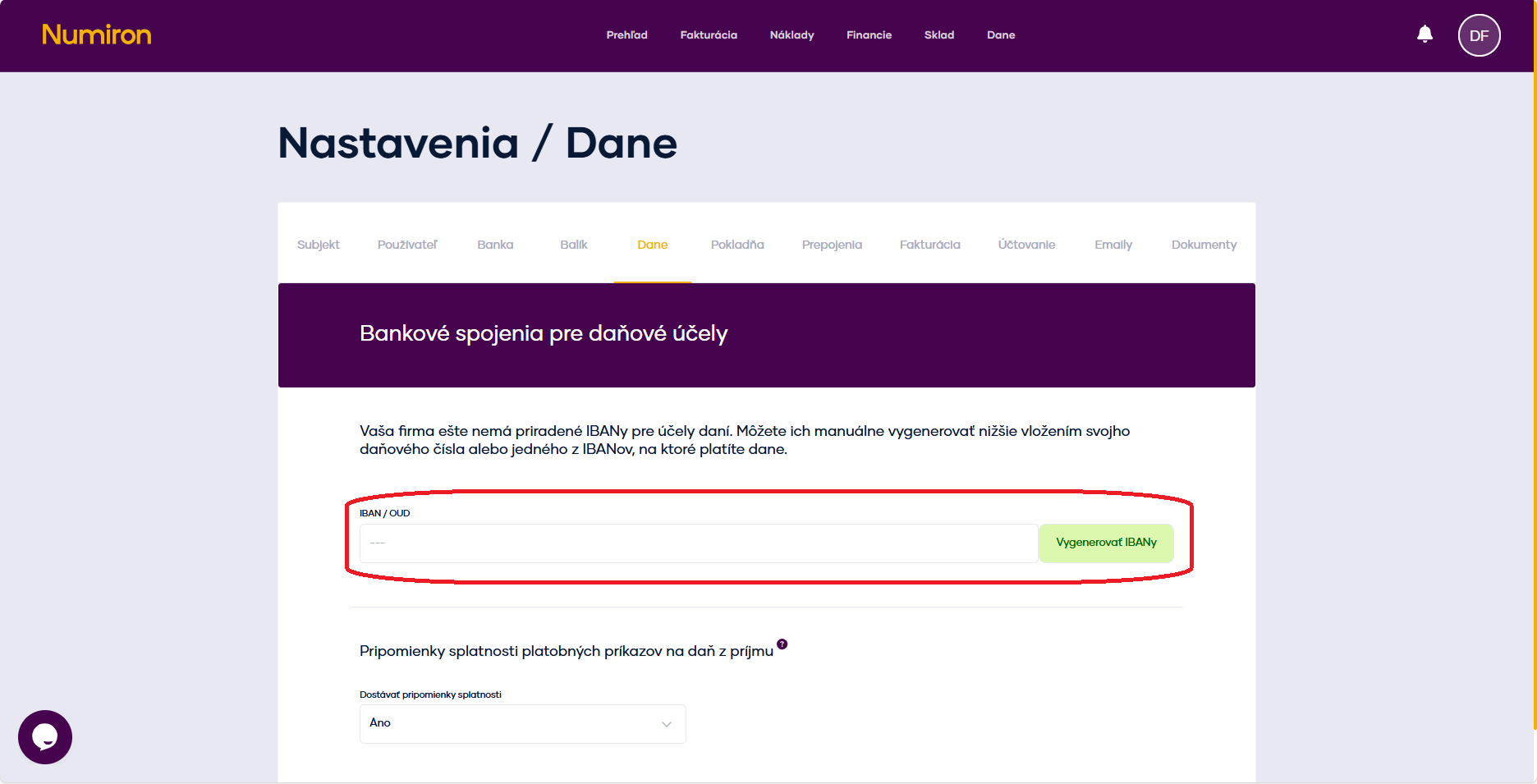
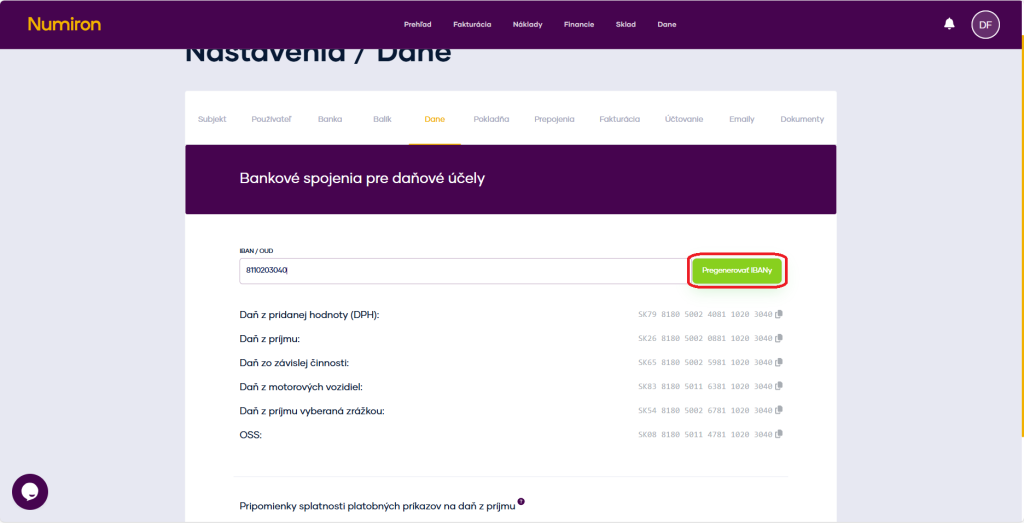
The IBAN/OUD field is located at the top. This is where you enter your OUD number. 

oud numiron

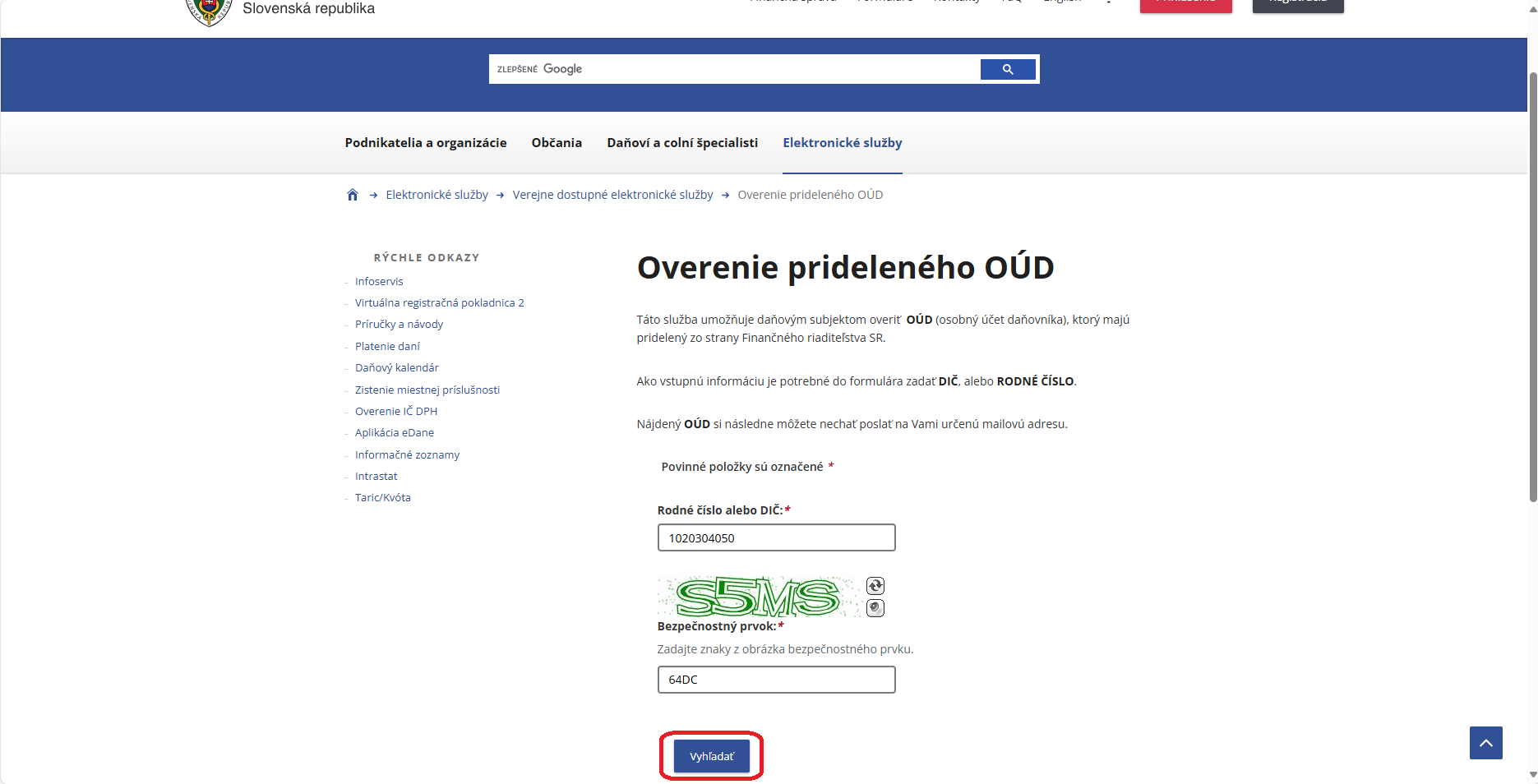
If you don't already have one, generate OUD on the portal of the Financial Administration  

Verification of... - PFS 

oud financna sprava

3. Regeneration of IBANs 

After adding the OUD, click on Regenerate IBANs. Numiron creates specific accounts for each type of tax (e.g. VAT, income tax, levies) and assigns them to the appropriate categories.

pregenerovat ibany

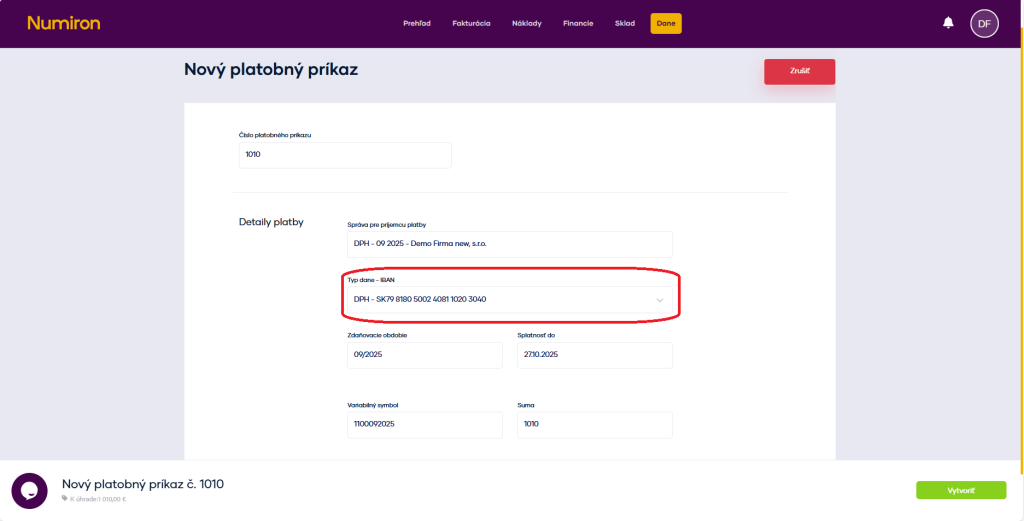
4. Use of IBANs when creating payment orders 

When you create tax payment order, the correct IBAN will be automatically filled in according to the tax type you have selected. You no longer need to search for it or copy it from external sources - everything is ready for you directly in the system. 

platobny prikaz dani vytvorit