Numiron support
Numiron Support & FAQ


Numiron Support & FAQ
Contact us if you haven't found the answer
Mon - Fri from 08:00 - 16:00
The quotation is an important step in communicating with the customer before the order is placed.
V Numiron you can create it quickly, clearly and exactly according to your needs.
1. Where to find quotes
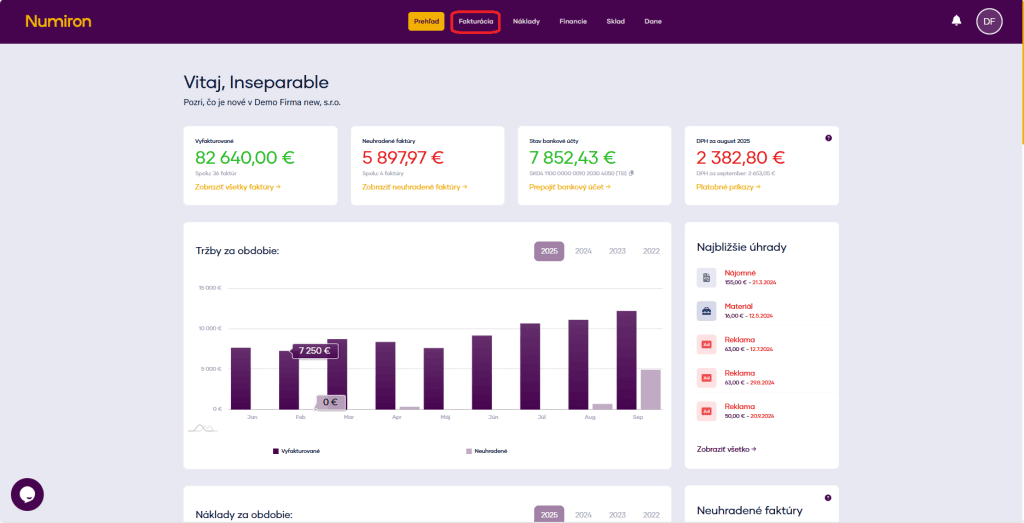
In the main menu, click on Invoicing and select the section Price offers.
2. Creating a new quotation
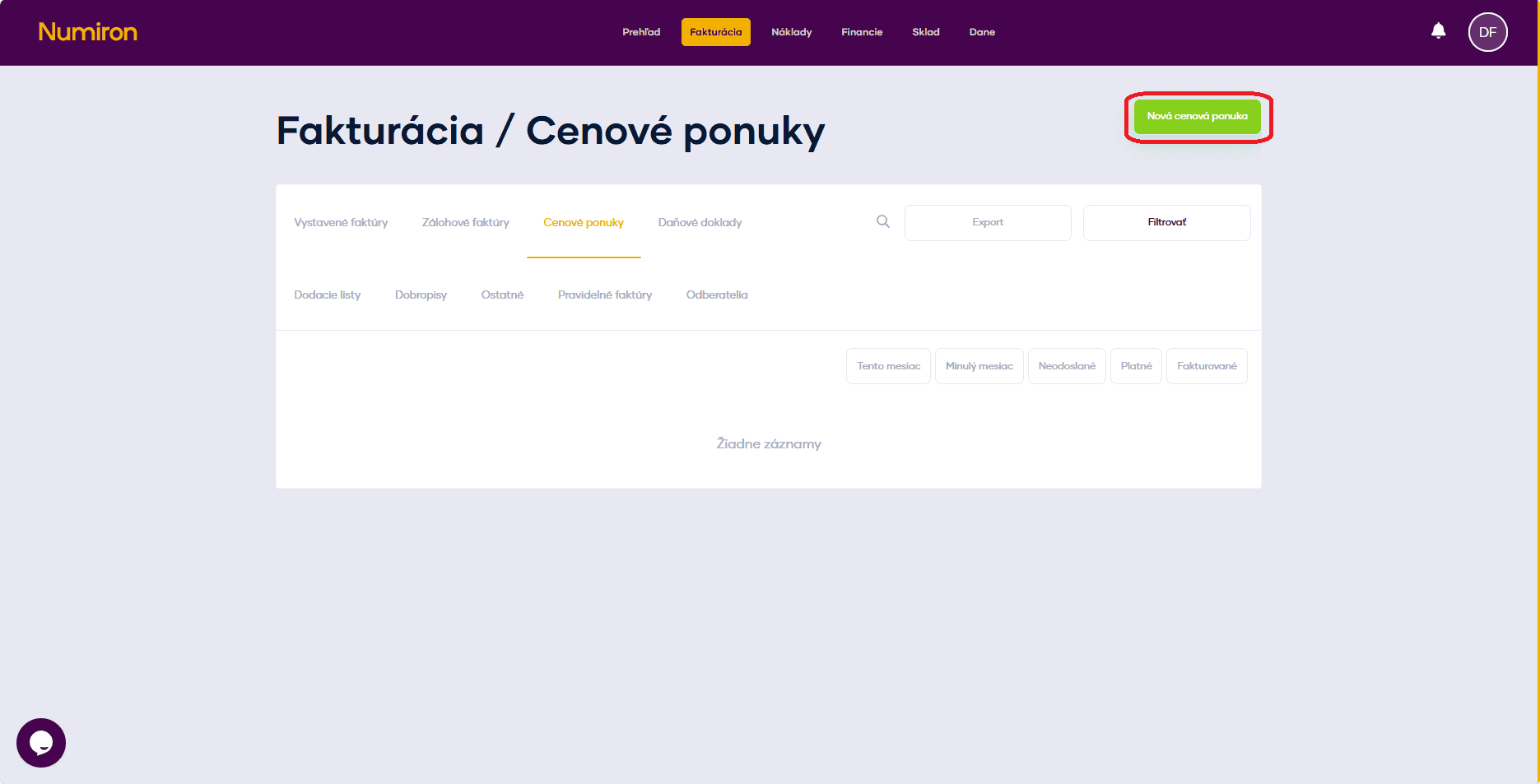
At the top right of the screen, click on New price offer.
3. Basic data
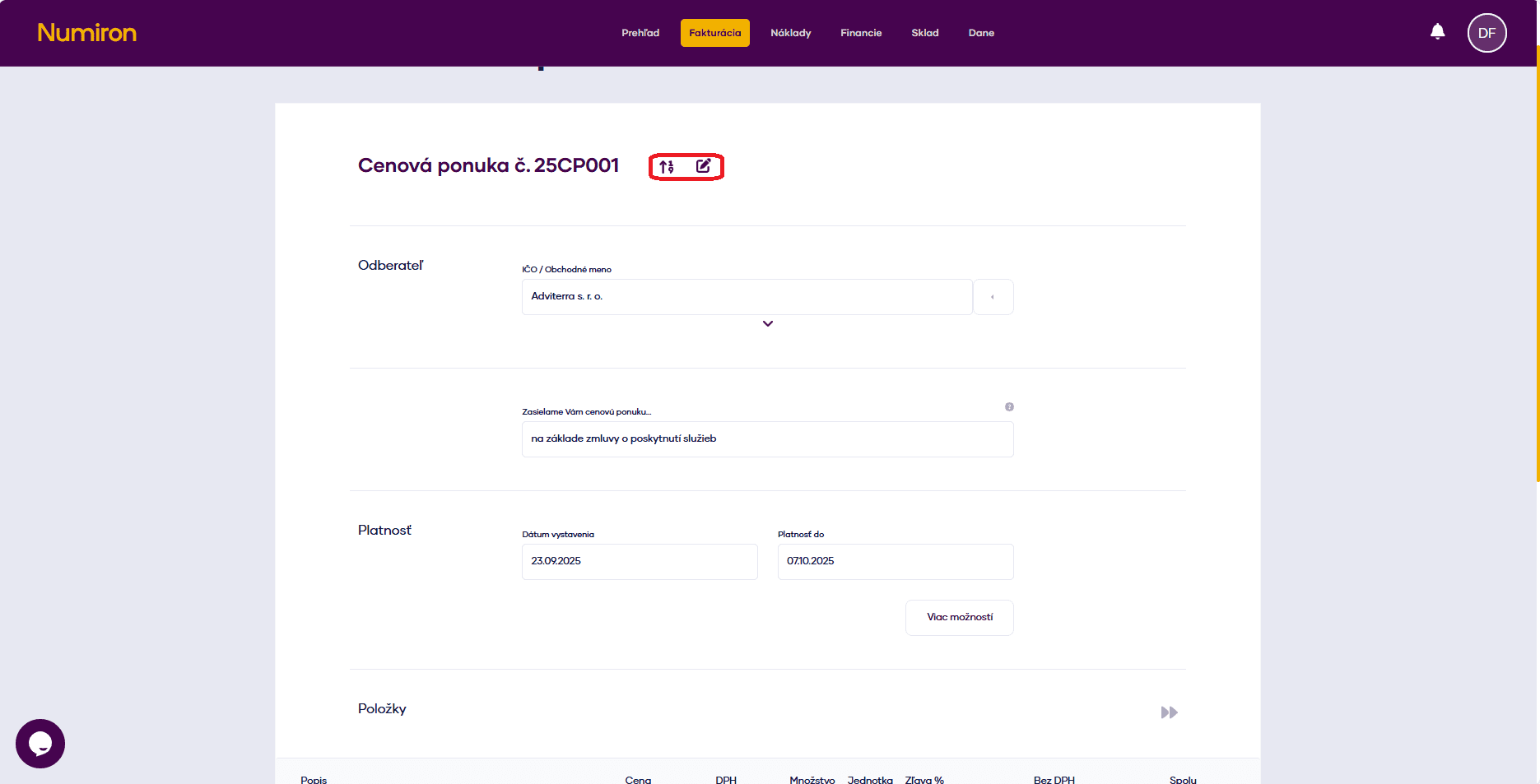
Numerical series: Choose from the default rows via the arrow or click on the pen icon and enter the number manually by clicking on the Pen.
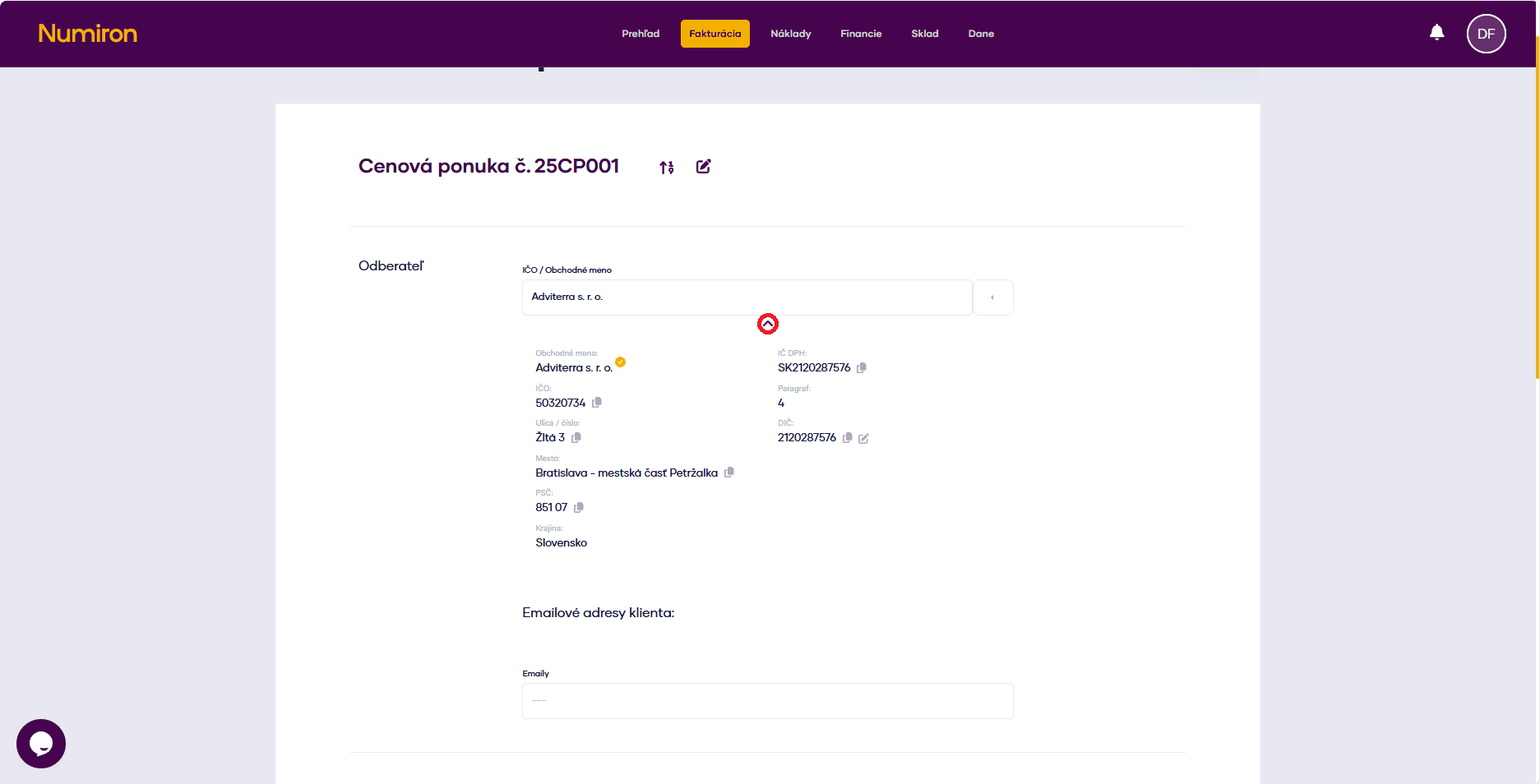
Subscriber: Enter company ID, company name or select the customer from the list. Click on the arrow below the name to verify their details and add an email.
We are sending you a quotation... - fill in the text that appears in the PDF header.
4. Validity of the offer enter as follows:
5. Multiple options (optional)
Click on More options and fill in:
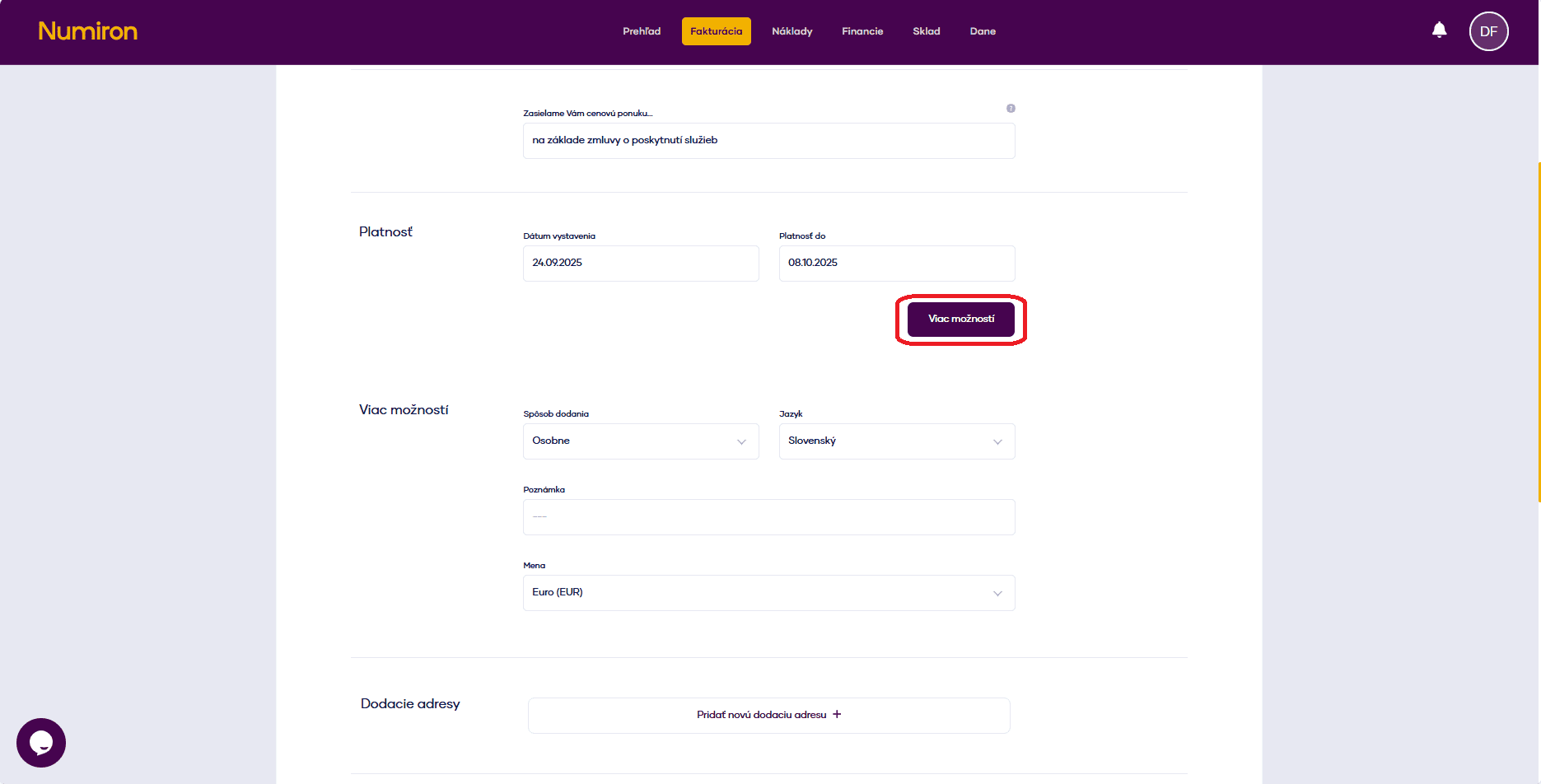
6. Items quotations
For each item, click on Add row and fill in:
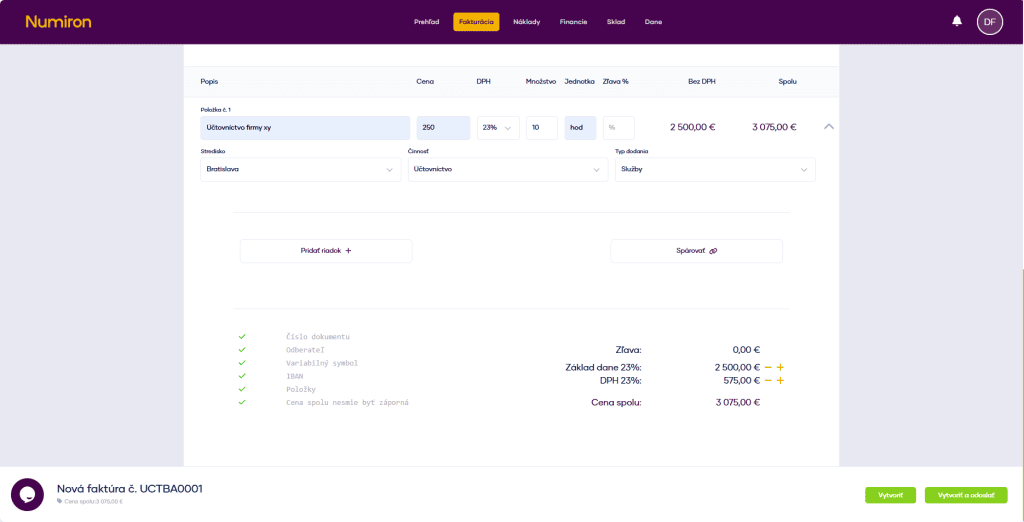
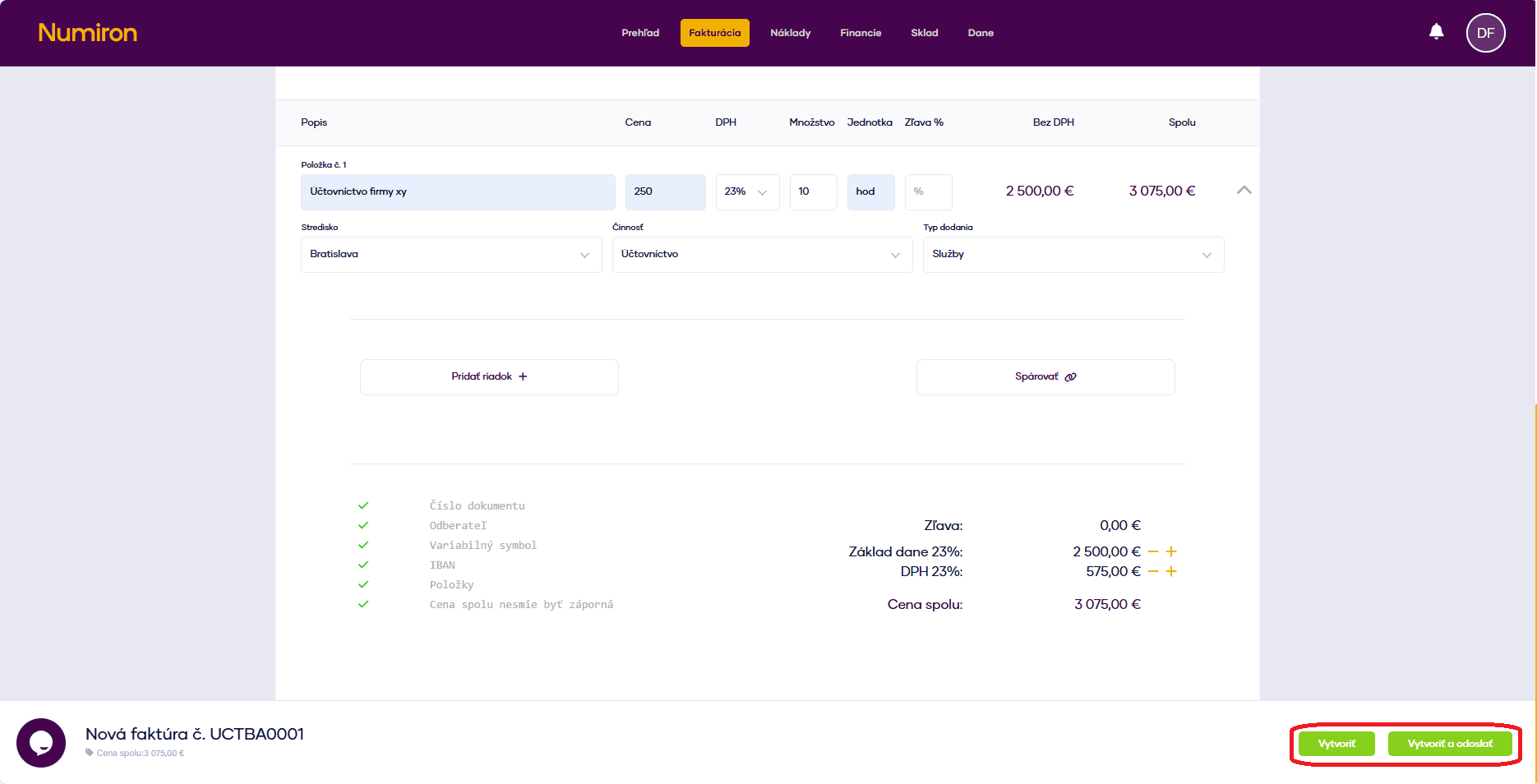
7. Completion and dispatch
When you have everything filled in, click on:
Create - save the quotation in the system.
Create and send - saves the quotation and sends it by e-mail at the same time.
Contact us if you haven't found the answer
Mon - Fri from 08:00 - 16:00


Features
About us
Information

Copyright © 2026 Numiron s.r.o.
Website by


