Numiron support
Numiron Support & FAQ


Numiron Support & FAQ
Contact us if you haven't found the answer
Mon - Fri from 08:00 - 16:00
In the system Numiron invoicing is quick and easy.
Just follow a few steps below.
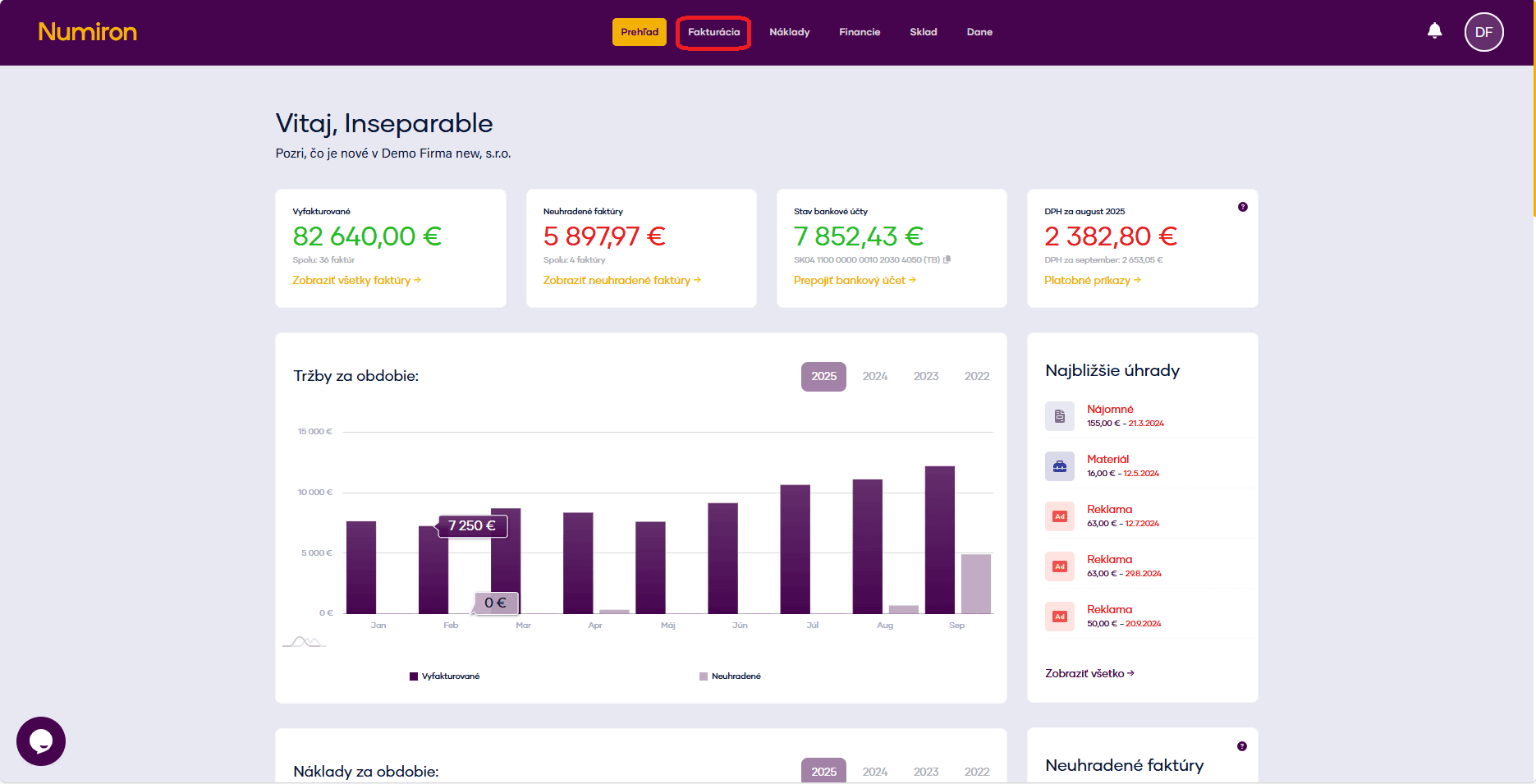
1. Where you can find the issued invoices
In the main menu, click on Invoicing and select the section Invoices issued.
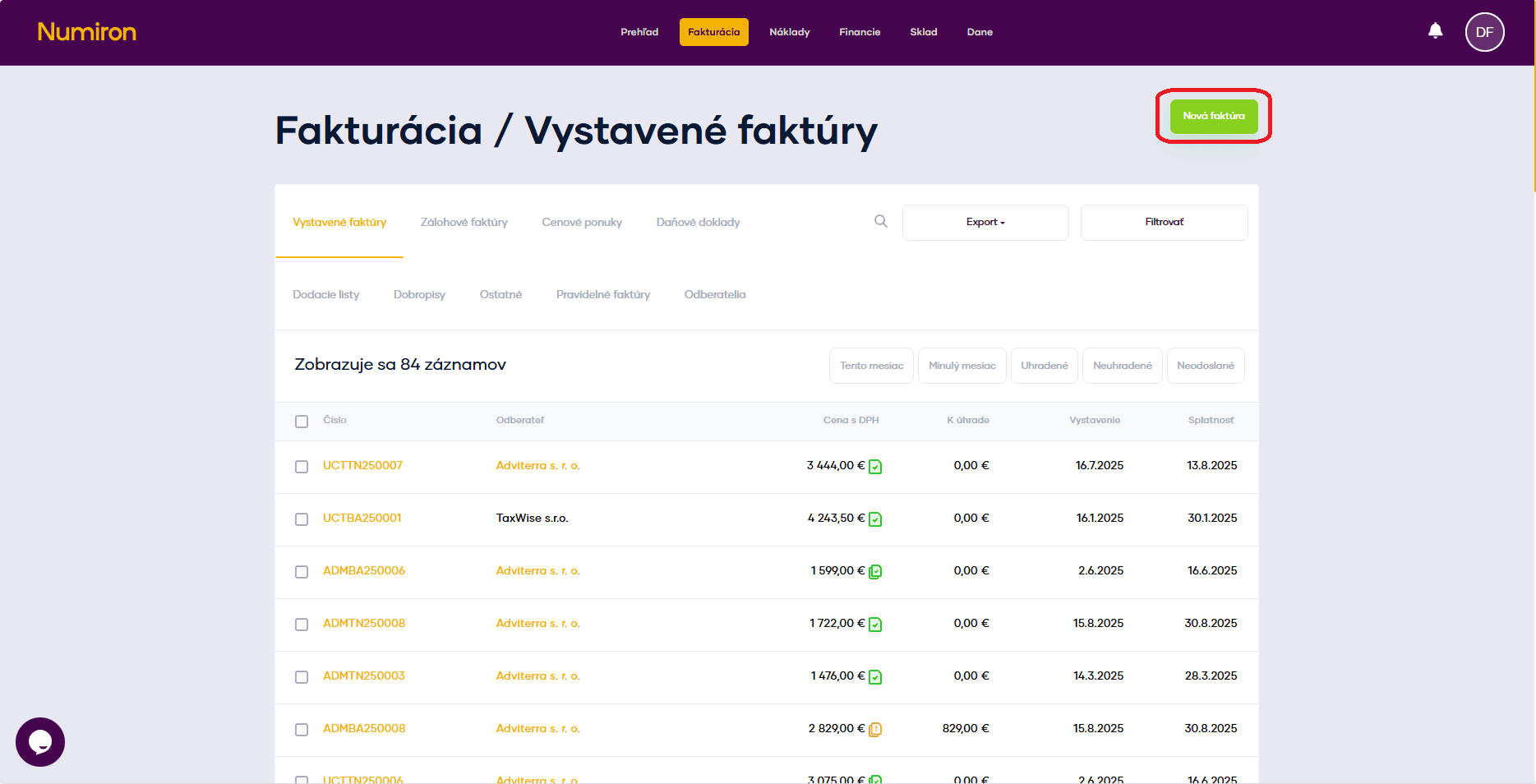
2. Create a new invoice
Click the button on the top right New invoice. This will open a form where you fill in all the necessary details.
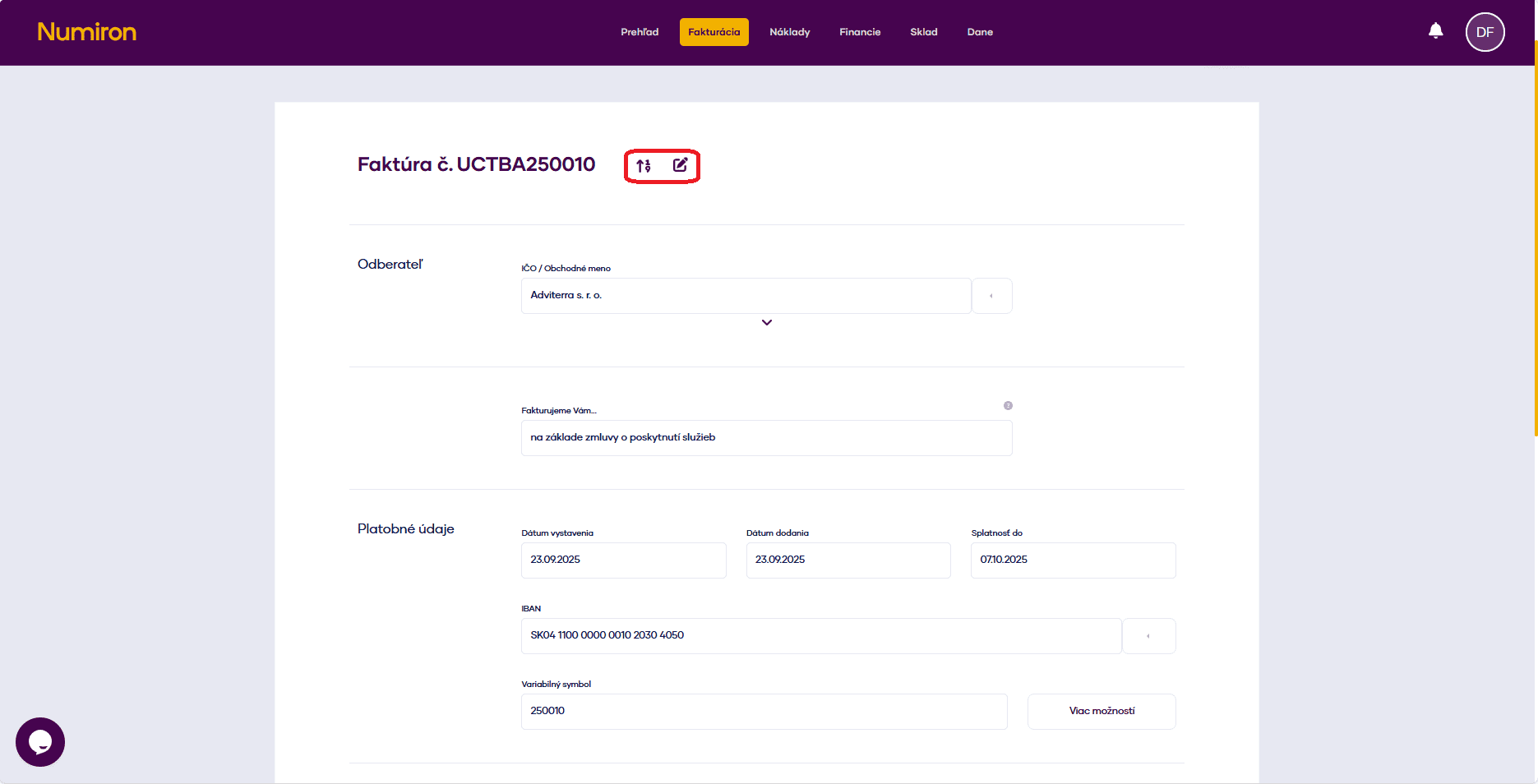
3. Basic invoice details
Numerical series: Choose from the default rows via the arrow or click on the pen icon and enter the number manually.
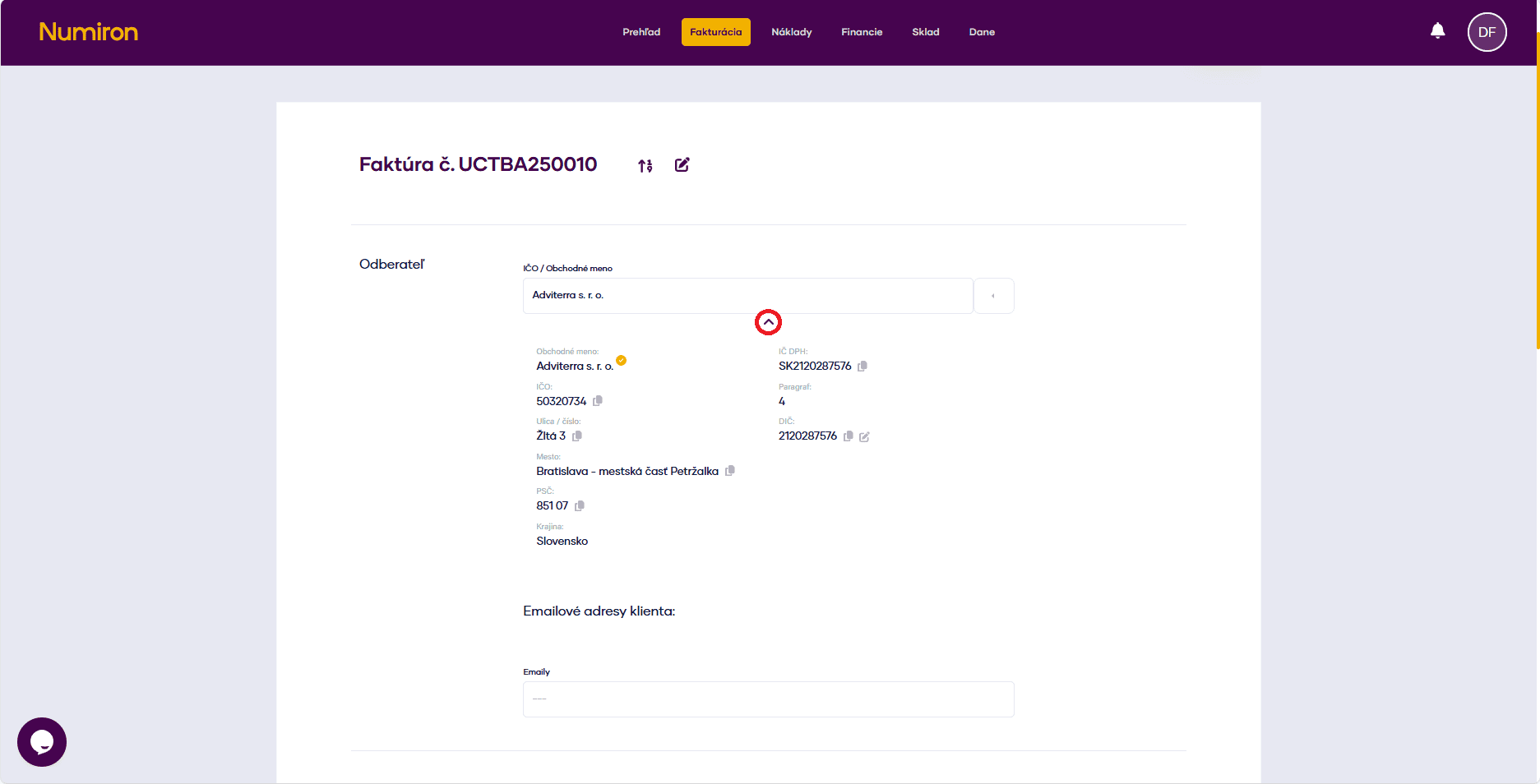
Subscriber: Enter company ID, company name or select the customer from the list. Click on the arrow below the name to verify their details and add an email.
We invoice you... : Add your own introductory text to be displayed in the PDF invoice. The default text is "We invoice you...".
Date of issue, delivery and due date: Select the desired dates.
IBAN: The system will automatically add the bank account you have saved. You can change it or add a new one.
Variable symbol: To be pre-filled by invoice number. You can modify it if necessary.
4. Other optional data
Click on More options and fill in:
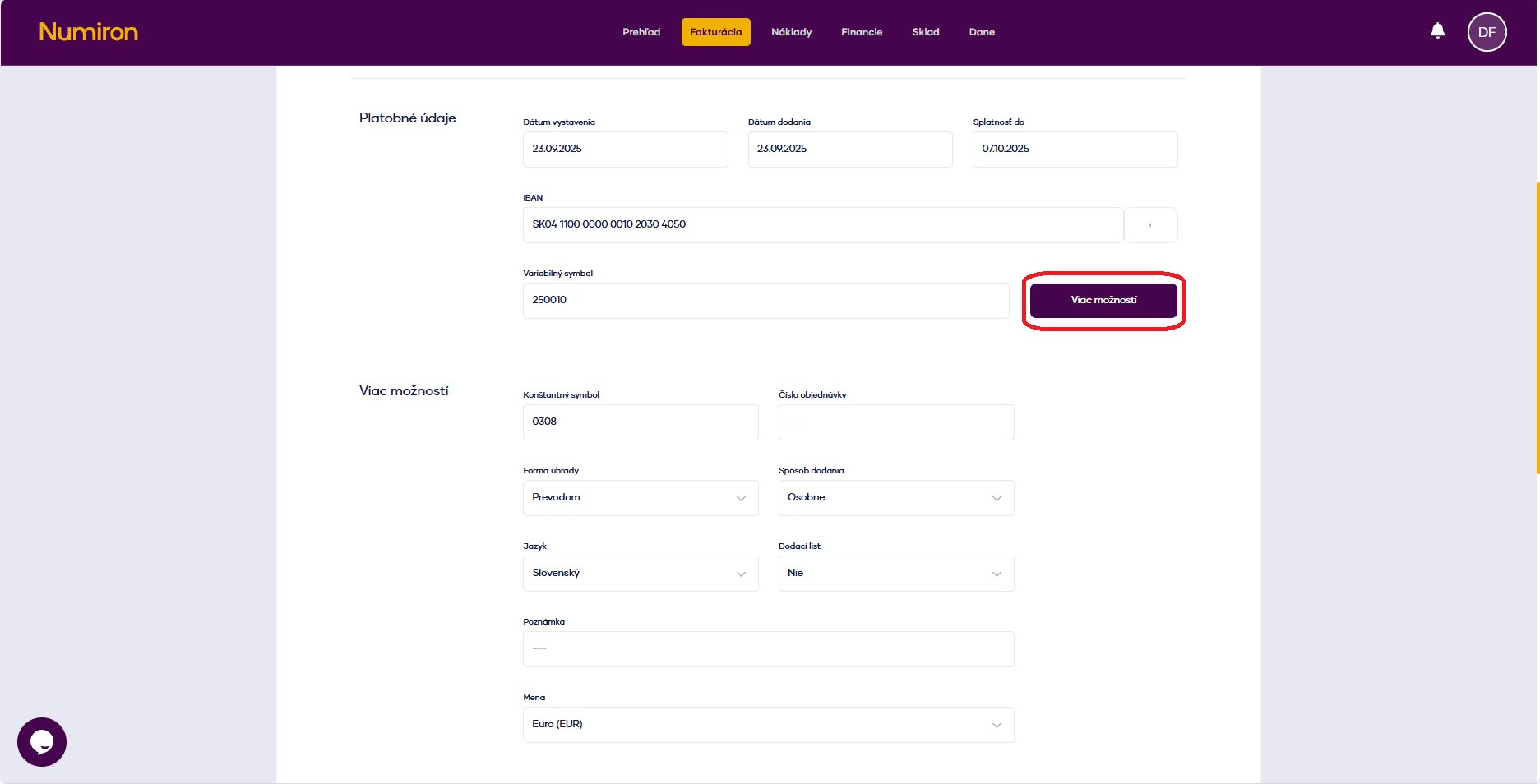
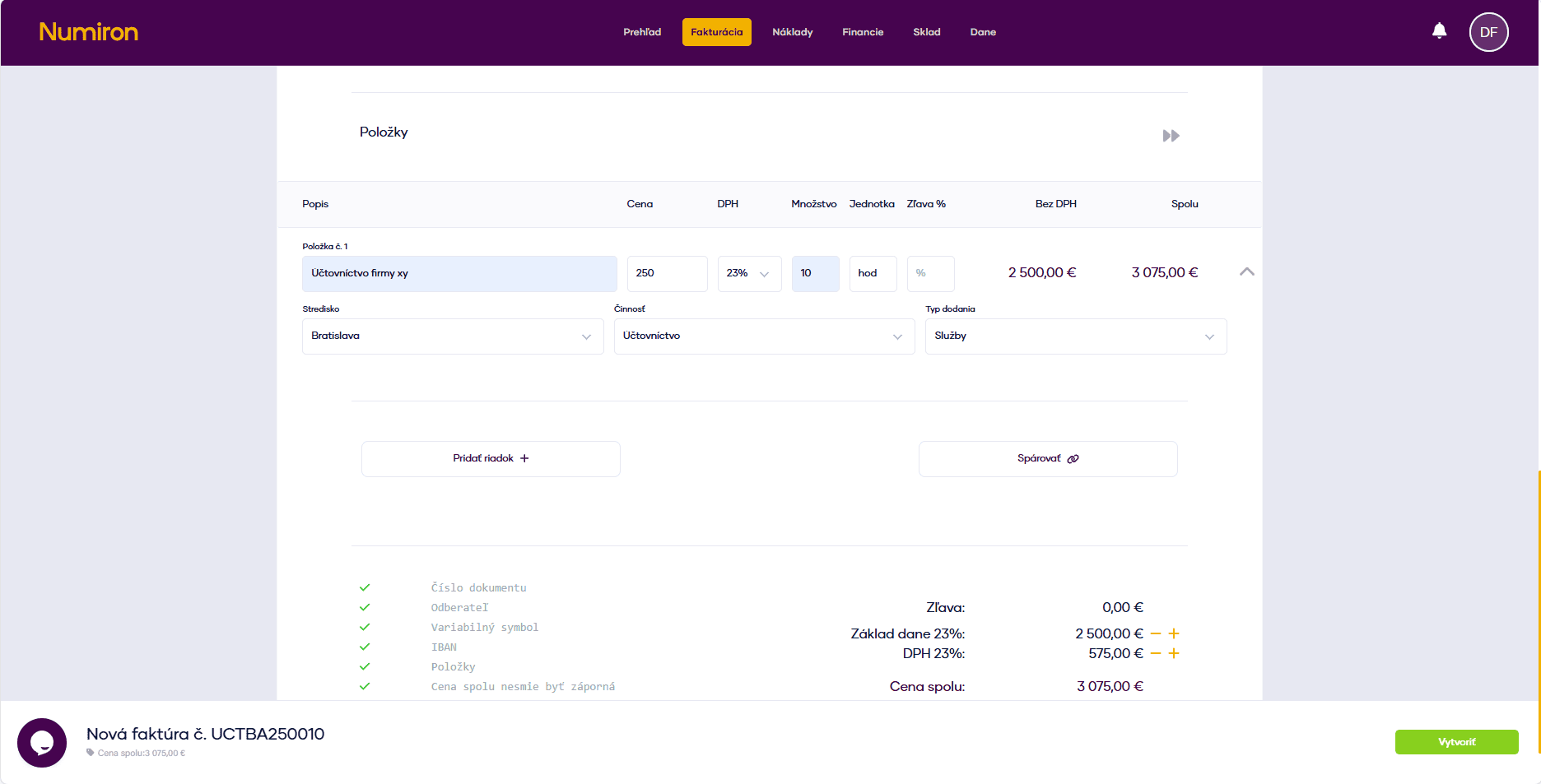
5. Invoice items
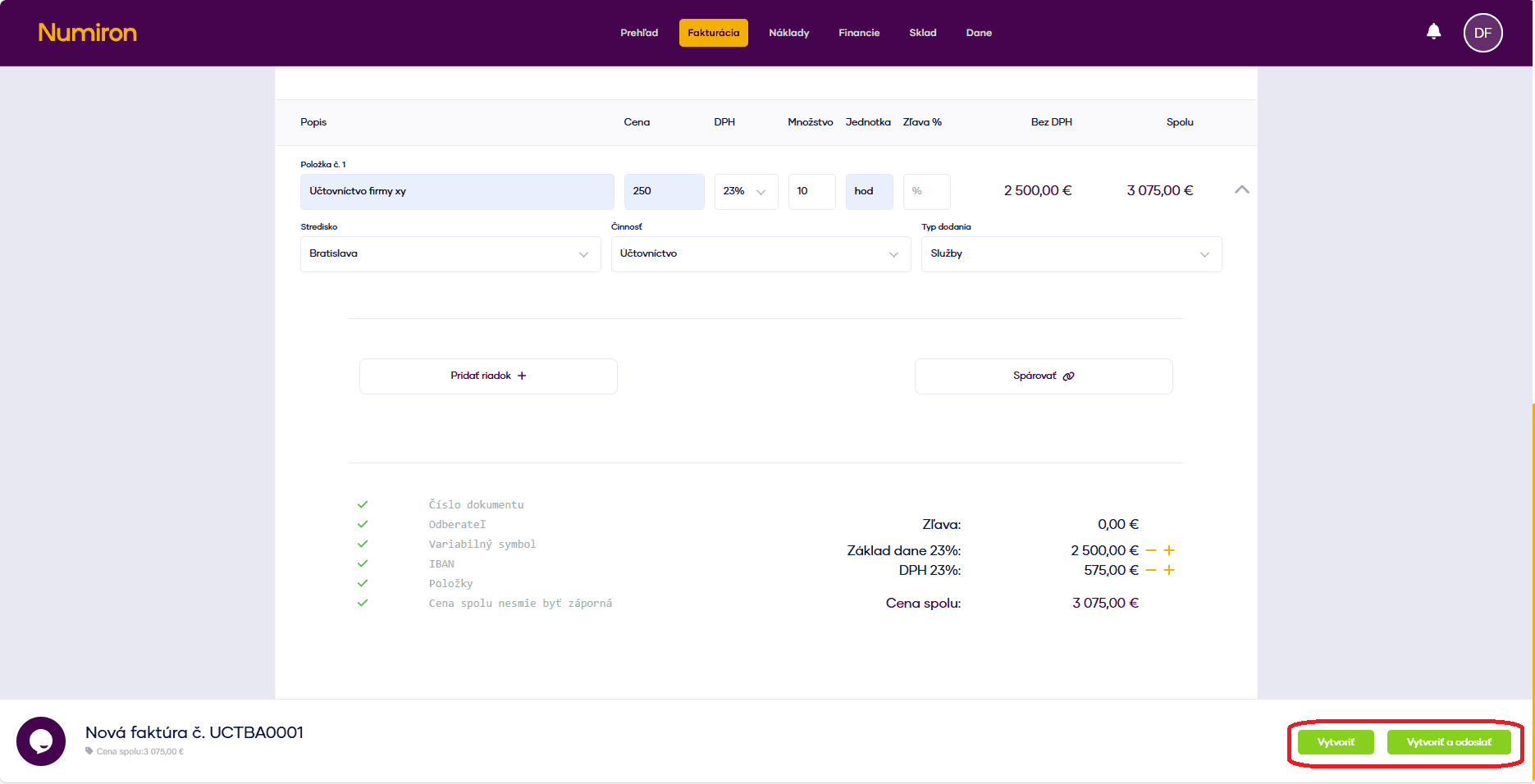
For each item, click on Add row and fill in:
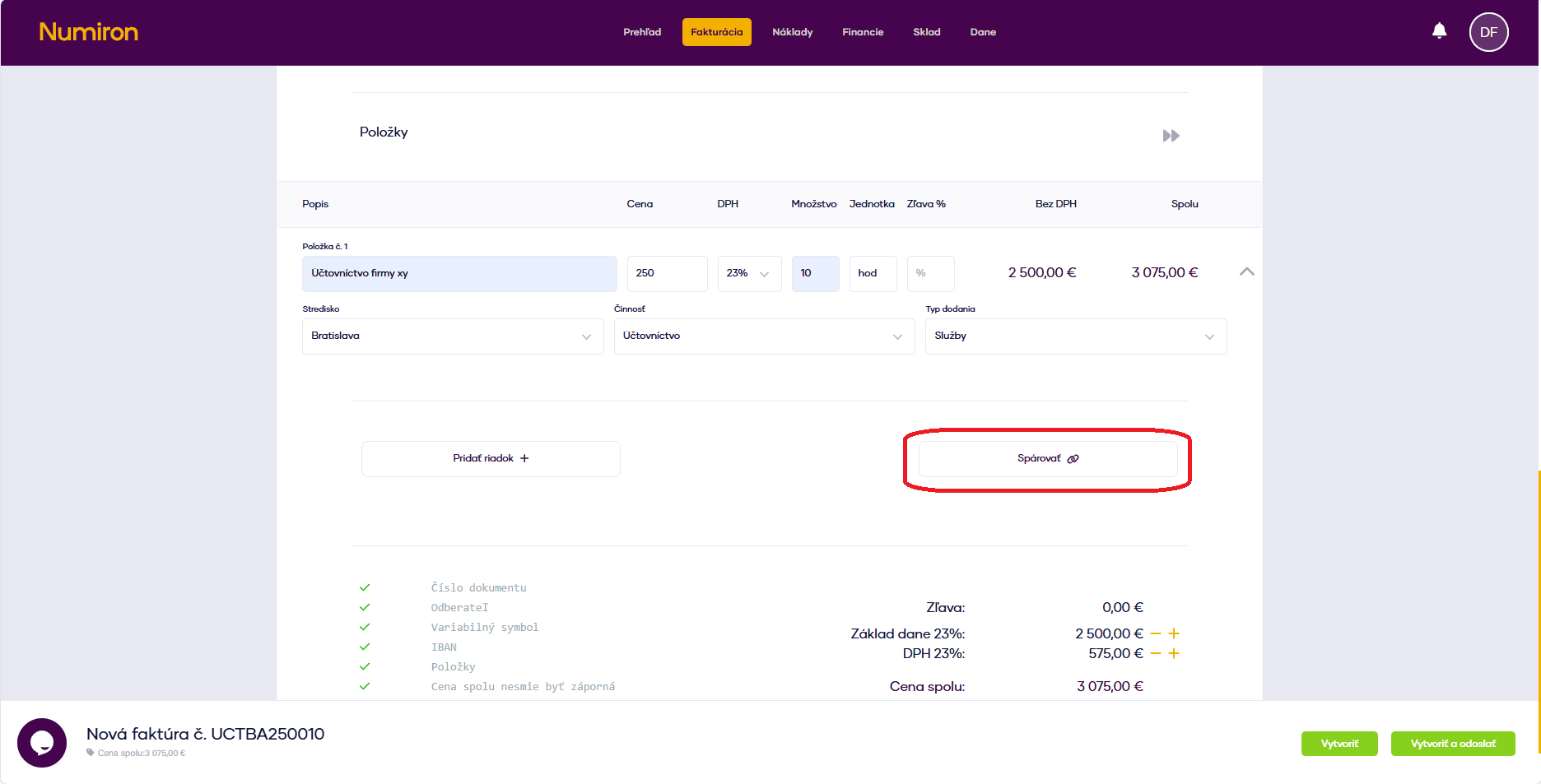
6. Pairing with another document (optional)
If the invoice is linked to another document (e.g. an advance invoice), click on Pair.
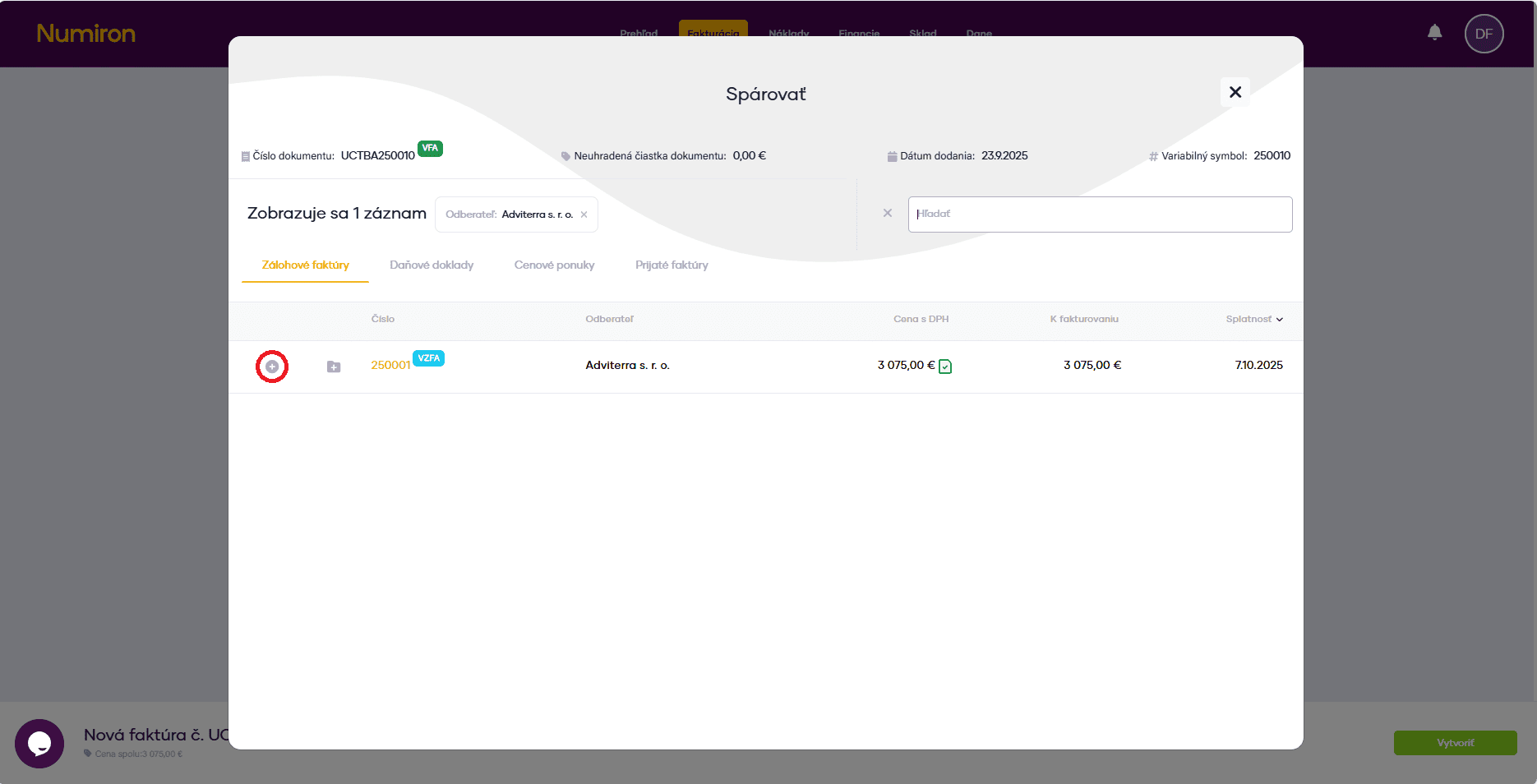
Pairing mode appears - select the document and click plus for pairing.
7. Completion and dispatch
When you have everything filled in, click on:
Create - saves the invoice in the system.
Create and send - saves the invoice and also sends it by e-mail (if the customer's e-mail is specified).
Contact us if you haven't found the answer
Mon - Fri from 08:00 - 16:00


Features
About us
Information

Copyright © 2026 Numiron s.r.o.
Website by


