Do you have any questions? Write to info@numiron.sk

Numiron support

Numiron Support & FAQ

Group 957 (1)
costs

Personal tax return

home

Getting Started

pie-chart-analysis

Views

Frame 7718

Invoicing

bar-chart-analysis

Cost

Frame 7715

Finance

user

Settings

percent-badge

Data

user

Subscription

Frame 7718

Integrations

Contact us if you haven't found the answer

Mon - Fri from 08:00 - 16:00

Numiron

/

Support

/

Cost

Cost

This section will help you to control your business expenses. Learn you how to record and categorise costs simply and clearly.

In this section you will find all information about:

How to pair documents

Pairing documents will ensure you have visibility into payments, proper accounting and automation if you have a linked bank.

Numiron offers several document pairing options. 

1. Automatic matching of transactions with documents 

How automatic transaction matching works

After pairing your bank account withNumirontransactions will be automatically matched to documents based on amount, IBAN and variable symbol.

To authorise your bank, simply go to Settings in the Bank section. You can also find the detailed procedure in this manual.
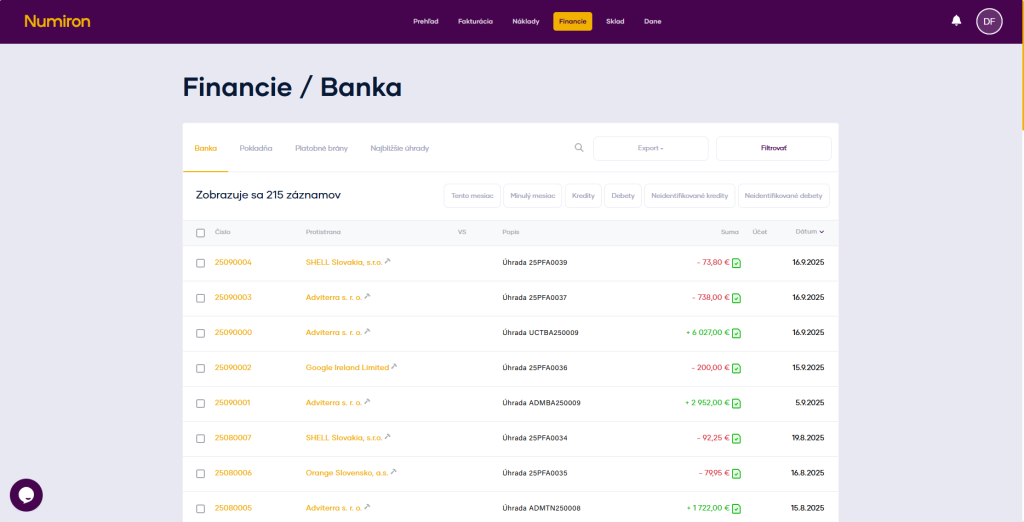
sparovane platby

2. Manual pairing from the list 

Documents can also be paired directly with other documents. 

How do I pair a document with another existing document? 

In the document list, click the yellow button next to the document amount to open the document matching mode. 
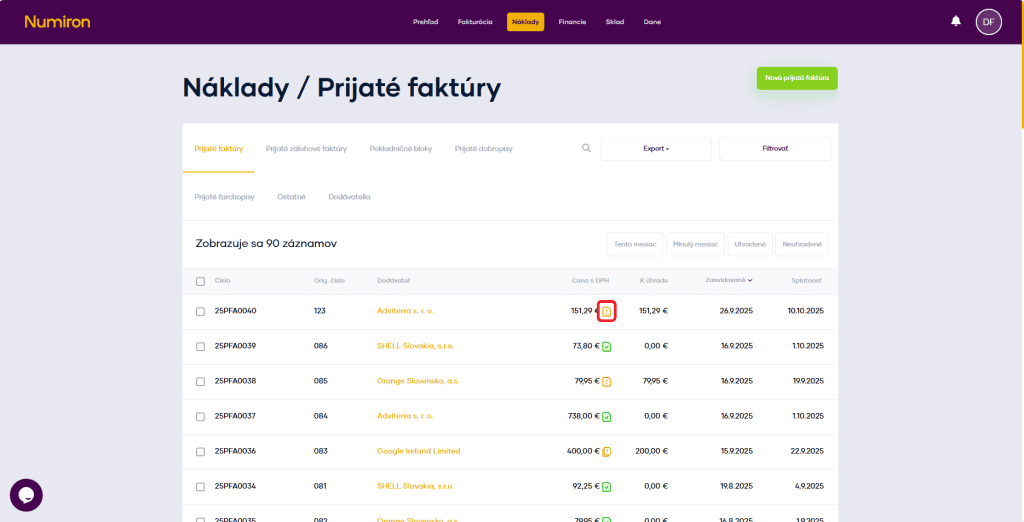
naklady parovanie

In pairing mode, choose which document you want to pair the document with and click on +, which is located on the left side of the document record. 
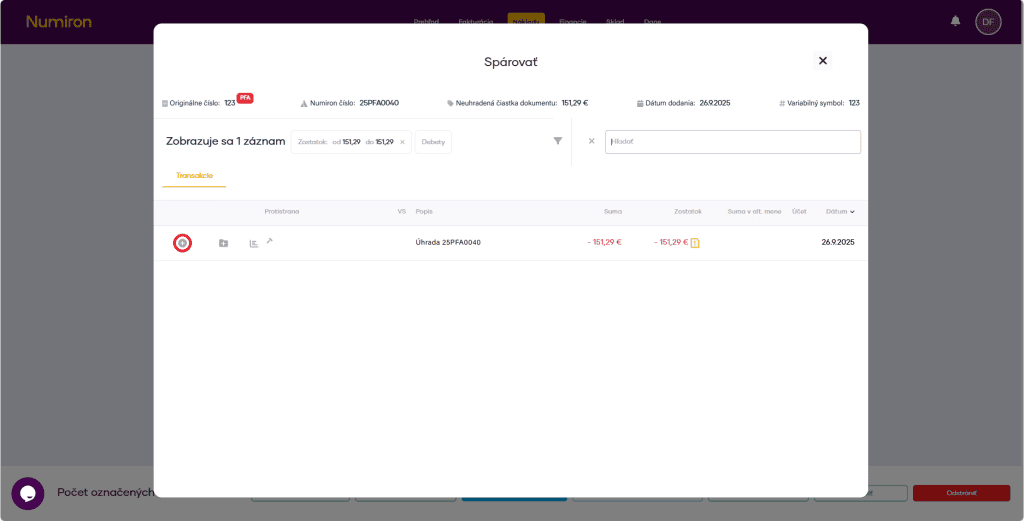
naklady parovanie plusko

You can also filter documents by amount and date by clicking on the funnel icon. When matching, the default filter is on the exact amount of the document, you can cancel this filter by clicking the x in the filter field. 
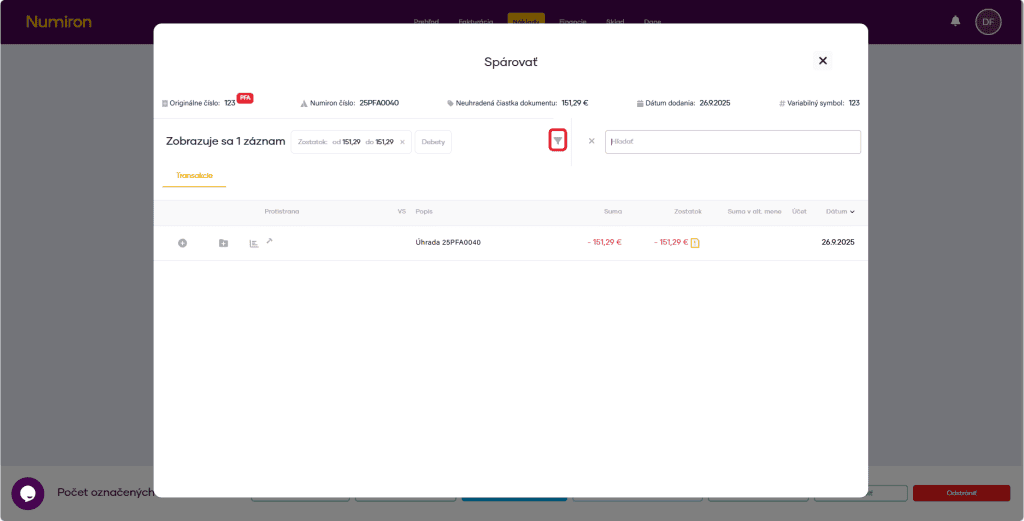
naklady parovanie filter

How do I pair a document directly when I create it? 

When creating a document, there is a pair button at the bottom under the list of items. After filling in the data in the document and clicking on the buttonPair up,you'll see the pairing mode. 
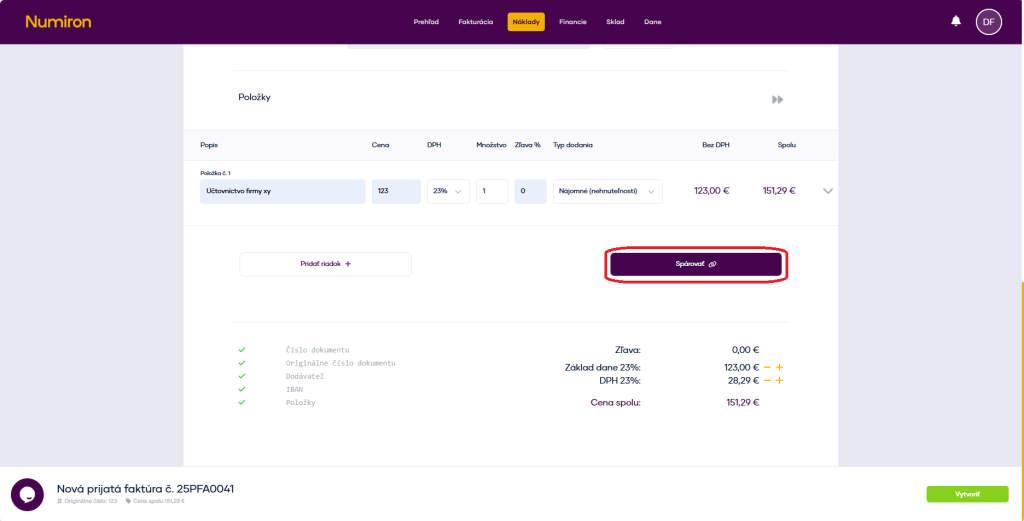
naklady parovanie pri tvorbe

In pairing mode, choose which document you want to pair the document with and click on +, which is located on the left side of the document record. 
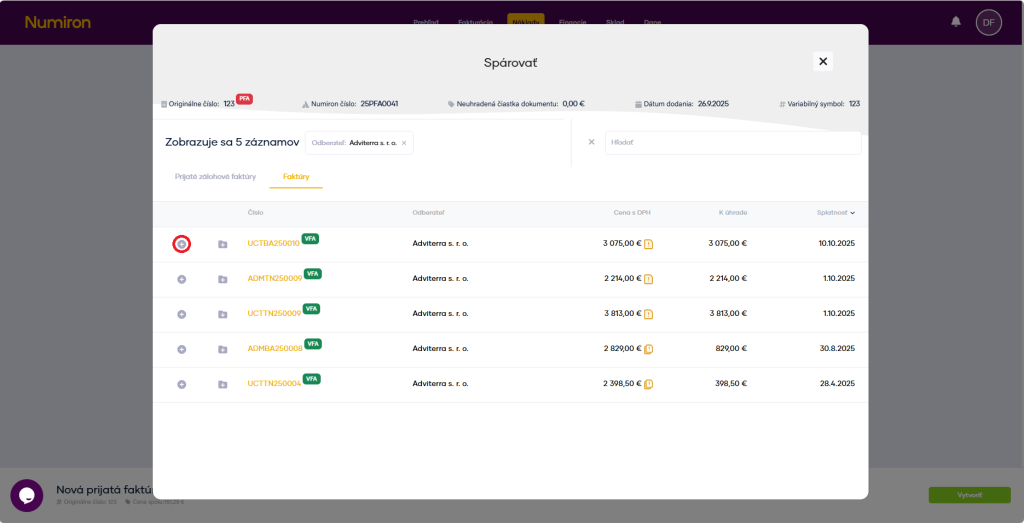
naklady parovanie pri tvorbe +

You can also filter documents by amount and date by clicking on the funnel icon. When matching, the default filter is on the exact amount of the document, you can cancel this filter by clicking the x in the filter field. 
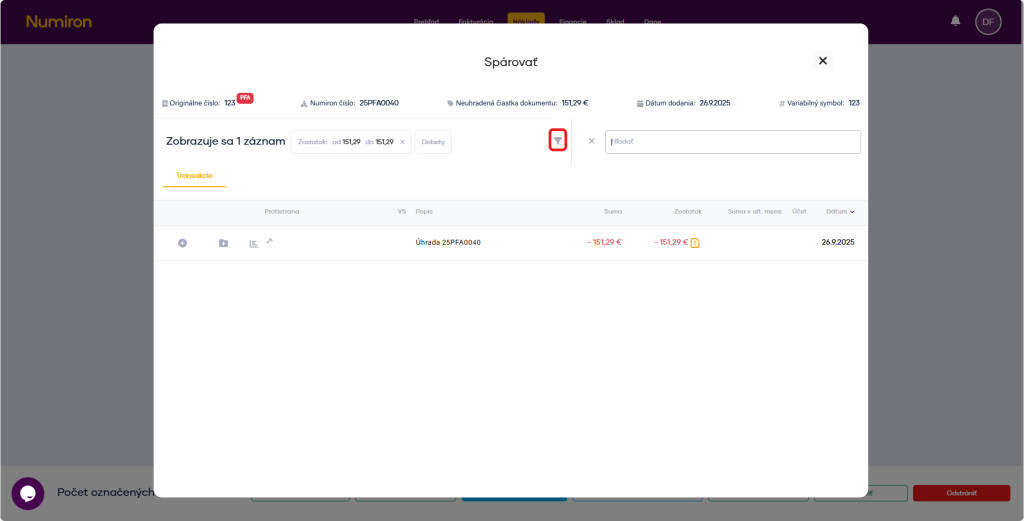
 

naklady parovanie filter

Options after document marking

All your documents are under your control in one place. 
In Numiron Invoicing, you simply mark up an invoice, invoice in advance, quotation, credit note, delivery note or tax document and work with them immediately. 
With just two clicks, you can take the desired action instantly.

How to edit an already created document 

1. Where to find the editing option 

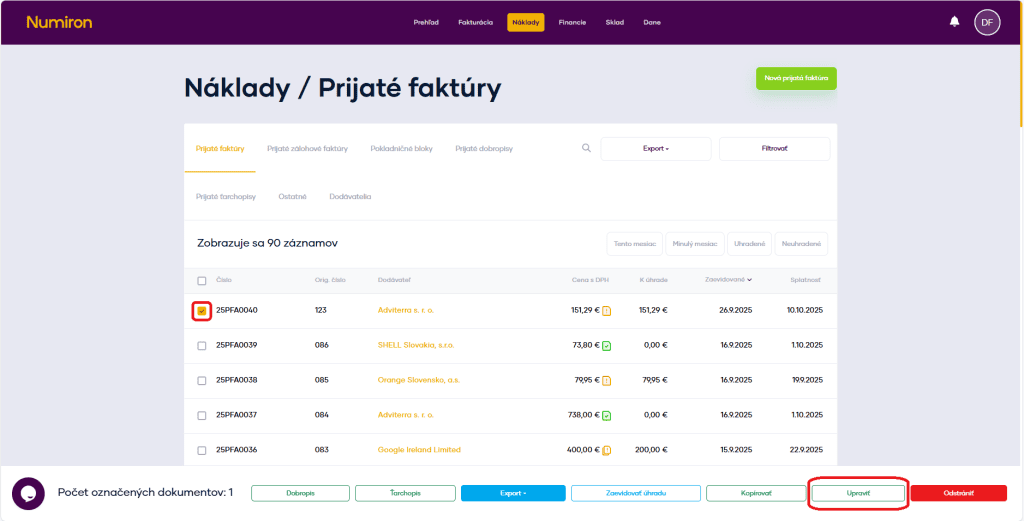
To mark a document, click on the square to the left of the document number. Once selected, you will see a bar of options at the bottom. Here you click on the buttonEdit.It will then take you into document editing mode. 

naklady uprava

2. Edit the document 

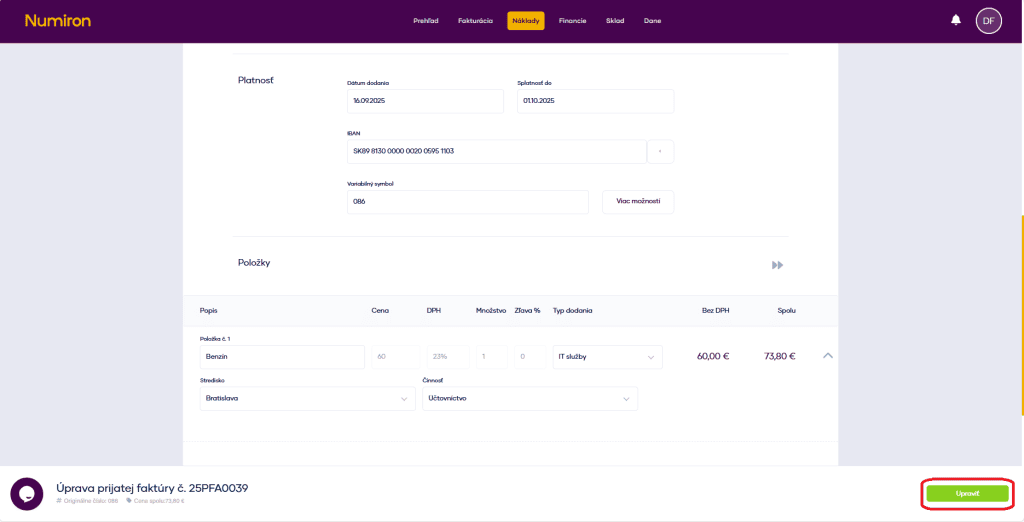
The document editing mode is visually identical to the document creation mode. 
Moses

You can edit all document data, except when the document is paired. 

naklady uprava vytvorit

 
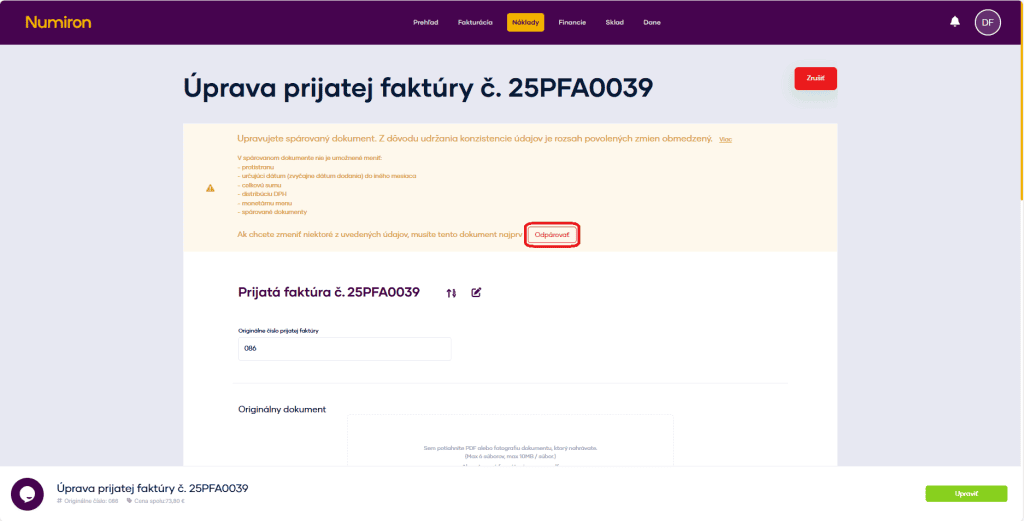
The paired document cannot be modified:  

  • counterparty, 
  • the date (usually the date of delivery) to another month, 
  • the total amount, 
  • distribution of VAT, 
  • monetary currency, 
  • paired documents. 

To make such modifications, the document must be unpaired. 
 

naklady uprava sparovany

How to save time by copying 

1. Where to find the copy option 

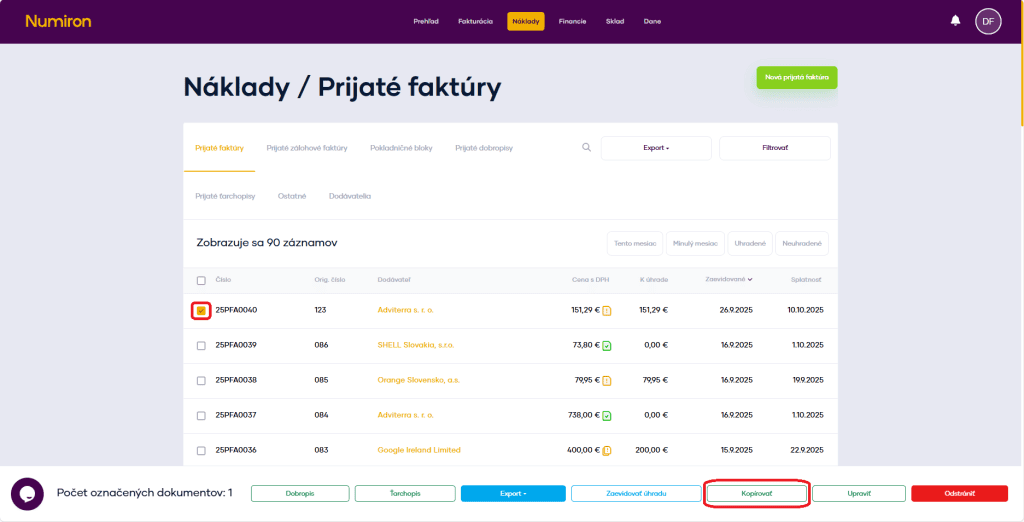
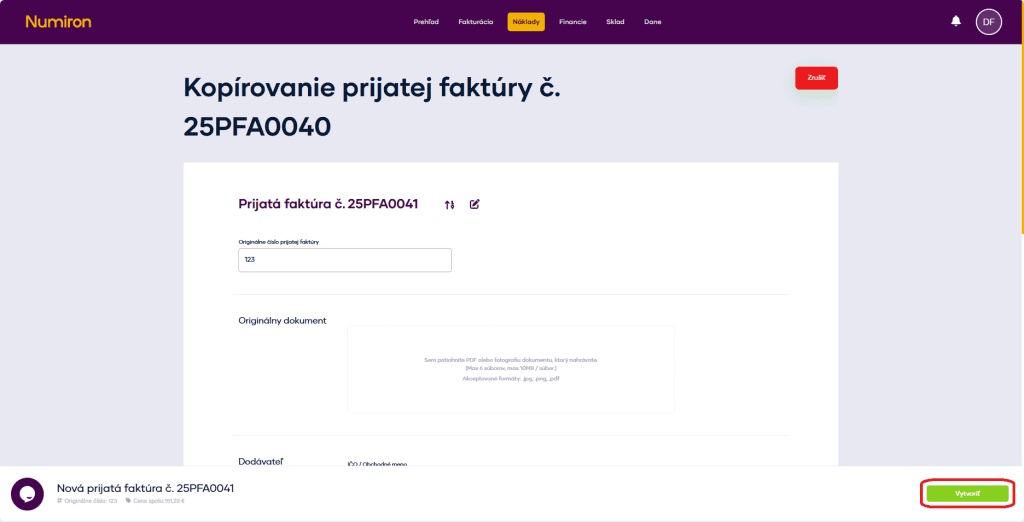
To mark a document, click on the square to the left of the document number. Once selected, you will see a bar of options at the bottom. Here you click on the buttonCopy.  
 

naklady kopirovanie

2. Copying a document 

Click the copy button to start creating a new document that will upload all the data from the original document with the updated dates. 

You can change the necessary data and create a new document. 

naklady kopirovanie vytvorit

Copying documents saves a lot of time if you create several similar documents. 

How to manually record reimbursements if necessary 

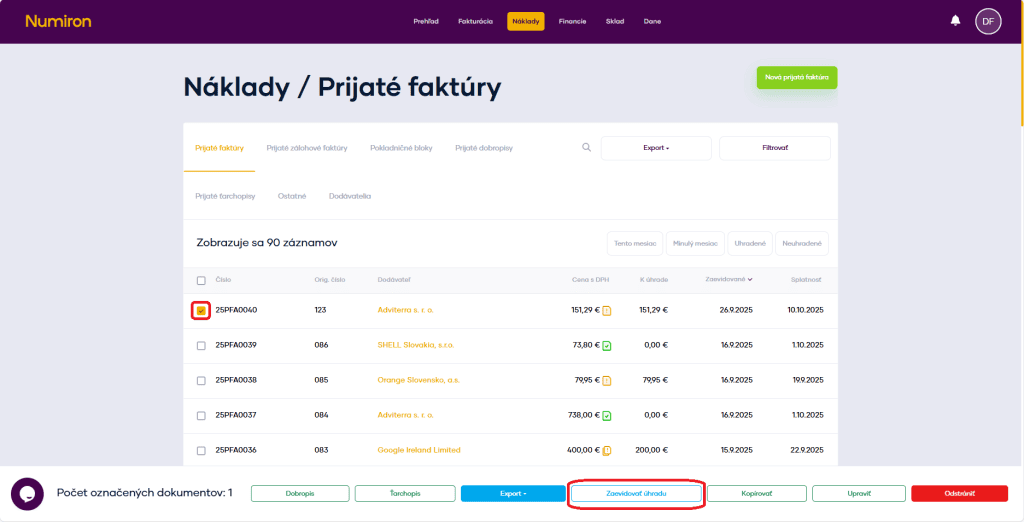
Click on the button To register the payment open the manual reimbursement registration mode. 

naklady evidencia uhrady

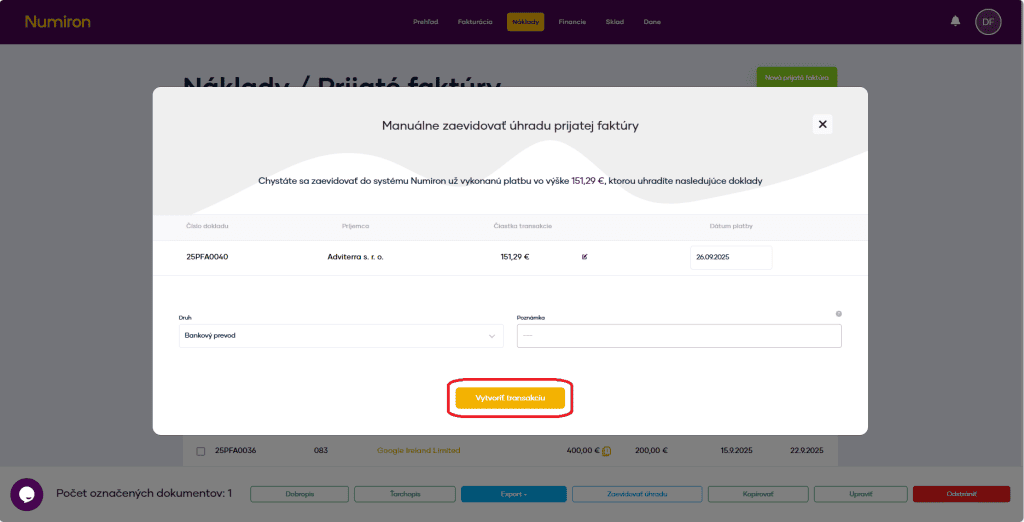
Fill in the date of payment and the method of payment (bank transfer, cash, card...). Then click onCreate a transaction

naklady evidencia uhrady vytvorenie

Usage: when the payment is outside the automatic matching (e.g. when paying in cash). 

4. Exporting documents  

You can export documents in two ways: 

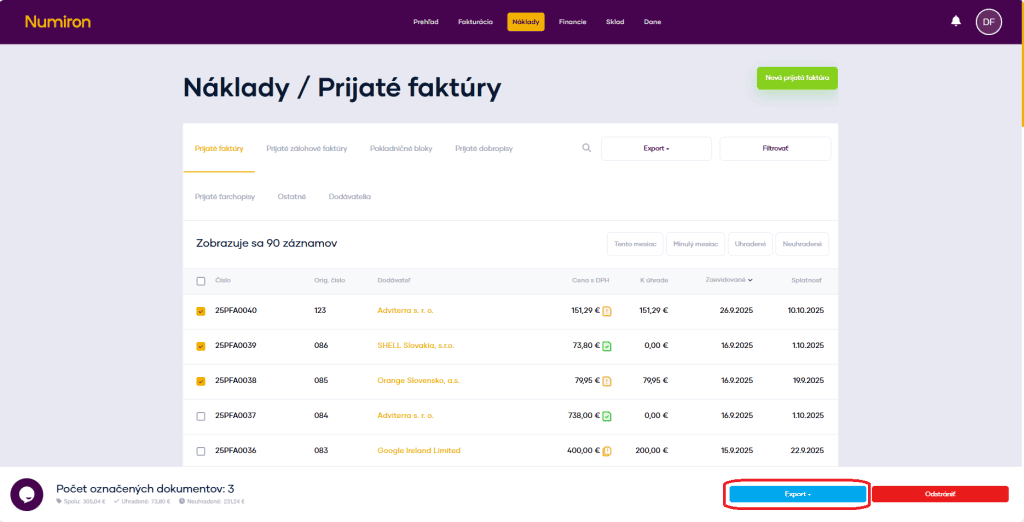
Export marked documents - select multiple documents in the list and click Export
 

naklady export oznacenych

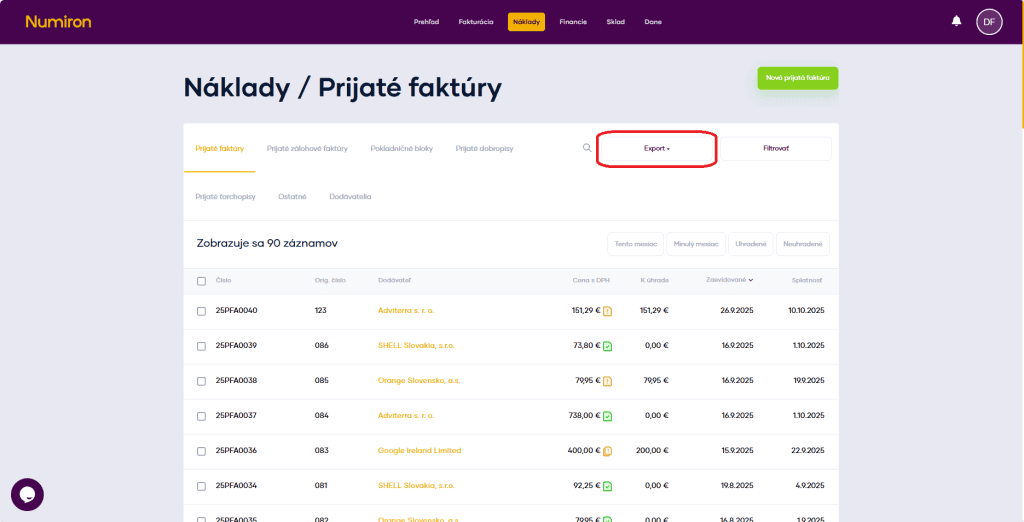
Export all displayed documents - use the button Export above the list (next to the filter) to export the entire selection by filter or the complete list for the period. 

naklady export all

Export formats: 

  • XML/XLSX 

How to save and preset the supplier

If you often buy from the same supplier, it's worth saving it in the system. You will save time when entering data and speed up the creation of receipts. 

Method 1: Saving the Supplier directly when creating the document 

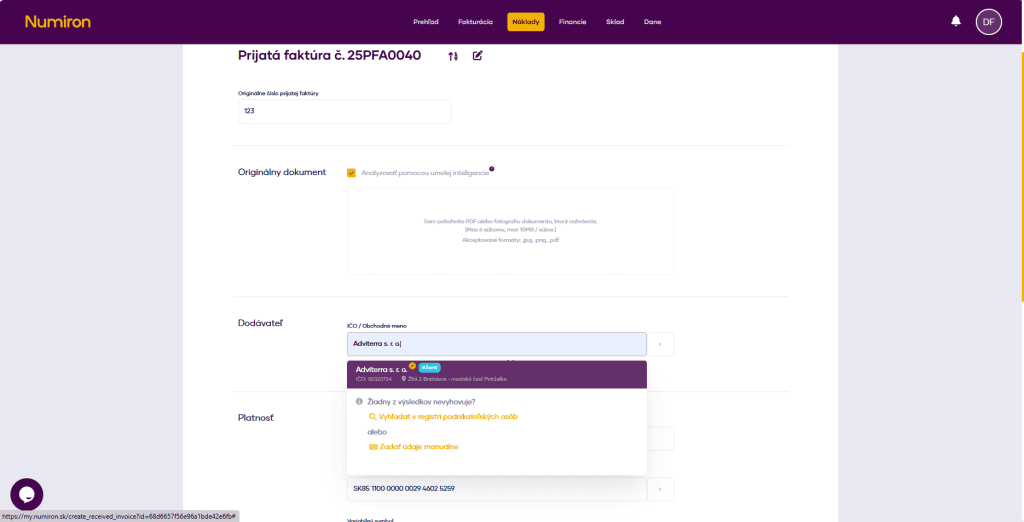
  1. Fill in the Supplier field 
    When uploading a document, type in the field Supplier ID number or business name. 
    The system automatically retrieves data from public registers. If the customer is not in the register, fill in the data manually.
dodavatel
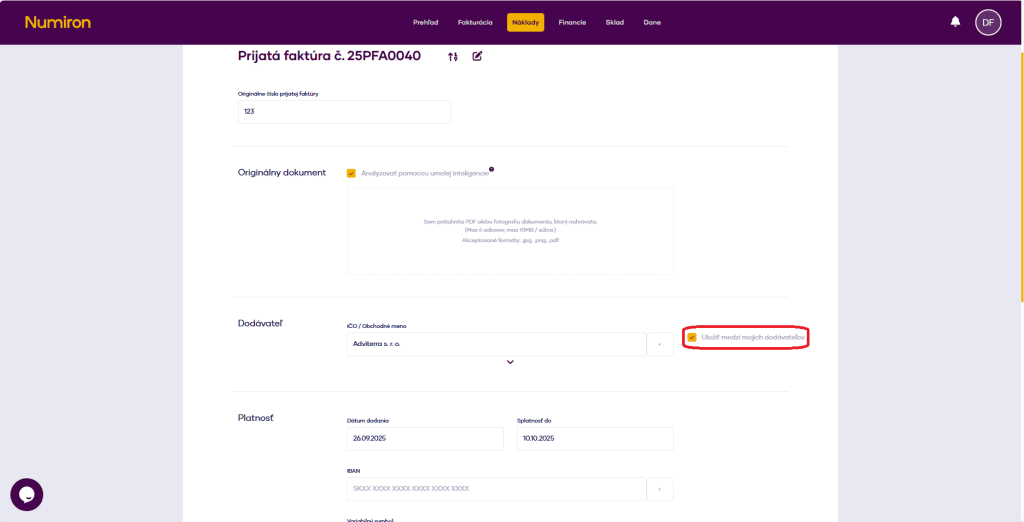
  1. Save Supplier 
    After the data has been loaded, a button will appear next to the subscriber's name Save Among My Suppliers. It is automatically checked.  
dodavatel ulozit
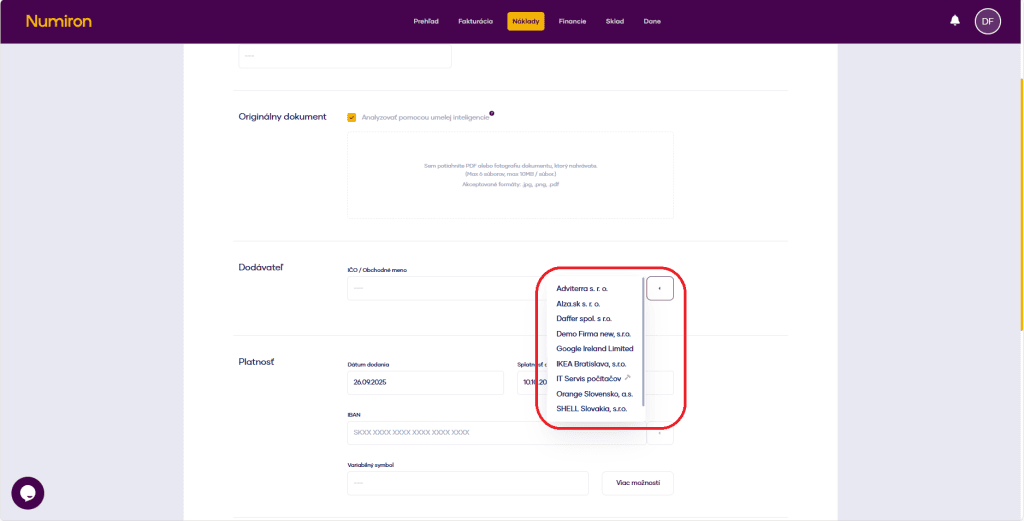
  1. Select a saved supplier 
    When uploading another document, just click the arrow next to the typing field and select the subscriber from the saved ones.  
dodavatel vyber

Method 2: Presetting the supplier in a separate section 

  1. Go to Costs → Suppliers 
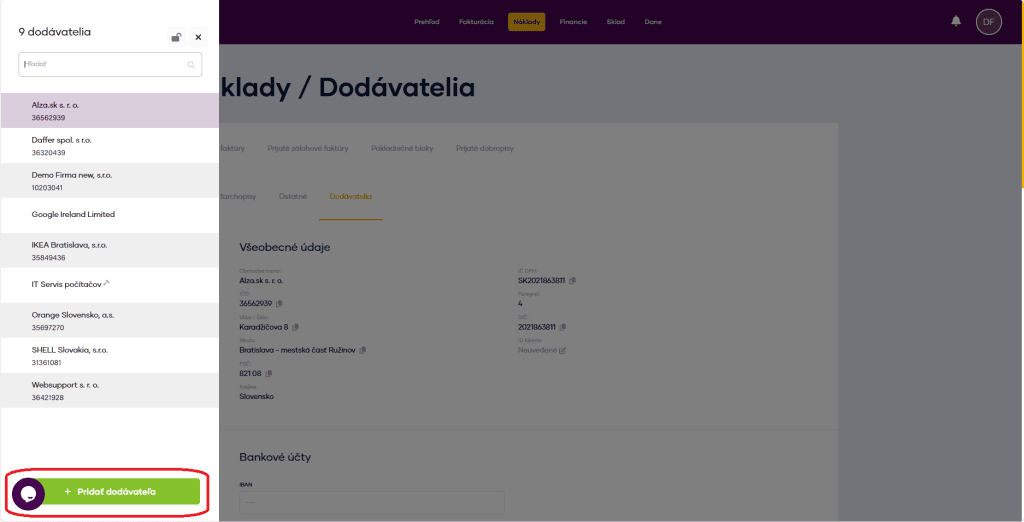
    In the main menu, click on the agenda Cost and select the section Suppliers. A list of existing suppliers will be displayed. 
     
  1. Add a new supplier 
    Press Add supplier in the bottom left corner. 
dodavatel novy
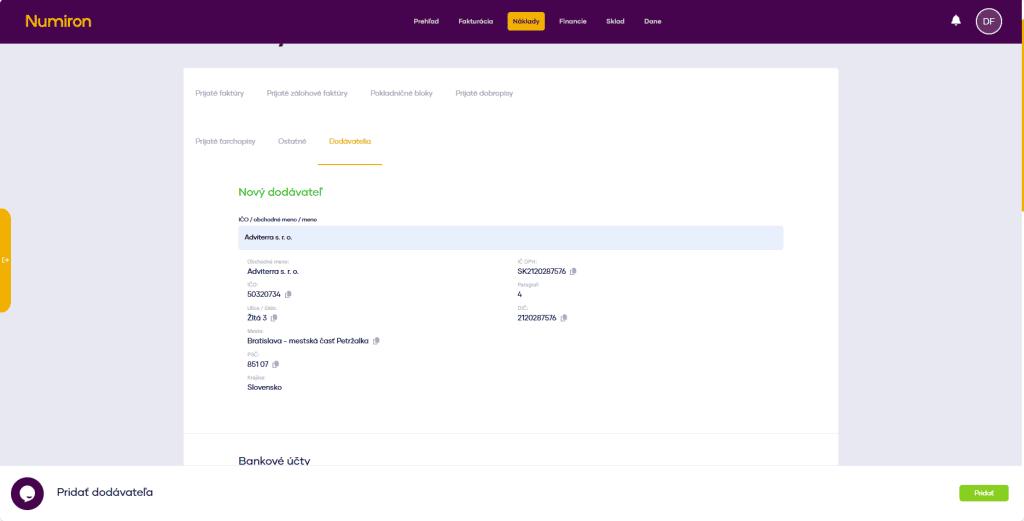
  1. Enter basic data 
    ID number or business name (the system retrieves data from registers). 
    If the customer is not in the register, fill in the data manually. 
dodavatel sekcia
  1. Set data for future documents 
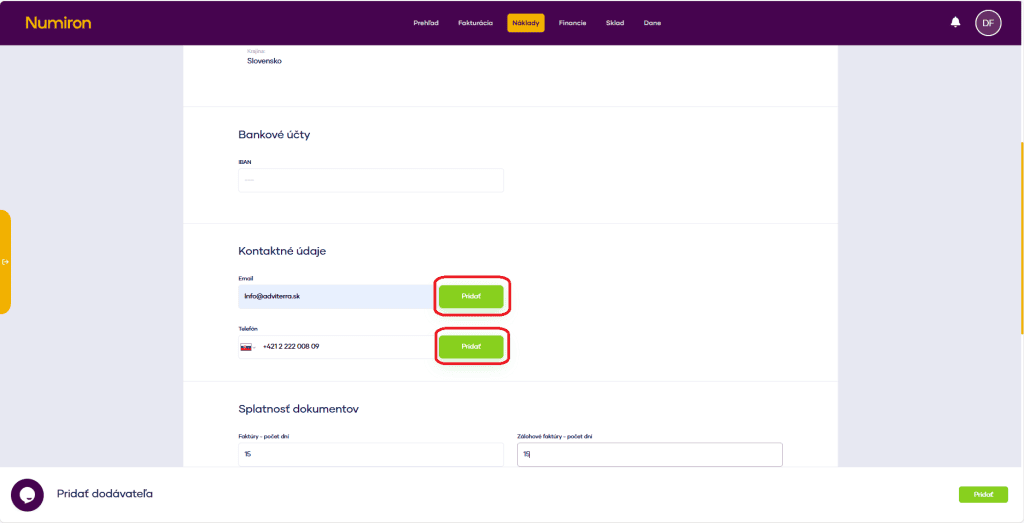
    These preferences are automatically added when uploading received invoices, receipts or credit notes: 
  • Bank account (IBAN) 
  • Contact details (e-mail, phone) 
  • Maturity of documents
     
dodavatel zakladne info
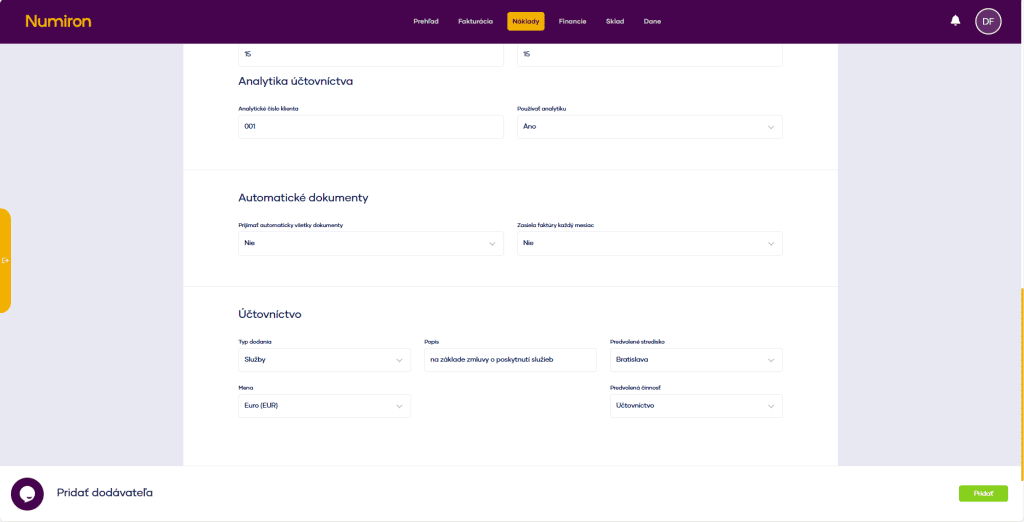
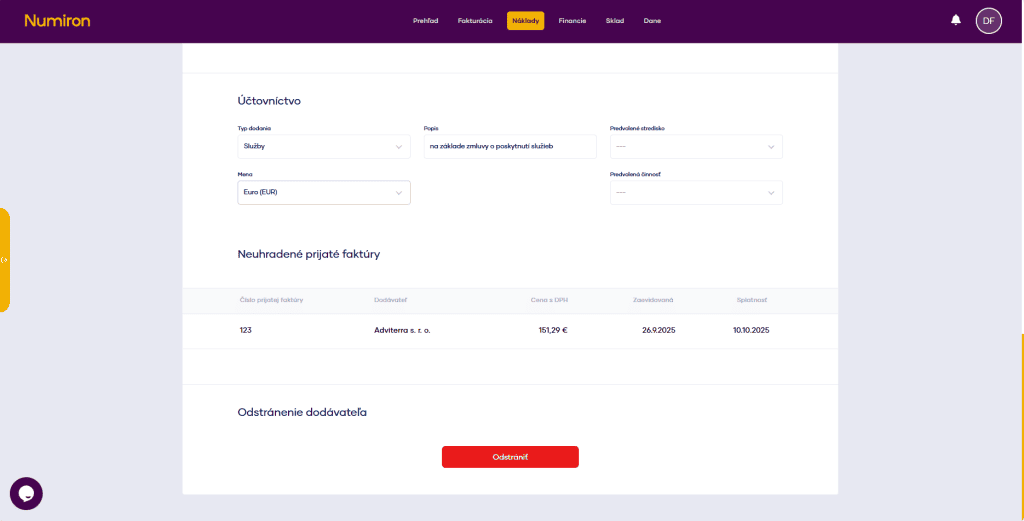
  1. Setting accounting preferences 
  • type of delivery, 
  • menu (currency), 
  • the language of the document, 
  • default description, 
  • Centre, activity.
     
dodavatel uctovnictvo
  1. Overview of outstanding invoices 
    You can also see all outstanding invoices for the client in the list of suppliers. 
     
dodavatel neuhradene
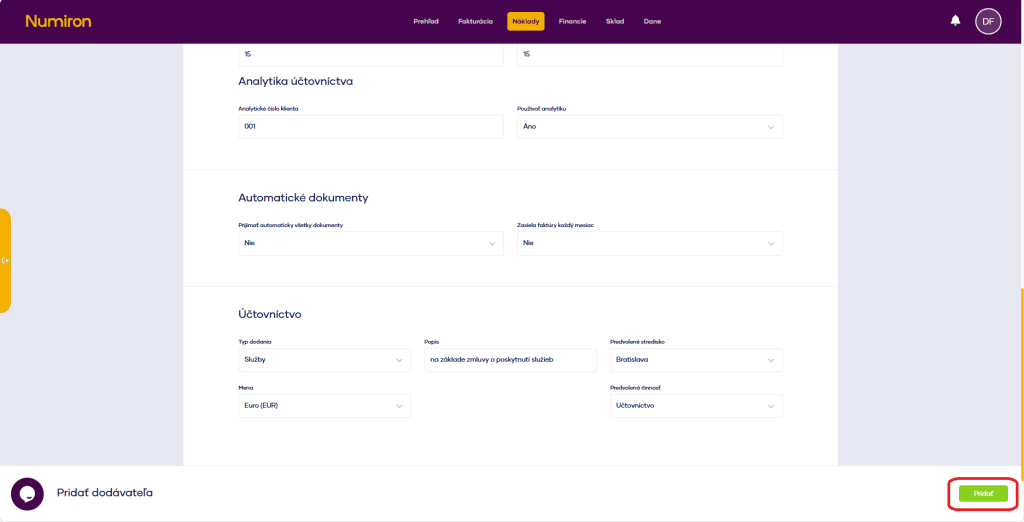
  1. After editing, you need to save the changes with the button Edit by, which will appear in the bottom right corner.
     
dodavatel pridat