Do you have any questions? Write to info@numiron.sk

Numiron support

Numiron Support & FAQ

Group 957 (1)
Finance

Personal tax return

home

Getting Started

pie-chart-analysis

Views

Frame 7718

Invoicing

bar-chart-analysis

Cost

Frame 7715

Finance

user

Settings

percent-badge

Data

user

Subscription

Frame 7718

Integrations

Contact us if you haven't found the answer

Mon - Fri from 08:00 - 16:00

Numiron

/

Support

/

Finance

Finance

In the finance category you will find practices on how to manage the flow of money in the company directly through Numiron. We'll walk you through the features that will make it easier for you financial decision-making.

In this section you will find all information about:

Bank authorisation

1. Adding a bank account 

  • At the bottom there is a box to add an account. 
  • You enter the IBAN and click on the button”Add.”.

image
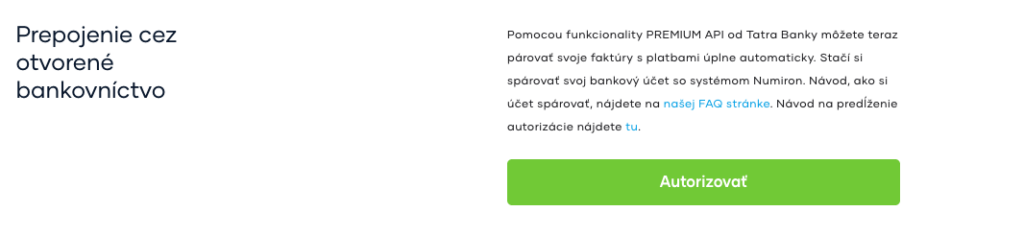
  • Select the account you want to authorise from the list of bank accounts.
  • Click„Authorize“.
image

 
2. Authorisation via the Tatra banka portal (the client has an account with Tatra banka): 

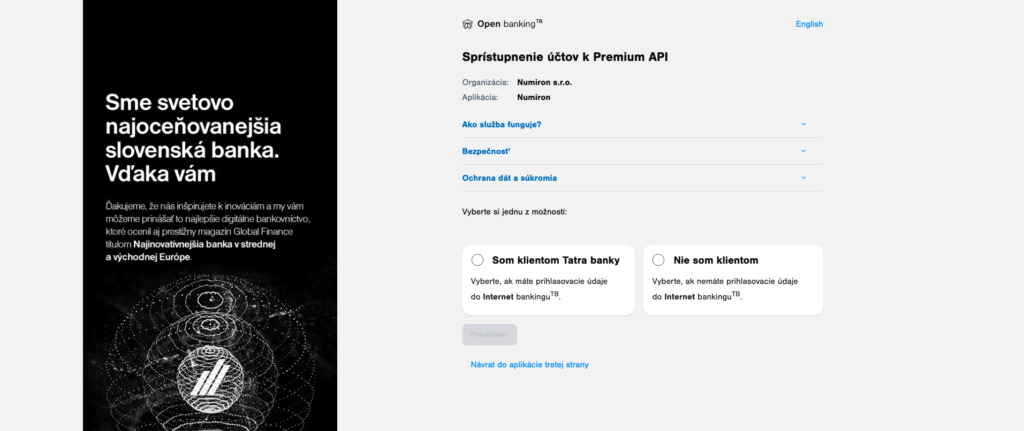
  • The system will redirect you to the official Tatra banka links page.
  • Select the option“I am a client of Tatra banka”and click“Continue“.
image
  • You then need to fill in“PID”a“Password”and click“Log in.”.
  • Then enter the code from the reader and click“Confirm”.
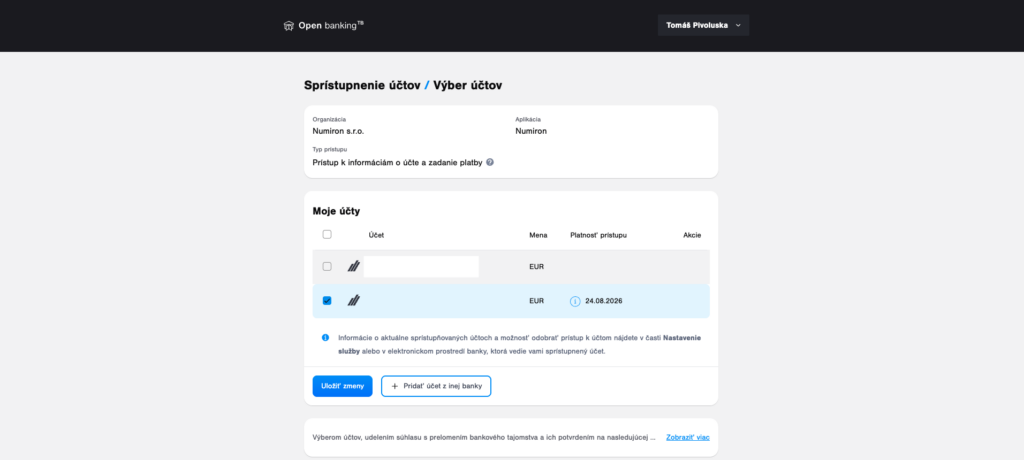
  • A selection of accounts will be displayed.
  • Select which account or accounts you want to authorise in the system and click“Save changes”.
untitled1
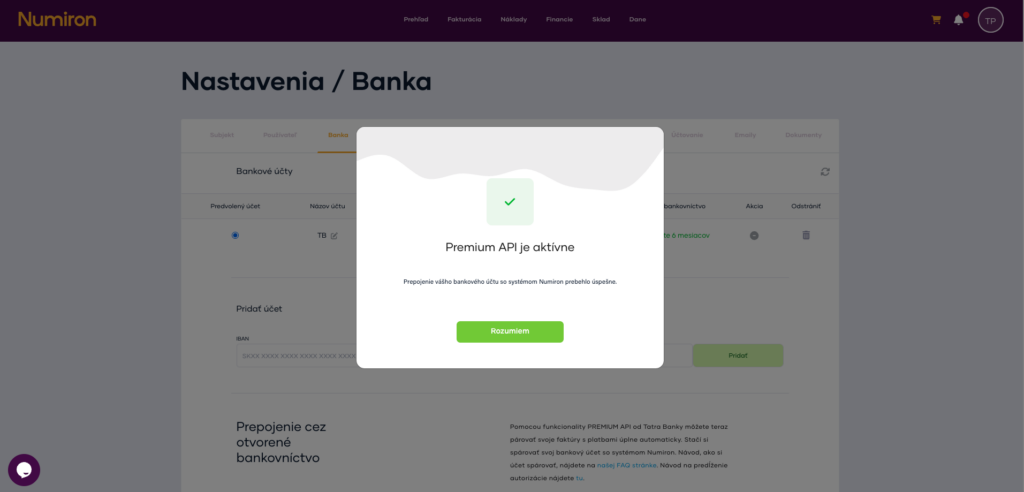
  • You then need to confirm that the transaction has been made available in the system.
  • You will see a window“Premium API is active”.
 

image


3. Authorisation via Tatra banka (Slovenská sporiteľňa) portal 

  • The system will redirect you to the official Tatra banka links page. 
  • Select the option“I am not a client of Tatra banka”and click“Continue” .
  • Into the empty field“E-mail.”enter your valid email address, to which an authorization password will be sent to you and click on the button„Continue“
  • Into the empty field„Enter password from email“enter the authorization password that was sent to your email address and click on the button„Confirm“
  • Click on the blankSquaresat the bottom of the form, confirm your agreement to the draft One Banking Service Agreement and consent to the use of your data. Then click on the button„Confirm“
  • A message will appear in the window informing you that you have entered into a contract for One Banking, activated One Banking and that the contract documents have been sent to your email address. Click„Continue“
  • If you do not currently have any bank accounts available for the Numiron application, a message will be displayed in the window. Continue by clicking the button„Add account“
  • From the bank selection options, click to select„Slovak Savings Bank“and then click„Continue“
  • A message about adding the Slovak Savings Bank account will be displayed in the window. Click on the button„Add account“. You will be redirected to the Slovenská sporiteľňa bank application. 
  • When you are redirected to the Slovak Savings Bank application, you will receive a message asking you to verify the client. Continue by clicking on the button„Continue to Login“
  • Into empty fields„Login name / Alias“a„Password“enter your login details that you use to log in to the Slovak Savings Bank George or Business24 application. Continue by clicking on the button„Log in“
  • Into the empty field„SMS code“enter the authorization code that was sent to your phone number and click on the button„Continue“
  • The screen will display the granted accesses for Digital Banking. At the bottom, click the button next to the account you want to link to Numiron„Allow“
  • An enabled account will change its status from grey „not enabled“ to blue „enabled“. Continue by clicking„Further.“.  
  • A summary of the accesses will be displayed on the screen. Continue by clicking the button„Confirm“
  • A pop-up window will appear on the screen confirming the request to make the selected accounts available for Digital Banking. To return to the Digital Banking application and log out of the Slovak Savings Bank website, continue by clicking on the button„Continue“
  • When you return to the Tatra banka application, the window will display a selection of accounts in other banks. Make sure that the square is ticked next to your authorised account with Slovenska sporiteľna„Allow access“. Click on the empty square at the bottom to confirm your interest in accessing information relating to the accounts selected above. Continue by clicking on the button„Select Accounts“
  • The window will display the confirmed account with your bank. Continue by clicking the button„Confirm“. Once confirmed, you will be redirected back to the Numiron app. 
  • Finally, you should see a window indicating that your bank account has been successfully paired. 
How to import bank transactions

If you do not have a bank connected via PSD2/Open Banking, you can also upload transactions to Numiron manually using a bank statement in the format XML. Once imported, you get a complete overview of payments received and sent and can easily pair them with receipts. 

1. Download a bank statement 

Log in to your internet banking or company dashboard and search for the section Statements / Export transactions

From here, download the extract in the format camt.053 (SEPA XML), or in another XML format that your bank supports.  

We recommend to export maximum monthly, ideally weekly periods - smaller files are processed faster and without errors. 

2. Importing transactions in Numiron 

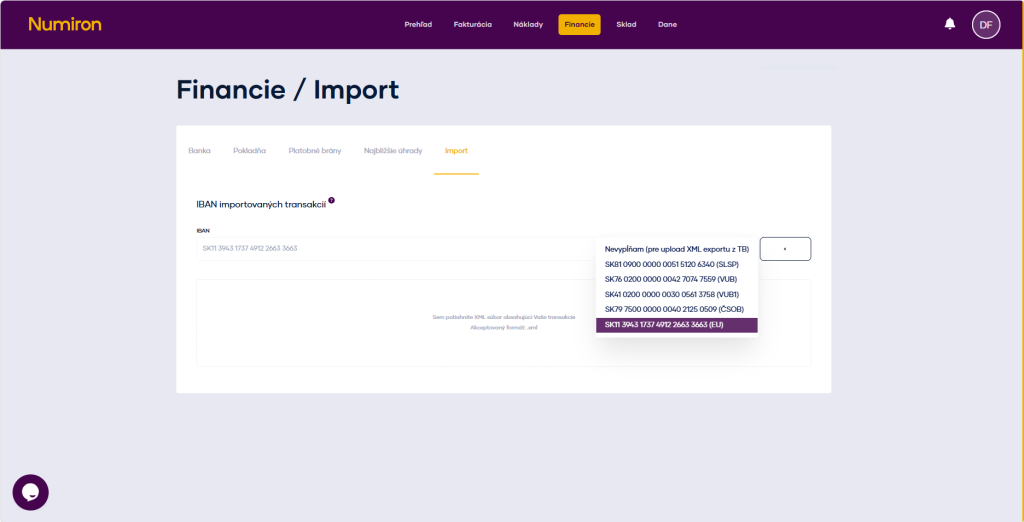
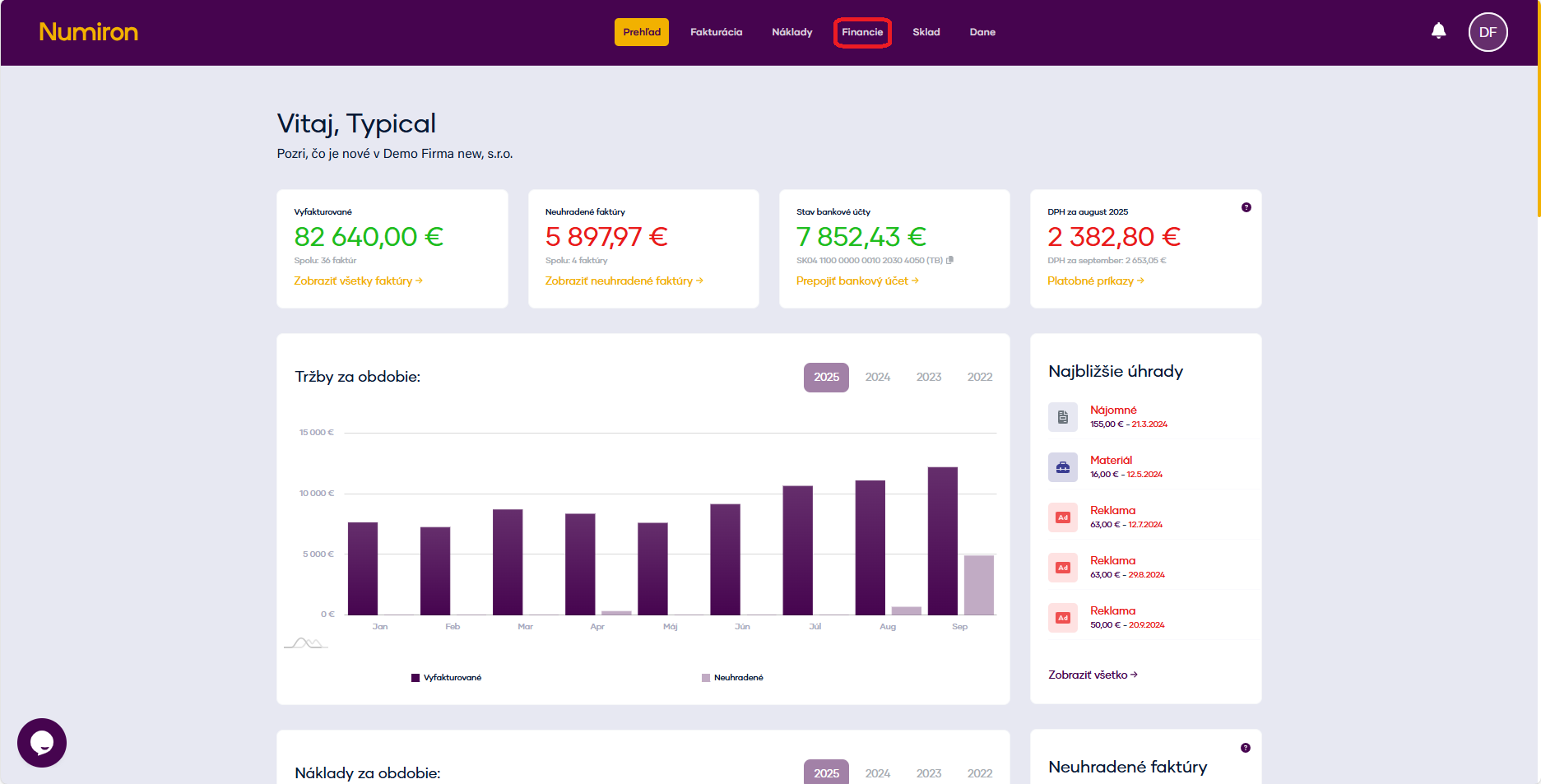
In the main menu, open the agenda Finance section Import and in part Importing a statement select the bank account to which the import is linked. 

prehlad financie

Click on Select file, upload the prepared XML dump and confirm the import. Numiron will load all movements and show you a preview of the processing. 

financie import transakcii

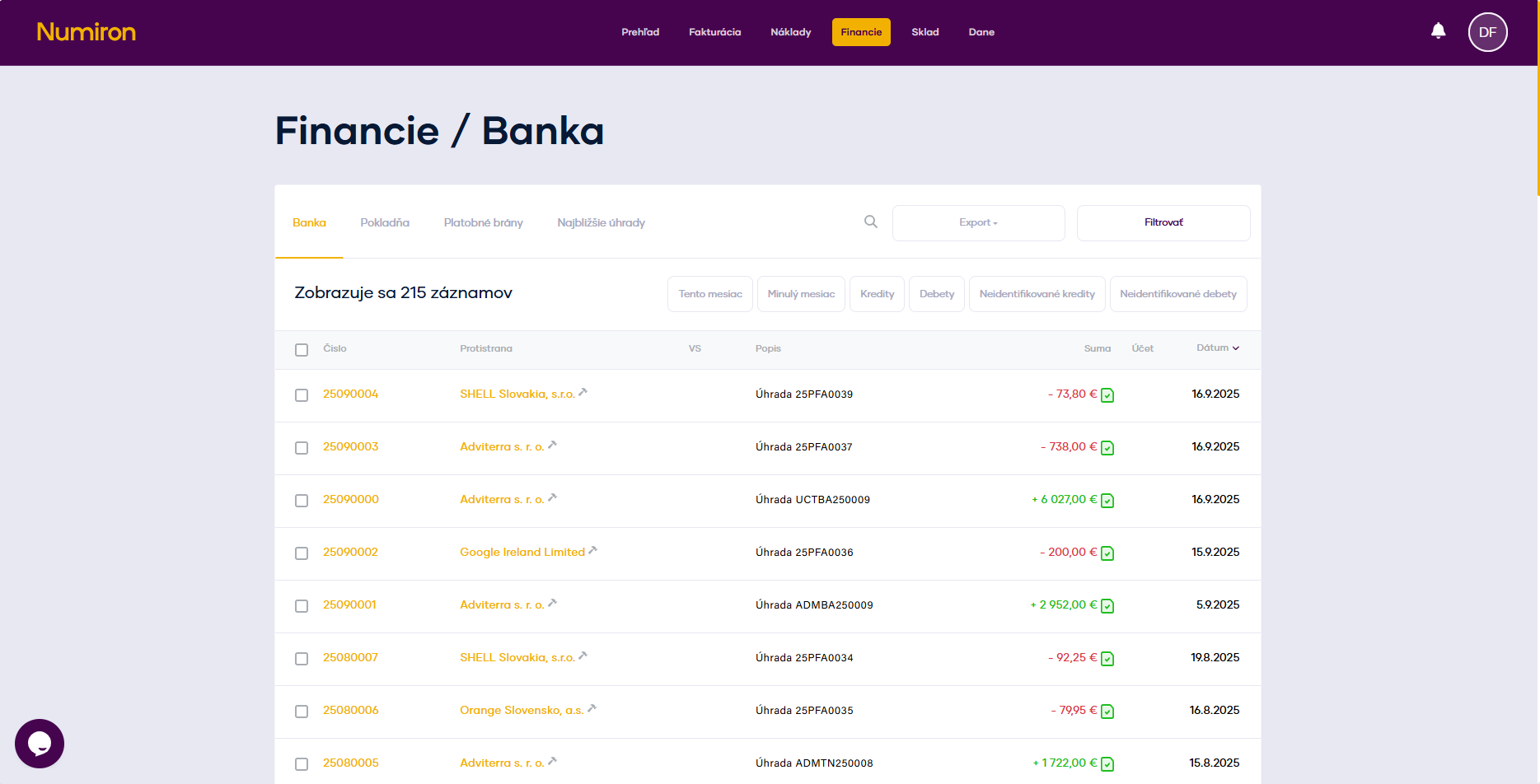
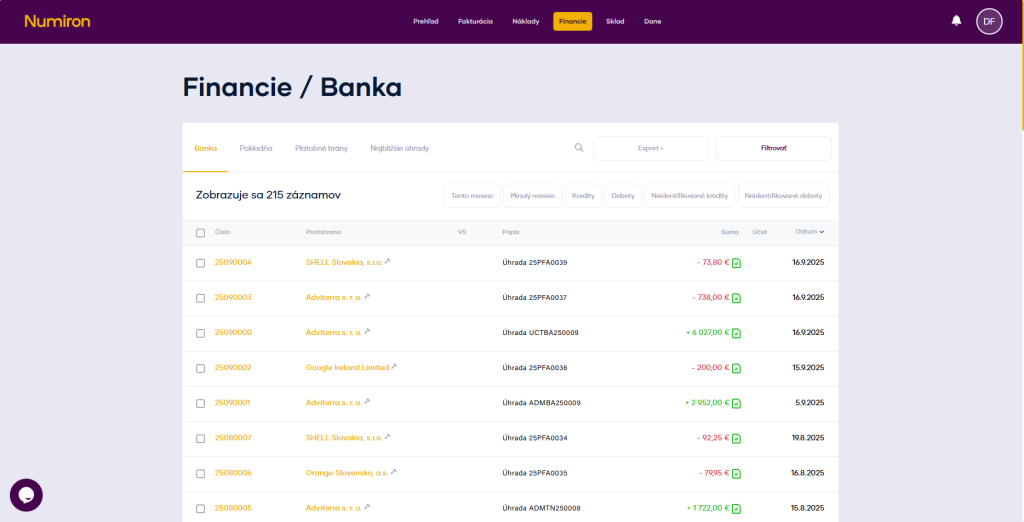
After successful completion, the transactions appear in the agenda Finance in section Bank

sparovane platby

3. Pairing transactions with documents 

Transactions will appear in the list chronologically and Numiron will automatically try to match them with receipts according to the variable symbol, amount and date of payment. 
If the transaction is not paired automatically, you can manually assign it to the document: 

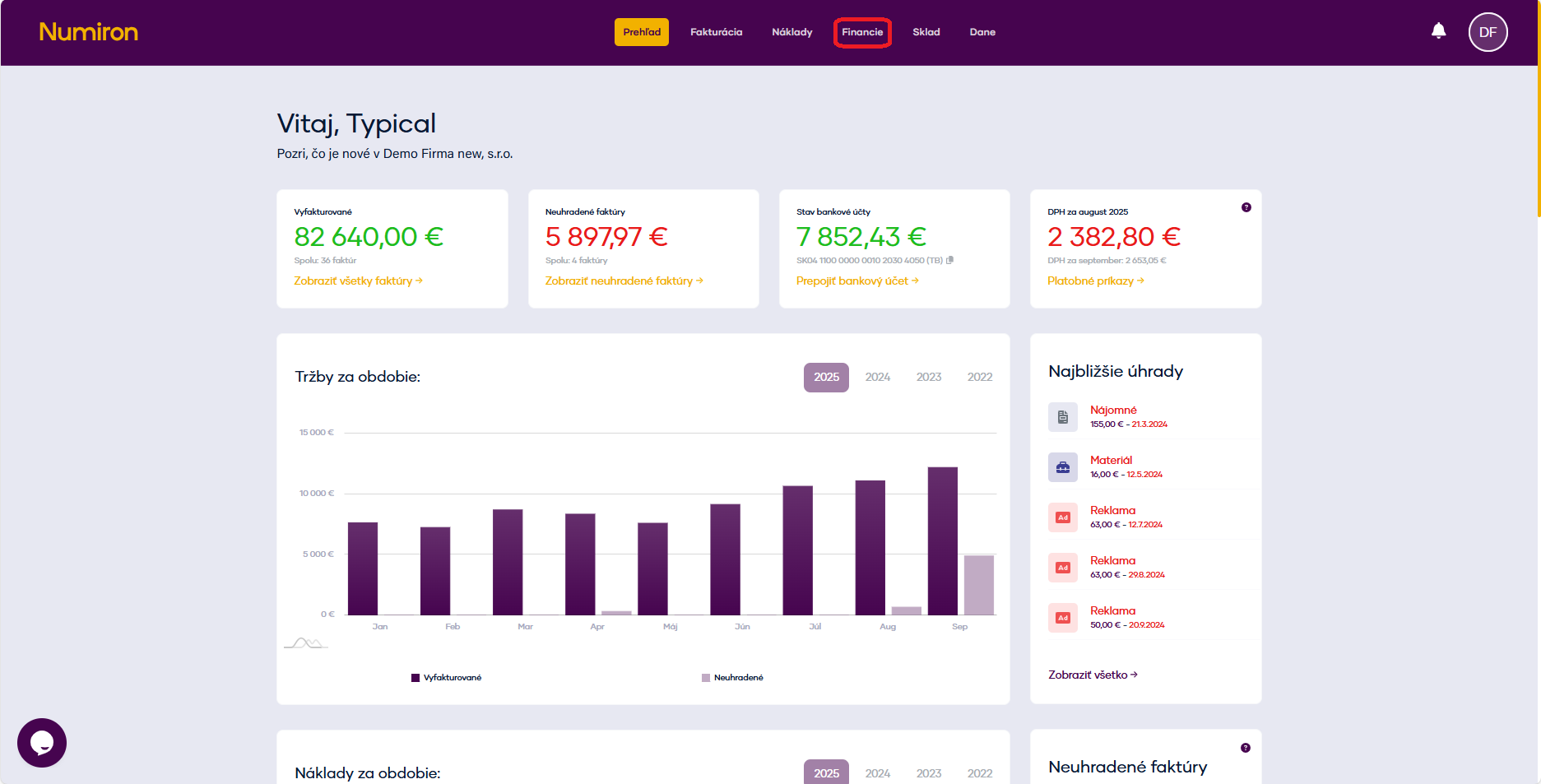
Go to the agenda Finance and sections Bank

prehlad financie

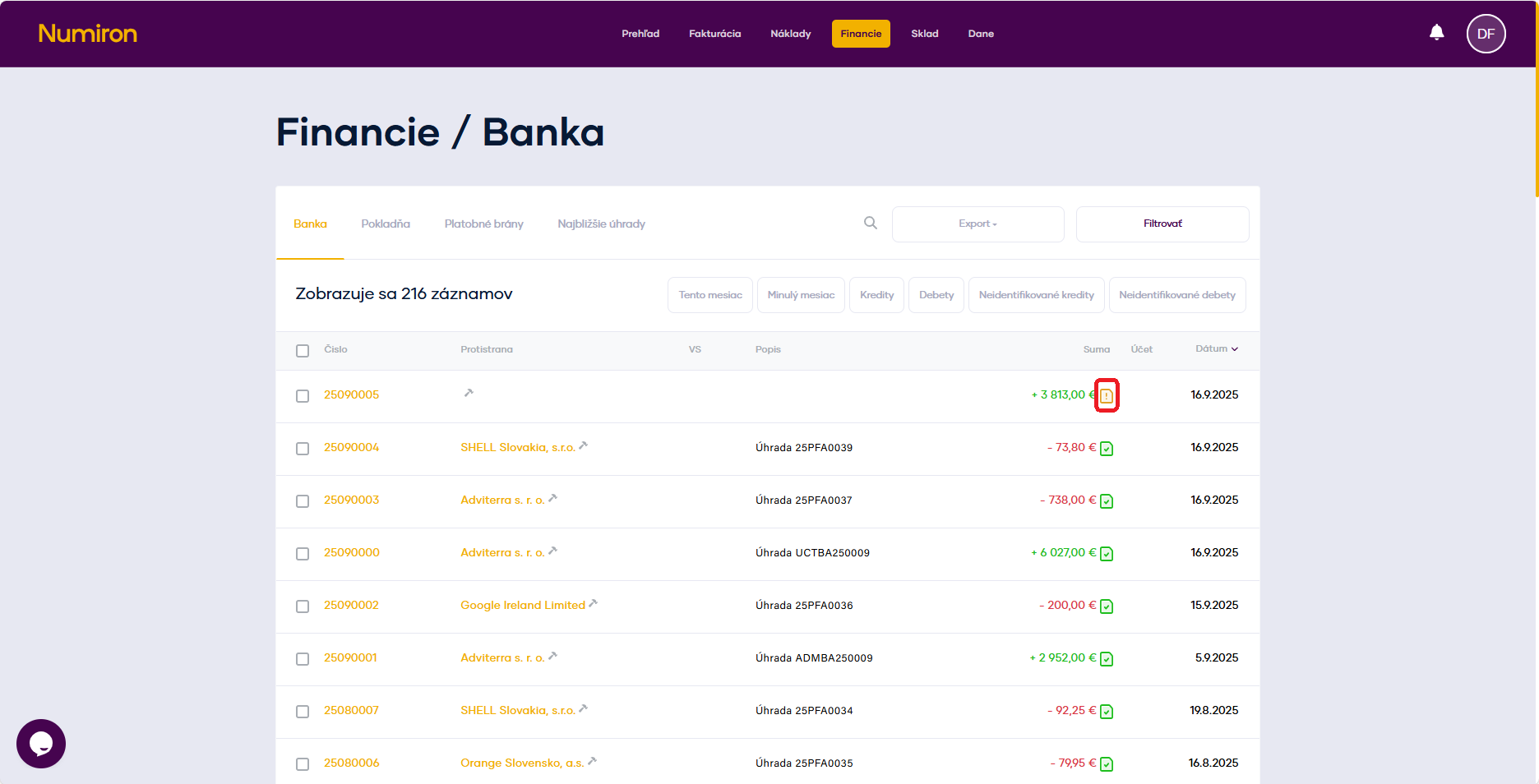
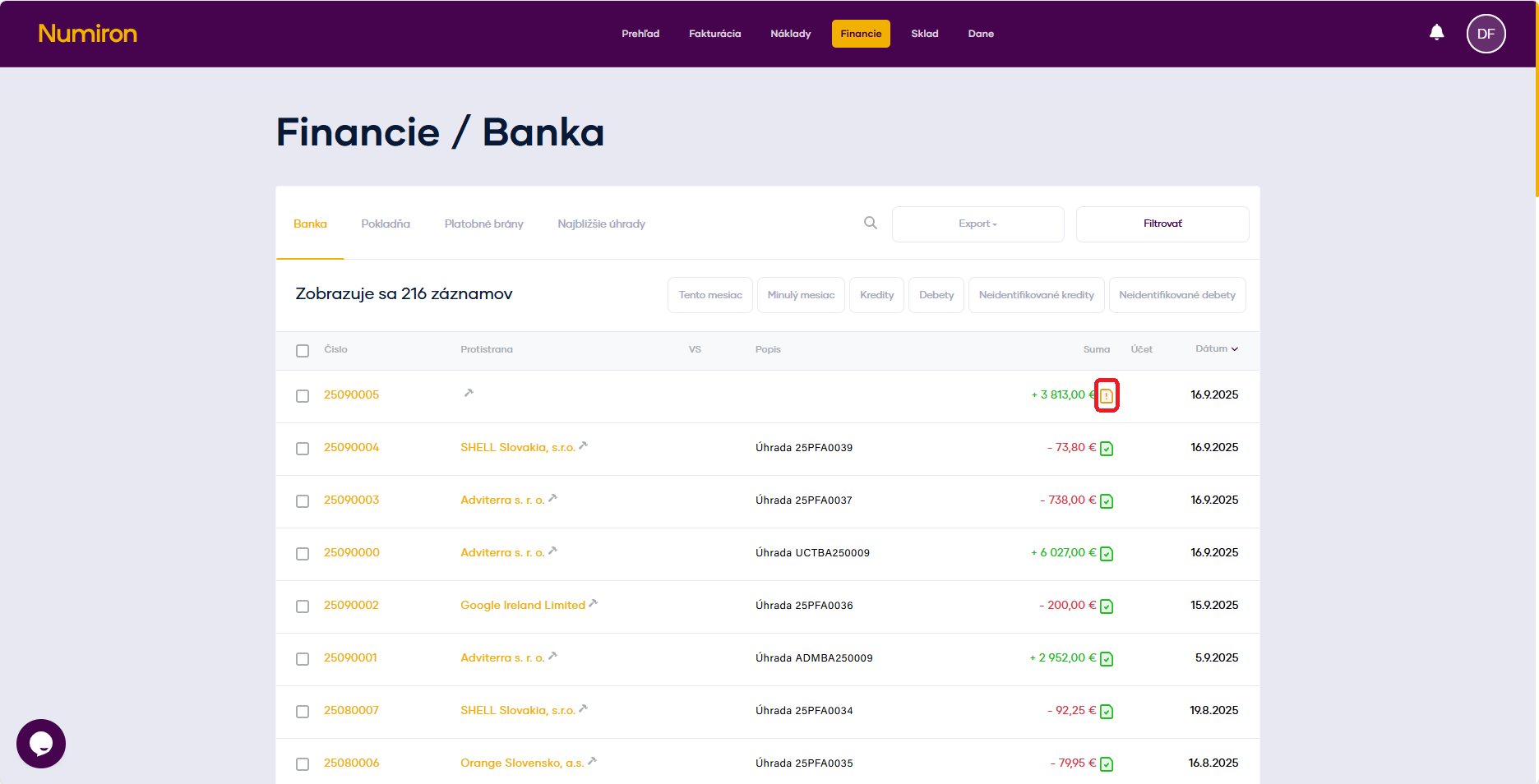
Find the transaction with the yellow exclamation point icon (⚠️). 

financie zoznam nesparované

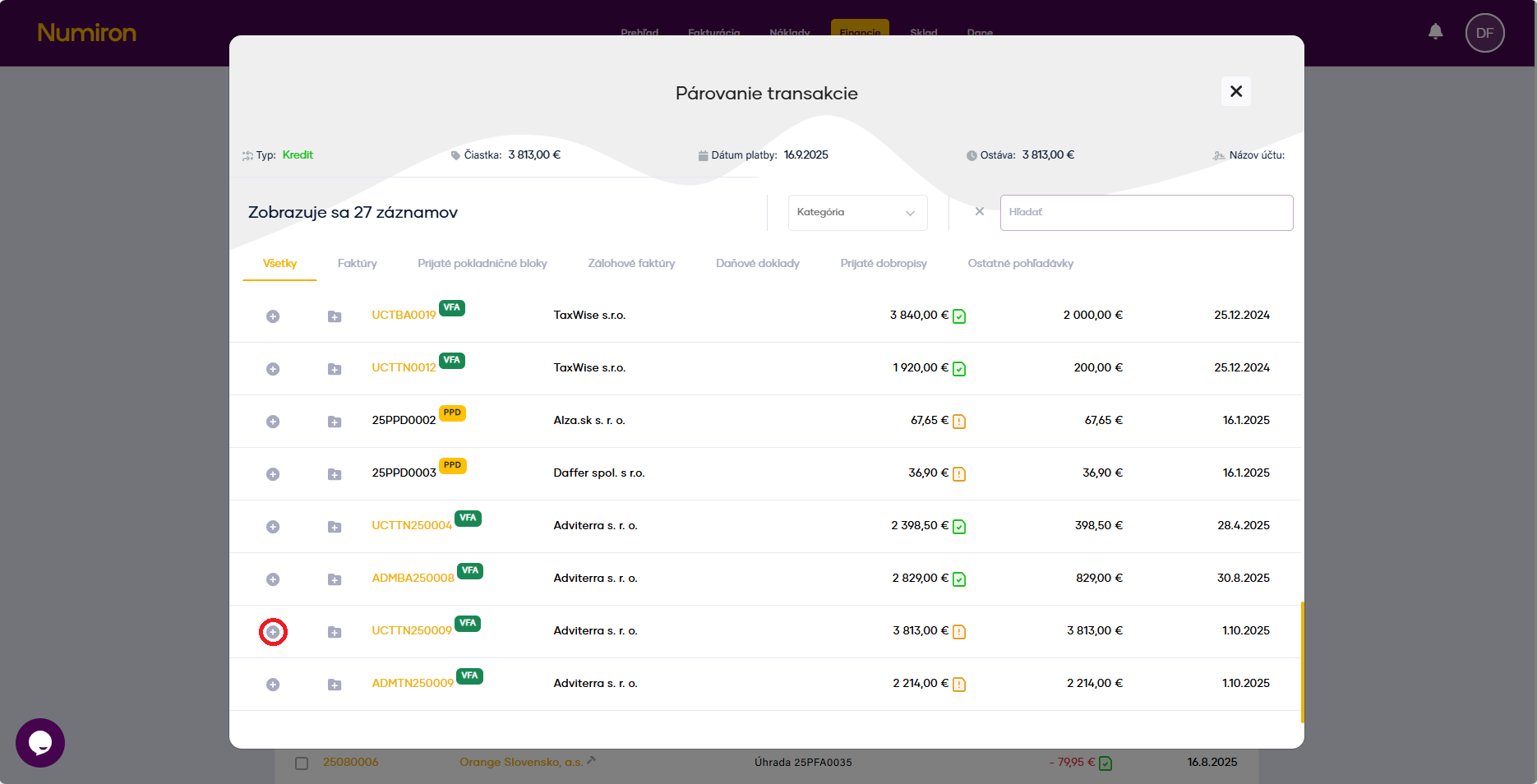
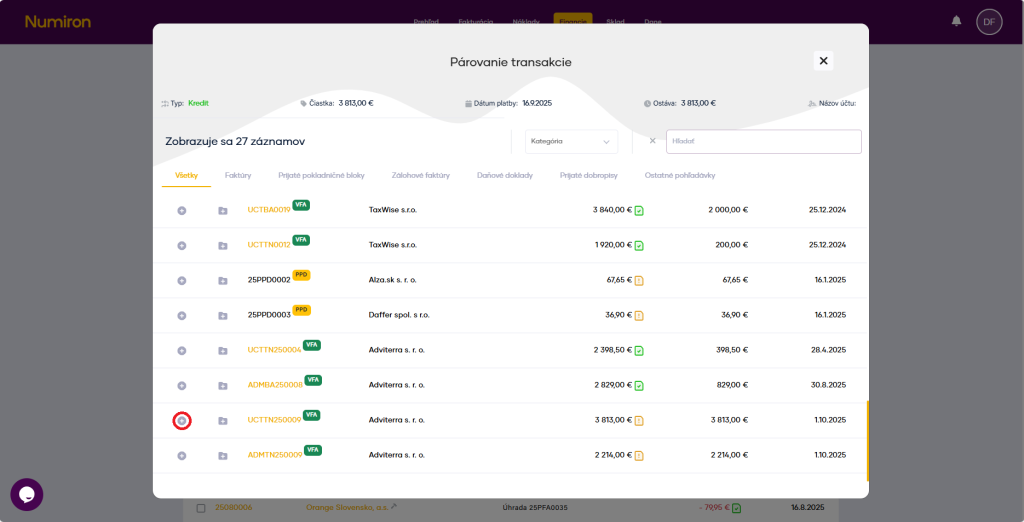
Click on it and select from the list the document (invoice, deposit, credit note, slip) with which the transaction should be paired. 
financie transakcia parovanie

After pressing the button + the system links the transaction to the document and saves it.

4. Control and reporting 

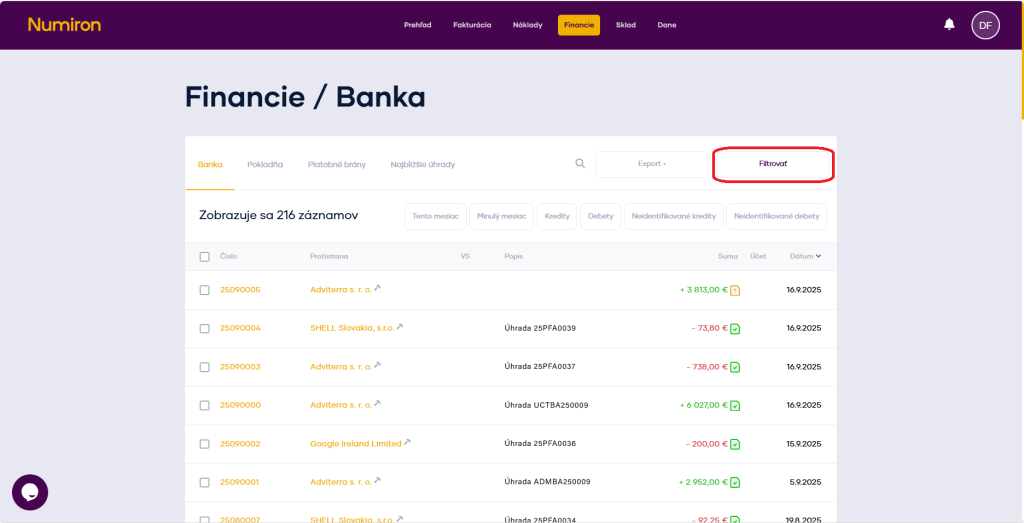
In the agenda Finance in section Bank you can work with filters by date, amount or pairing status.   

financie banka filter

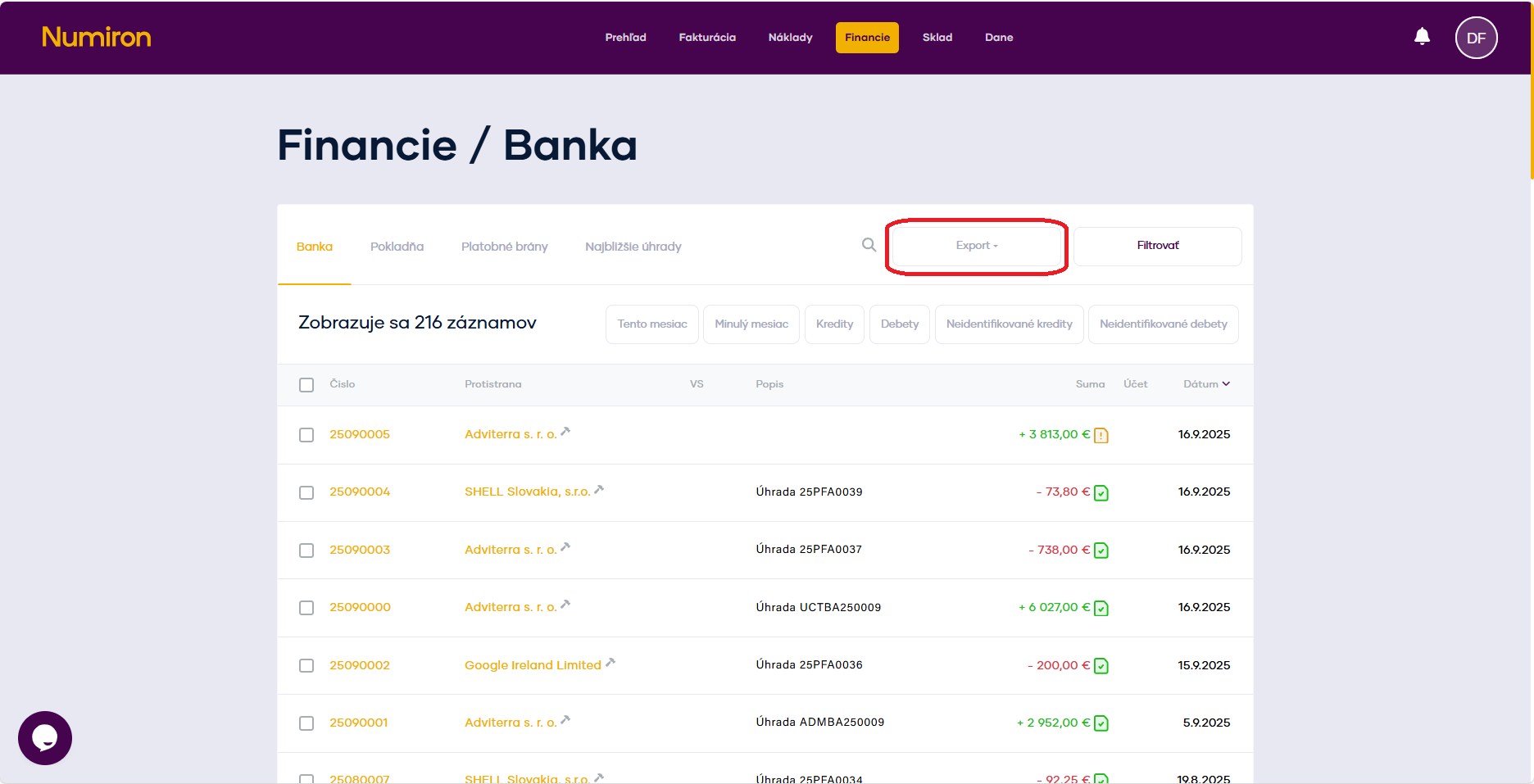
For accounting or internal analysis purposes, you can easily export transactions in the following formats XML or XLSX .

financie banka export

How to pair and categorize transactions

Automatic matching and transaction categorisation saves you hours of manual work and ensures that your income and expenses are always in order. Numiron handles this with its bank connection and proprietary rules system. 

Method 1: Automatic transaction matching

After pairing your bank account with Numiron transactions will be automatically matched to documents based on amount, IBAN and variable symbol. 

sparovane platby

To authorise your bank, simply use the Settings in section Bank. You can also find the detailed procedure in this guide - link to bank authorisation 

Method 2: Manual pairing 

If the transaction is not paired automatically, you can manually assign it to the document: 

Go to the agenda Finance and sections Bank

prehlad financie

Find the transaction with the yellow exclamation point icon (⚠️). 

financie zoznam nesparované

Click on it and select from the list the document (invoice, deposit, credit note, slip) with which the transaction should be paired. 
financie transakcia parovanie

After pressing the button + the system links the transaction to the document and saves it. 

How to categorize transactions 

To get an even better overview, you can select a category for the transactions. 

Go to the agenda Finance and subsequently sections Bank

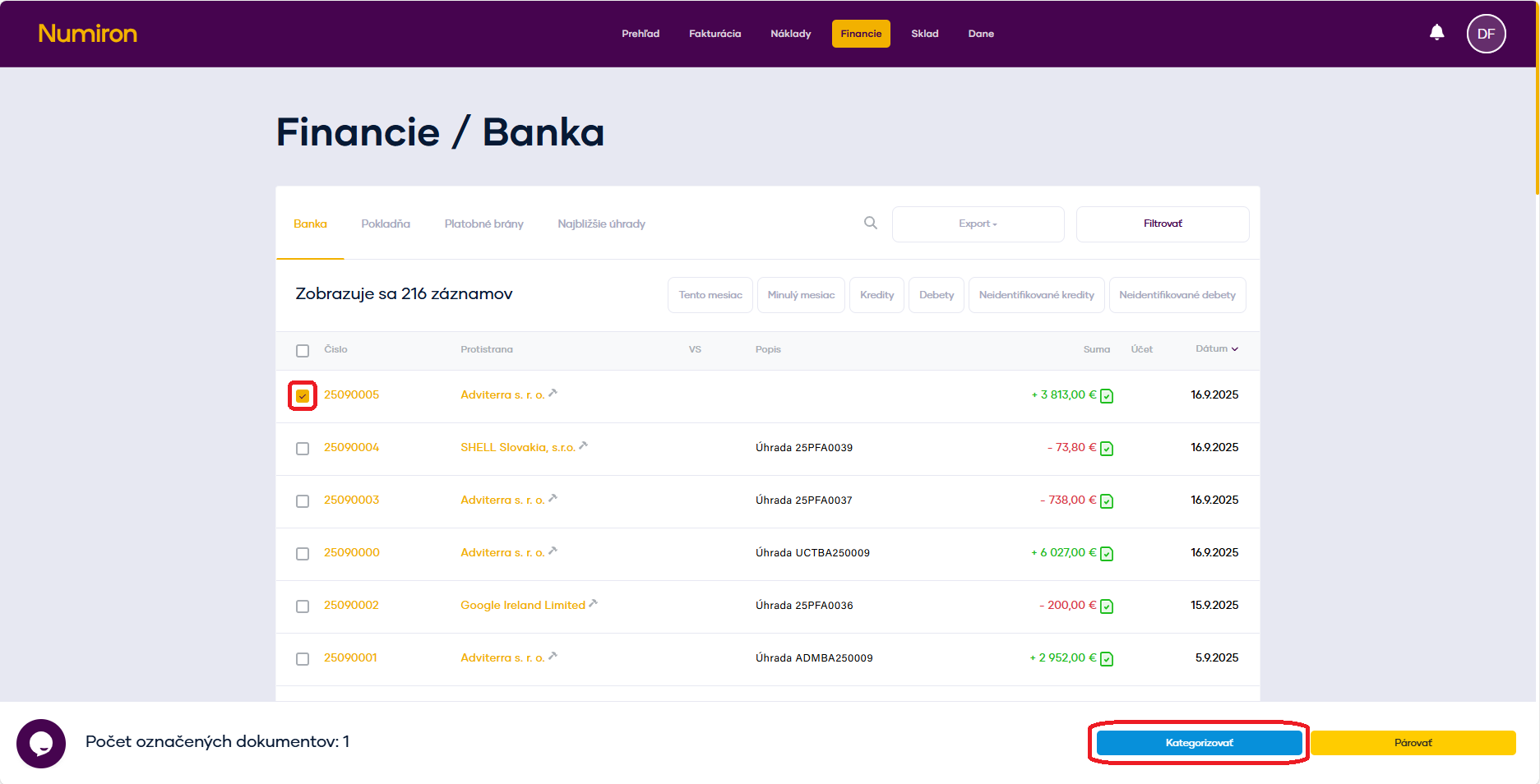
In the transaction list, click on Square for any transaction. You will then see a panel of options at the bottom, here you click on the button Categorize. 

financie transakcia kategorizovat

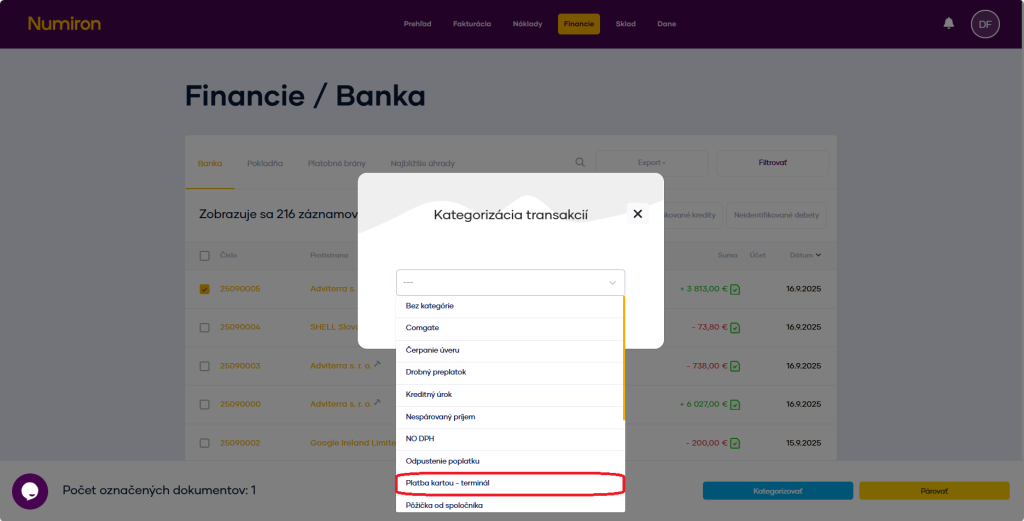
From the list of default categories, select one and the system will automatically save it. 
 

financie transakcia kategorizovat vytvorit

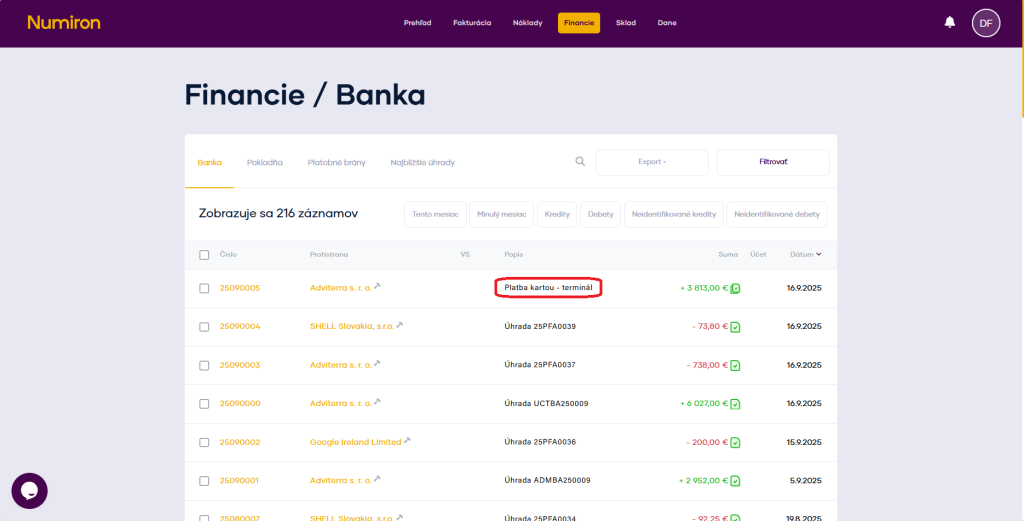
The category is then displayed in the transaction list as Description.

financie transakcia popis

How to manage virtual cash registers 

The Virtual Point of Sale (VRP) in Numiron allows you to easily record sales that do not burden the physical POS device, such as online payments, mobile sales or sales from other virtual channels. 

1. How do I connect the cash register to Numiron 

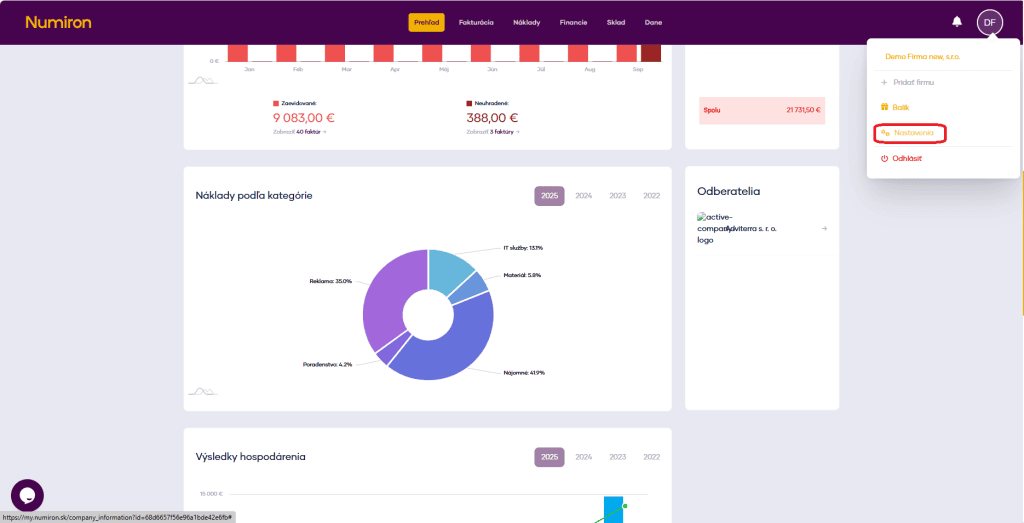
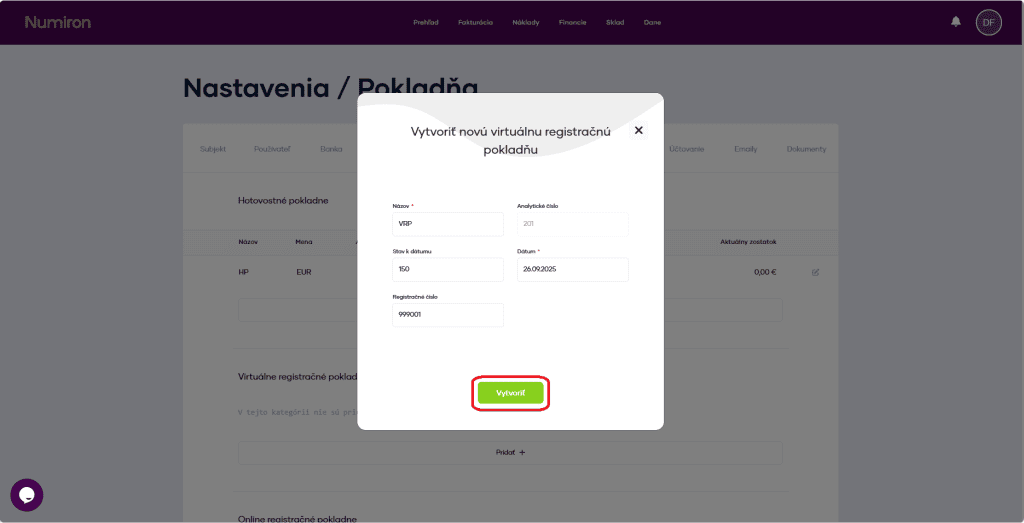
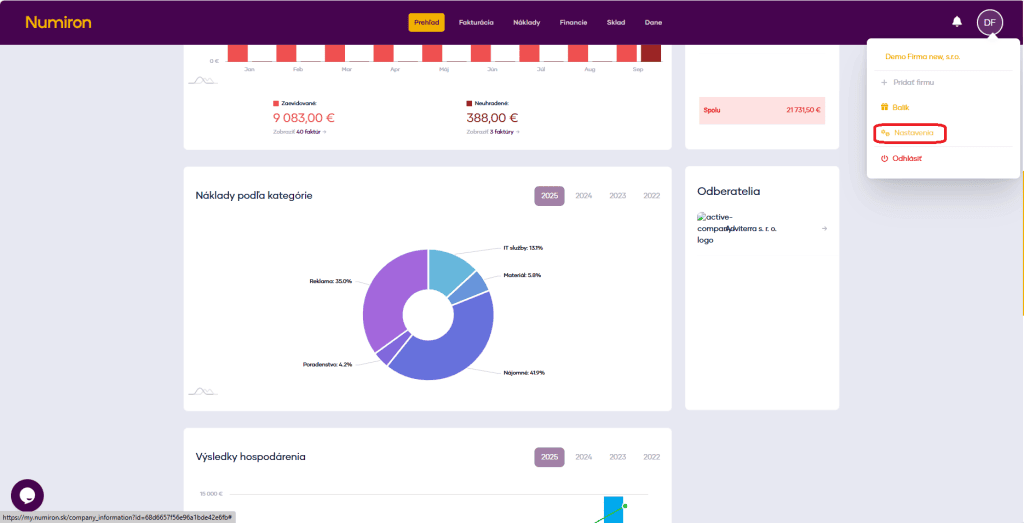
In the top right corner, click on your profile icon, select Settings and select the section Checkout. Go here to the section virtual cash registers

prehlad nastavenia

Then click Add and fill in: 

  • the name of the cash register - for example, „VRP E-shop“, 
  • initial balance - the balance of sales on the launch date, 
  • the date on which registration begins, 
  • registration number - assigned by the Financial Administration, 
  • the number series of documents - if you use more than one series. 

To save your settings, click on Create

vrp vytvorit

2. Creating sales 

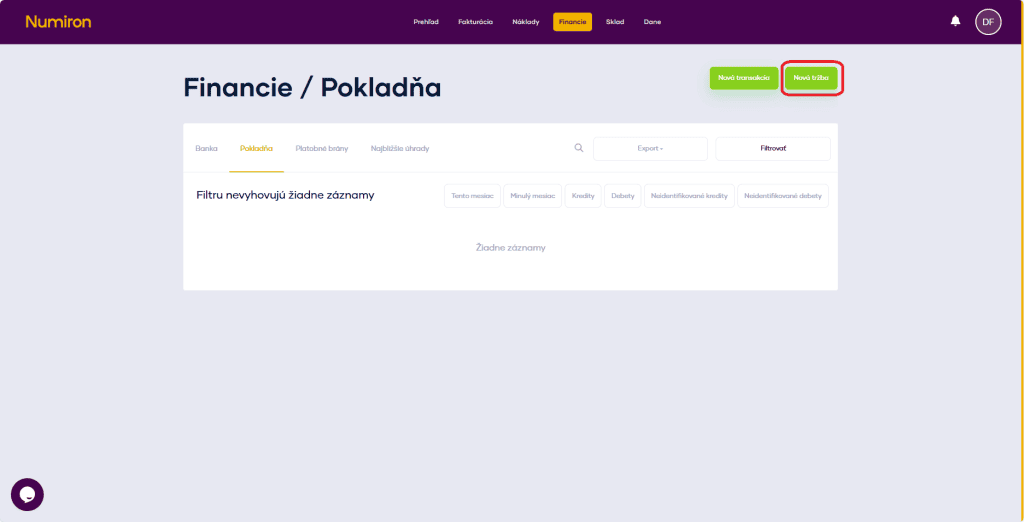
In the agenda Finance in section Checkout click on New sales

financie pokladna nova trzba

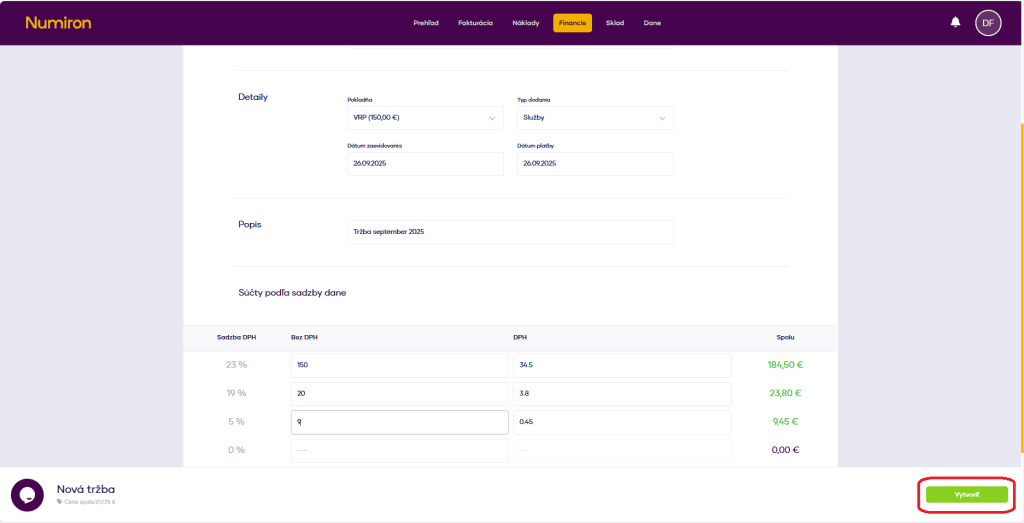
You can upload an original document (PDF of the receipt or export from VRP) and add the following data to the form: 

  • checkout - select from your VRP, 
  • the type of delivery - for example, online payment or mobile payment, 
  • date of registration - the date of the transaction in the VRP, 
  • date of payment - if different from the date of registration, 
  • a description - for example, „E-commerce sales for September“, 
  • sum by tax rate - base and VAT separately. 

Once completed, click on Create. Sales are saved and automatically booked. 

vrp nova trzba

3. Where can I find the sales overview 

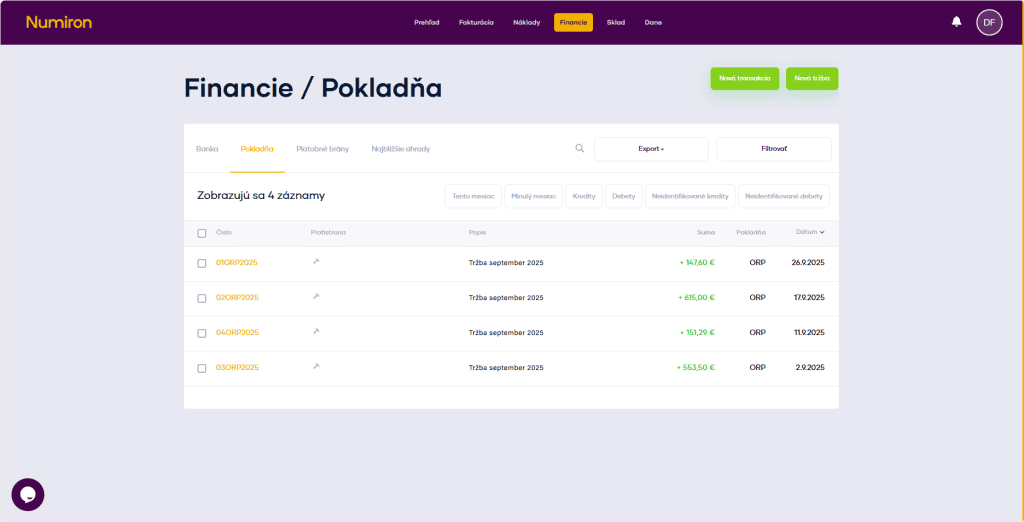
A list of all sales can be found in the agenda Finance in section Checkout sorted by date. 

financie pokladna prehlad

Use the filters to search for sales by cashier, period, payment type or amount. 

financie pokladna filter zobraziť vysledky

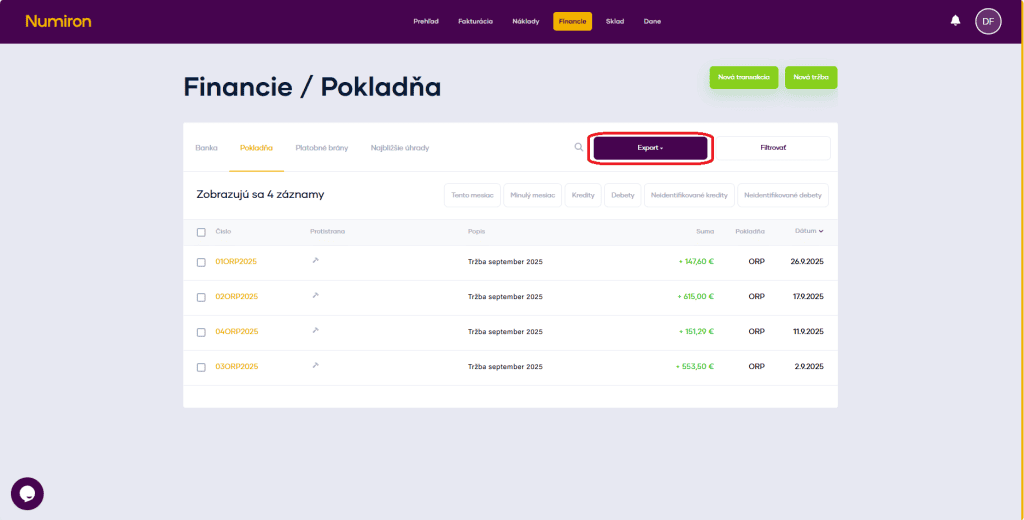
If you need to export the data, click on Export and select the format: 

  • XML - for accounting 
  • XLSX - for internal reports  
financie export

How to manage the online cash register

Managing your online cash register (ORP) in Numiron allows you to record sales directly in the application and always have an up-to-date overview of your cash receipts. 

1. How do I connect the cash register to Numiron 

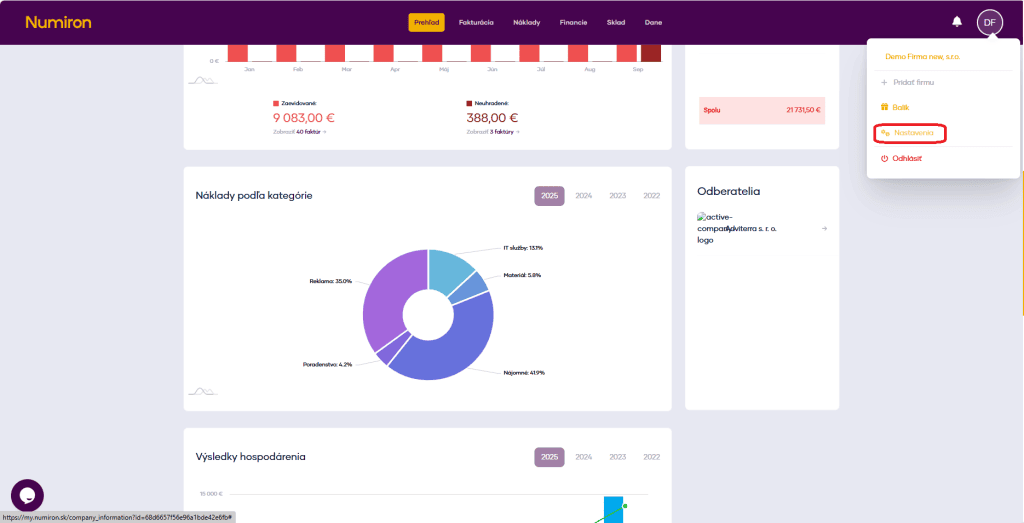
In the top right corner, click on your profile icon, select Settings and select the section Checkout. Go here to the section Online cash registers

prehlad nastavenia

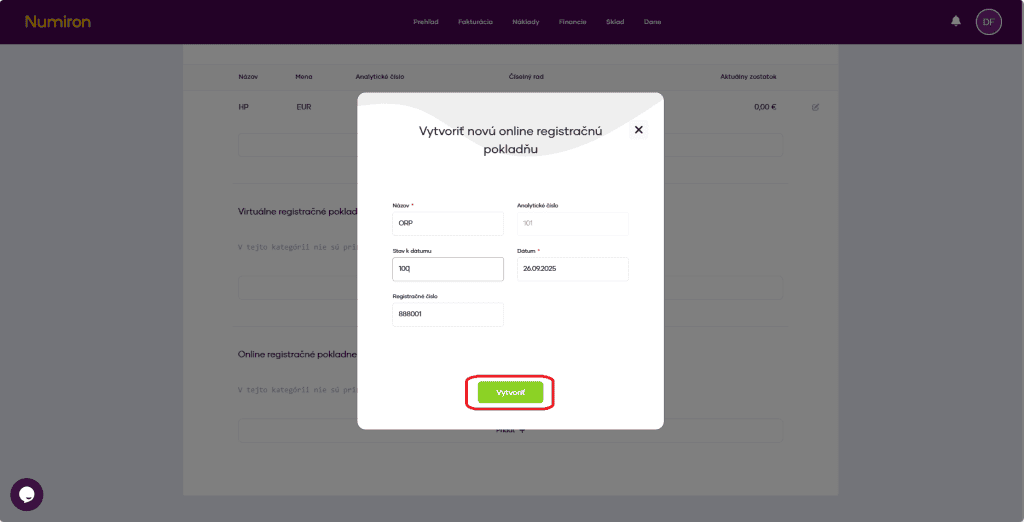
Then press the button Add and fill in: 

  • the name of the cash register - so you can easily distinguish it within the account, 
  • the initial status on the selected date, 
  • the date on which registration begins, 
  • Treasury registration number (assigned by the tax administration), 
  • the cash receipt number series (if you use multiple series), 

To save your settings, click on Create

orp vytvoriť

2. Creating sales 

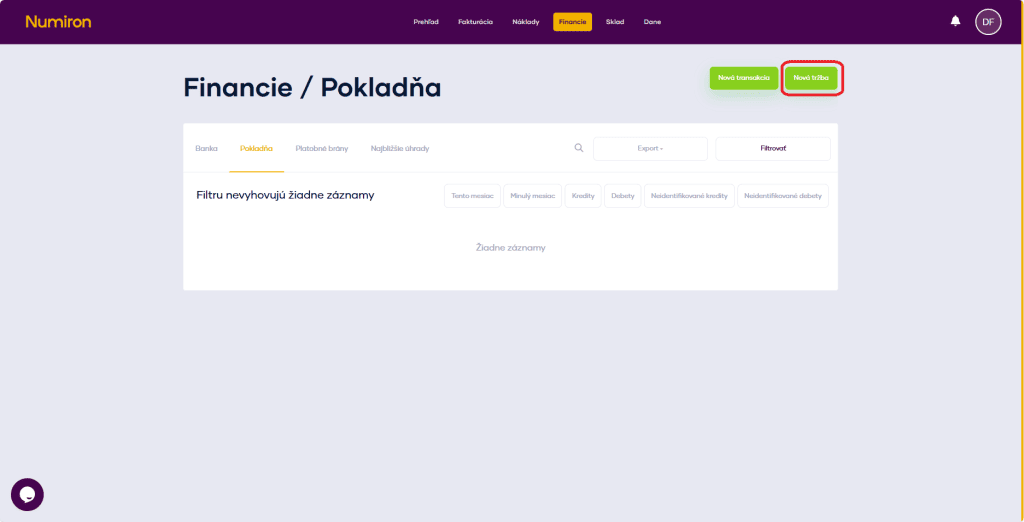
In the agenda Finance in section Checkout click on New sales

financie pokladna nova trzba

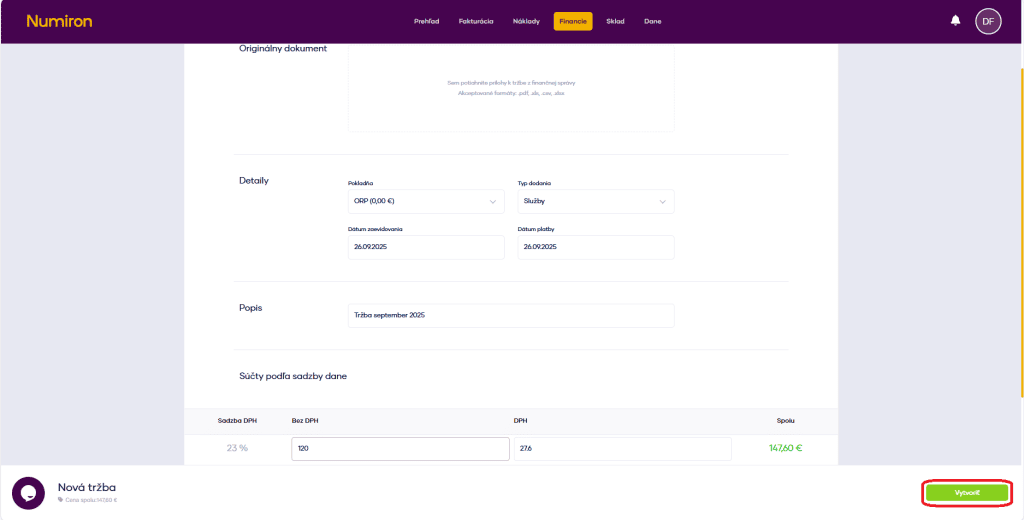
You can upload the original document (PDF or image of the receipt) and fill in the details: 

  • Treasury - select from the connected ORP, 
  • type of delivery - cash or card payment, 
  • date of registration - date of issue of the receipt, 
  • date of payment - if different from the date of registration, 
  • description - for example, „Revenue for August 2025“, 
  • rate columns - enter the total of sales (excluding VAT and VAT separately). 

Once completed, click on Create. The revenue shall be both saved and booked as revenue. 

financie pokladna nova trzba vytvorit

3. Where can I find the sales overview 

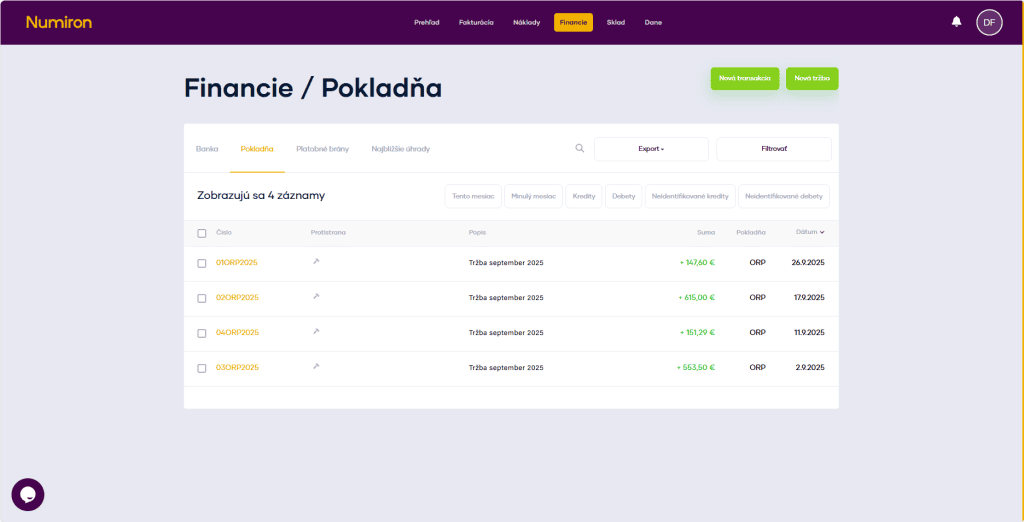
A list of all sales can be found in the agenda Finance in section Checkout, sorted by date. 

financie pokladna prehlad

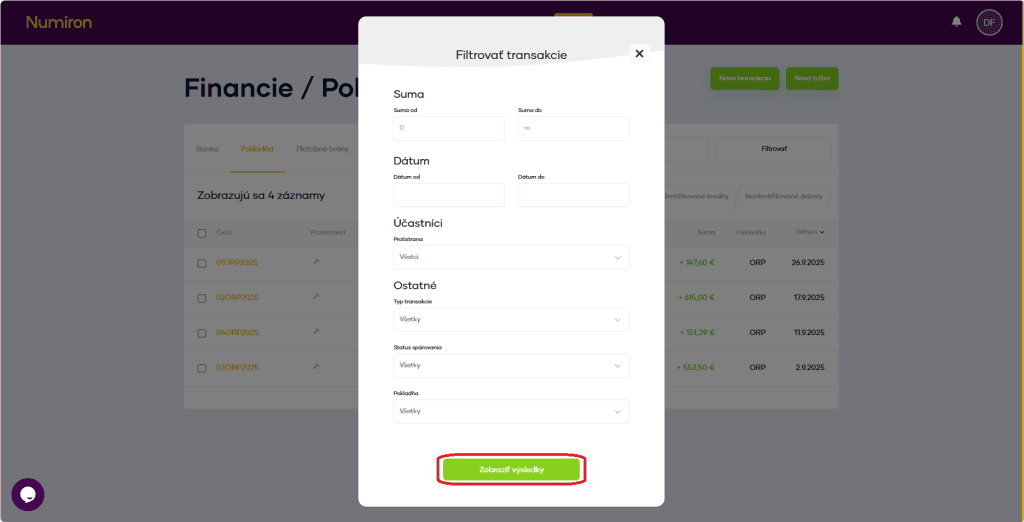
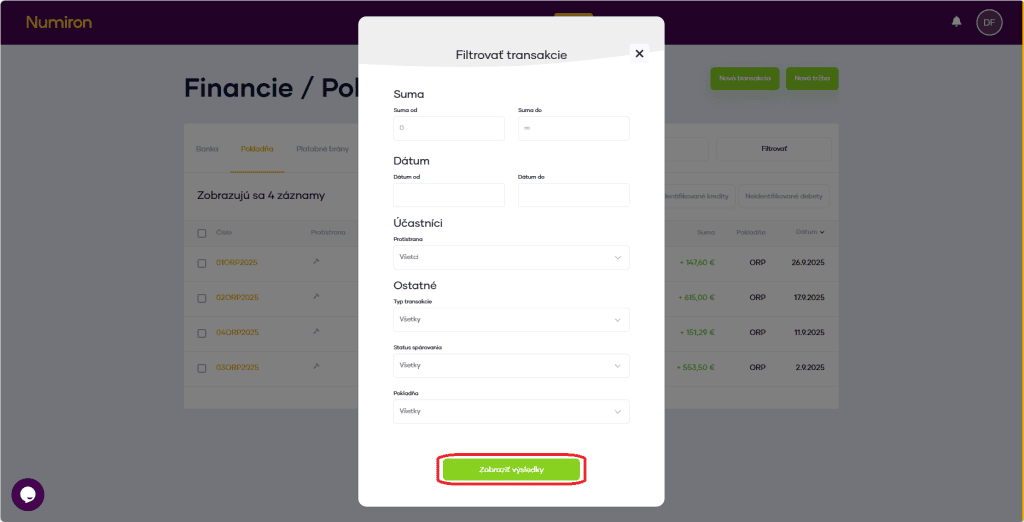
Use the filters to search for sales by cashier, period, payment type or amount. 

financie pokladna filter zobraziť vysledky

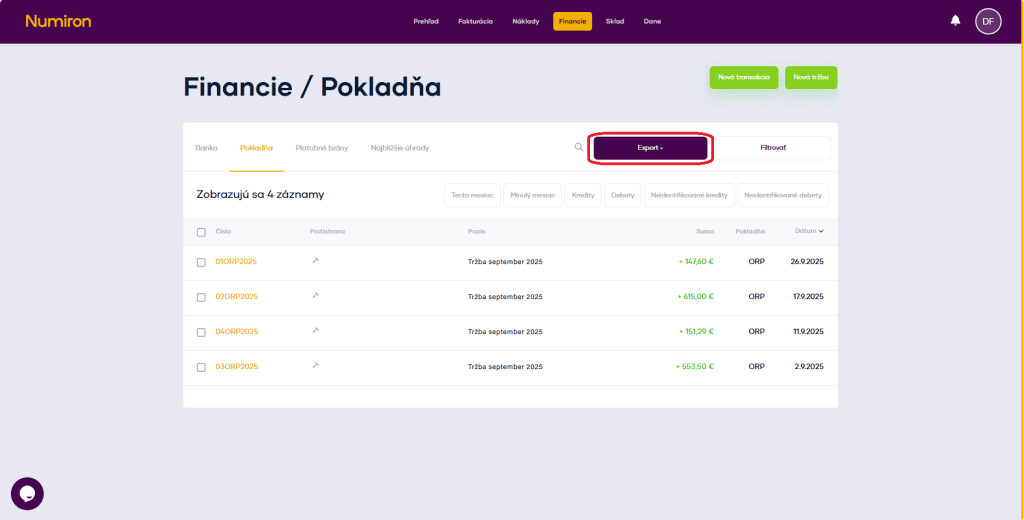
If you need to export the data, click on Export and select the format: 

  • XML - for accounting 
  • XLSX - for internal reports 
     
financie export

How to manage a cash register

The cash register in Numiron is used to record all receipts and expenses paid in cash. Thanks to it, you always have an up-to-date overview of your cash register balance and movements without the need for external software. 

1. How to set up a cash register 

In the top right corner, click on your profile icon, select Settings and select the section Checkout. Go here to the section Cash registers

prehlad nastavenia

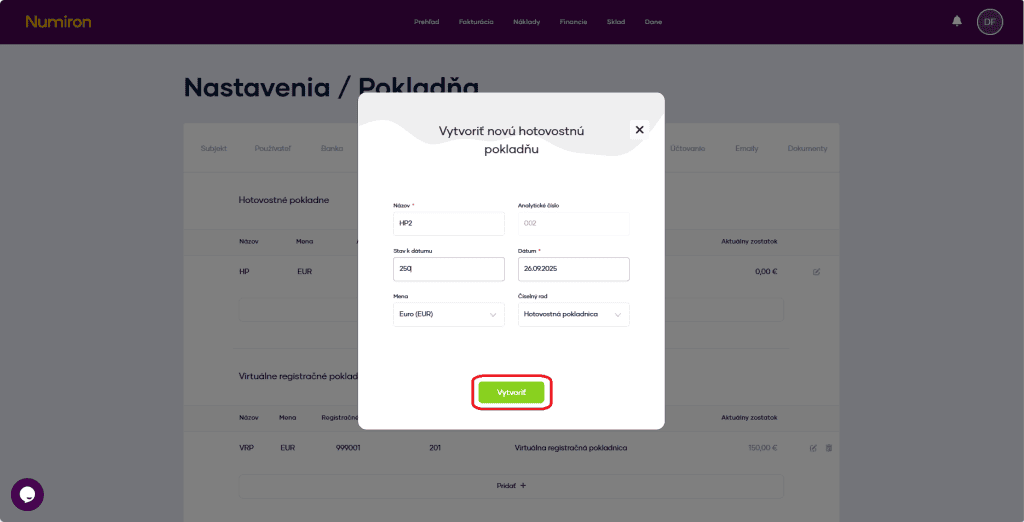
Then click Add and fill in: 

  • the name of the cash register - for example, „Cashier's Office“, 
  • initial balance - the balance on the selected date, 
  • the date on which the registration starts, 
  • currency - for example, EUR or CZK, 
  • cash register receipt number series - if you use more than one series. 

To save your settings, click on Create
 

hp vytvorit


The cash register is then displayed in the agenda Finance in section Checkout

2. Receiving and dispensing cash 

A) Creating a transaction 

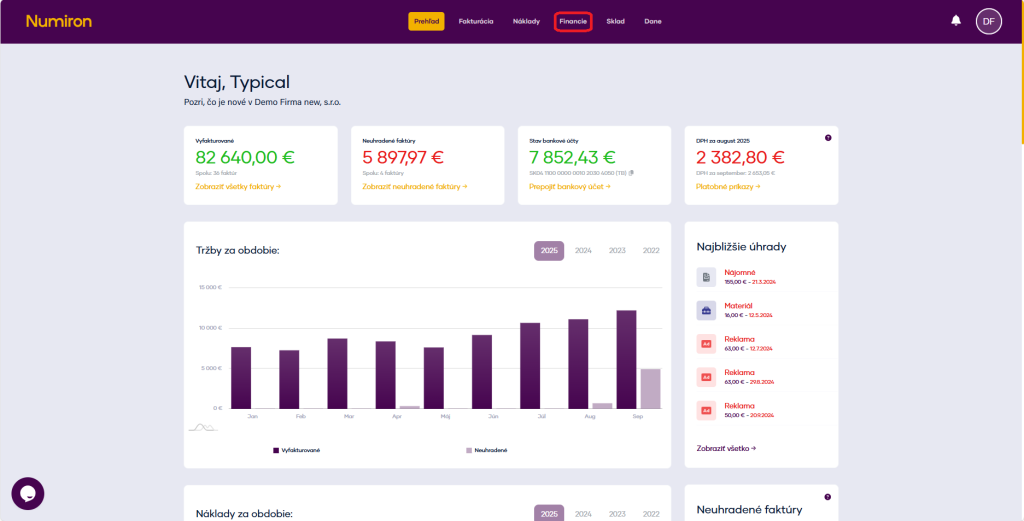
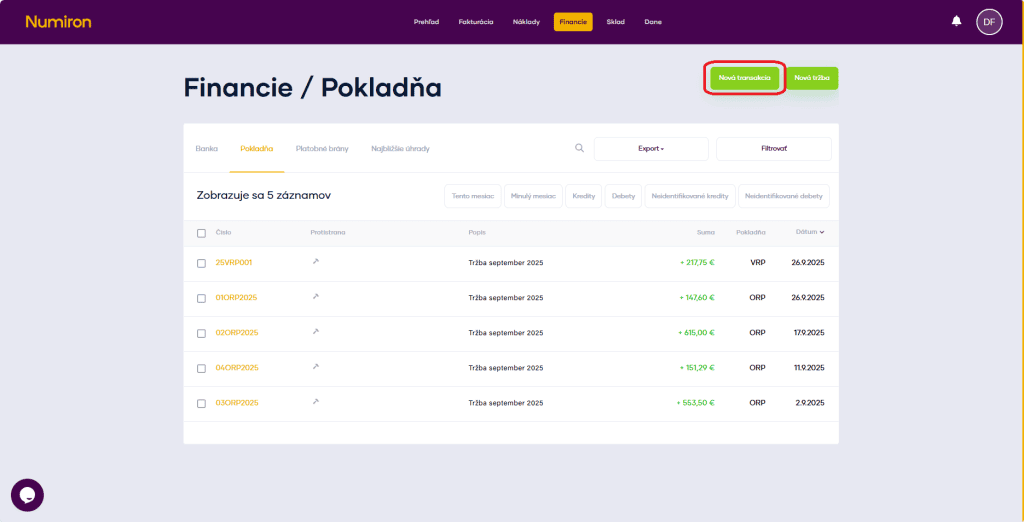
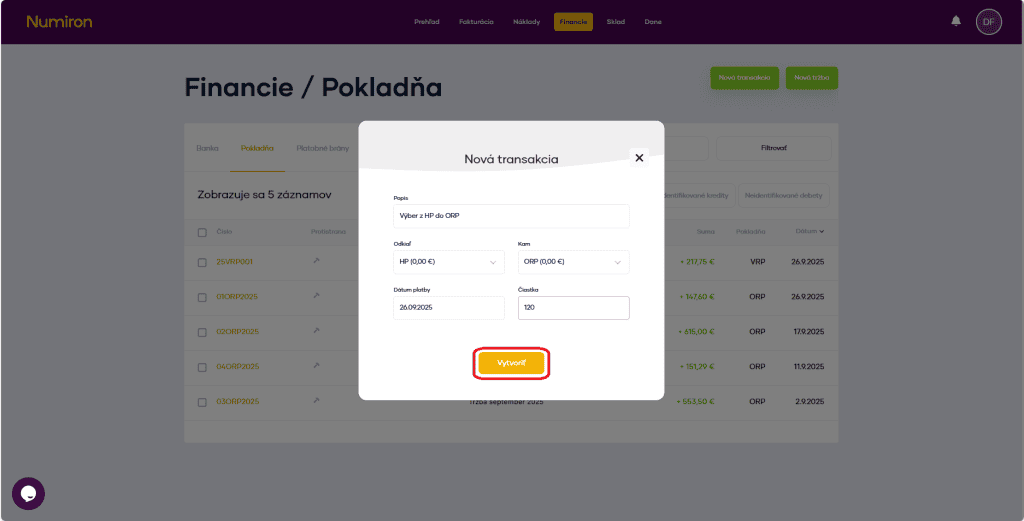
In the agenda Finance in section Checkout click on New transaction

financie pokladna nova transakcia

 In the form fill in: 

  • description - for example, „Sale of service - cash“, 
  • From cash register / To cash register - select the appropriate cash register, 
  • the date of the transaction, 
  • the amount - excluding and including VAT (if applicable). 

Click on Create and the transaction is saved. 

financie pokladna nova transakcia vytvorit

B) Posting of the payment of the invoice to the cash register 

If you receive payment of an invoice in cash, you can simply register it:

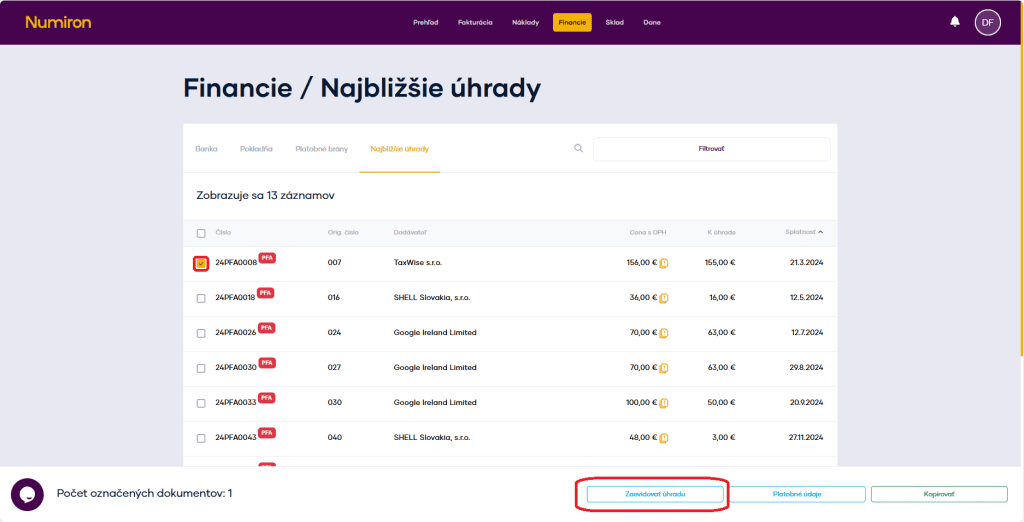
In the agenda Finance in section Nearest reimbursements mark the invoice you want to pay. 
 

financie najblizsie uhrady zaevidivoat uhradu

Click on To register the payment and select as payment method Checkout

Select the cash register to which the income belongs. 

Check the date and amount, add a note if necessary. 

Confirm by clicking on Create a transaction

financie najblizsie uhrady zaevidivoat uhradu vytvorit