Numiron support
Numiron Support & FAQ


Numiron Support & FAQ
Contact us if you haven't found the answer
Mon - Fri from 08:00 - 16:00
Pairing documents will ensure you have visibility into payments, proper accounting and automation if you have a linked bank.
Numiron offers several document pairing options.
1. Automatic matching of transactions with documents
How automatic transaction matching works?
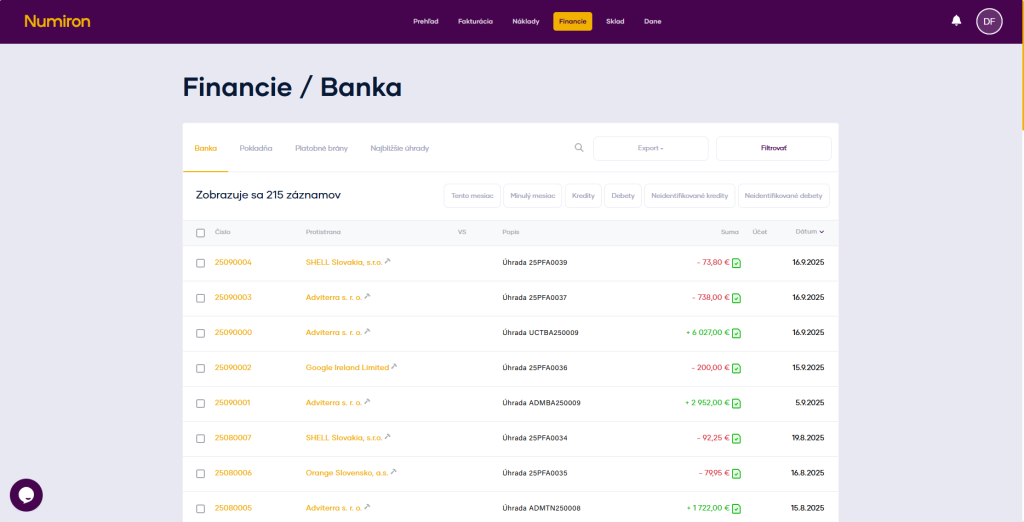
After pairing your bank account withNumirontransactions will be automatically matched to documents based on amount, IBAN and variable symbol.
To authorise your bank, simply go to Settings in the Bank section. You can also find the detailed procedure in this manual.
2. Manual pairing from the list
Documents can also be paired directly with other documents.
How do I pair a document with another existing document?
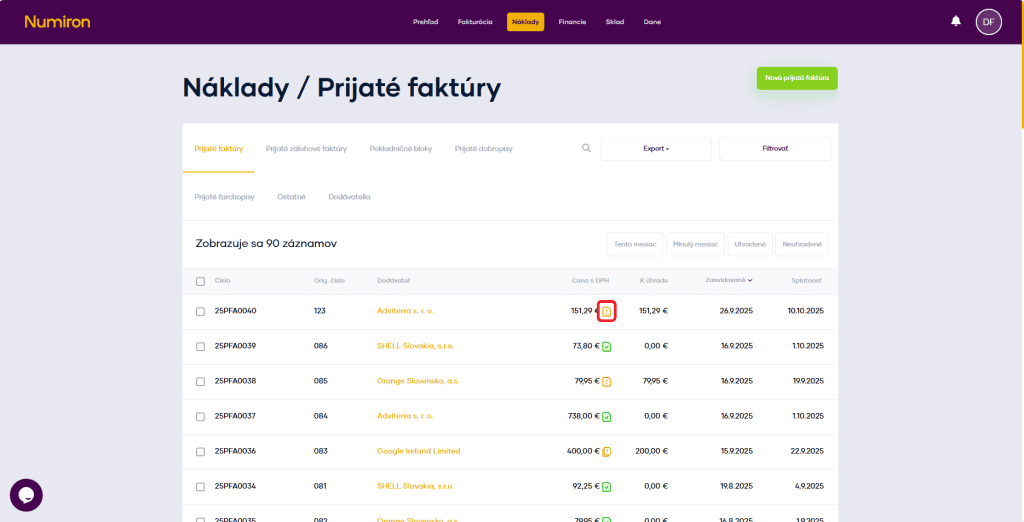
In the document list, click the yellow button next to the document amount to open the document matching mode.
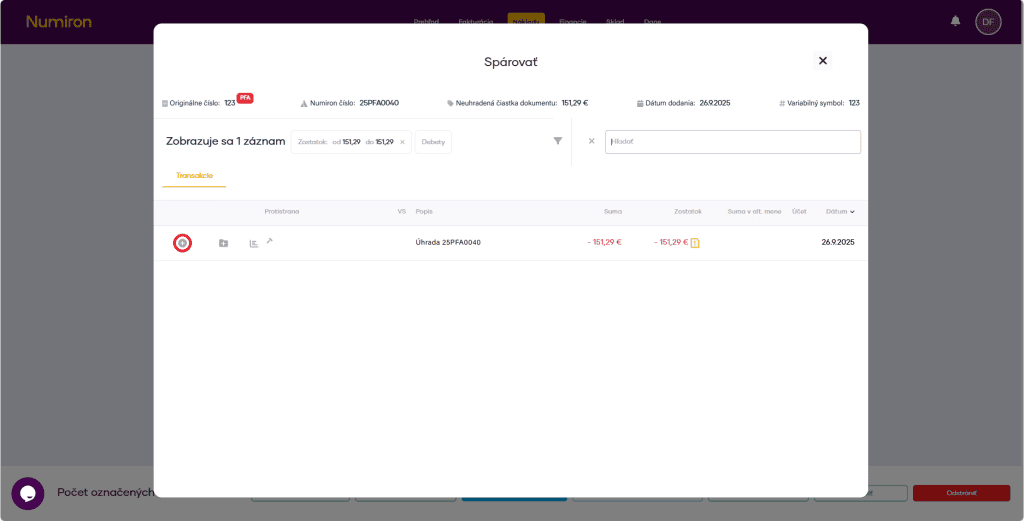
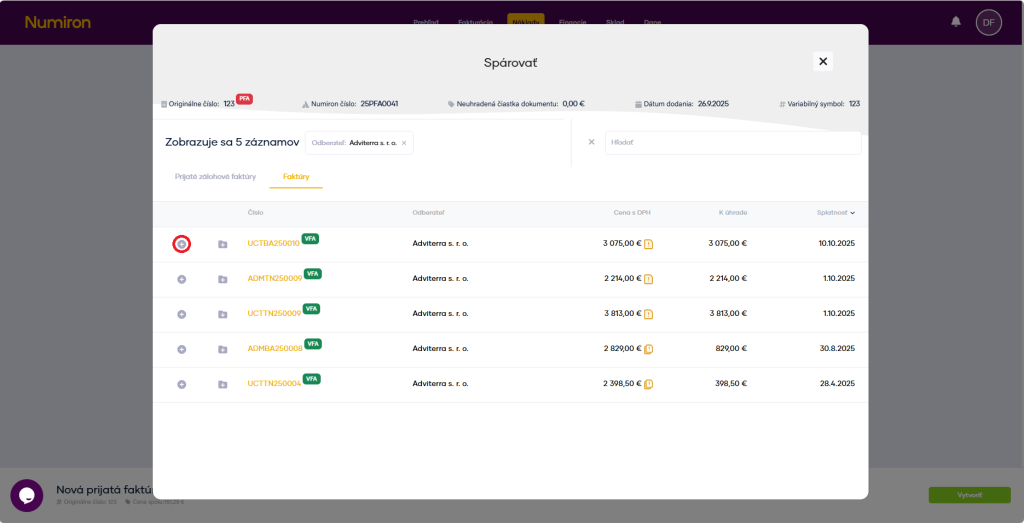
In pairing mode, choose which document you want to pair the document with and click on +, which is located on the left side of the document record.
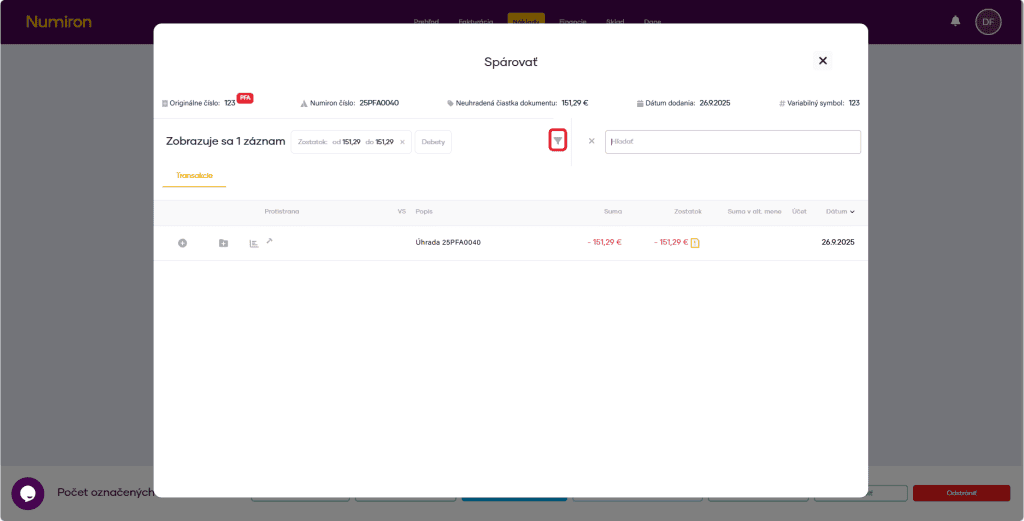
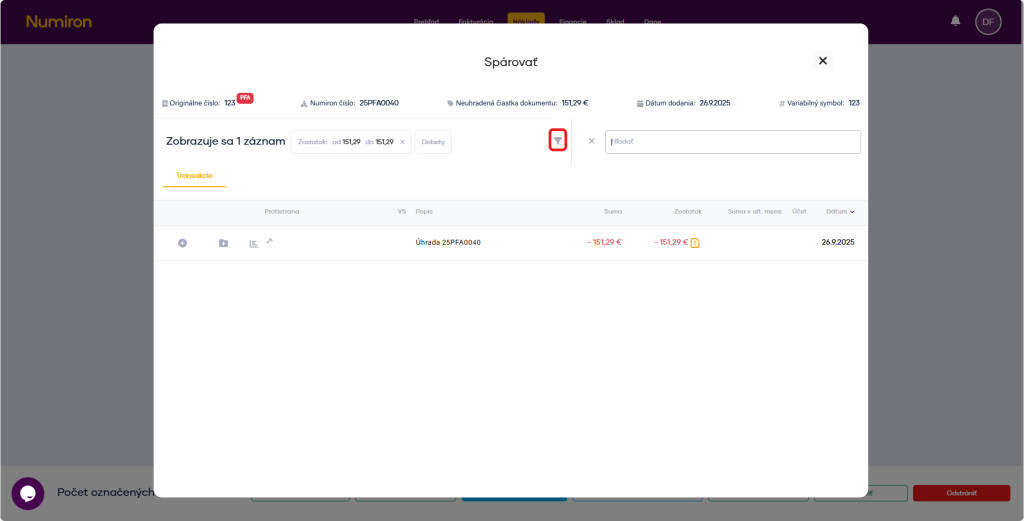
You can also filter documents by amount and date by clicking on the funnel icon. When matching, the default filter is on the exact amount of the document, you can cancel this filter by clicking the x in the filter field.
How do I pair a document directly when I create it?
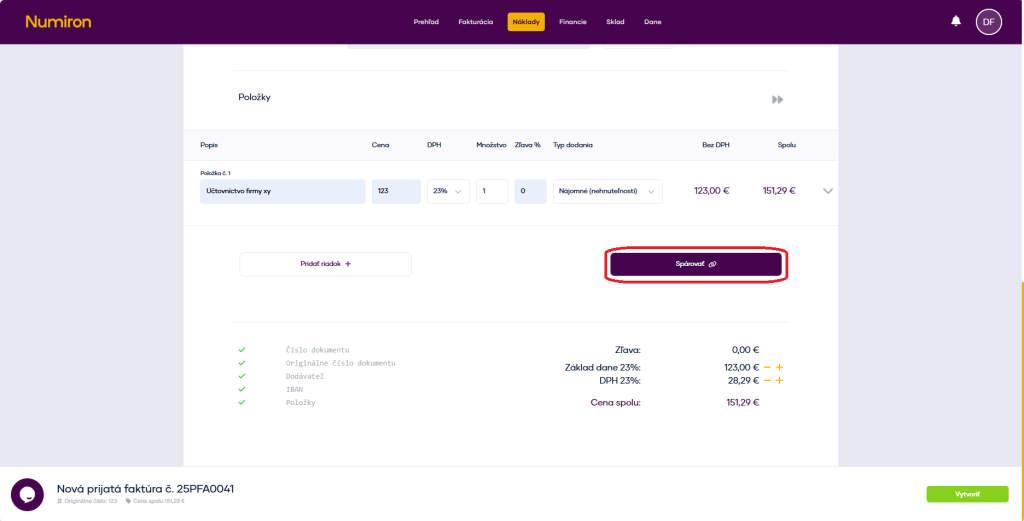
When creating a document, there is a pair button at the bottom under the list of items. After filling in the data in the document and clicking on the buttonPair up,you'll see the pairing mode.
In pairing mode, choose which document you want to pair the document with and click on +, which is located on the left side of the document record.
You can also filter documents by amount and date by clicking on the funnel icon. When matching, the default filter is on the exact amount of the document, you can cancel this filter by clicking the x in the filter field.
Contact us if you haven't found the answer
Mon - Fri from 08:00 - 16:00


Features
About us
Information

Copyright © 2026 Numiron s.r.o.
Website by


