Numiron support
Numiron Support & FAQ


Numiron Support & FAQ
Contact us if you haven't found the answer
Mon - Fri from 08:00 - 16:00
All your documents are under your control in one place.
In Numiron Invoicing, you simply mark up an invoice, invoice in advance, quotation, credit note, delivery note or tax document and work with them immediately.
With just two clicks, you can take the desired action instantly.
How to edit an already created document
1. Where to find the editing option
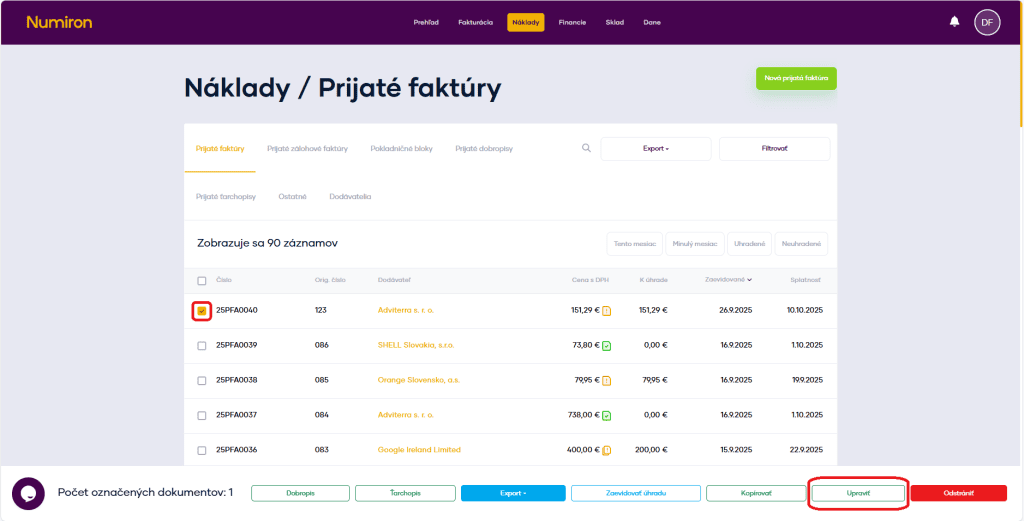
To mark a document, click on the square to the left of the document number. Once selected, you will see a bar of options at the bottom. Here you click on the buttonEdit.It will then take you into document editing mode.
2. Edit the document
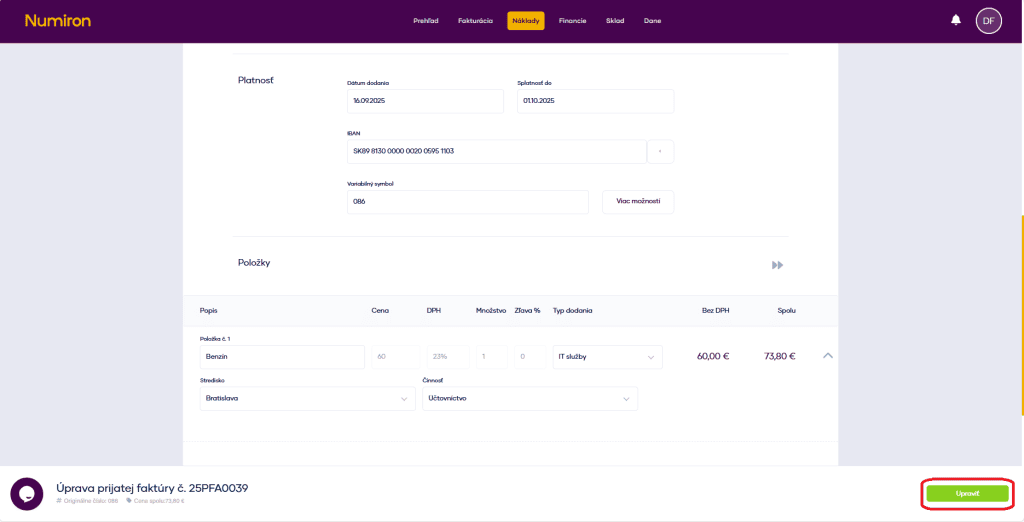
The document editing mode is visually identical to the document creation mode.
Moses
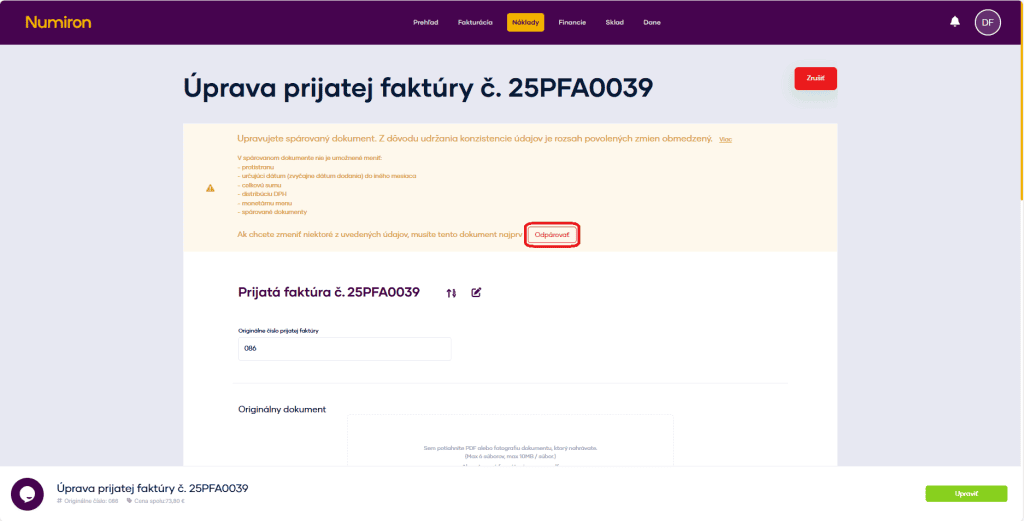
You can edit all document data, except when the document is paired.
The paired document cannot be modified:
To make such modifications, the document must be unpaired.
How to save time by copying
1. Where to find the copy option
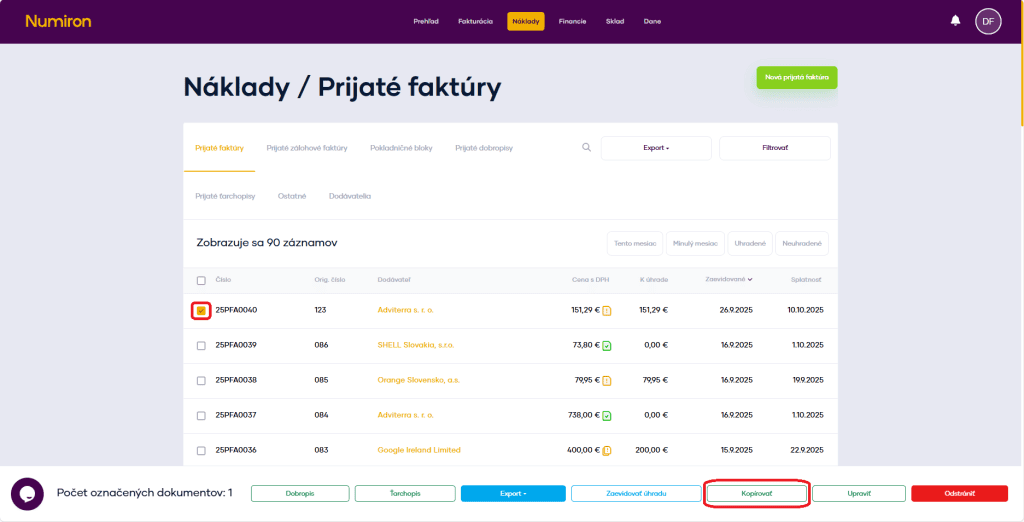
To mark a document, click on the square to the left of the document number. Once selected, you will see a bar of options at the bottom. Here you click on the buttonCopy.
2. Copying a document
Click the copy button to start creating a new document that will upload all the data from the original document with the updated dates.
You can change the necessary data and create a new document.
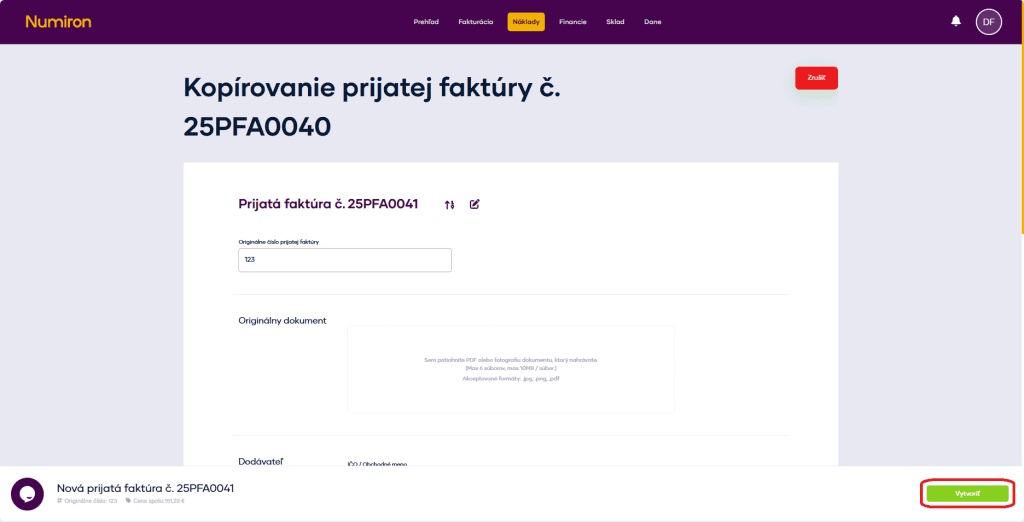
Copying documents saves a lot of time if you create several similar documents.
How to manually record reimbursements if necessary
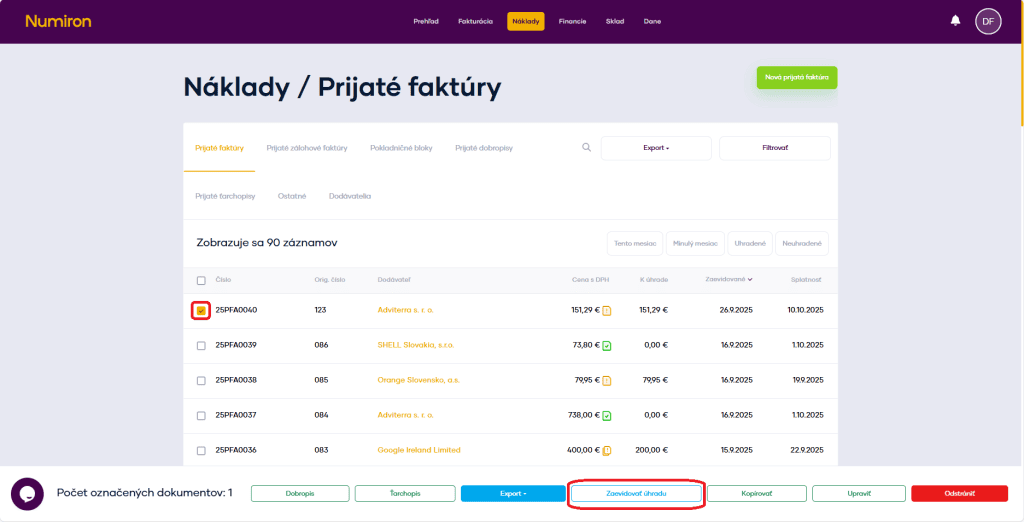
Click on the button To register the payment open the manual reimbursement registration mode.
Fill in the date of payment and the method of payment (bank transfer, cash, card...). Then click onCreate a transaction.
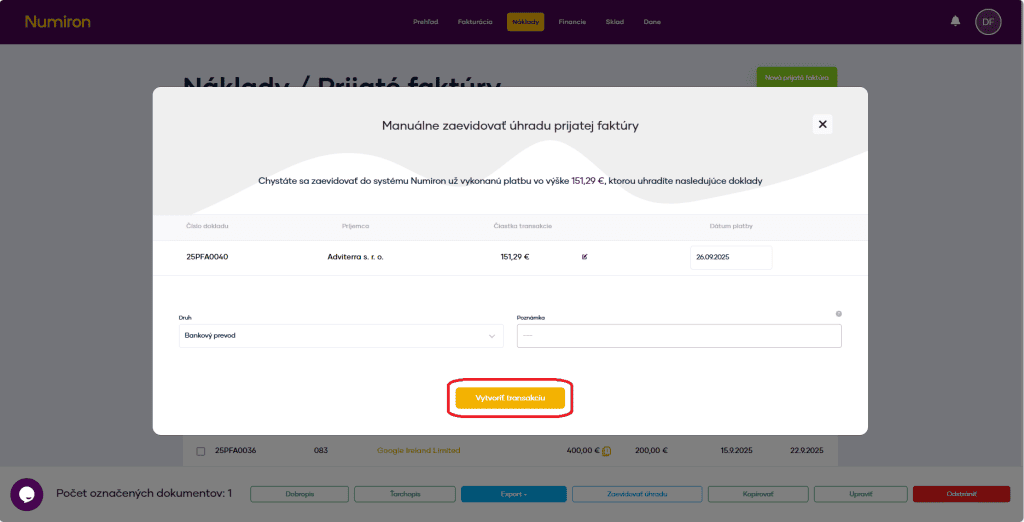
Usage: when the payment is outside the automatic matching (e.g. when paying in cash).
4. Exporting documents
You can export documents in two ways:
Export marked documents - select multiple documents in the list and click Export.
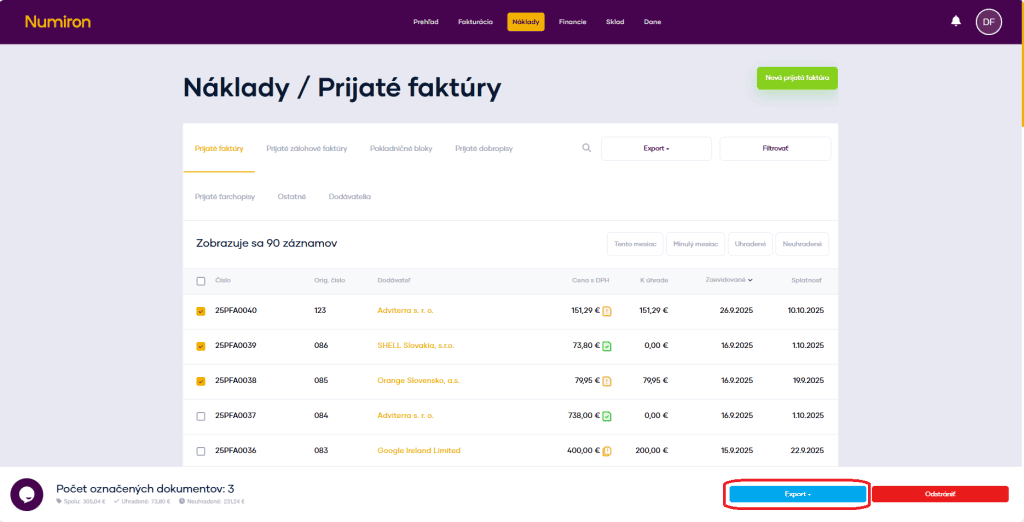
Export all displayed documents - use the button Export above the list (next to the filter) to export the entire selection by filter or the complete list for the period.
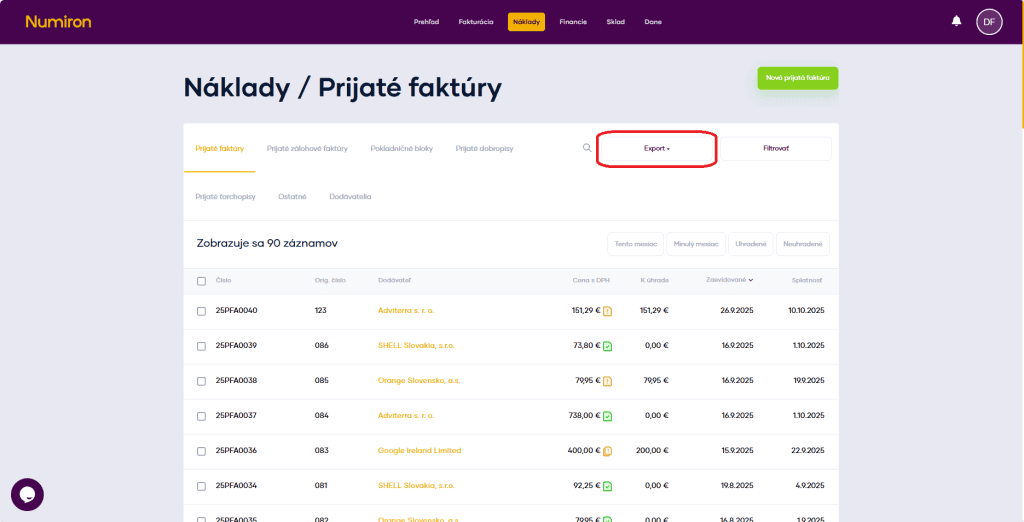
Export formats:
Contact us if you haven't found the answer
Mon - Fri from 08:00 - 16:00


Features
About us
Information

Copyright © 2026 Numiron s.r.o.
Website by


