If you often buy from the same supplier, it's worth saving it in the system. You will save time when entering data and speed up the creation of receipts.
Method 1: Saving the Supplier directly when creating the document
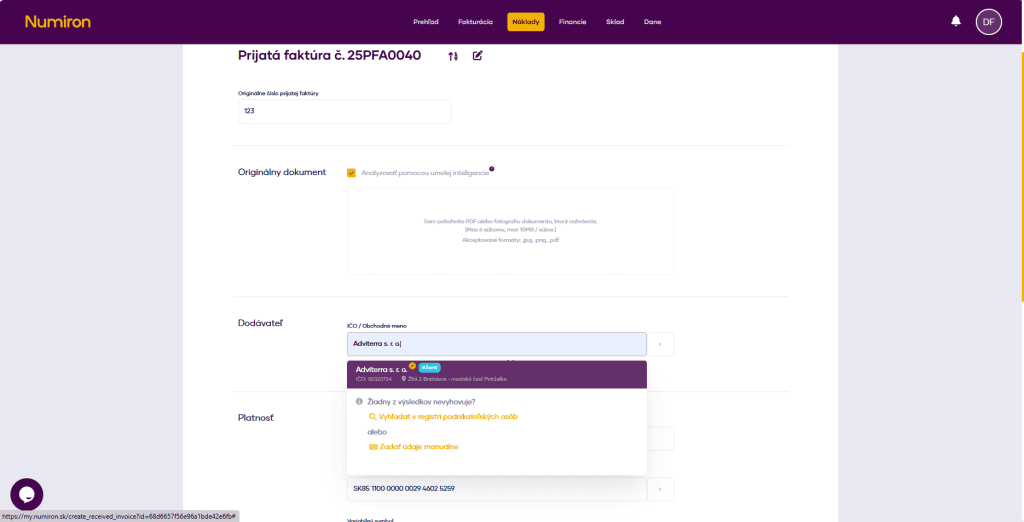
Fill in the Supplier field When uploading a document, type in the field Supplier ID number or business name. The system automatically retrieves data from public registers. If the customer is not in the register, fill in the data manually.
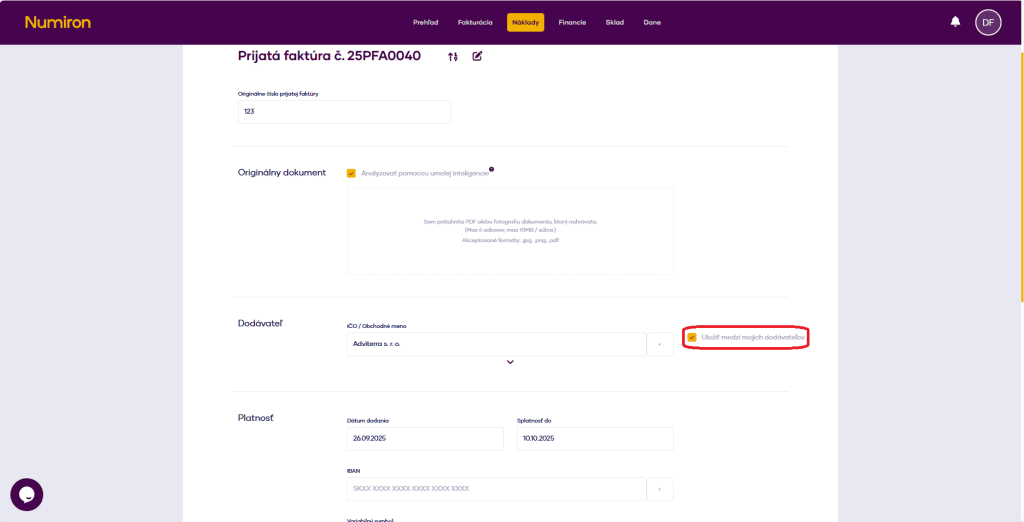
Save Supplier After the data has been loaded, a button will appear next to the subscriber's name Save Among My Suppliers. It is automatically checked.
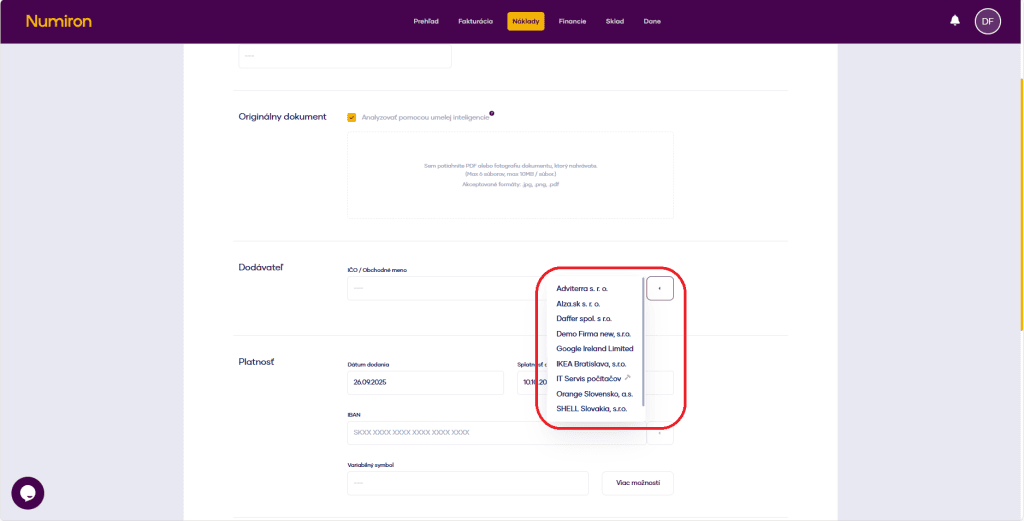
Select a saved supplier When uploading another document, just click the arrow next to the typing field and select the subscriber from the saved ones.
Method 2: Presetting the supplier in a separate section
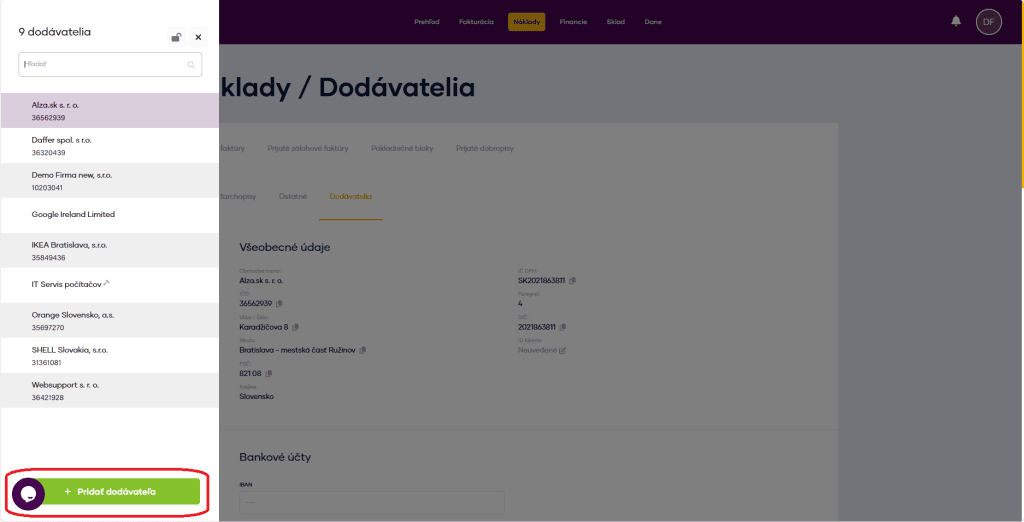
Go to Costs → Suppliers In the main menu, click on the agenda Cost and select the section Suppliers. A list of existing suppliers will be displayed.
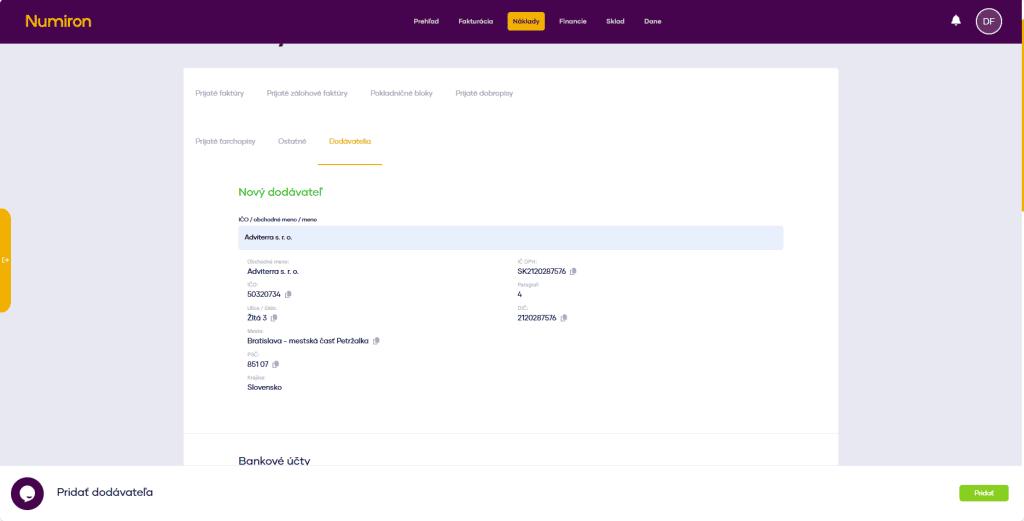
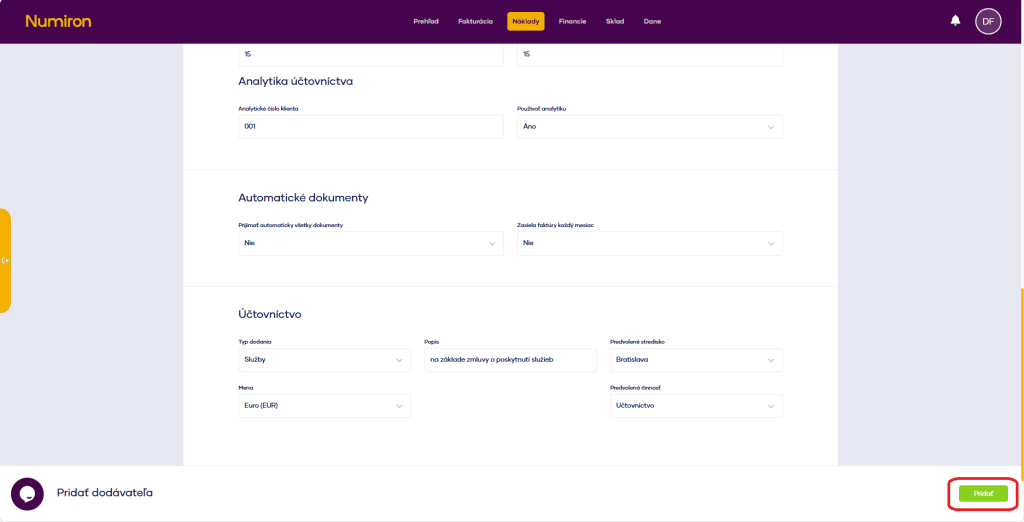
Add a new supplier Press Add supplier in the bottom left corner.
Enter basic data ID number or business name (the system retrieves data from registers). If the customer is not in the register, fill in the data manually.
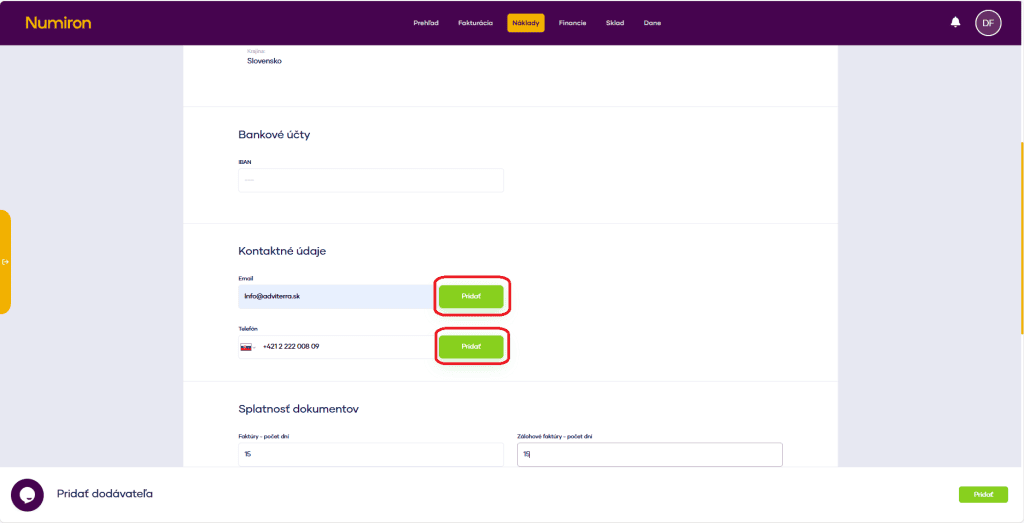
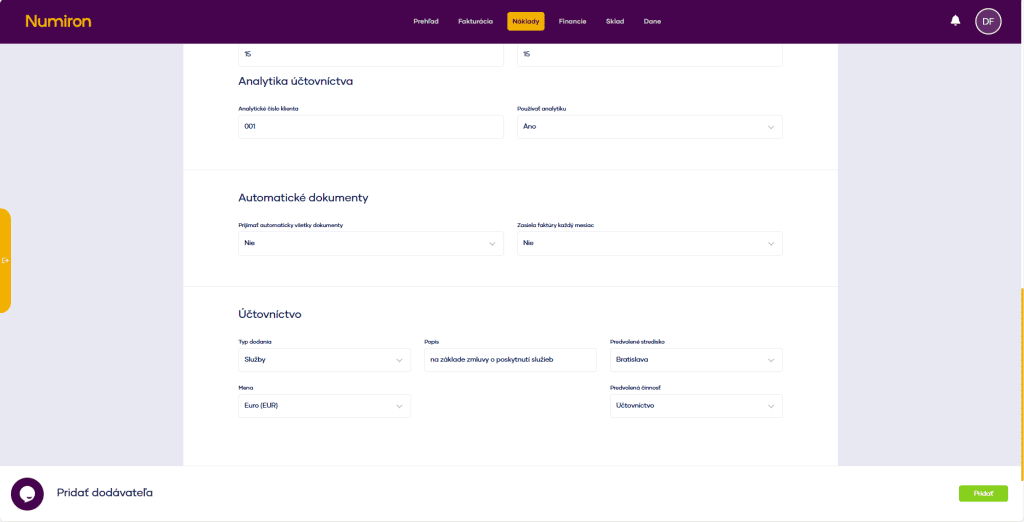
Set data for future documents These preferences are automatically added when uploading received invoices, receipts or credit notes:
Bank account (IBAN)
Contact details (e-mail, phone)
Maturity of documents
Setting accounting preferences
type of delivery,
menu (currency),
the language of the document,
default description,
Centre, activity.
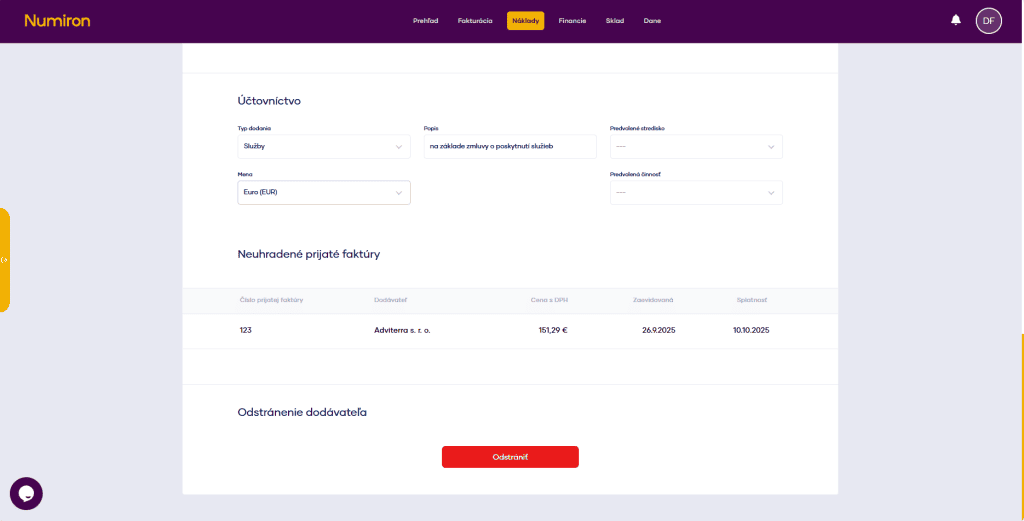
Overview of outstanding invoices You can also see all outstanding invoices for the client in the list of suppliers.
After editing, you need to save the changes with the button Edit by, which will appear in the bottom right corner.