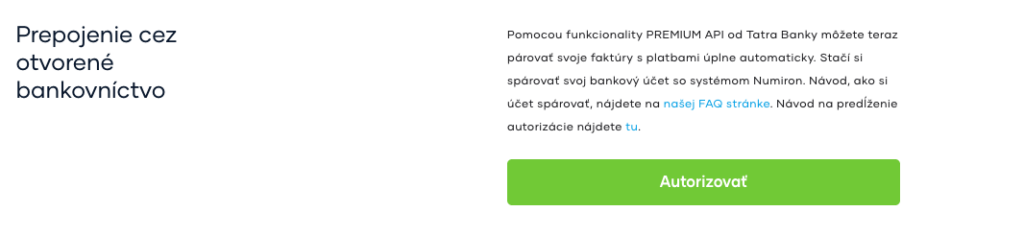
Select the account you want to authorise from the list of bank accounts.
Click„Authorize“.
2. Authorisation via the Tatra banka portal (the client has an account with Tatra banka):
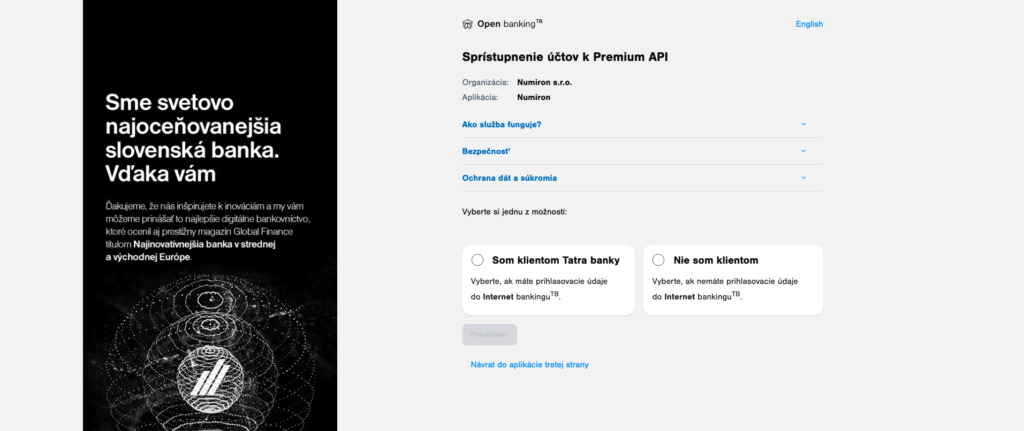
The system will redirect you to the official Tatra banka links page.
Select the option“I am a client of Tatra banka”and click“Continue“.
You then need to fill in“PID”a“Password”and click“Log in.”.
Then enter the code from the reader and click“Confirm”.
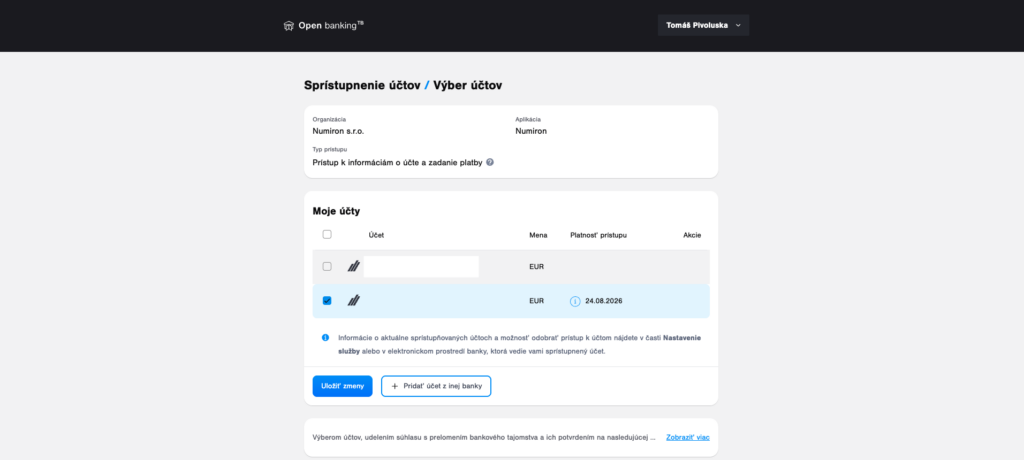
A selection of accounts will be displayed.
Select which account or accounts you want to authorise in the system and click“Save changes”.
You then need to confirm that the transaction has been made available in the system.
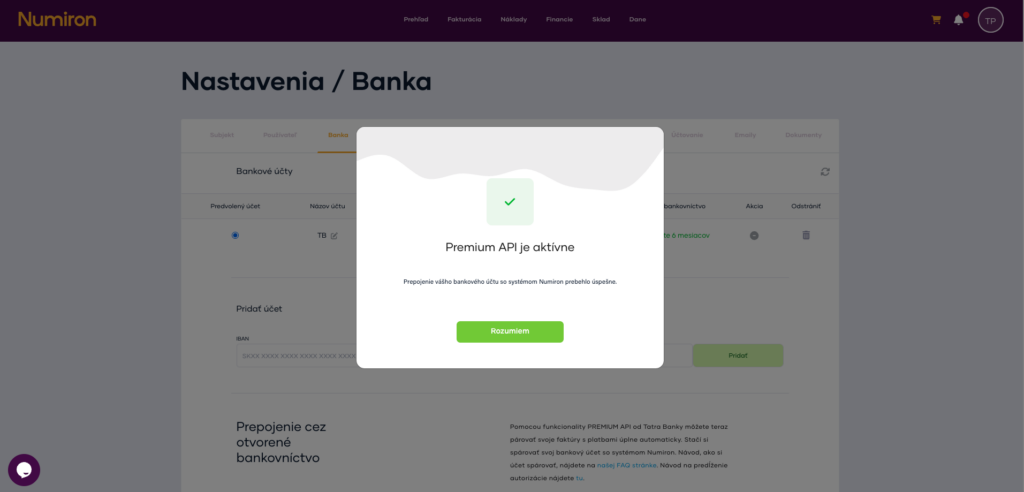
You will see a window“Premium API is active”.
3. Authorisation via Tatra banka (Slovenská sporiteľňa) portal
The system will redirect you to the official Tatra banka links page.
Select the option“I am not a client of Tatra banka”and click“Continue” .
Into the empty field“E-mail.”enter your valid email address, to which an authorization password will be sent to you and click on the button„Continue“.
Into the empty field„Enter password from email“enter the authorization password that was sent to your email address and click on the button„Confirm“.
Click on the blankSquaresat the bottom of the form, confirm your agreement to the draft One Banking Service Agreement and consent to the use of your data. Then click on the button„Confirm“.
A message will appear in the window informing you that you have entered into a contract for One Banking, activated One Banking and that the contract documents have been sent to your email address. Click„Continue“.
If you do not currently have any bank accounts available for the Numiron application, a message will be displayed in the window. Continue by clicking the button„Add account“.
From the bank selection options, click to select„Slovak Savings Bank“and then click„Continue“.
A message about adding the Slovak Savings Bank account will be displayed in the window. Click on the button„Add account“. You will be redirected to the Slovenská sporiteľňa bank application.
When you are redirected to the Slovak Savings Bank application, you will receive a message asking you to verify the client. Continue by clicking on the button„Continue to Login“.
Into empty fields„Login name / Alias“a„Password“enter your login details that you use to log in to the Slovak Savings Bank George or Business24 application. Continue by clicking on the button„Log in“.
Into the empty field„SMS code“enter the authorization code that was sent to your phone number and click on the button„Continue“.
The screen will display the granted accesses for Digital Banking. At the bottom, click the button next to the account you want to link to Numiron„Allow“.
An enabled account will change its status from grey „not enabled“ to blue „enabled“. Continue by clicking„Further.“.
A summary of the accesses will be displayed on the screen. Continue by clicking the button„Confirm“.
A pop-up window will appear on the screen confirming the request to make the selected accounts available for Digital Banking. To return to the Digital Banking application and log out of the Slovak Savings Bank website, continue by clicking on the button„Continue“.
When you return to the Tatra banka application, the window will display a selection of accounts in other banks. Make sure that the square is ticked next to your authorised account with Slovenska sporiteľna„Allow access“. Click on the empty square at the bottom to confirm your interest in accessing information relating to the accounts selected above. Continue by clicking on the button„Select Accounts“.
The window will display the confirmed account with your bank. Continue by clicking the button„Confirm“. Once confirmed, you will be redirected back to the Numiron app.
Finally, you should see a window indicating that your bank account has been successfully paired.