Numiron support
Numiron Support & FAQ


Numiron Support & FAQ
Contact us if you haven't found the answer
Mon - Fri from 08:00 - 16:00
If you do not have a bank connected via PSD2/Open Banking, you can also upload transactions to Numiron manually using a bank statement in the format XML. Once imported, you get a complete overview of payments received and sent and can easily pair them with receipts.
1. Download a bank statement
Log in to your internet banking or company dashboard and search for the section Statements / Export transactions.
From here, download the extract in the format camt.053 (SEPA XML), or in another XML format that your bank supports.
We recommend to export maximum monthly, ideally weekly periods - smaller files are processed faster and without errors.
2. Importing transactions in Numiron
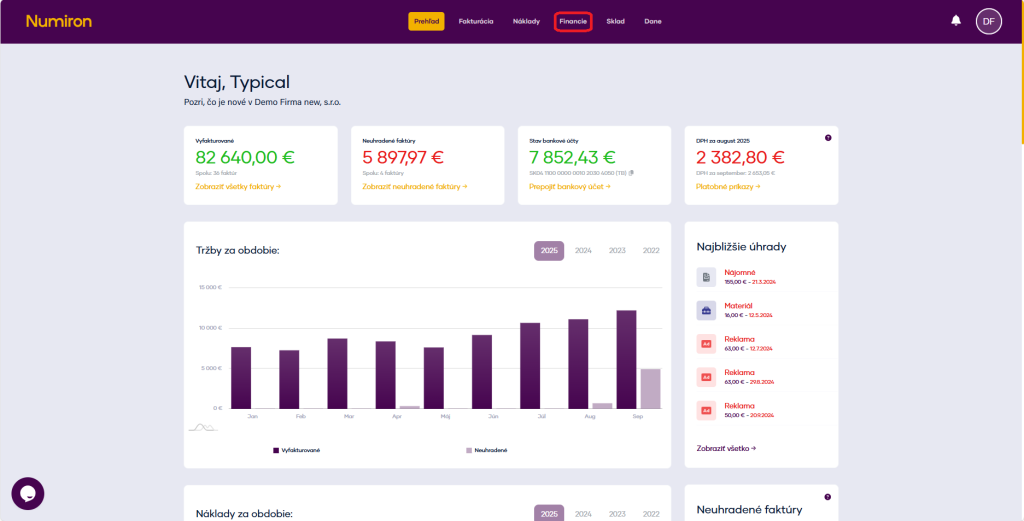
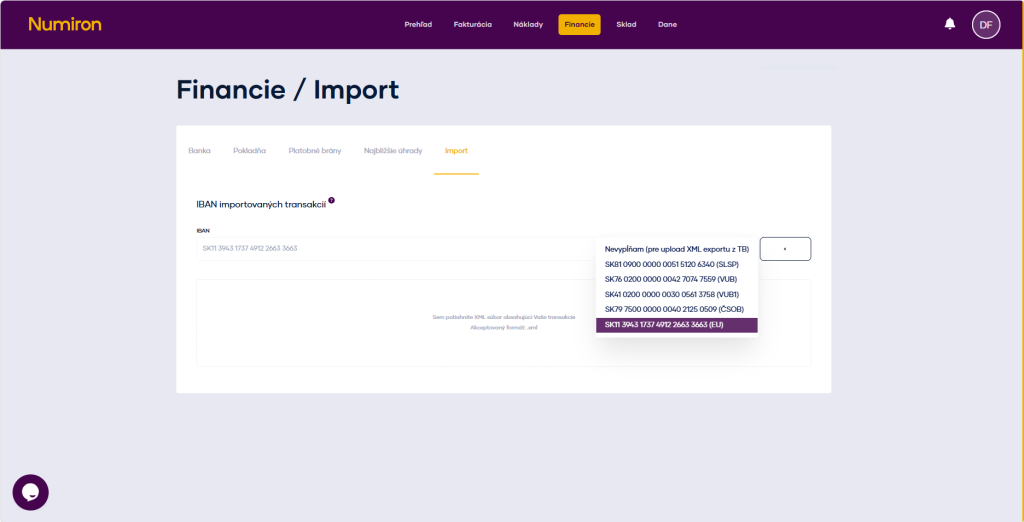
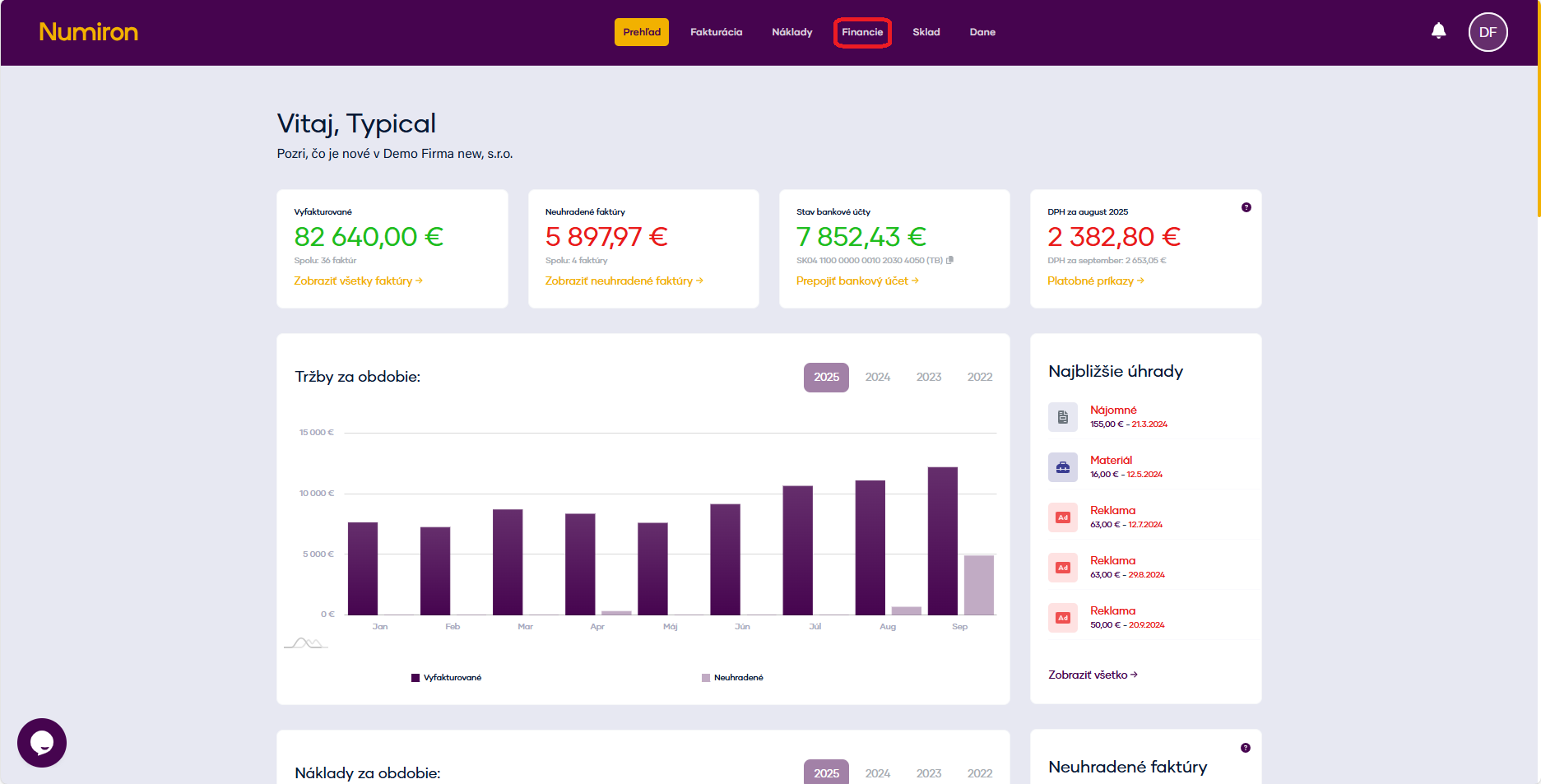
In the main menu, open the agenda Finance section Import and in part Importing a statement select the bank account to which the import is linked.
Click on Select file, upload the prepared XML dump and confirm the import. Numiron will load all movements and show you a preview of the processing.
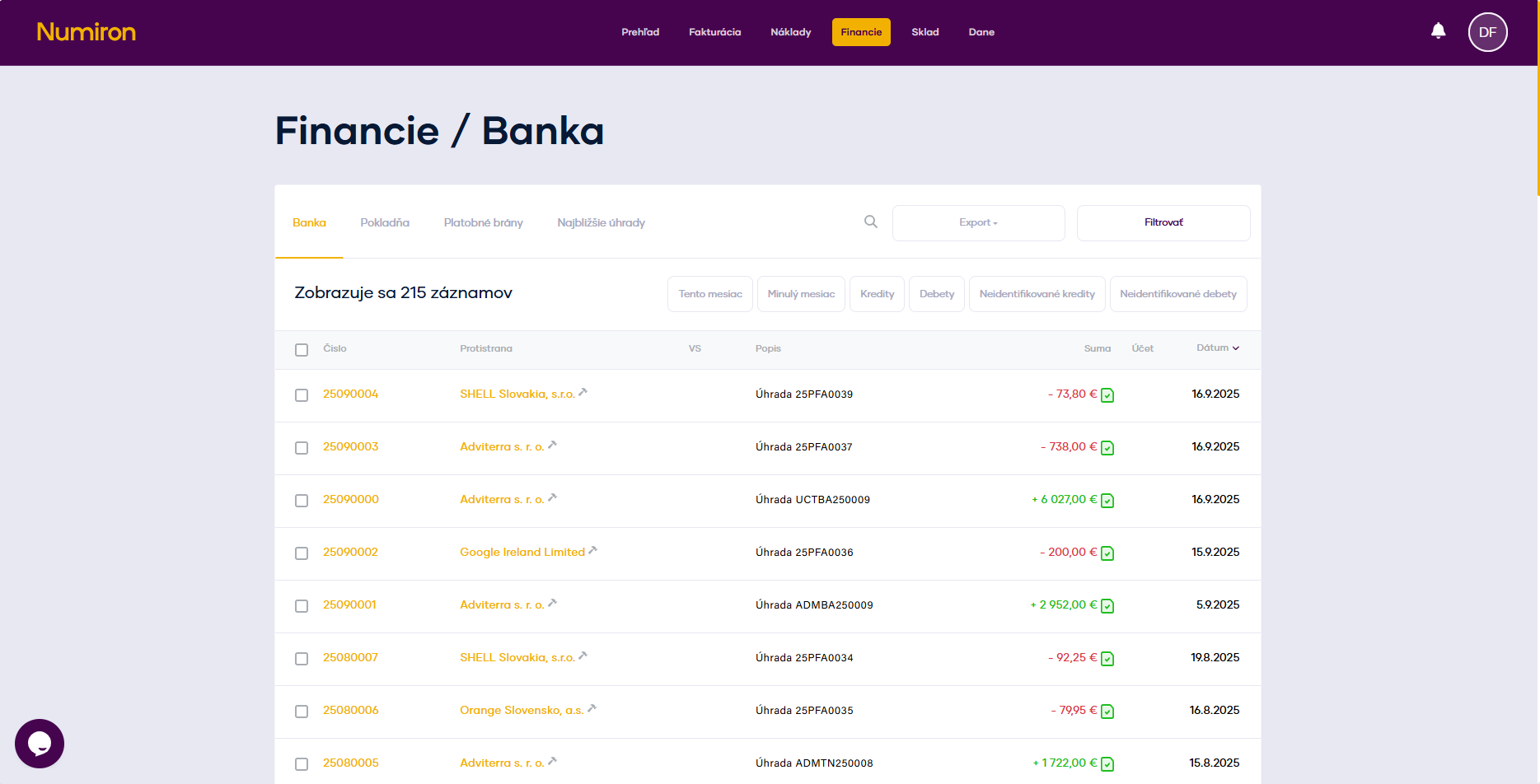
After successful completion, the transactions appear in the agenda Finance in section Bank.
3. Pairing transactions with documents
Transactions will appear in the list chronologically and Numiron will automatically try to match them with receipts according to the variable symbol, amount and date of payment.
If the transaction is not paired automatically, you can manually assign it to the document:
Go to the agenda Finance and sections Bank.
Find the transaction with the yellow exclamation point icon (⚠️).
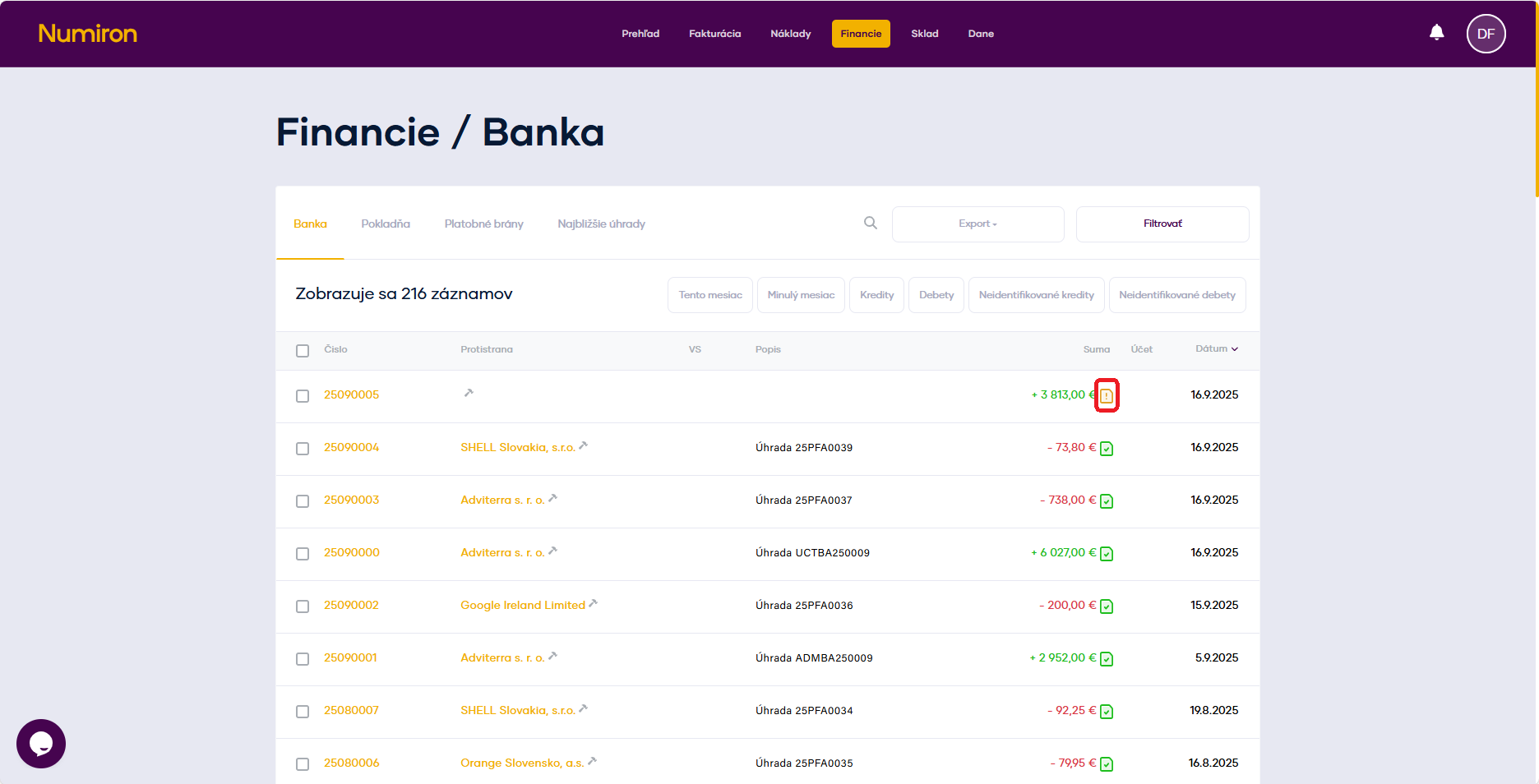
Click on it and select from the list the document (invoice, deposit, credit note, slip) with which the transaction should be paired.
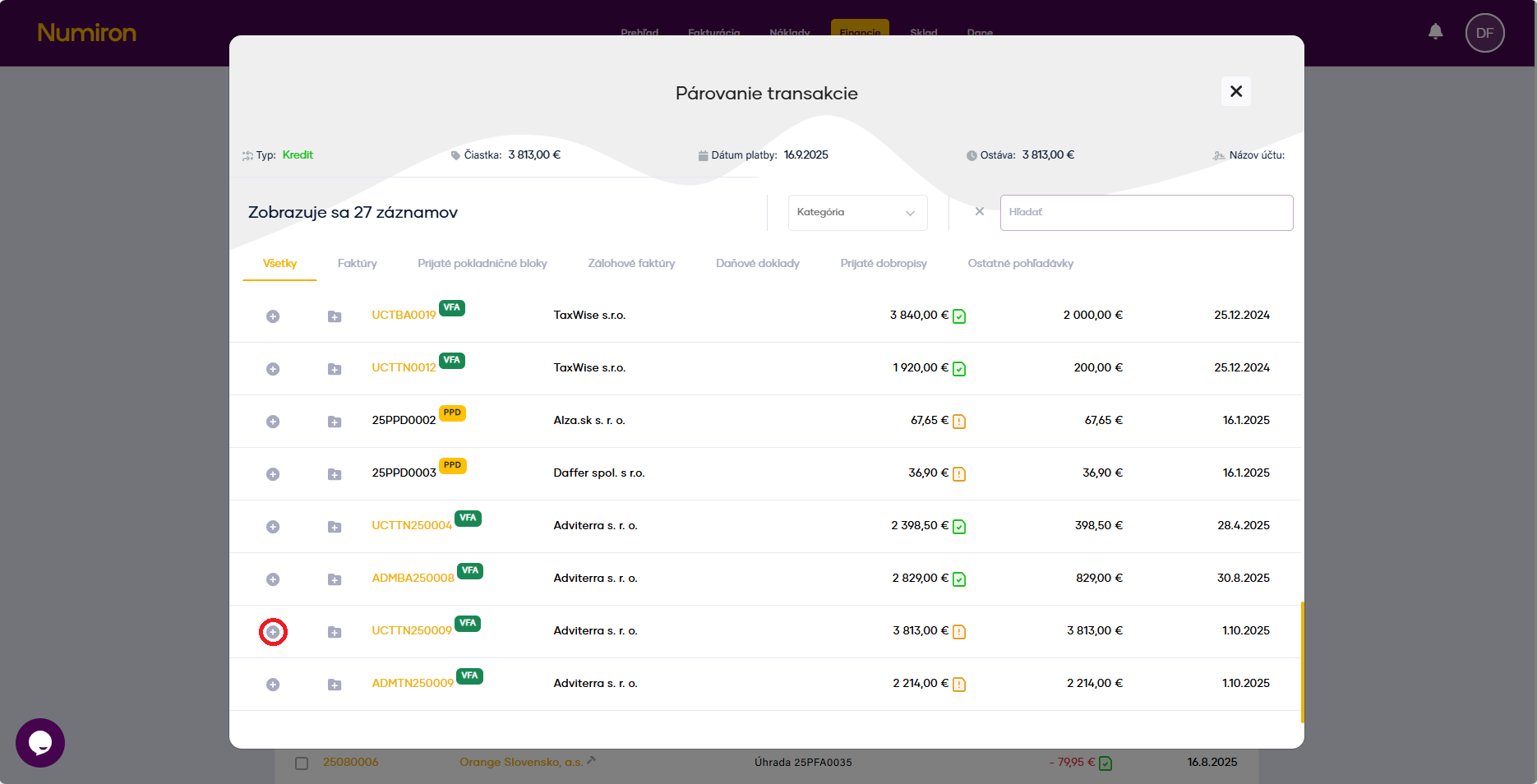
After pressing the button + the system links the transaction to the document and saves it.
4. Control and reporting
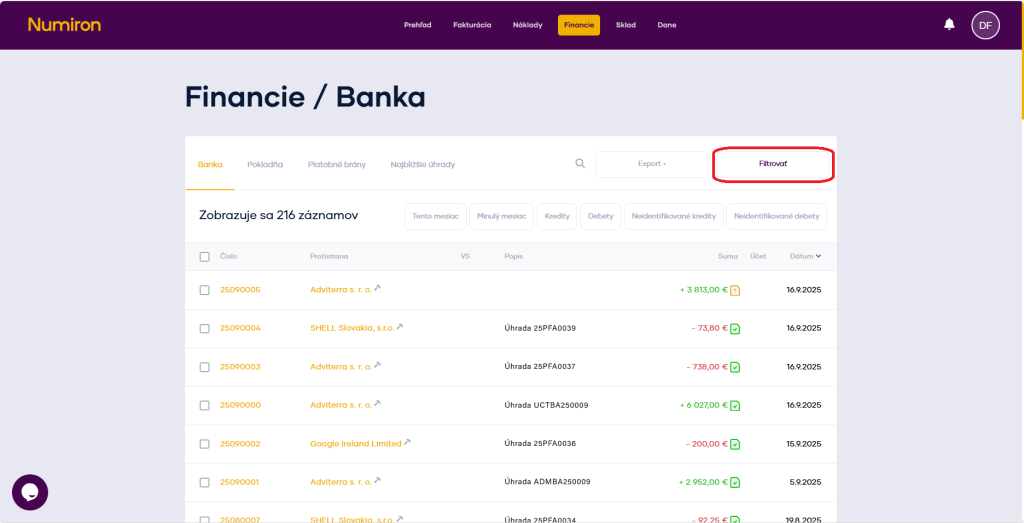
In the agenda Finance in section Bank you can work with filters by date, amount or pairing status.
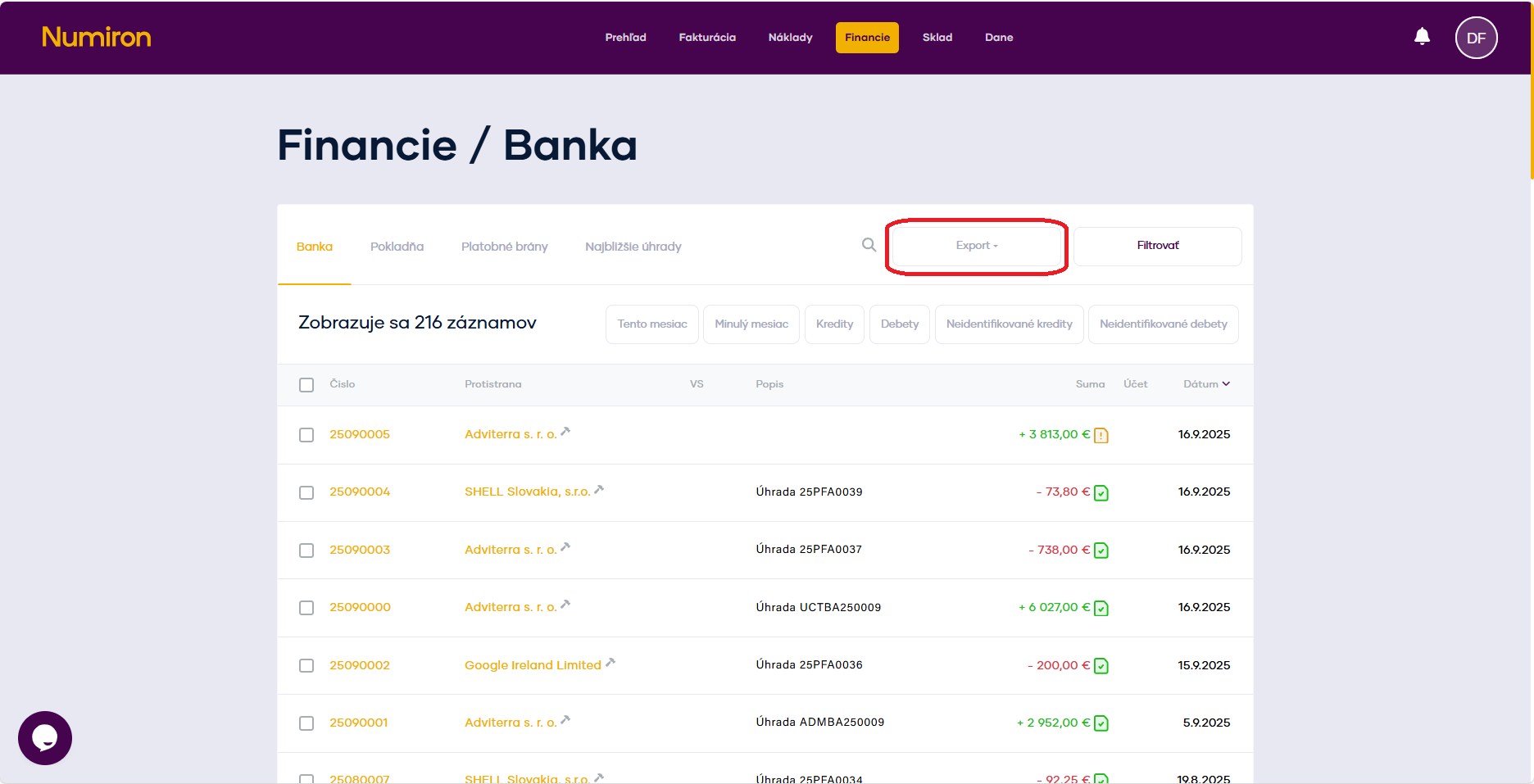
For accounting or internal analysis purposes, you can easily export transactions in the following formats XML or XLSX .
Contact us if you haven't found the answer
Mon - Fri from 08:00 - 16:00


Features
About us
Information

Copyright © 2026 Numiron s.r.o.
Website by


