Numiron support
Numiron Support & FAQ


Numiron Support & FAQ
Contact us if you haven't found the answer
Mon - Fri from 08:00 - 16:00
Tax payment orders allow you to quickly and in bulk pay all your tax obligations directly from Numiron.
1. Where can I find tax payment orders
In the main menu, click on the agenda Data, then select the section Tax payment orders - opens a list of already created commands.
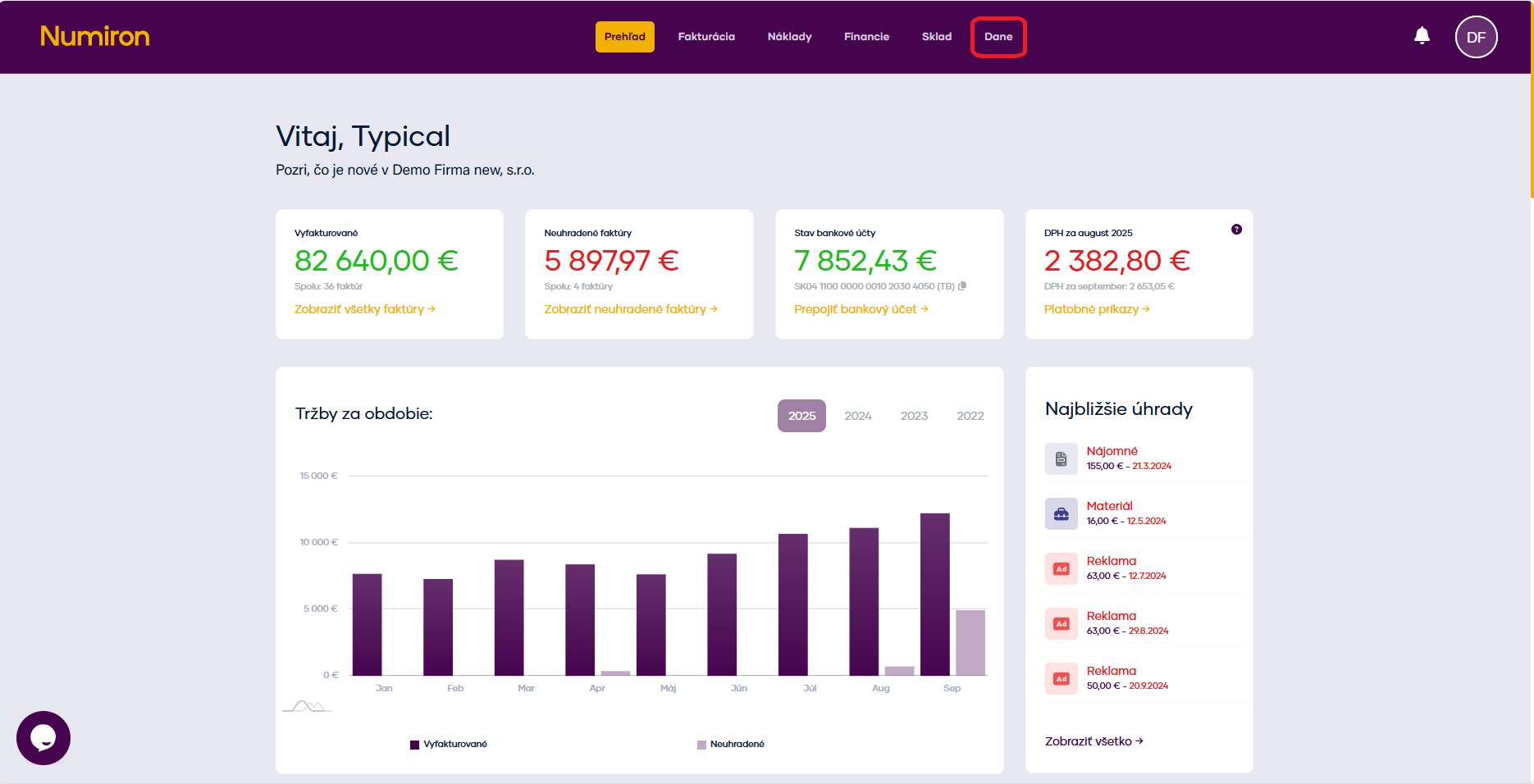
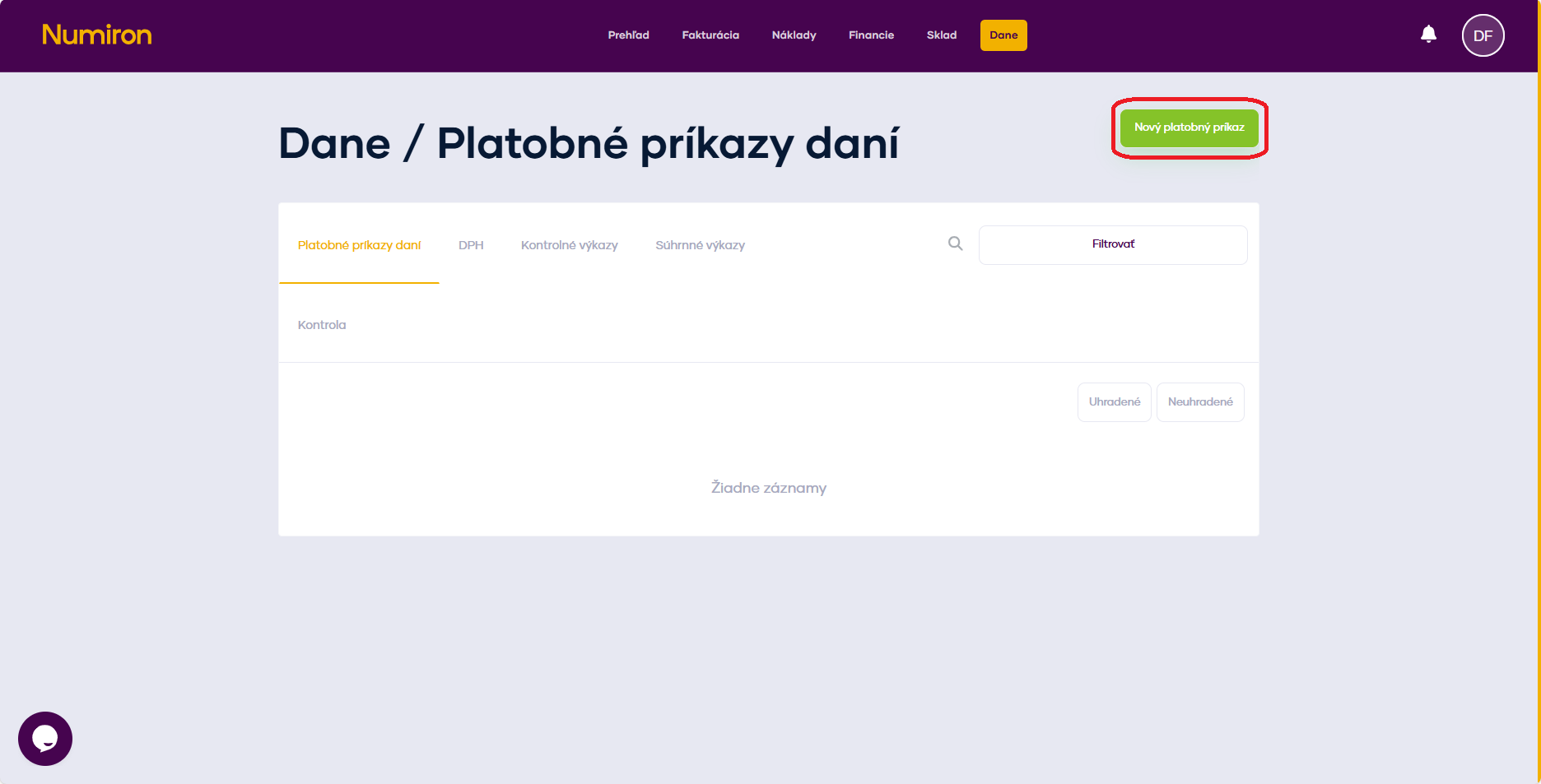
2. How do I create a new tax payment order
Click on the green button New payment order.
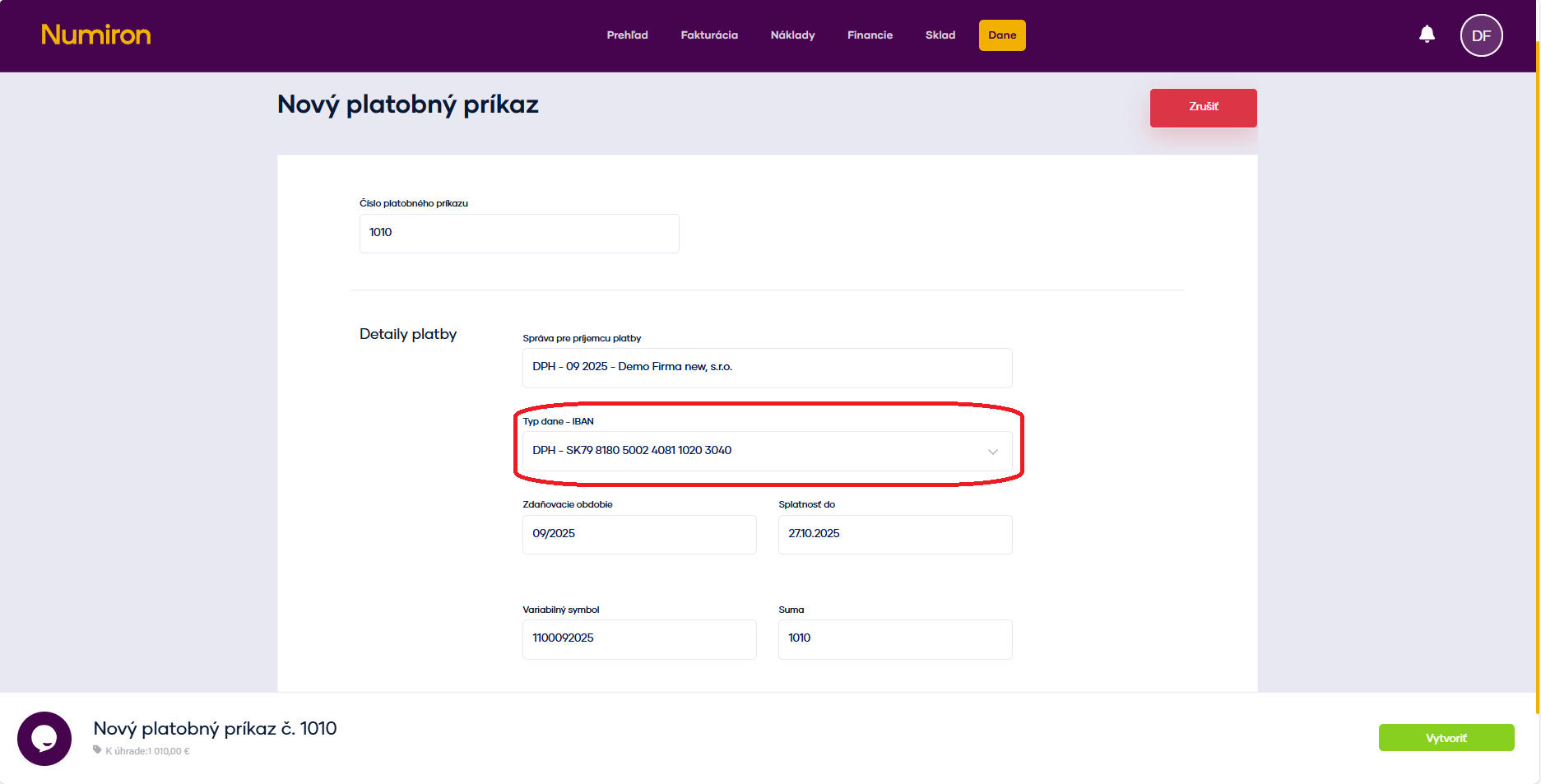
In the form fill in:
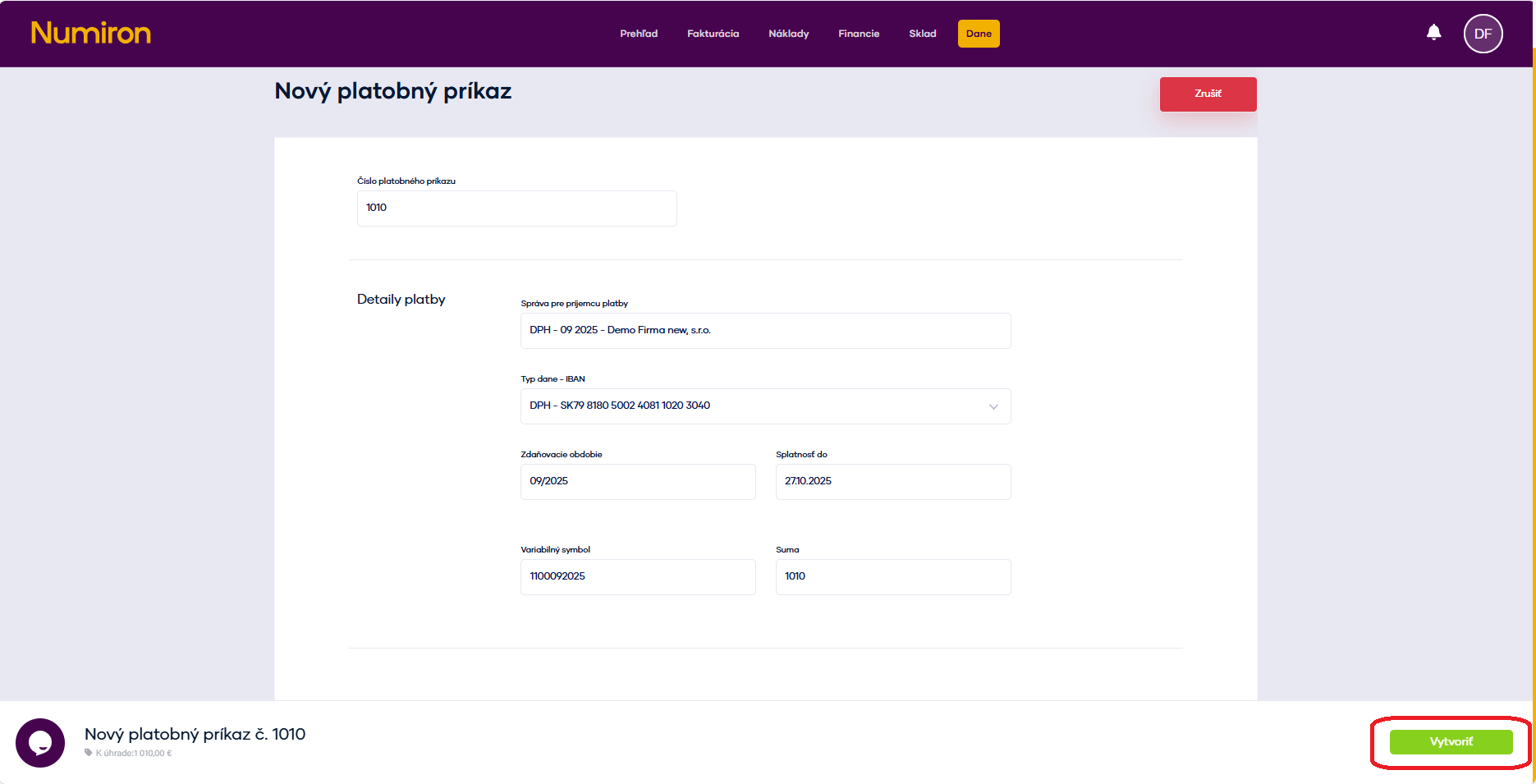
Click Create.
3. Payment of the order
Method 1: QR code (Pay by Square)
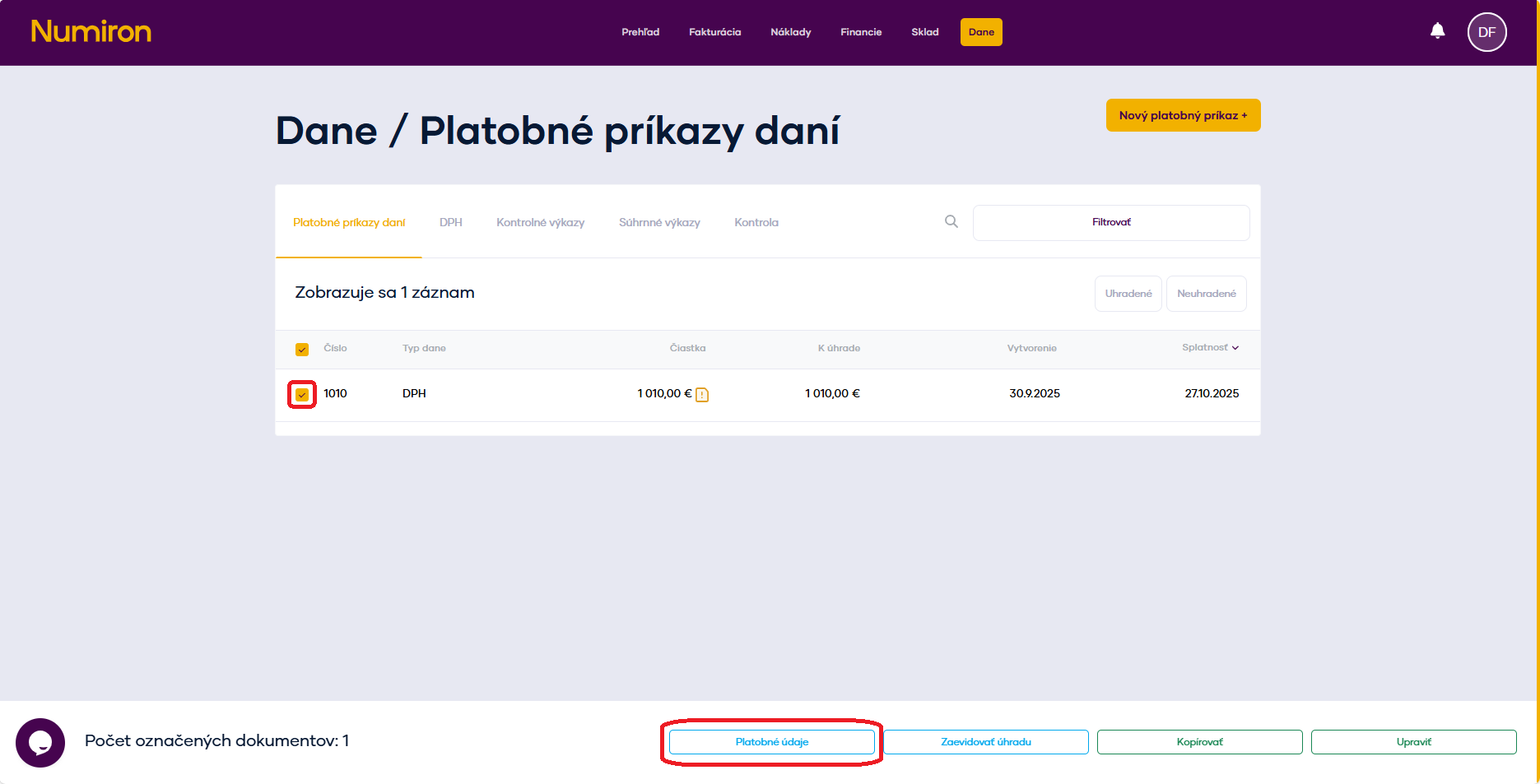
In the list, highlight the command and click the button in the bottom bar Payment details.
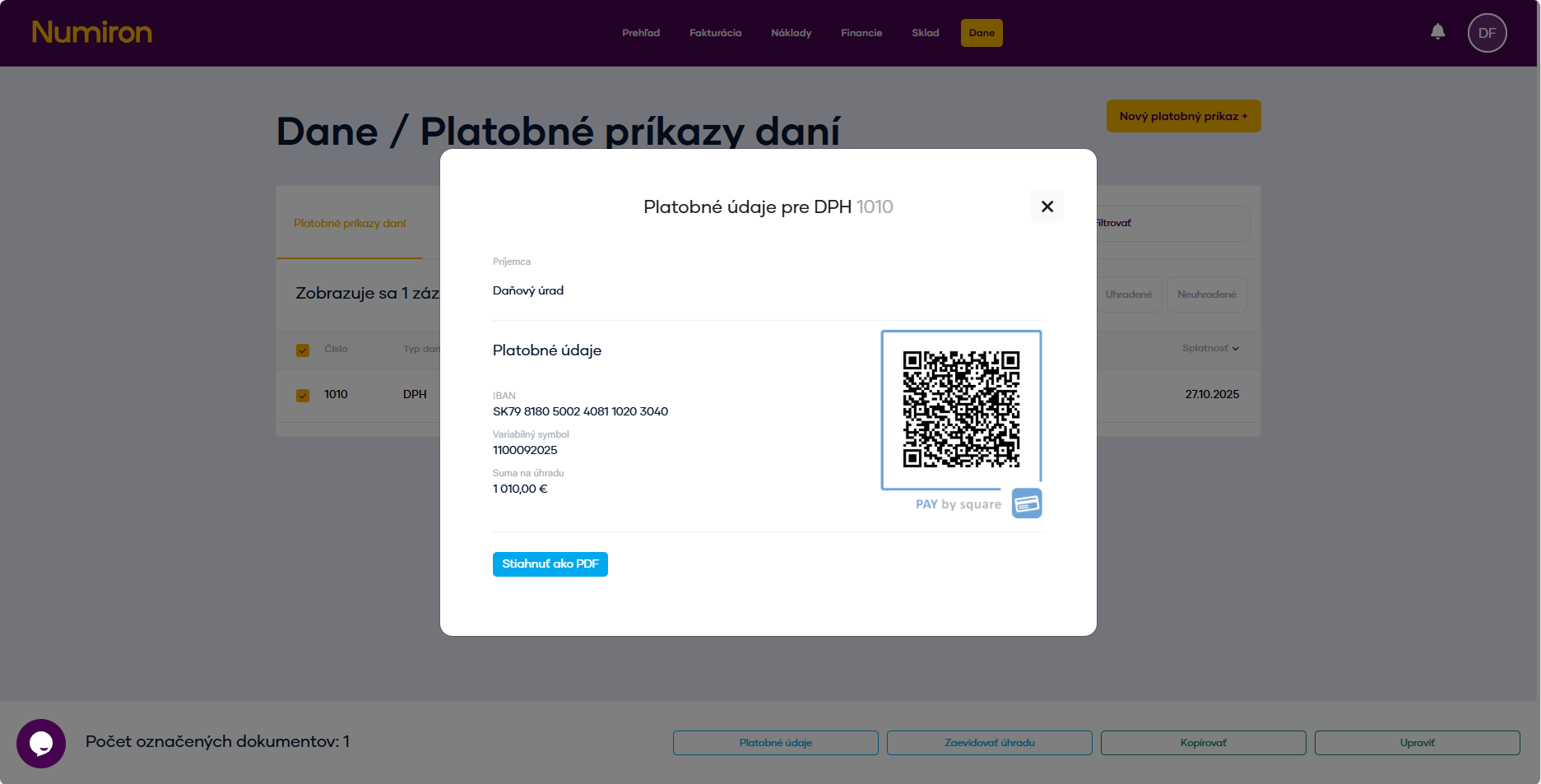
Numiron will generate a QR code that you scan in your mobile banking app. All you have to do is confirm the payment.
Method 2: Payment via internet banking (SEPA XML)
Highlight the command and click the button in the bottom bar Pay via IB.
The system will generate a SEPA file and redirect you to internet banking to complete the transaction.
4. Advantages of payment orders
Contact us if you haven't found the answer
Mon - Fri from 08:00 - 16:00


Features
About us
Information

Copyright © 2026 Numiron s.r.o.
Website by


