Numiron support
Numiron Support & FAQ


Numiron Support & FAQ
Contact us if you haven't found the answer
Mon - Fri from 08:00 - 16:00
If you want to send invoices and other documents from your own address (e.g. faktury@vasafirma.sk), set up your own SMTP server in Numiron. Below you will find the complete procedure.
Gmail
1. Enable two-factor authentication
Log in to your Google account and go to Security.
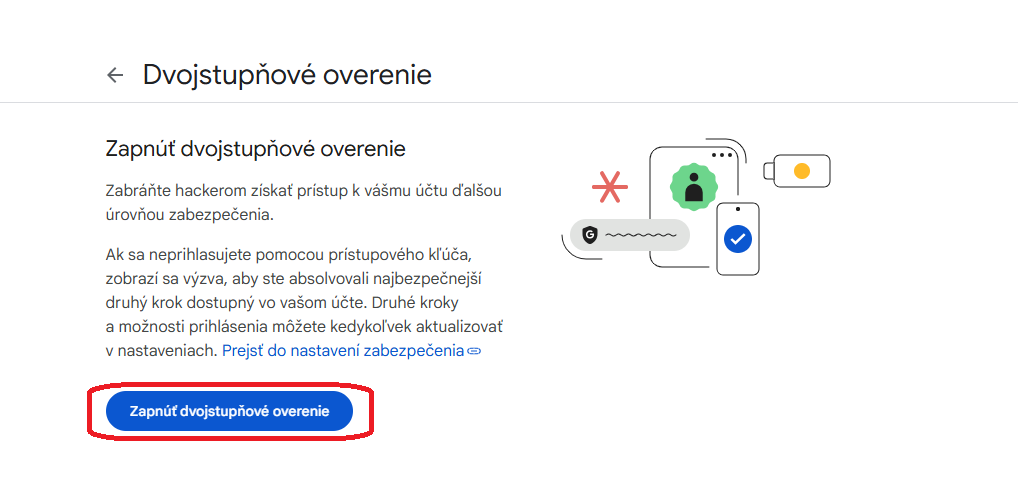
In the section How do you sign in to Google you will find an option to enable two-factor authentication (2FA). Activate it.
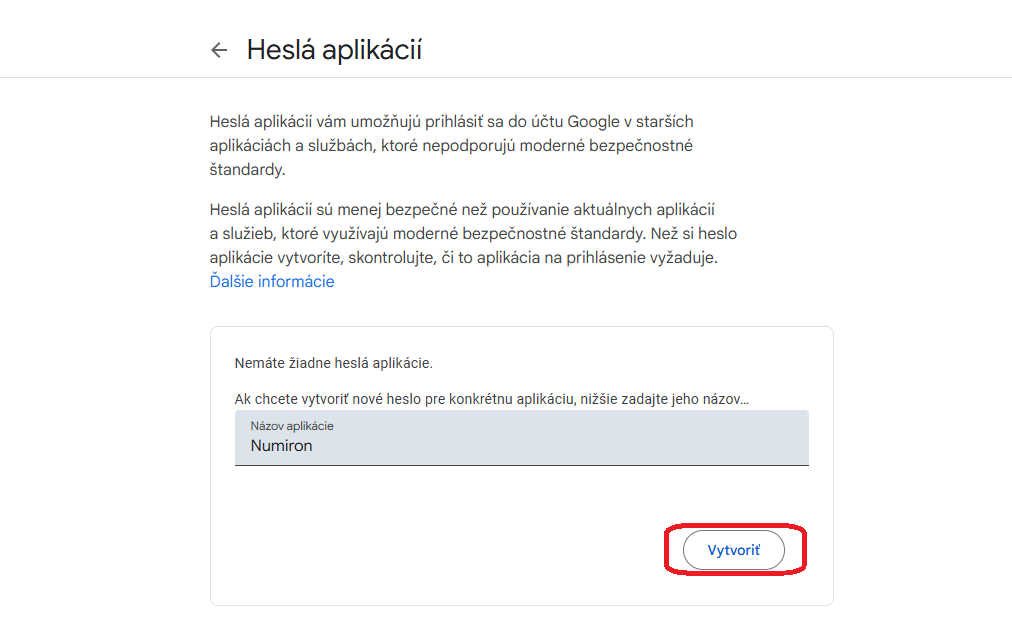
Then copy the generated password - you will need it in the next step.
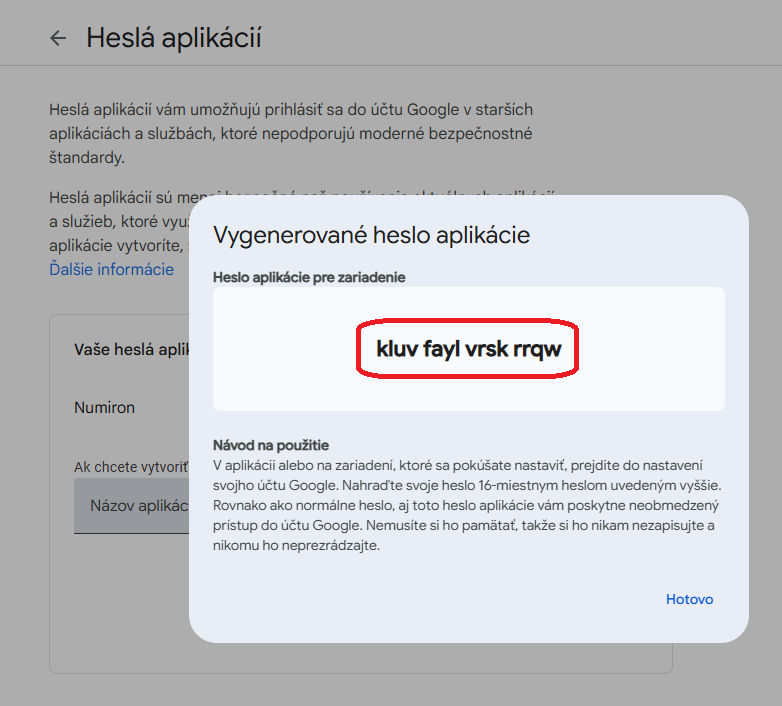
3. Setting up email in Numiron
In the top right corner, click on your profile icon and select Settings and switch to the section Emails.
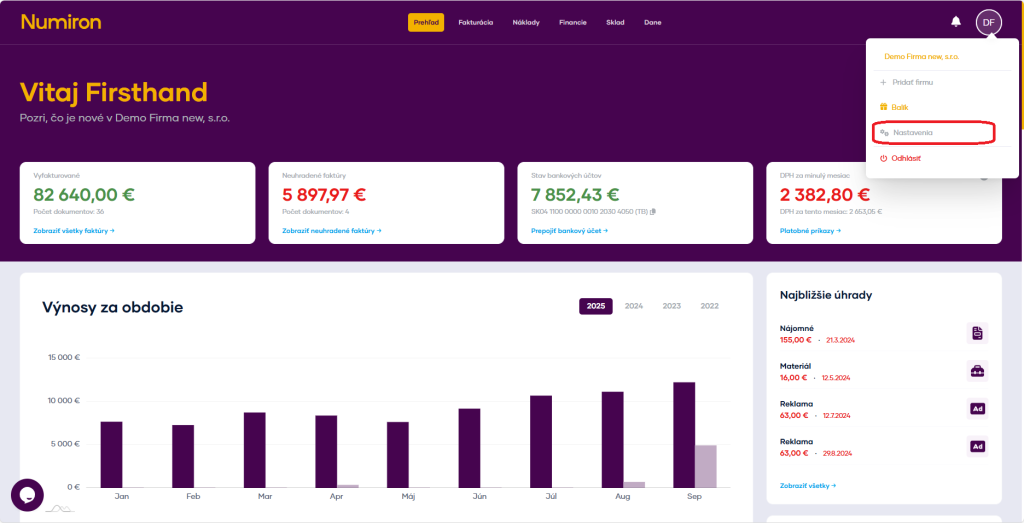
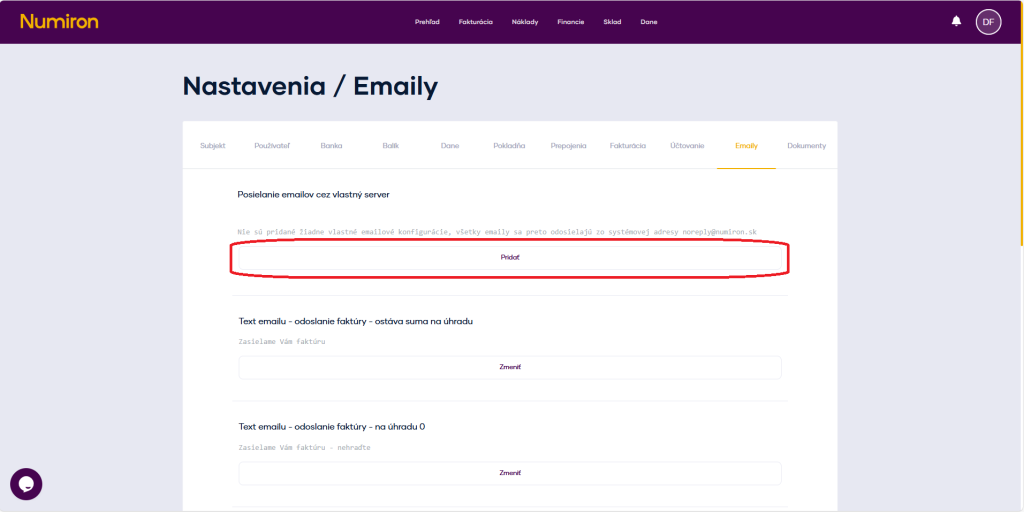
Subsequently, in the section Sending emails via your own server click Add.
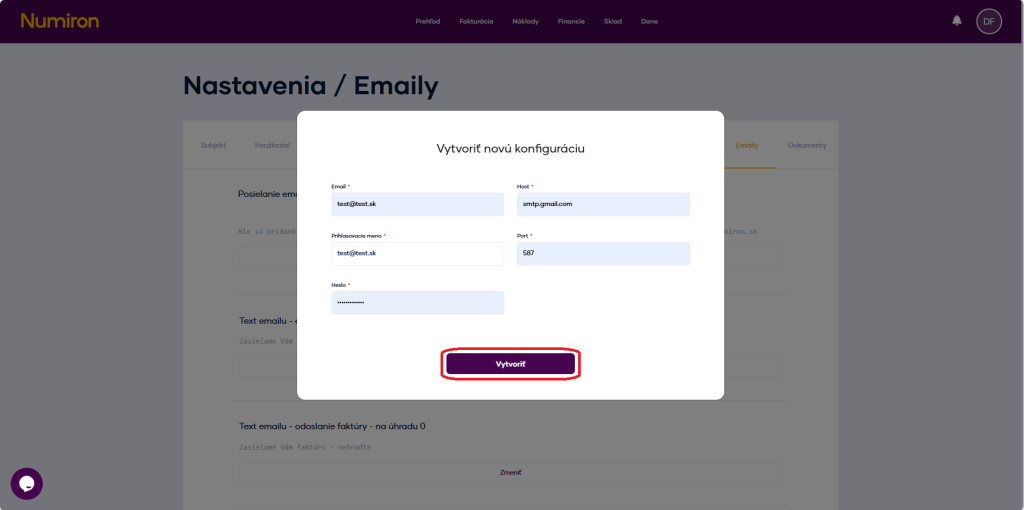
Fill in the following details:
Email: your email account (e.g. vasemail@gmail.com),
Contact us if you haven't found the answer
Mon - Fri from 08:00 - 16:00


Features
About us
Information

Copyright © 2026 Numiron s.r.o.
Website by


