Numiron support
Numiron Support & FAQ


Numiron Support & FAQ
Contact us if you haven't found the answer
Mon - Fri from 08:00 - 16:00
Two-step verification is an easy way to increase the security of your account. In addition to your password, you'll also confirm access with a one-time code from a mobile app like Google Authenticator, Authy or Microsoft Authenticator when you log in.
1. Open User Settings
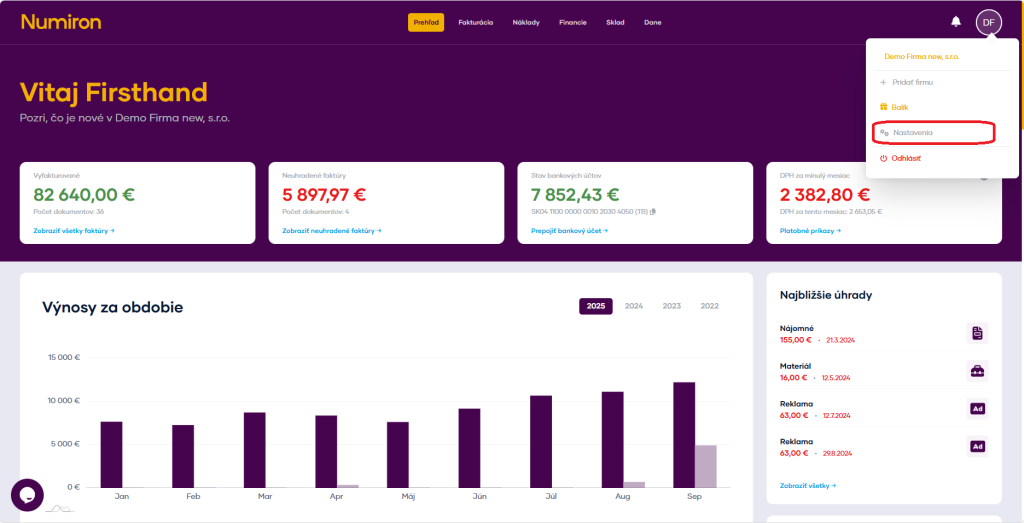
In the top right corner, click on the icon of your Profile and select Settings.
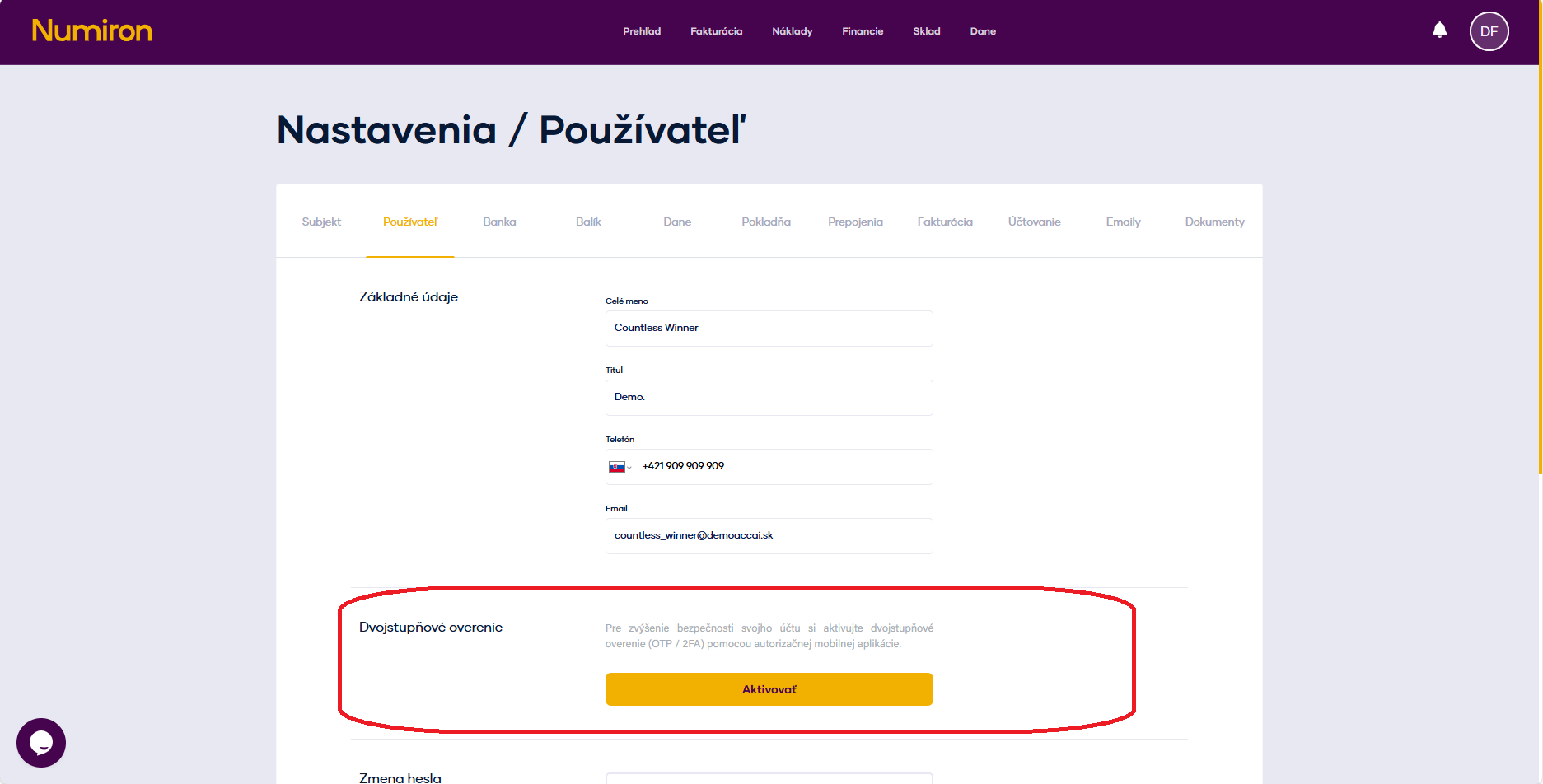
Switch to section User and scroll down to the Two-step verification.
2. How to activate 2FA
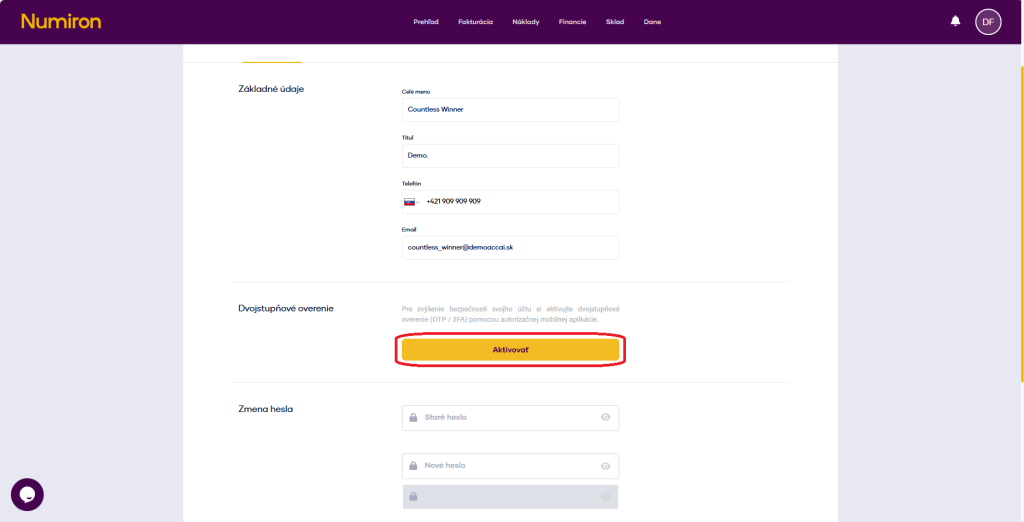
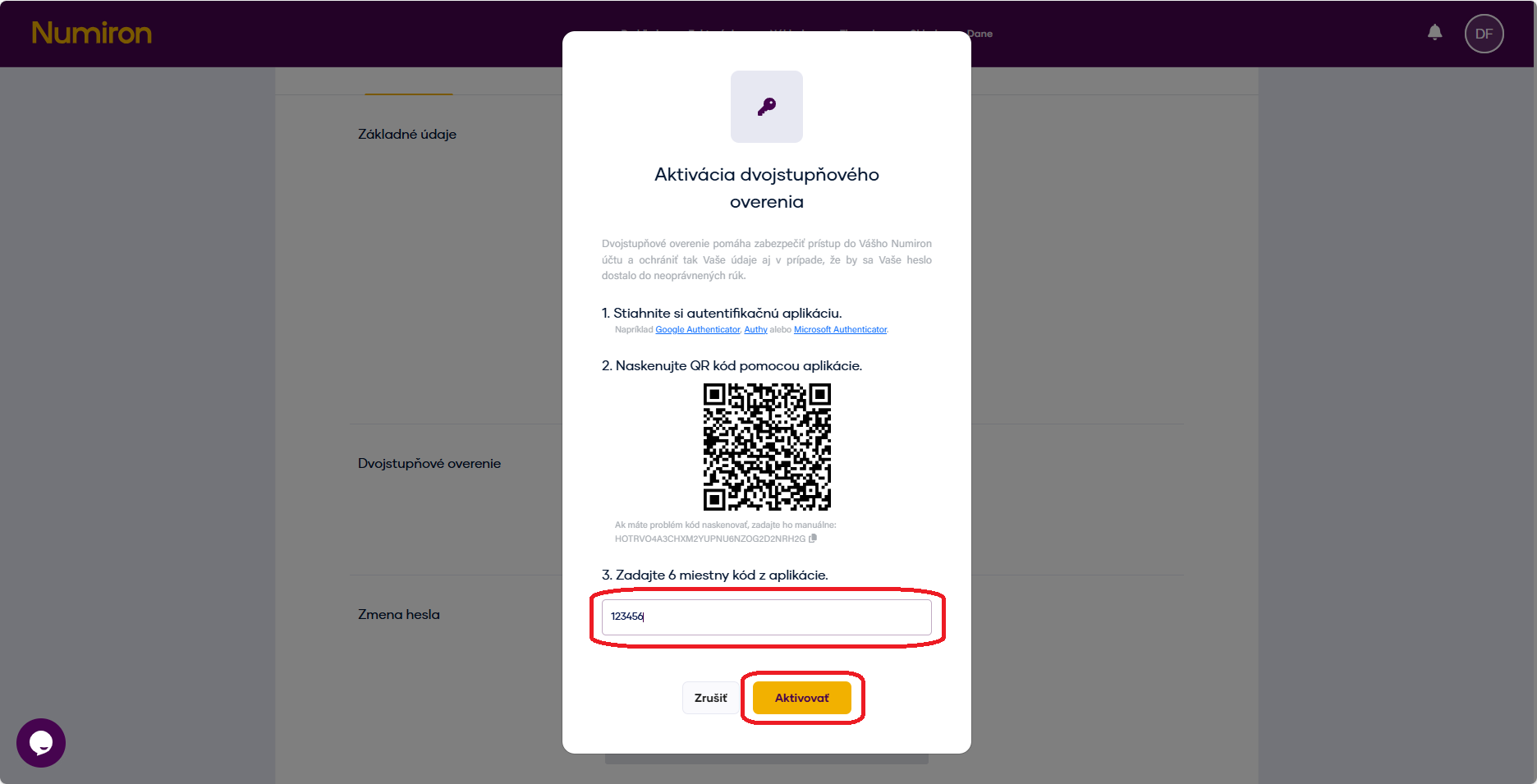
Click Activate next to the Two-Step Verification.
The screen will display QR code a secret code (or „seed“).
In 2FA (Google Authenticator, Authy, Microsoft Authenticator):
Select Add account and then scan the QR code or select manual entry and enter the secret code.
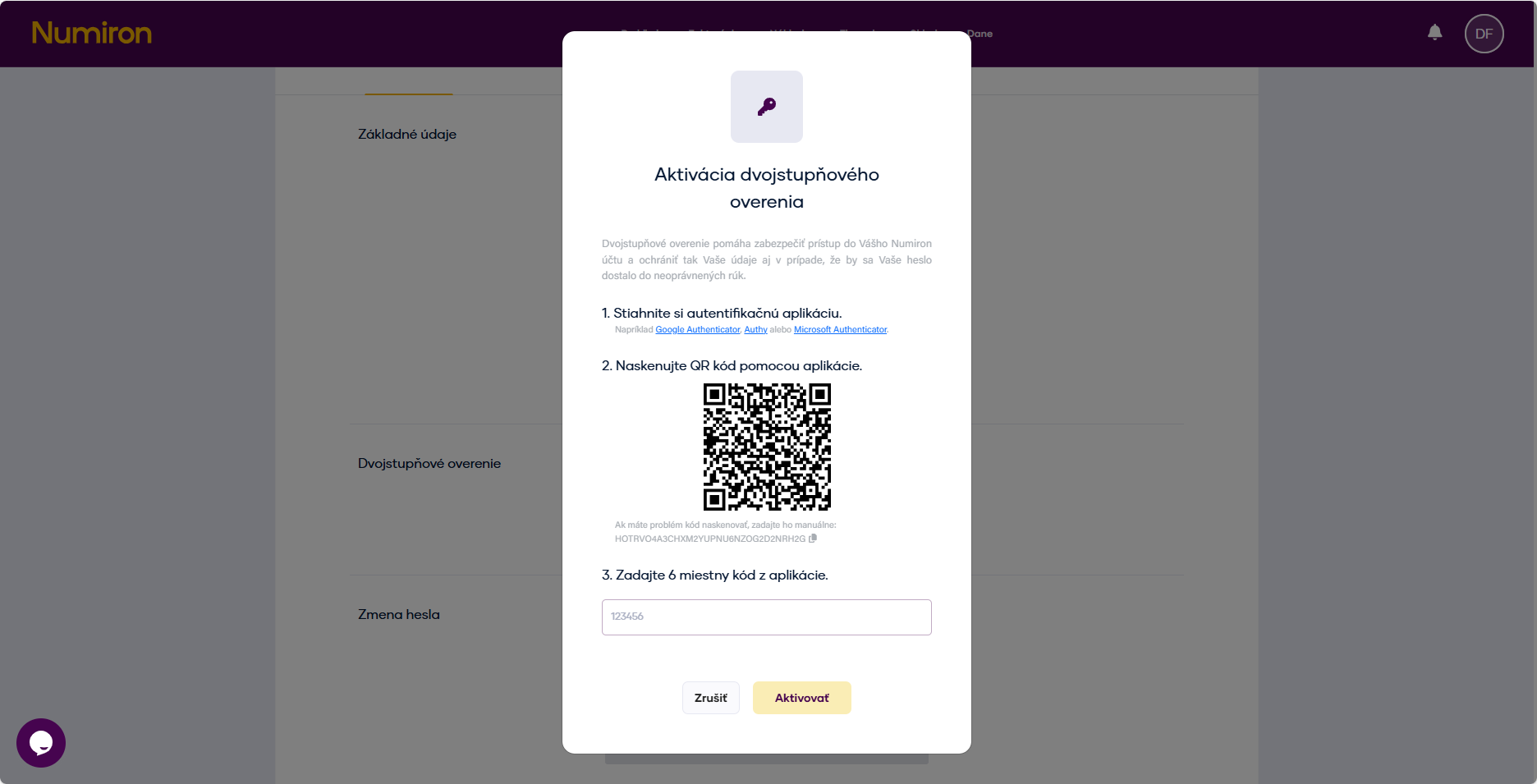
The app will generate a six-digit authentication code, which you enter into the field in Numiron and click Activate.
3. How 2FA login works
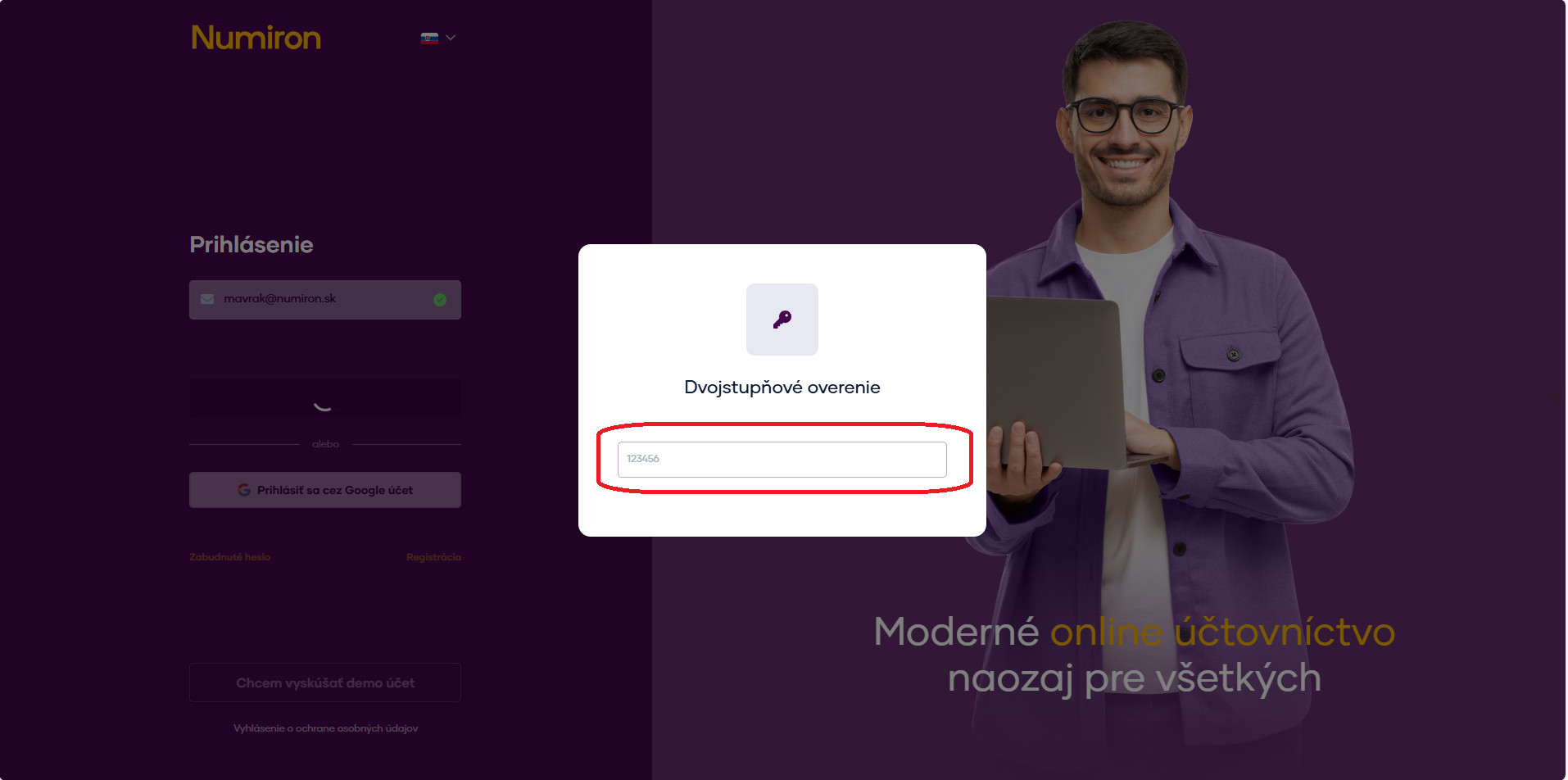
The next time you log in, you will first enter your normal login details (email and password).
Numiron then prompts for a 2FA code - open the app and enter the actual six-digit code.
4. Why it's worth switching on 2FA
Account security - even if the password is leaked, no one can log in without a 2FA code.
Easy to use - just scan the QR code and use the short codes from the app.
Flexibility - works with all common 2FA applications.
Contact us if you haven't found the answer
Mon - Fri from 08:00 - 16:00


Features
About us
Information
Sign up for our newsletter and receive regular updates on news, useful tips, interesting facts, and important updates directly to your email inbox. We only send content that is truly valuable and will help you not miss anything important.

Copyright © 2026 Numiron s.r.o.
Website by


